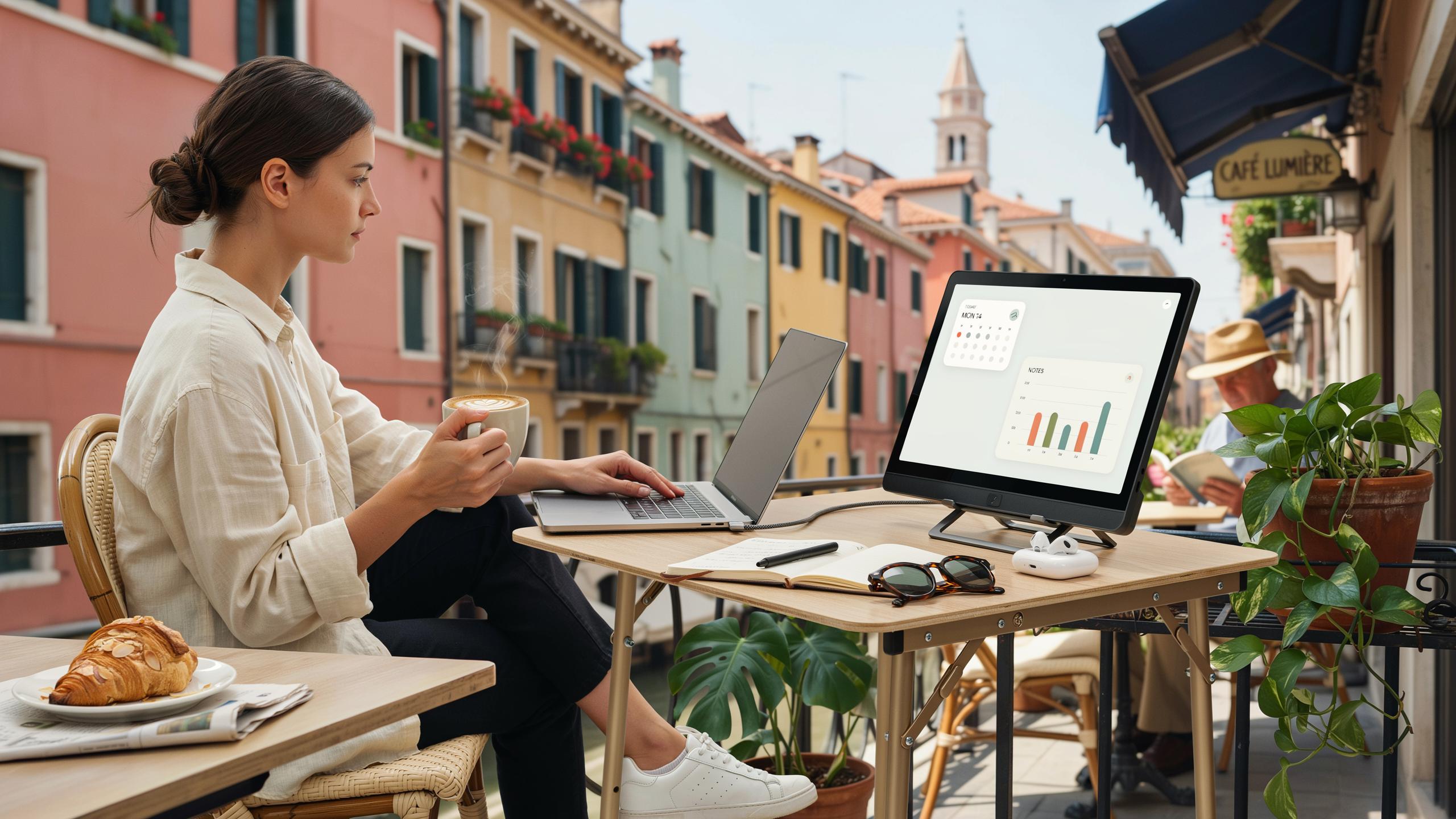
Why A Portable Monitor Is Essential For Remote Work

Increased Productivity And Efficiency
A second display expands your working area without requiring a larger desk. Remote workers using dual screens complete tasks faster because they eliminate constant window switching. Research consistently shows that extended screen real estate reduces the time spent navigating between applications and reduces cognitive load when managing multiple projects simultaneously.
Working across two screens lets you reference source material on one display while creating content on another. This setup eliminates the friction of Alt-Tab navigation and keeps your workflow moving. You see more information at once, which means fewer clicks and less mental overhead to stay organized.
Seamless Multitasking Capabilities
Multiple windows running simultaneously lets you handle complex workflows without losing context. You keep email visible while writing reports, reference spreadsheets while taking client calls, or monitor dashboards while handling other tasks. This arrangement prevents the productivity drain that comes from constantly switching between full-screen applications and losing your place.
Parallel work streams become manageable when you dedicate one screen to active work and another to monitoring or reference material. Teams using portable monitors report faster response times during collaborative sessions because they can view multiple communication channels and documents together. The ability to see more reduces errors and improves decision-making speed.
Choosing The Right Portable Monitor Tech Gadgets
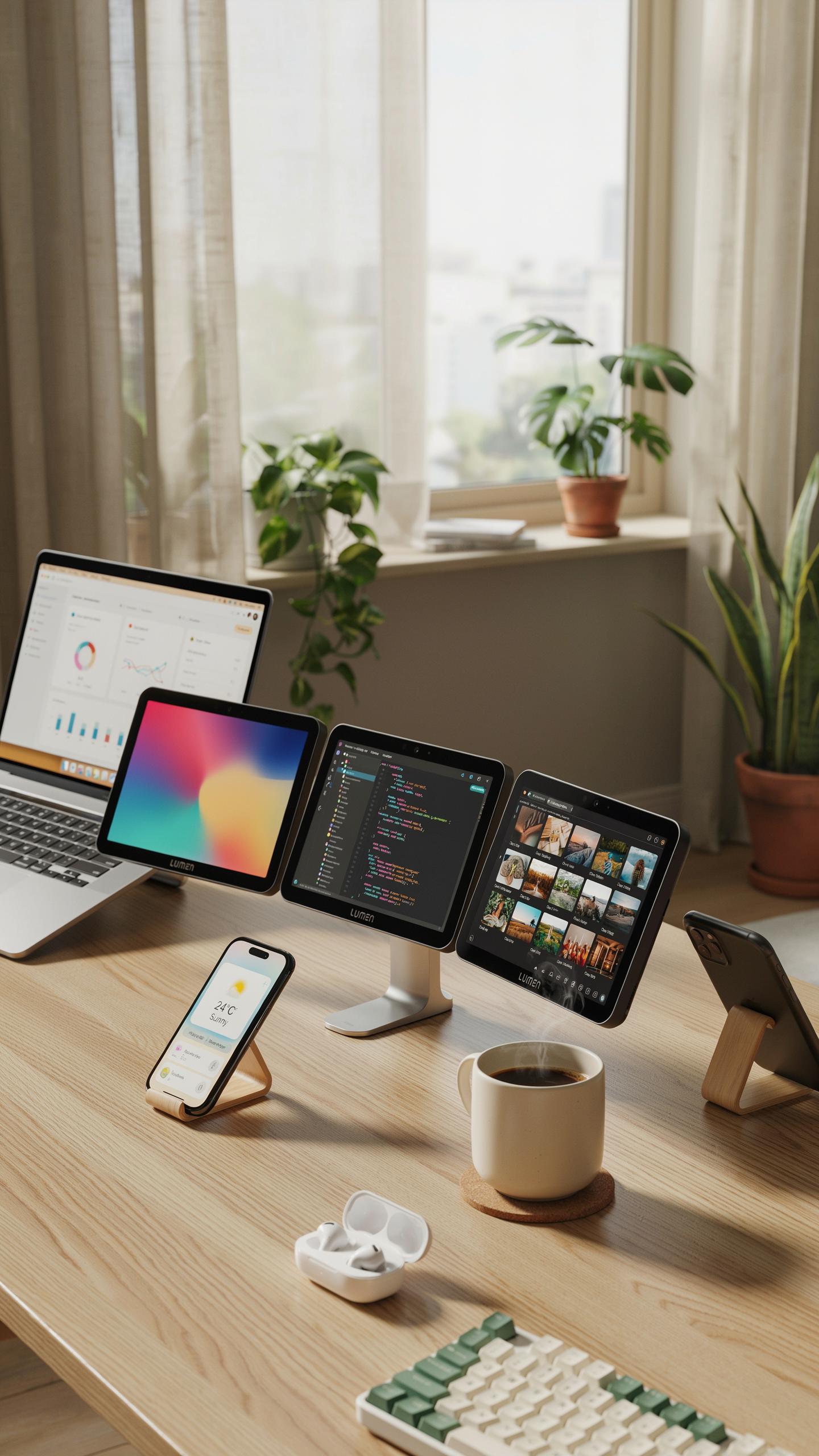
Key Features To Consider
Screen size determines your work efficiency and portability trade-off. Portable monitors range from 13.3 inches to 17.3 inches. Smaller screens weigh less and fit in bags easily. Larger screens reduce eye strain during extended work sessions. Choose based on your typical workday duration and travel frequency.
Resolution directly impacts text clarity and detail visibility. 1080p works for basic tasks like email and documents. 1440p suits spreadsheets and coding where detail matters. 4K resolution exists but drains battery faster and costs more. Match resolution to your actual work requirements, not marketing hype.
Brightness matters when you work near windows or outdoors. Measured in nits, most portable monitors deliver 300 to 500 nits. Brighter displays cost more and consume additional power. You need at least 350 nits to work comfortably in daylight. Indoor use requires only 250 nits minimum.

Panel type affects color accuracy and viewing angles. IPS panels show consistent colors from multiple angles and suit creative work. TN panels cost less but suffer from color shifts when viewed sideways. VA panels deliver darker blacks but narrow viewing angles. IPS remains the best choice for remote work versatility.
Connectivity Options And Compatibility
USB-C handles both power and video through a single cable, simplifying your setup. Most modern laptops have USB-C ports, making this the fastest connection method. USB-C monitors can charge your laptop while displaying video. This single-cable approach reduces clutter and adapter requirements significantly.
HDMI remains the most universal video connection across devices. Older laptops, desktops, and gaming systems use HDMI exclusively. HDMI requires a separate power cable since it only transmits video. Portable monitors with HDMI need an adapter for USB-C-only devices.
DisplayPort offers superior bandwidth for higher resolutions and refresh rates. Few portable monitors use DisplayPort as the primary connection. Some premium models include DisplayPort for professional applications. Compatibility depends entirely on your laptop or workstation’s ports.
Check your device’s actual ports before purchasing any monitor. Apple MacBooks use USB-C or Thunderbolt 3. Windows laptops vary between USB-C, HDMI, or both. Tablets and phones require USB-C or proprietary adapters. Buy a monitor that matches your device’s existing ports to avoid adapter stacking.

Optimizing Your Travel Tech With A Portable Monitor
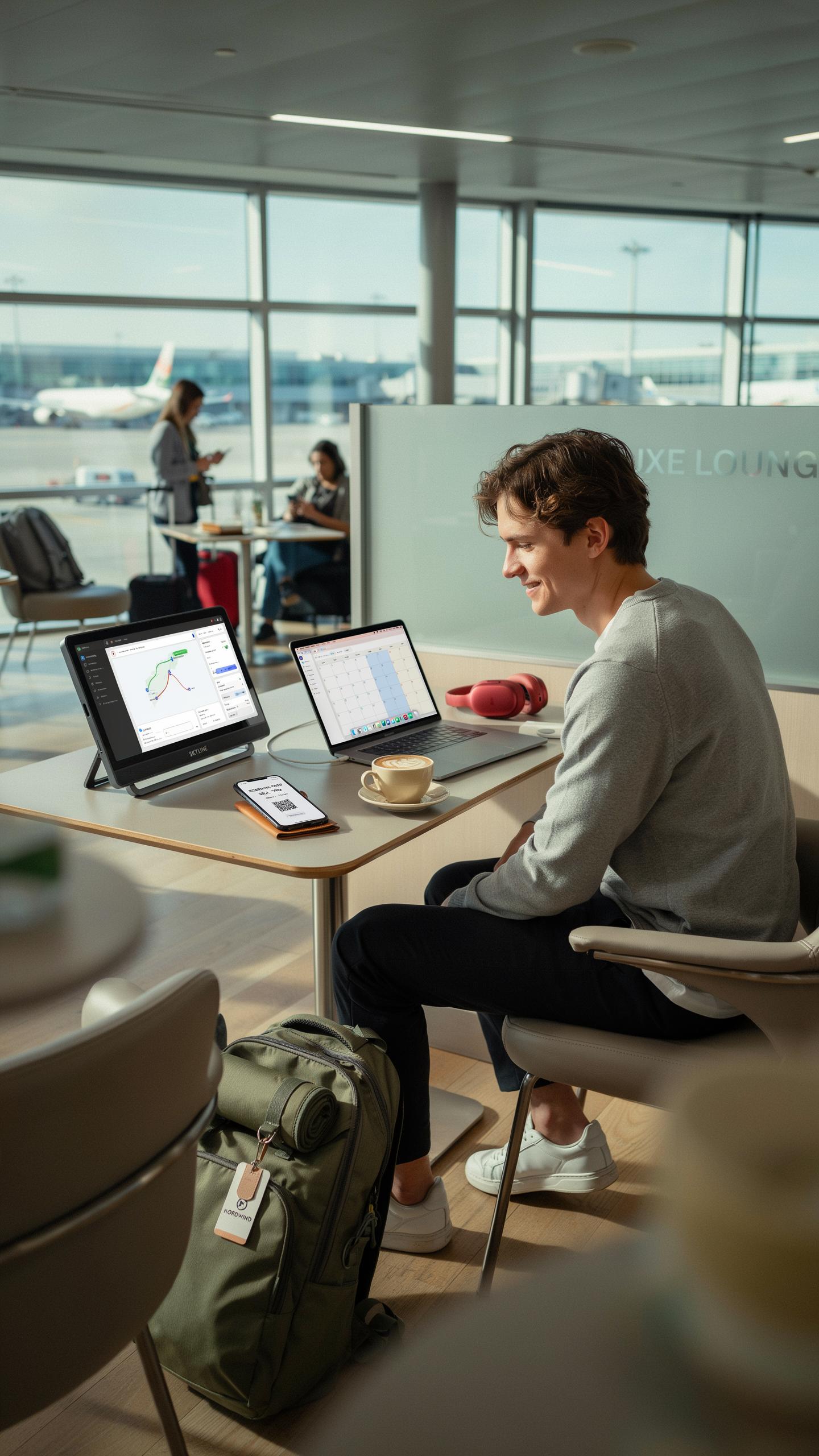
Lightweight And Compact Design
Weight determines whether you actually carry a portable monitor or leave it behind. Most quality portable monitors weigh between 1 and 2.5 pounds. This range keeps them lighter than a laptop while delivering a functional second screen. Thickness matters equally. Devices under half an inch pack into bags without consuming valuable space. You gain screen real estate without sacrifice.
Travel requires strategic choices about what enters your bag. A portable monitor replaces the bulk of a traditional monitor setup. Dimensions typically range from 13 to 17 inches, mirroring laptop sizes. This scaling ensures the device complements your existing gear rather than competing for space. The portability equation remains simple: lighter and thinner means you actually use it.
Durable And Protective Features For Travel
Built-in stands separate functional portable monitors from theoretical ones. Kickstand designs hold the screen at usable angles during video calls and content consumption. Materials matter here. Aluminum frames withstand repeated packing and unpacking better than plastic. Some models use rubberized edges to absorb impact from bag shifts and accidental drops.

Protective cases extend monitor lifespan in travel conditions. Quality cases use padded interiors with shock-absorbing foam. They prevent screen damage from luggage pressure and baggage handling. Construction quality determines real-world durability. Reinforced corners and secure closures keep monitors safe during airport transitions and hotel moves. Protection transforms a fragile screen into travel-ready equipment.
Setting Up Your Mobile Work Space
Ergonomic Considerations On The Go
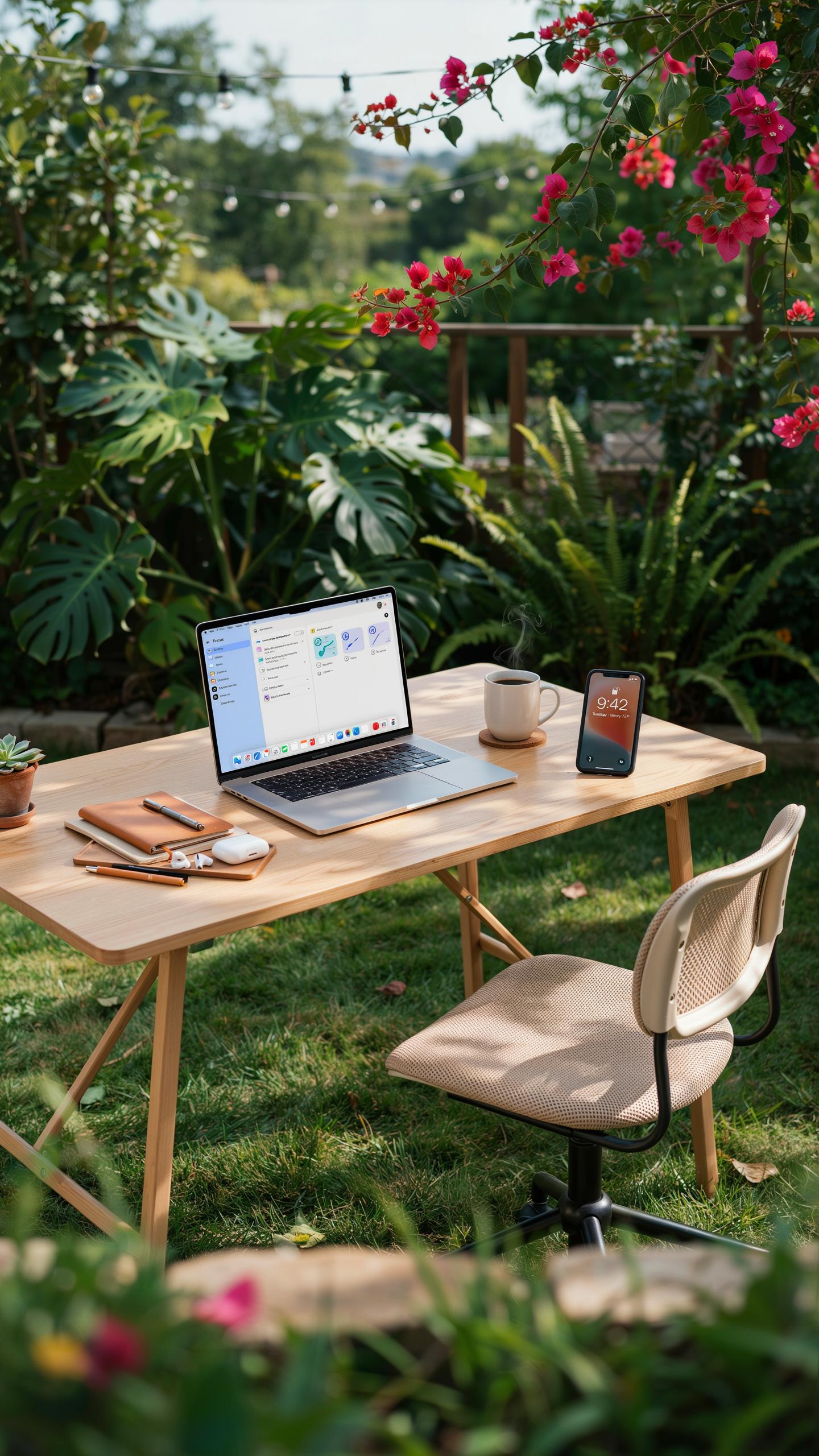
Monitor height matters first. Position your portable display at eye level to prevent neck strain during long work sessions. Use a stand, laptop riser, or stack of books to achieve this angle. Your eyes should look slightly downward at the screen, not up or down at extreme angles. Bad positioning compounds over hours and causes pain that derails productivity.
Keyboard and mouse placement prevents wrist damage. Keep your input devices at elbow height, with wrists in neutral position. Your arms should form roughly 90-degree angles at the elbows. When traveling, use a portable keyboard and mouse rather than relying solely on your laptop keyboard. This setup takes minutes to arrange but protects your spine and shoulders from repetitive strain injuries.
Powering Your Portable Setup
Most portable monitors draw 5 to 15 watts of power, meaning they run efficiently on standard USB power banks. A 20,000 mAh power bank typically supports 8 to 12 hours of monitor use depending on brightness settings. Lower brightness reduces power consumption significantly without compromising visibility in most indoor environments. USB-C connection is now standard on quality portable monitors, simplifying charging with a single cable that also powers other devices.

Wall outlets matter when you stay in one location for extended periods. Many hotels, coffee shops, and co-working spaces provide power access, so you can charge your monitor while working rather than draining batteries. Some monitors offer USB-C power delivery, enabling one charger to power both your monitor and laptop. Carry a compact multi-port USB charger to handle simultaneous charging of multiple devices from a single outlet.
Portable Monitors For The Digital Nomad
Maintaining Productivity While Traveling
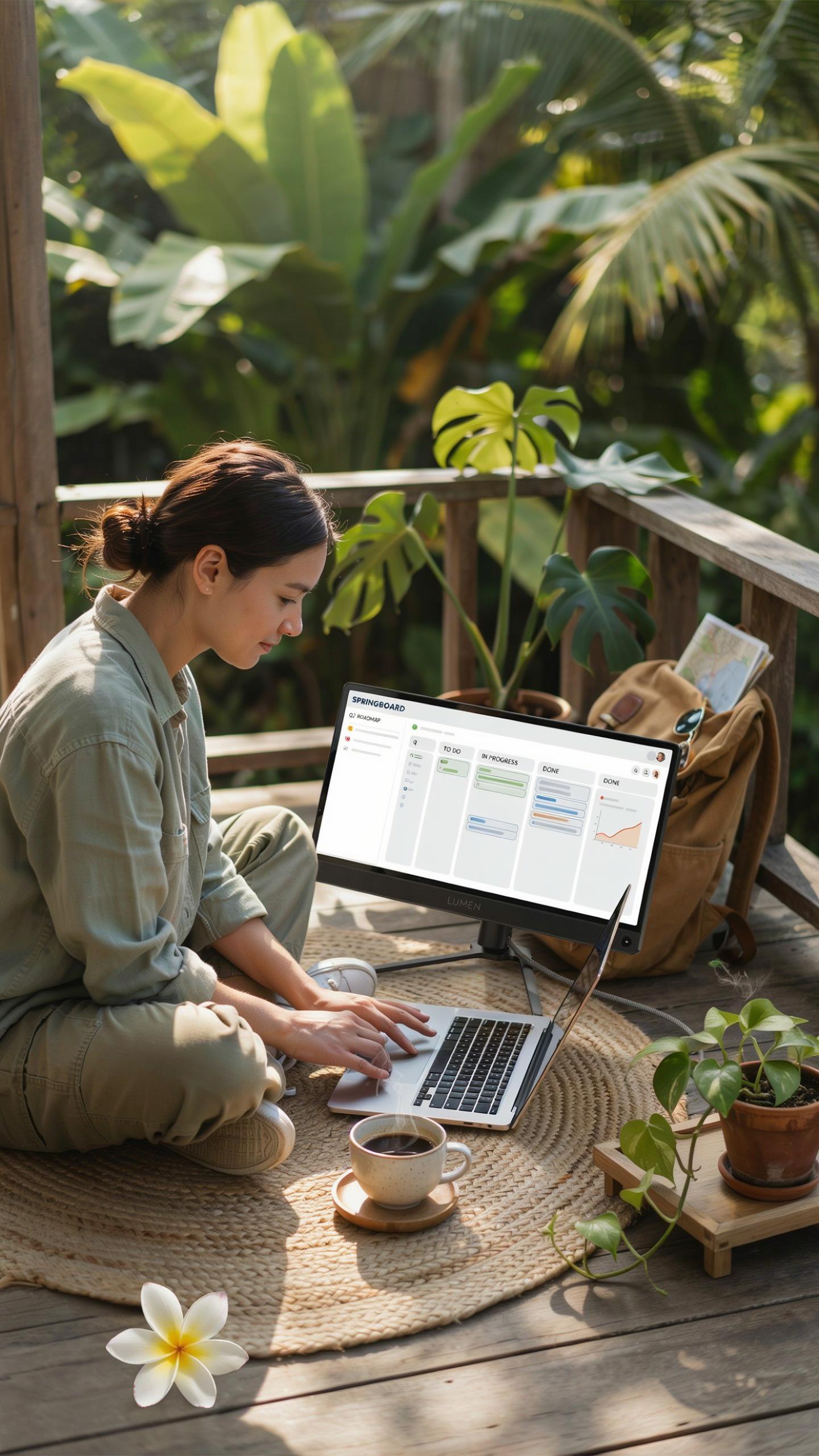
A portable monitor eliminates the productivity gap between office work and remote travel. Most digital nomads struggle with laptop screens when handling complex tasks like coding, design, or data analysis. A secondary display increases usable workspace without requiring a permanent desk setup. You work faster when information displays across two screens instead of toggling between windows constantly.
Battery life and weight matter when you move between locations weekly or daily. Modern portable monitors draw power from USB-C connections, eliminating the need for separate power adapters in many cases. A 13 to 16 inch display weighs between 1 to 2 pounds, fitting easily into backpacks alongside laptops. This combination gives you a functional multi-monitor setup that travels as light as a single laptop.
In every cherished journey, a portable monitor brings the comfort of your workspace, making remote work feel like a familiar embrace no matter where you roam. It’s a gentle reminder that productivity and peace can always travel together.
Enhancing Client Presentations And Collaboration
Portable monitors transform how you handle client calls and collaborative sessions while traveling. When you share your screen during video meetings, a secondary display lets you reference documents, notes, or applications without your client seeing desktop clutter. You maintain a professional appearance by keeping presentation material on one screen while managing meeting logistics on another. This setup prevents awkward moments where you search for files or minimize windows during calls.

Real-time collaboration tools like Figma, Miro, or Google Docs function better across two screens. You edit content on one display while viewing feedback or communication channels on the other. Remote team members perceive faster response times because you process information more efficiently. The ability to work this way from a coffee shop, hotel, or coworking space removes excuses for delayed deliverables while traveling.
Integrating With Your Laptop

Seamless Dual Screen Experience
A portable monitor connects to your laptop via USB-C, HDMI, or DisplayPort. This connection mirrors or extends your display, giving you more screen real estate. Extended mode lets you keep your main work on the laptop while using the portable monitor for email, chat, or reference materials. The setup takes seconds and requires no configuration beyond plugging in the cable.
Most laptops recognize the portable monitor instantly. Windows and macOS detect the new display and automatically assign it a position. You drag windows between screens freely. This workflow eliminates the constant switching between applications on a single screen, cutting down on wasted time and mental overhead. Productivity increases measurably with a second screen during remote work sessions.
Software And Driver Considerations
Modern portable monitors work plug and play on both Windows and macOS systems. Windows automatically installs generic drivers for most USB-C displays. macOS handles external displays natively without requiring manufacturer software. Older laptops or niche operating systems like Linux may need manual driver installation from the manufacturer’s website. Check compatibility before purchasing if you use specialized software or older hardware.

Some portable monitors bundle software for brightness adjustment and color calibration. This software is optional. Native Windows and macOS display settings handle brightness and color balance adequately for most users. Install manufacturer software only if you need advanced color grading or specific calibration for design work. Keeping your setup lean means fewer processes running in the background, preserving battery life and system performance.
Maximizing Your Laptop Screen Real Estate
Utilizing Split Screen And Window Management
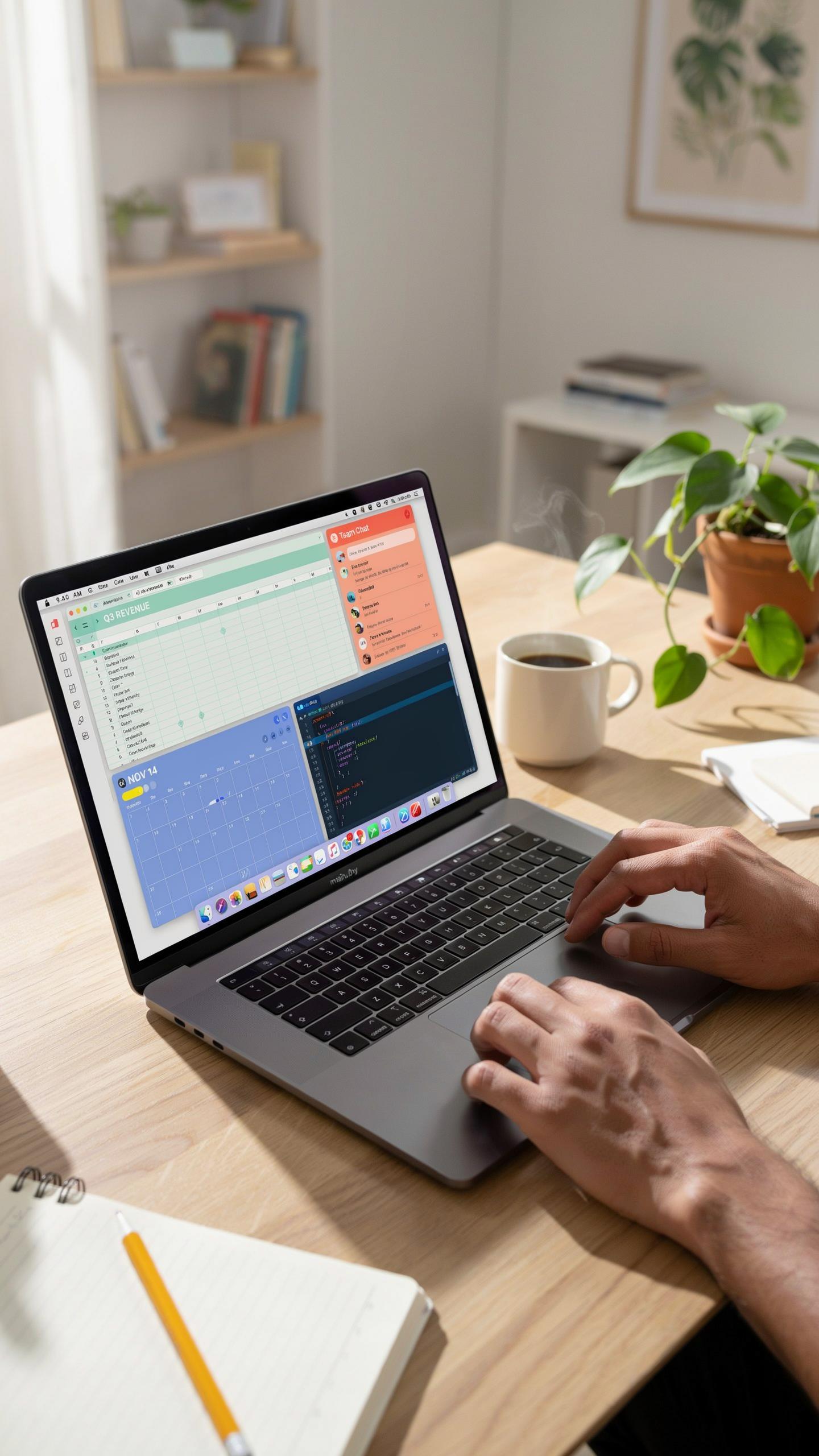
Operating systems handle multiple monitors differently, and you need to leverage this for productivity. Windows 10 and 11 support Snap Layouts, allowing you to divide your screen into predefined zones. macOS offers Mission Control and Space functionality for organizing windows across displays. Most Linux distributions use window managers that snap applications to screen edges automatically. Position your primary work application on the portable monitor while keeping reference material on your laptop screen. This setup eliminates constant window switching and reduces cognitive load during work sessions.
Keyboard shortcuts accelerate window management across dual displays. Windows users press Win+Left or Win+Right to snap applications. macOS users swipe with four fingers between spaces or press Control+Arrow keys. Third party tools like Rectangle for Mac or FancyZones for Windows provide granular control over window placement. Assign your most-used applications to specific monitor positions using these tools. Consistency in window placement trains your muscle memory and cuts task completion time by removing the need to locate open windows.
Benefits For Specific Professions
Designers gain immediate workflow advantages from a second monitor. Photo editors, video editors, and graphic designers keep their main canvas on one screen and palettes, timelines, or toolbars on the other. UI designers preview designs at full size on the portable monitor while maintaining reference materials and design systems on the laptop. Architects using CAD software display complex drawings at readable scales without constant zooming. The extra screen space eliminates menu hunting and reduces eye strain from squinting at small interface elements during eight hour work days.

Programmers and developers experience measurable productivity gains with dual displays. Code editors expand to full width on one monitor, showing complete functions without horizontal scrolling. Terminal windows, documentation, and debugging tools occupy the second screen simultaneously. API documentation no longer requires tabbing away from code. Version control diffs display in full clarity across both screens. Front end developers see live previews render at actual size while inspecting code. Data analysts and financial professionals organize spreadsheets across displays to cross reference multiple data sets without manual scrolling between columns or sheets.
Building A Versatile Desk Setup
Creating A Flexible Home Office
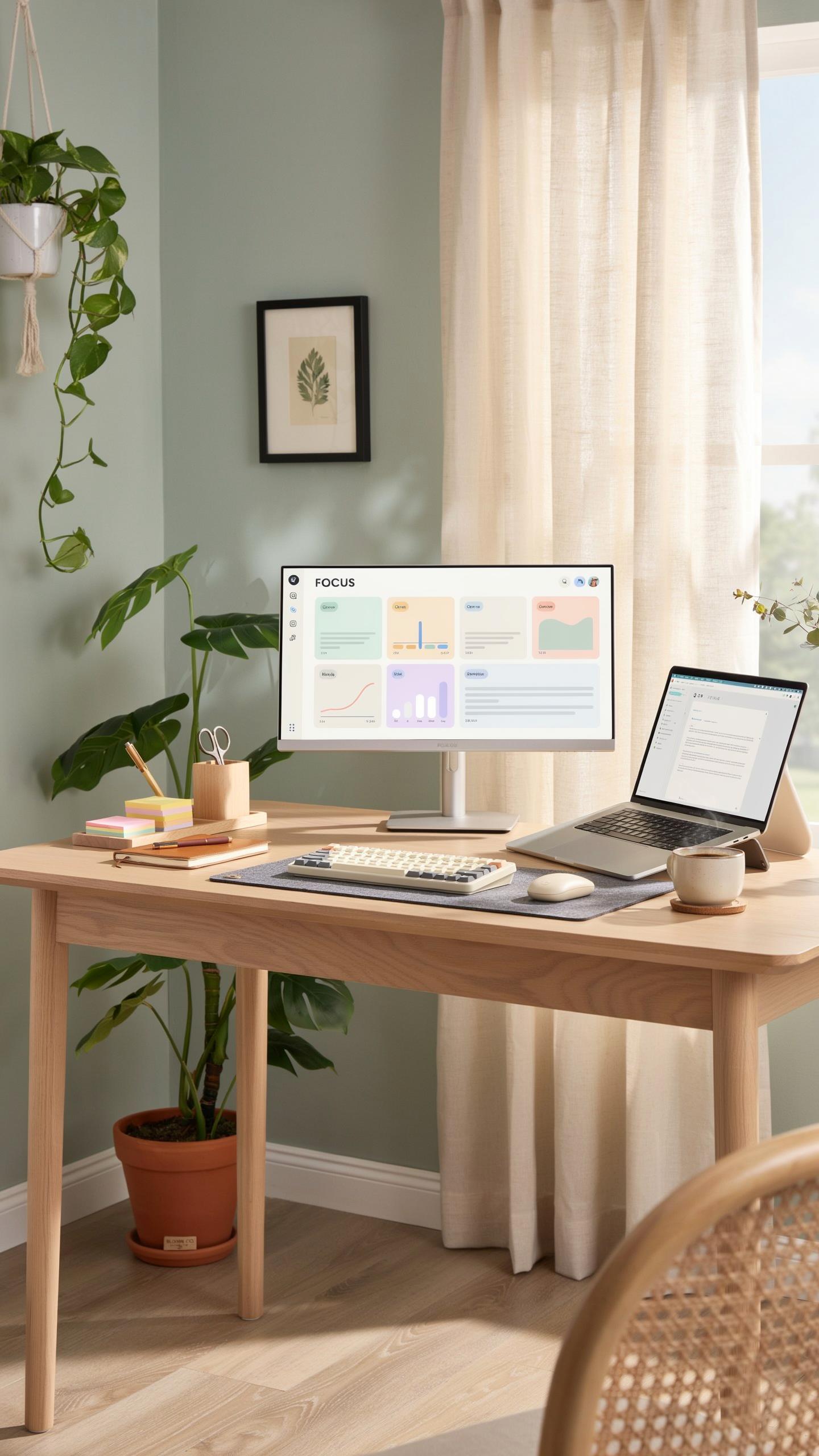
A portable monitor transforms your home office from static to dynamic. You work at a desk most days, but travel three weeks monthly. The monitor stays with you. When home, it connects to your desktop or laptop via USB-C or HDMI. When traveling, it unplugs and fits into your bag. No equipment stays behind. Your desk adapts to your schedule, not the reverse.
The setup works because you standardize your connections. Use the same cable types at home and on the road. A single USB-C port powers both the monitor and charges your laptop simultaneously. This eliminates cable hunting. Your home office becomes your travel office. The physical space matters less than the tools you control.
Accessories For An Enhanced Setup
A portable monitor alone creates workspace problems without support. Your neck strains looking down at a 13-inch screen. Your wrists angle wrong. Your cables tangle. Accessories solve these problems directly. They transform a portable monitor from a temporary workaround into a legitimate productivity system.
- Monitor Stand or Arm: Positions the screen at eye level, eliminating neck strain. VESA-compatible arms mount to desks or clamp directly. Adjustable angles accommodate different seating positions during work sessions.
- Protective Sleeve or Case: Guards against scratches and impacts during transport. Neoprene or hard-shell options provide different protection levels. Keep the display pristine throughout constant travel cycles.
- USB-C Hub: Expands connectivity when your laptop has limited ports. Adds HDMI, USB-A, and SD card slots. Powers the monitor while providing additional device connections simultaneously.
- Portable Keyboard and Mouse: Maintains ergonomics beyond basic monitor placement. Wireless options reduce cable clutter. Compact designs fit alongside the monitor in your work bag.
- Power Bank with USB-C Output: Extends monitor runtime when outlets are unavailable. Larger capacity units power monitors for 4-6 hours. Critical for airplane, train, and outdoor work scenarios.
These accessories eliminate compromises. You gain ergonomic setup quality while maintaining portability. Your body stays comfortable. Your equipment stays protected. Your workspace functions identically whether you work from a hotel room or your dining table.
Recommendations For Remote Workers

Top Portable Monitor Models For Travel
ASUS ProArt Display PA148CTC leads for color-critical work. It delivers 1920×1200 resolution, 100% sRGB coverage, and USB-C power delivery. The 14-inch screen fits standard laptop bags. Lenovo ThinkVision M14t offers touch functionality with 1920×1080 resolution. It connects via USB-C and weighs under two pounds. Both handle eight-hour workdays without strain.
ViewSonic VX1655 OLED provides superior contrast for content creators. Its 1920×1080 OLED panel weighs 1.3 pounds and runs on USB-C power. ASUS MB16ACV works for basic tasks on tight budgets. MSI Optix MAG161V targets gamers and designers needing faster response times. Each model trades features against weight and power consumption based on your specific workload.
Future Trends In Portable Display Technology
USB-C standardization continues eliminating proprietary connectors and power cables. Manufacturers now prioritize single-cable solutions that charge and display simultaneously. OLED adoption accelerates across portable monitors despite higher costs. Expect color accuracy and contrast improvements reaching desktop-grade quality. Foldable screens remain in early development but will eventually reduce packed dimensions without sacrificing screen real estate.
Battery integration into monitors themselves reduces external power pack dependency. Refresh rates will climb beyond current 60Hz standards for smoother scrolling and video playback. Weight reduction through advanced materials like carbon fiber composites makes ultra-portable 17-inch models viable. Manufacturers are testing eyecare technologies including flicker reduction and blue light filtering as remote work demand sustains.
Frequently Asked Questions

What exactly is a portable monitor, and why would I need one for remote work travel?
A portable monitor is a lightweight, external display that connects to your laptop, tablet, or phone, giving you extra screen real estate on the go. For remote work travel, it dramatically boosts productivity by allowing you to multitask more efficiently, just like at your home office, making it an essential tool for digital nomads.
How do I connect a portable monitor to my laptop while I’m traveling?
Most portable monitors connect easily via a single USB-C cable, which handles both power and video. If your laptop doesn’t have USB-C, you might use an HDMI cable for video and a separate USB cable for power. Always check the specific monitor’s requirements and your laptop’s ports for seamless setup, ensuring your portable monitor for remote work travel is always ready.
Are there affordable options for a portable monitor for remote work travel, or are they all high-end?
Absolutely! While premium models exist, there are many excellent and affordable portable monitors available that are perfect for remote work travel. You can find reliable options that offer good screen quality and portability without breaking the bank, making dual-screen productivity accessible to nearly any budget.