
Why A Stylus Pen Is Essential For Note Taking In Class

Precision And Accuracy In Digital Writing
A stylus delivers the control that your finger cannot match. When you write with a stylus, the tip contacts the screen at a specific point, not a broad area like your fingertip. This precision matters when you sketch diagrams, annotate text, or reproduce mathematical equations. You capture detail without accidental smudges or missed strokes that plague finger input.
Handwriting recognition software responds better to stylus input than finger input. The software reads cleaner strokes and converts them to text more accurately. You spend less time correcting errors and more time capturing information. For technical subjects requiring diagrams or formulas, a stylus becomes your direct tool for reproduction and clarity.
Ergonomics And Comfort For Extended Use
A stylus redistributes pressure across your hand differently than typing or writing with a pen. The barrel design matches the weight and grip diameter of traditional writing instruments, reducing strain on your palm and fingers during ninety-minute lectures or longer study sessions. Your hand stays in a neutral position that aligns with your wrist and forearm.
Extended note-taking sessions tire your hand when you rely on finger input or trackpads. A stylus minimizes fatigue because you grip it with less force than handwriting requires. The design places less demand on the small muscles in your hand, letting you take notes for hours without developing cramps or soreness that disrupts your focus.

Key Features To Look For In A Note Taking Stylus
Pressure Sensitivity And Palm Rejection
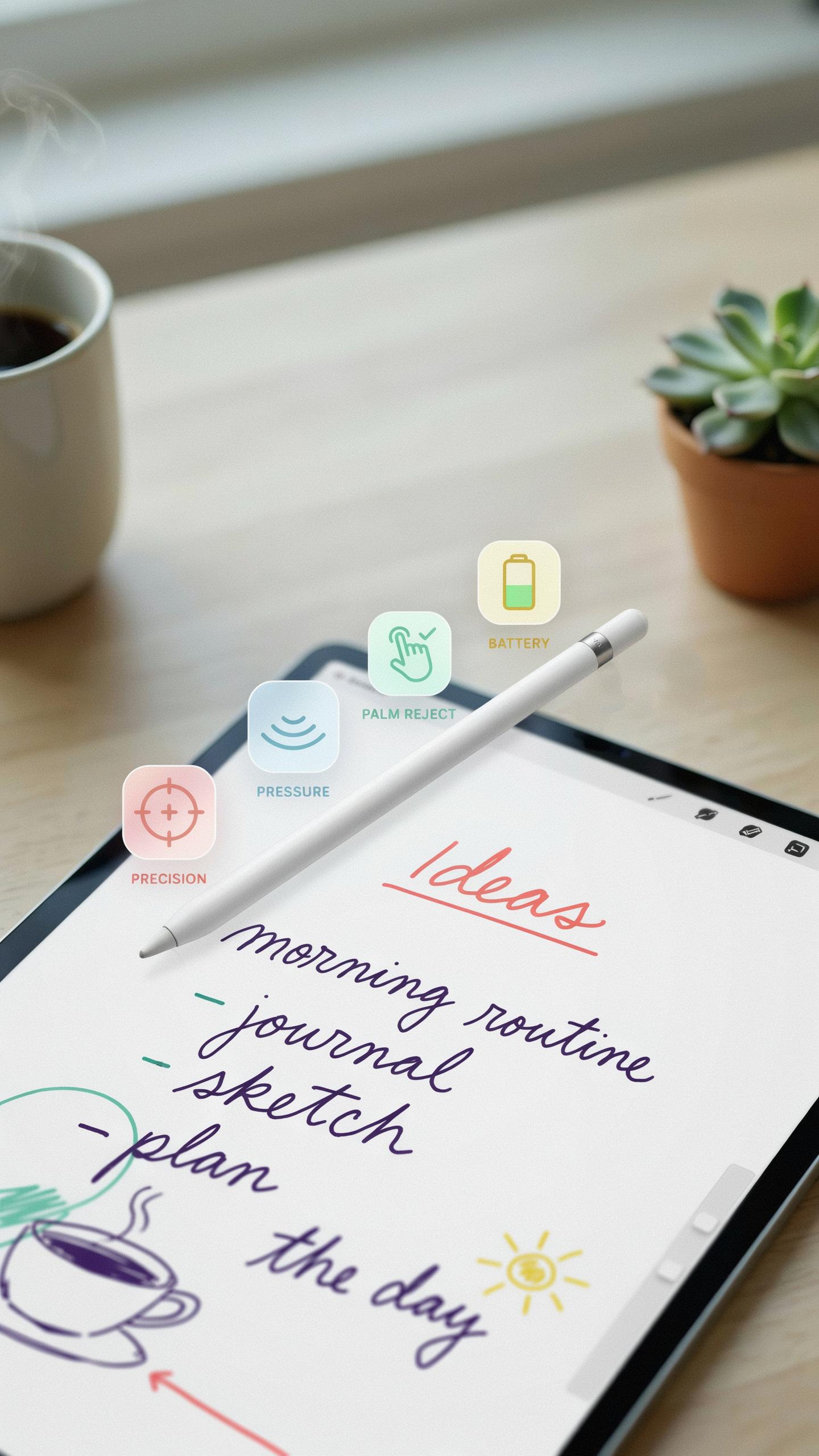
Pressure sensitivity determines how your stylus responds to varying force levels. More pressure levels mean finer control over line thickness, just like traditional pens. This matters in class because you need to write quickly without worrying about uniform stroke weight. Tablets with high pressure sensitivity levels, typically 1024 or higher, capture natural handwriting variations that low pressure styli cannot match.
Palm rejection prevents your hand from creating accidental marks on the screen while writing. Your palm naturally rests on the tablet surface during note taking. Without proper palm rejection, you get unwanted lines and smudges that disrupt your notes. Test palm rejection by writing normally and checking if stray marks appear. This feature directly impacts note quality and your ability to focus on content rather than fighting the technology.
Battery Life And Charging Options
Stylus battery life ranges from a few hours to several weeks depending on the model. Some styluses charge via USB-C, while others use proprietary charging docks or Lightning connectors. Quick charging matters when you have back to back classes and limited break time. A stylus that needs charging every 4 hours creates friction during your academic day.

Compare charging methods based on your tablet ecosystem and daily schedule. USB-C charges faster and works across multiple devices, reducing dependency on specific hardware. Proprietary charging docks offer convenience but lock you into one product. Consider whether you need a stylus that works all week on one charge or if hourly charging fits your routine. Backup power options help ensure you never lose class notes due to dead batteries.
Top Stylus Choices For Different Tablet Ecosystems
Apple Pencil For IPads
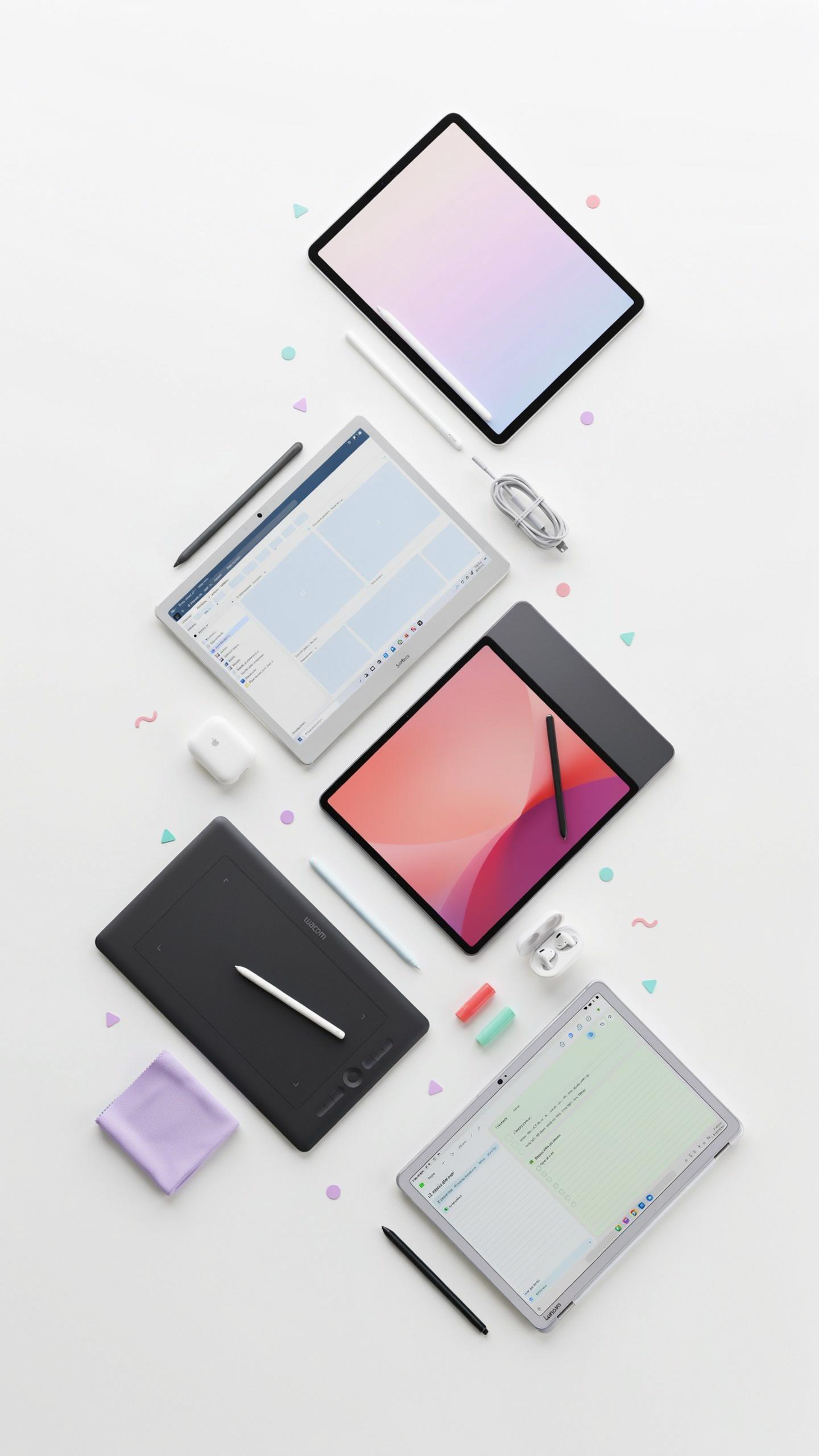
Apple Pencil comes in two generations. The first generation connects via Bluetooth and charges through the iPad’s Lightning port. The second generation attaches magnetically to iPad Pro models and charges wirelessly. Both versions offer pressure sensitivity and tilt recognition. Compatibility depends on your iPad model. Older iPad models work with first generation only. Newer iPad Pro, iPad Air, and iPad models support second generation.
The second generation Apple Pencil delivers faster response times and lower latency during note-taking. It eliminates the charging cable requirement entirely. The magnetic attachment prevents loss and enables quick pairing. First generation remains viable for basic note-taking but lacks these convenience features. Your iPad generation determines which version you can use. Check your device specifications before purchasing.
Stylus Options For Android Tablets
Samsung S Pen styluses dominate the Android tablet market. They work exclusively with Samsung Galaxy Tab S series tablets and fold into the device for storage. The S Pen offers pressure levels similar to Apple Pencil. Other Android tablets from manufacturers like Lenovo and OnePlus accept third-party styluses. Compatibility varies significantly across brands and models. Research your specific tablet before buying.

Wacom and other third-party manufacturers produce styluses for Android tablets lacking proprietary pens. These styluses use either Wacom’s EMR technology or capacitive touch detection. They work across multiple Android tablet brands but lack the integration level of Samsung’s offering. Performance varies between models and price points range widely. Your tablet’s specific hardware determines which third-party stylus works best for your needs.
Integrating Your Stylus With Note Taking Apps
Popular Note Taking Applications For Stylus Use
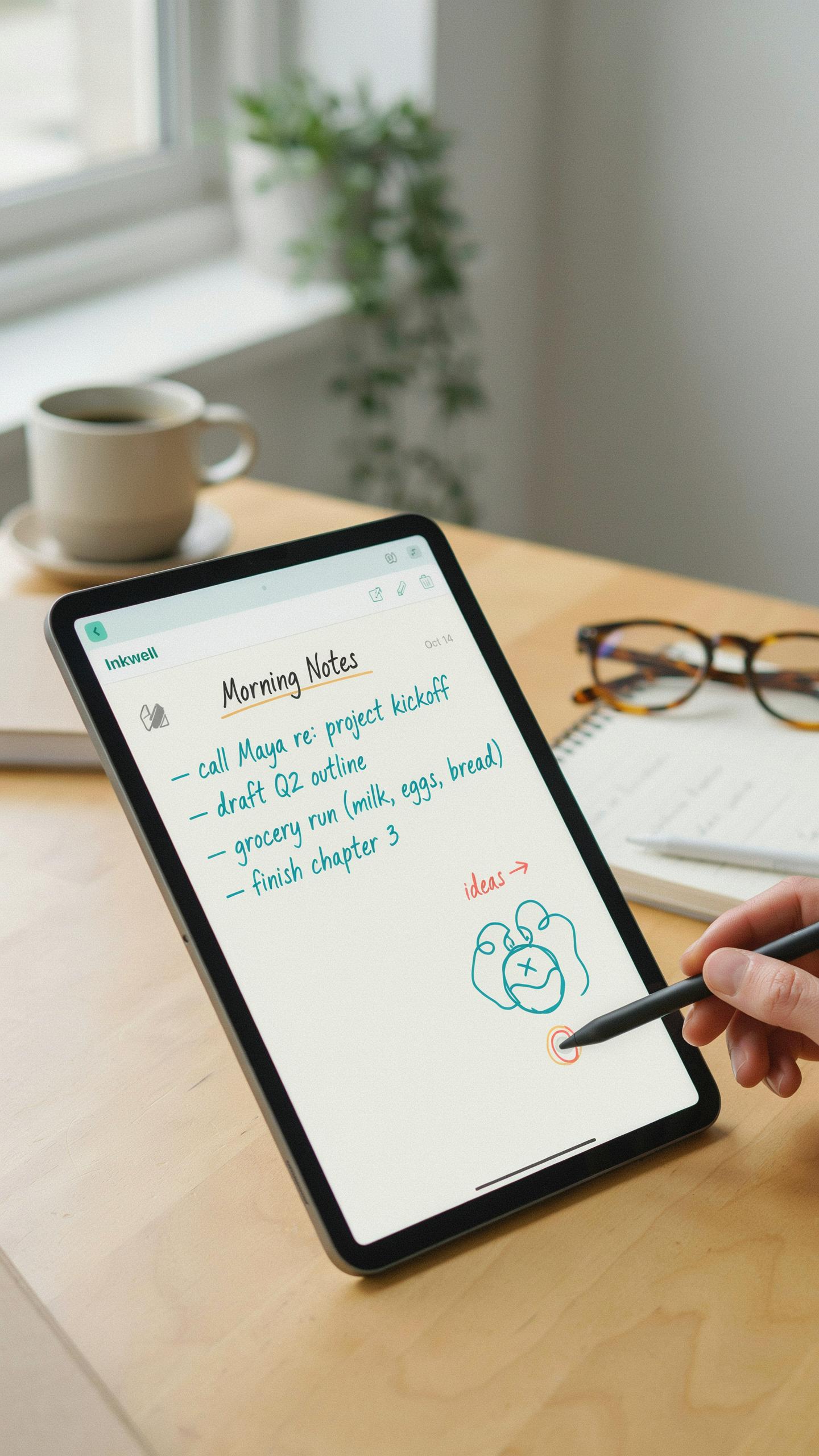
GoodNotes and Notability dominate iPad note taking because they prioritize stylus responsiveness and pressure sensitivity. Both apps capture handwriting in real time with minimal lag. OneNote works across Windows tablets and iPads, offering cross device sync. Microsoft’s app handles stylus input effectively but performs best on Surface devices with dedicated stylus technology.
GoodNotes excels at handwriting recognition and document management. Notability offers audio recording tied to notes, letting you tap text to replay corresponding audio segments. OneNote integrates with Microsoft Office, making it practical for students already using Word or Excel. Each app costs between 5 and 15 dollars one time, with OneNote available free through Microsoft accounts.
Maximizing App Features With Your Stylus
Pressure sensitivity distinguishes quality stylus apps from basic ones. Apps like Notability and GoodNotes register how hard you press, creating thicker or thinner lines. This mimics pen writing and gives you control over emphasis. Use this feature to highlight key concepts or underline important definitions without switching tools constantly.

Organization features separate functional note takers from mediocre ones. GoodNotes lets you create folders, tag notes, and search handwriting instantly. Notability provides notebooks with subjects and color coding systems. OneNote uses a notebook structure with sections and pages. Master your app’s organizational tools within the first week to prevent chaotic note accumulation later.
Beyond Notes Other Uses For Your Tablet Stylus
Sketching And Diagramming In STEM Classes
A stylus handles technical drawing with precision that typing cannot match. In chemistry, you sketch molecular structures. In physics, you draw force diagrams and vector illustrations. In engineering, you create circuit schematics and mechanical drawings. The pressure sensitivity of modern styluses captures line weight variation, which matters when distinguishing between different line types in technical drawings. This capability cuts study time because you work faster than with mouse or trackpad alternatives.
STEM subjects demand visual accuracy. A stylus lets you maintain proper proportions and angles without relying on drawing tools or templates. You annotate directly onto digital textbook images, adding labels and calculations beside your drawings. This workflow keeps related information together on one screen. The natural hand position when holding a stylus also reduces fatigue during longer drawing sessions compared to using touch or keyboard inputs for technical content.
Document Annotation And PDF Markup
A stylus transforms how you interact with digital textbooks and research papers. You highlight key passages, underline definitions, and circle important data points using pressure-sensitive tips that feel like writing on paper. Unlike typed comments, handwritten annotations occupy minimal screen space and stay visually connected to the source material. You mark up PDFs in real time during lectures without switching between note-taking apps and document readers.

Your annotations layer on top of existing documents without replacing or corrupting them. You can adjust ink color and thickness to organize information by topic or priority level. Exporting marked-up documents preserves your work for later review or sharing with classmates. This direct markup approach works faster than copying text into separate notes because your markings stay anchored to their original context.
Maintenance And Care For Your Stylus Pen

Cleaning And Storing Your Stylus
Dust and debris degrade stylus performance over time. Wipe your stylus weekly with a soft, dry microfiber cloth to remove particles from the nib and barrel. For stubborn residue, use a slightly damp cloth with distilled water only. Never use harsh chemicals, alcohol, or abrasive materials that damage the nib coating and electronic components inside the stylus barrel.
Store your stylus in a protective case or sleeve when not in use. Keep it away from extreme heat, direct sunlight, and moisture. Temperature swings cause internal components to expand and contract, leading to connection issues with your tablet. Store your stylus horizontally or tip-up in a pen holder to prevent the nib from warping under its own weight over extended periods.
Replacing Nibs And Accessories
Most stylus nibs wear down after months of regular use. You will notice reduced pressure sensitivity, scratchy writing, or decreased responsiveness on your tablet screen. Replacement nibs are inexpensive and take two minutes to swap out. Check your stylus manufacturer’s website for compatible nib types, as different stylus models use different nib sizes and attachment methods.

Accessory upgrades extend stylus functionality without buying new hardware. Replacement nib packs come in various materials like rubber, plastic, or fiber to suit different writing preferences and screen protection needs. Carrying cases protect your stylus from drops and scratches. Some manufacturers offer palm rejection gloves and nib angle adapters that improve your note-taking experience on your tablet during class sessions.
Stylus As A Tech Gadget For Academic Advantage

Streamlining Workflow And Organization
A stylus transforms how students capture and manage information. Digital note-taking eliminates the friction of paper shuffling and lost pages. Students search notes instantly, organize by subject automatically, and sync across devices without manual file management. This speed matters when you have back-to-back classes and limited time between lectures.
The organizational advantage compounds over a semester. Tablets store thousands of pages in one device. Students tag notes, create folders, and link related concepts within seconds. Handwritten notes on paper require physical storage, manual categorization, and hours spent flipping through notebooks to find information. Digital workflows reduce cognitive load and let students focus on learning rather than logistics.
Remember the joy of a perfectly formed thought on paper? This stylus brings that magic back, whispering to your potential, “Go forth and learn.”
Environmental Benefits: Reducing Paper Consumption
Digital note-taking with a stylus directly cuts paper waste. A student attending four years of college typically uses hundreds of notebooks. Switching to a tablet eliminates this paper consumption entirely. One device replaces roughly four years of physical notebooks, reducing landfill impact and lowering demand for paper production.

The environmental calculation extends beyond individual use. Reduced paper demand lowers water consumption, energy use, and chemical processing in paper manufacturing. Schools adopting tablet-based learning across multiple classrooms multiply this impact. Over time, institutional shifts toward digital note-taking contribute measurable environmental benefits through decreased deforestation pressure and reduced manufacturing emissions.
Finding The Perfect Tab Aesthetic With Tablet Accessories
Stylus Holders And Protective Cases
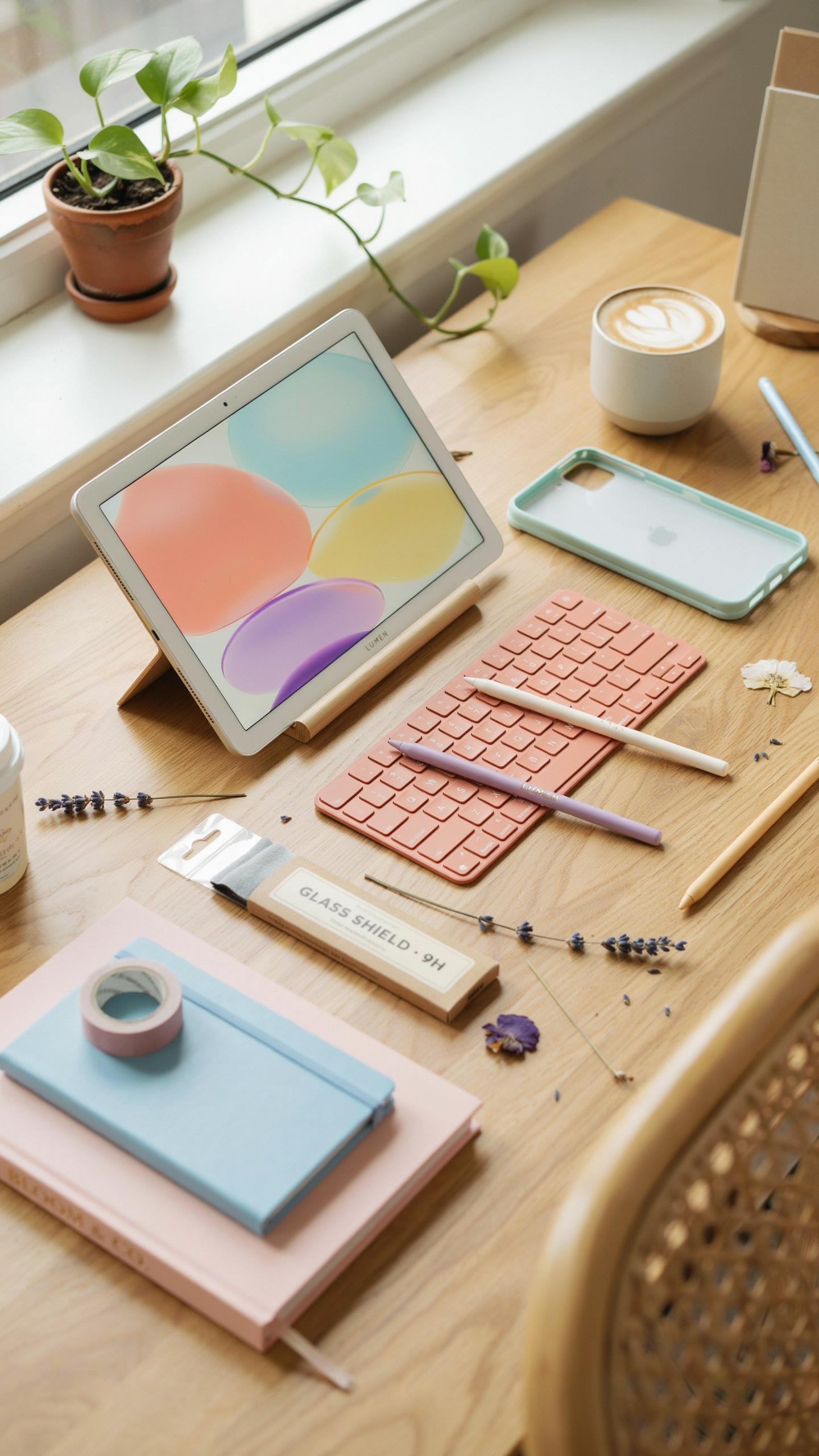
A stylus holder keeps your pen accessible and prevents it from rolling off desks during lectures. Built-in slots on tablet cases secure the stylus while you take notes. Hard cases protect against drops and impacts that damage screens and internal components. Soft sleeves offer lightweight protection during transport between classes.
Aesthetic choices matter less than functionality during class. Your stylus holder should attach securely to your case or tablet without adding bulk. Choose materials that withstand daily use in backpacks and lecture halls. Prioritize quick access over appearance since retrieving your stylus matters more than how it looks.
Screen Protectors For Optimal Stylus Performance
Screen protectors impact how your stylus feels against the tablet display. Tempered glass protectors reduce friction and improve precision compared to unprotected screens. They add a thin layer between your stylus tip and the display, which some users find affects responsiveness. Quality protectors minimize this effect through advanced manufacturing techniques.

Matte screen protectors reduce glare during class but increase friction slightly. Glossy protectors maintain the original screen feel but reflect classroom lighting. Either option protects your display from scratches caused by repeated stylus contact. Replace protectors when they show visible wear since damaged protectors reduce stylus accuracy and tablet responsiveness.
Digital Writing Bridging The Gap Between Analog And Digital
The Feel Of Pen On Paper In A Digital Format
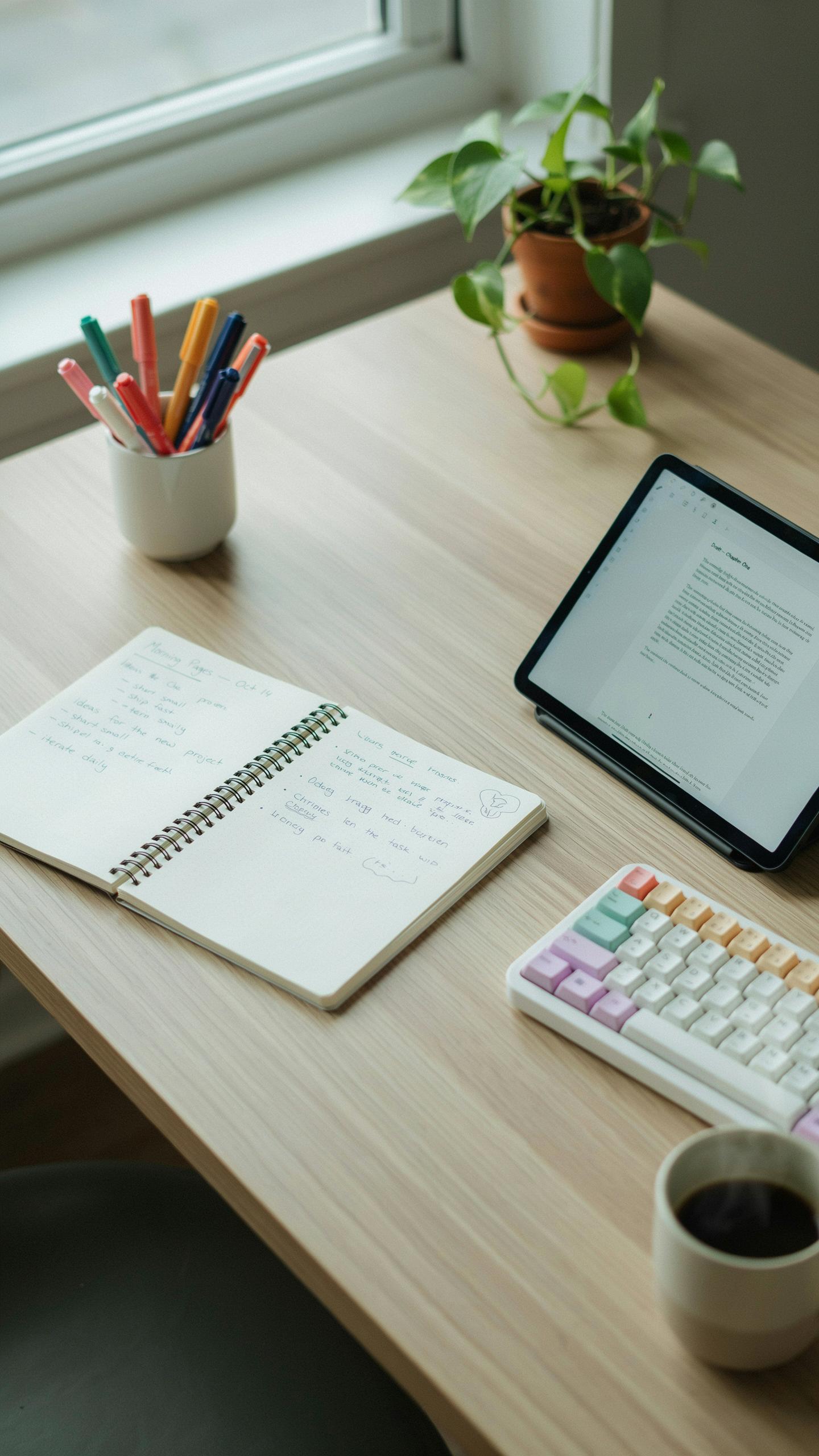
Modern styluses achieve pressure sensitivity through capacitive and electromagnetic technology. These systems detect how hard you press and translate it into line weight variation. This replicates the core mechanic of writing with ink on paper. Manufacturers engineered nibs from materials like rubber, plastic, and metal to deliver consistent friction and tactile feedback during writing.
The lag between stylus movement and on-screen rendering has dropped significantly. Current tablets process input at refresh rates of 60 to 120 hertz or higher. This speed reduction makes digital writing feel immediate rather than delayed. Students notice the difference immediately when their handwriting appears in real-time instead of trailing behind their hand movements.
Benefits For Different Learning Styles
Visual learners benefit from color-coding notes directly on digital pages. Stylus input allows you to add diagrams, arrows, and visual connections during lectures. The act of drawing these elements reinforces how information connects. Students retain spatial relationships between concepts better when they sketch them out rather than typing linear text.
Kinesthetic learners gain the most from stylus writing because it mimics hand movement and muscle memory. The physical act of writing engages motor skills that strengthen neural pathways for retention. Digital styluses provide this tactile engagement without the limitations of paper. Note taking becomes an active learning tool rather than passive transcription.
Making The Switch Embracing Your Tablet For Note Taking

Tips For A Smooth Transition To Digital Notes
Switching from paper to tablets requires adjusting your note-taking method, not just your tools. Start by experimenting with stylus pressure and speed settings before class. Test different apps to find one matching your workflow. Practice writing for short sessions to build muscle memory with the stylus grip and tablet angles that work for you.
- Start With One Class: Pick your easiest course to test tablet note-taking first. This removes pressure while you learn the system without impacting your grades on harder subjects.
- Customize Your Stylus Settings: Adjust pressure sensitivity and tip size to match your writing style. Most tablets let you fine-tune these in app preferences and system settings.
- Create A Consistent Template: Use the same page layout and organization system across all notes. This trains your brain to process information faster and makes reviewing easier.
- Use Keyboard For Long Text: Type definitions, quotes, or lengthy explanations instead of writing them. Stylus note-taking works best for diagrams, equations, and rapid summarization of key points.
- Backup Your Files Regularly: Set up automatic cloud syncing through your tablet’s native system or a service like Google Drive or OneDrive. Digital notes vanish if your device crashes without backups in place.
- Time Your Review Sessions: Review notes within 24 hours of class while content is fresh. Digital tablets let you annotate and reorganize notes easier than paper, making this step faster and more effective.
The transition takes two to four weeks for most students. Your speed and accuracy improve as your brain adapts to the stylus interface and app workflows. Stick with your chosen system long enough to gain real proficiency before abandoning it for another method.
The Future Of Learning With Stylus And Tablet
Tablet stylus technology continues advancing in pressure sensitivity, latency reduction, and palm rejection capabilities. Current flagship styluses offer over 4000 pressure levels and sub-10 millisecond response times, matching or exceeding pen-on-paper feel for most users. Educational software increasingly integrates AI-powered features like automatic equation recognition and handwriting-to-text conversion that enhance learning efficiency beyond traditional note-taking.
Institutions are adopting tablets in classrooms because they reduce paper waste, enable real-time collaboration, and allow students to organize notes instantly. The shift toward hybrid and remote learning accelerated tablet adoption since digital notes sync across devices automatically. Future development will likely focus on longer battery life, better stylus affordability, and seamless integration with learning management systems that teachers and students already use daily.
Frequently Asked Questions

What exactly is a tablet stylus and why is it beneficial for note-taking in class?
A tablet stylus is a pen-like input device used with touchscreens, offering precise control beyond a finger. For note-taking in class, it allows for handwriting notes, sketching diagrams, and annotating PDFs directly on your tablet, enhancing engagement and organization compared to typing or traditional pen and paper.
How do I choose the best tablet stylus for note-taking in class given so many options?
When choosing a tablet stylus for note-taking in class, prioritize compatibility with your specific tablet model. Look for features like pressure sensitivity for varied line thickness, palm rejection to avoid accidental marks, and comfortable ergonomics for long study sessions. Researching user reviews for your tablet is also helpful.
Are there affordable tablet stylus options that still offer a good note-taking experience for students?
Absolutely! While premium options exist, many budget-friendly tablet stylus models provide excellent functionality for students. Look for passive styluses or those from reputable third-party brands that offer good pressure sensitivity and palm rejection at a lower price point. You don’t always need the most expensive option to unlock your academic potential.