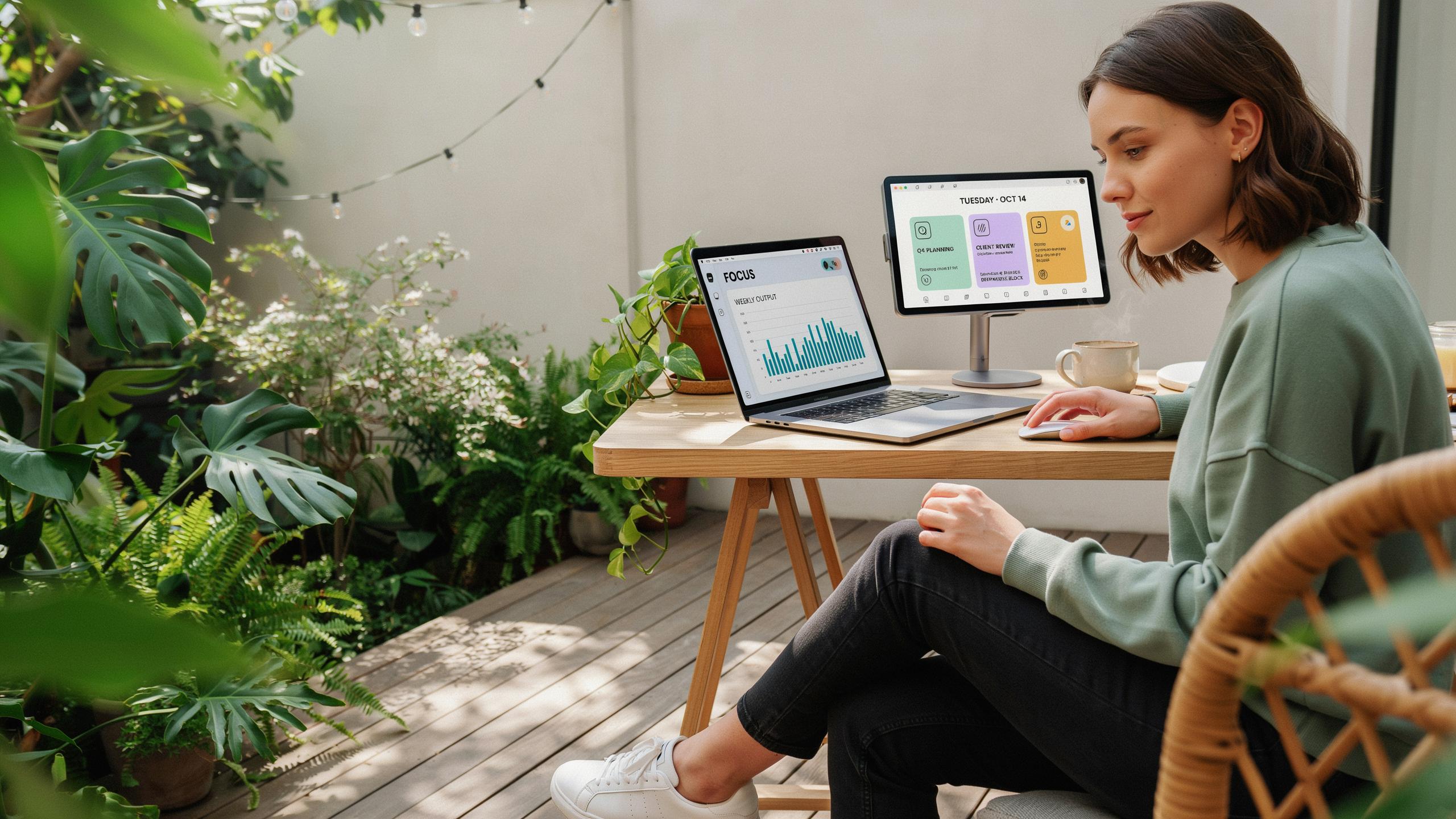
Why A Portable Monitor For Dual Screen Setup Is A Game Changer
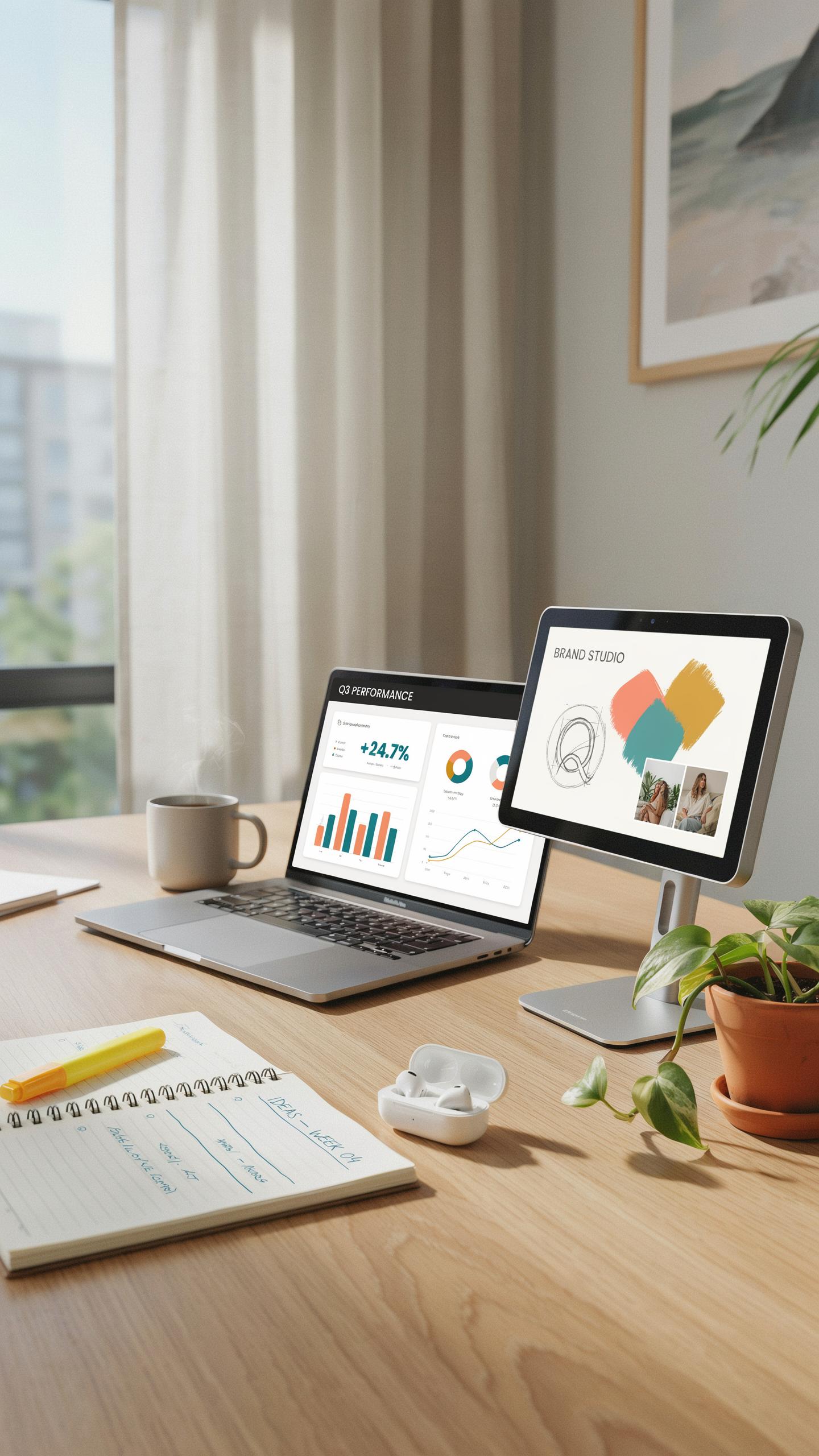
Productivity Boost
A second screen directly reduces the time you spend switching between applications. Your brain processes information faster when you view multiple data sources simultaneously. Reports show professionals complete tasks quicker with dual monitors because context switching drops significantly. You keep reference material visible on one screen while working on another. Email, spreadsheets, and communication tools stay accessible without minimizing your primary work window.
The productivity gains compound over a workday. You eliminate the mental friction of toggling between windows. A portable monitor adds this capability without requiring a desk redesign or permanent installation. You get the same efficiency boost as a stationary dual monitor setup but keep the option to work anywhere. This flexibility means you capture productivity gains regardless of location.
Flexibility Mobility
A portable monitor travels with your laptop. You set up a dual screen workspace in coffee shops, client offices, coworking spaces, or home. No dependency on fixed desk infrastructure means you maintain your workflow across multiple locations. The setup takes under two minutes and requires only a USB cable or HDMI connection. Your productivity environment follows you instead of staying tethered to one location.
Travel professionals and remote workers gain the most value from portable monitors. You avoid the performance drop that comes from working on a single laptop screen during extended periods away from your desk. Business travel, client visits, and on site work all become less productivity draining. The ability to add screen real estate anywhere transforms how you work when location changes frequently.

Choosing The Right Portable Monitor Key Considerations
Screen Size Resolution
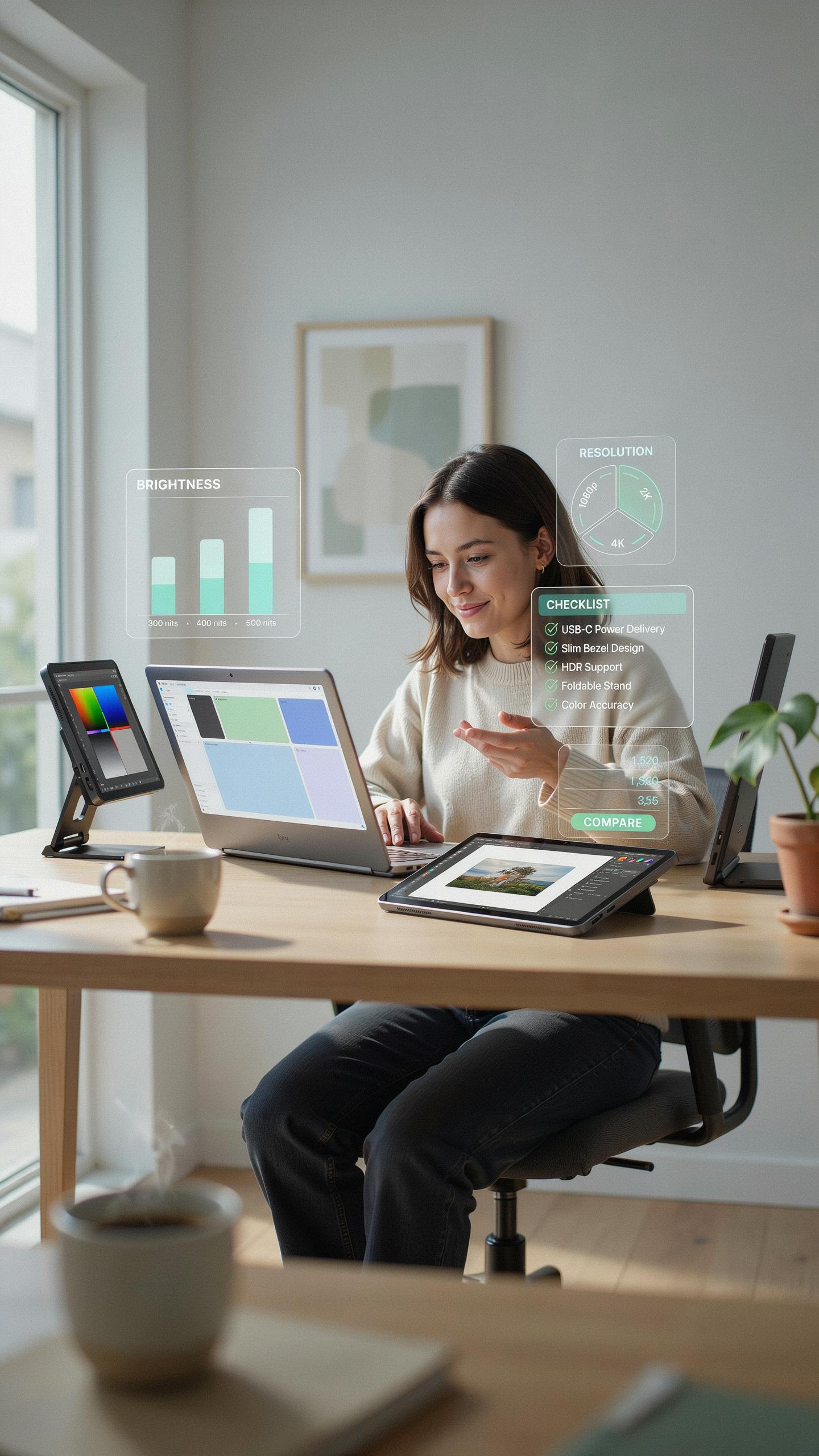
Portable monitors range from 13 to 17 inches. Most users choose 13 to 15 inches for the balance between usable screen space and packability. Anything larger than 15 inches adds significant weight and bulk. Resolution matters more than size for work. A 1080p display on a 13-inch screen delivers sharp text. A 1440p or 4K display on the same size gives you more workspace without scaling issues.
The math is simple: smaller screens need higher resolution to remain readable. A 13-inch 1080p monitor shows roughly the same content density as a 15-inch 1440p display. For spreadsheets, code, and documents, 1440p is the practical minimum on anything over 14 inches. Test the specific model before buying. Screen quality varies widely between brands at identical resolutions.
Connectivity Power
USB-C dominates portable monitor connectivity because it handles video, power, and data through one cable. This matters for laptops with limited ports. HDMI ports appear on some models but require a separate cable and power source, adding complexity. Power Delivery over USB-C lets the monitor charge your laptop while displaying content. Check the wattage: 60W handles most ultrabooks, but 100W is safer for larger laptops or workstations.

Verify compatibility with your specific devices before purchase. Not all USB-C ports support video output. Some monitors require separate USB-A to USB-C adapters or external power supplies. Read the exact specifications for your laptop model. A monitor with 90W Power Delivery and USB-C video output eliminates cable clutter and simplifies setup for most remote workers and travelers.
Setting Up Your Portable Dual Screen A Step By Step Guide
Connecting Your Portable Monitor To Your Laptop
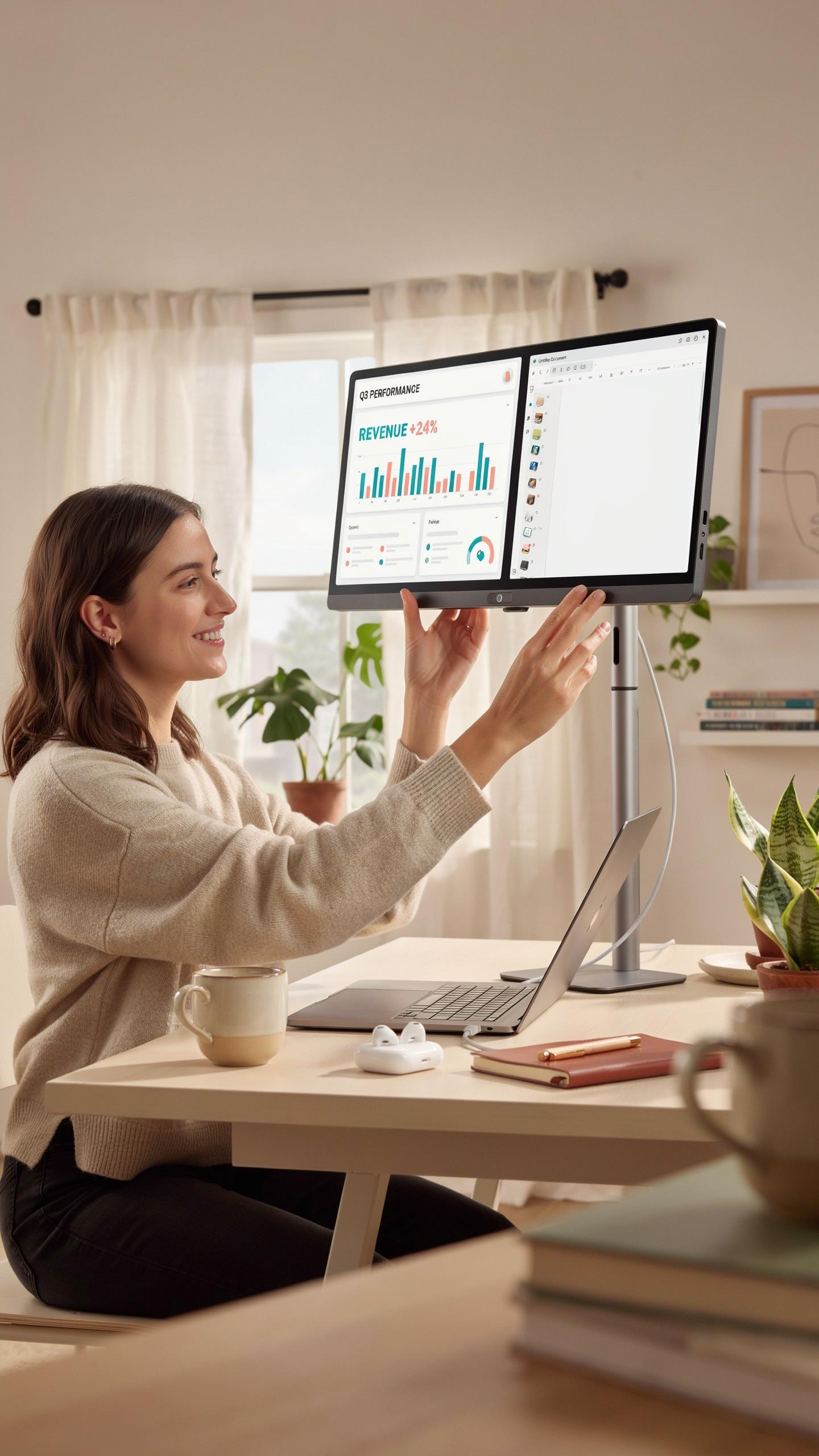
Start with the right cable. Most portable monitors use USB-C, HDMI, or Mini DisplayPort connections. Check your laptop’s ports first. USB-C handles both power and video on newer machines, simplifying your setup significantly. HDMI requires a separate power adapter, which adds bulk. Mini DisplayPort appears on Apple and some business laptops. Match your laptop’s output to the monitor’s input connector before purchasing.
Connect the cable directly from your laptop to the portable monitor. Power on both devices in sequence: monitor first, then laptop. Windows and macOS detect the external display automatically in most cases. Your system assigns the portable monitor as an extended display by default. If detection fails, manually add it through display settings. The process takes under two minutes on functioning hardware.
Remember the days of spreading your work across every available surface? Now, your expanded view travels with you, bringing that familiar comfort of a dedicated workspace, anywhere the journey takes you.
Optimizing Your Dual Monitor Setup For Seamless Use
Access your display settings immediately after connection. On Windows, right-click the desktop and select Display Settings. On macOS, go to System Preferences, then Displays. Your system shows both monitors with numeric labels. Arrange them to match your physical workspace layout. Correct arrangement prevents your cursor from jumping unexpectedly between screens.

Set your primary display where you perform critical work. Assign your portable monitor as the secondary screen for supporting tasks like email or chat. Adjust resolution and refresh rate based on the portable monitor’s specifications, typically 1080p or 1440p at 60Hz. Match brightness levels between displays to reduce eye strain during extended work sessions. Test cursor movement and window dragging across both screens to confirm proper alignment.
Beyond The Office Portable Monitors For Creative And Gaming Setups
Home Studio Setup
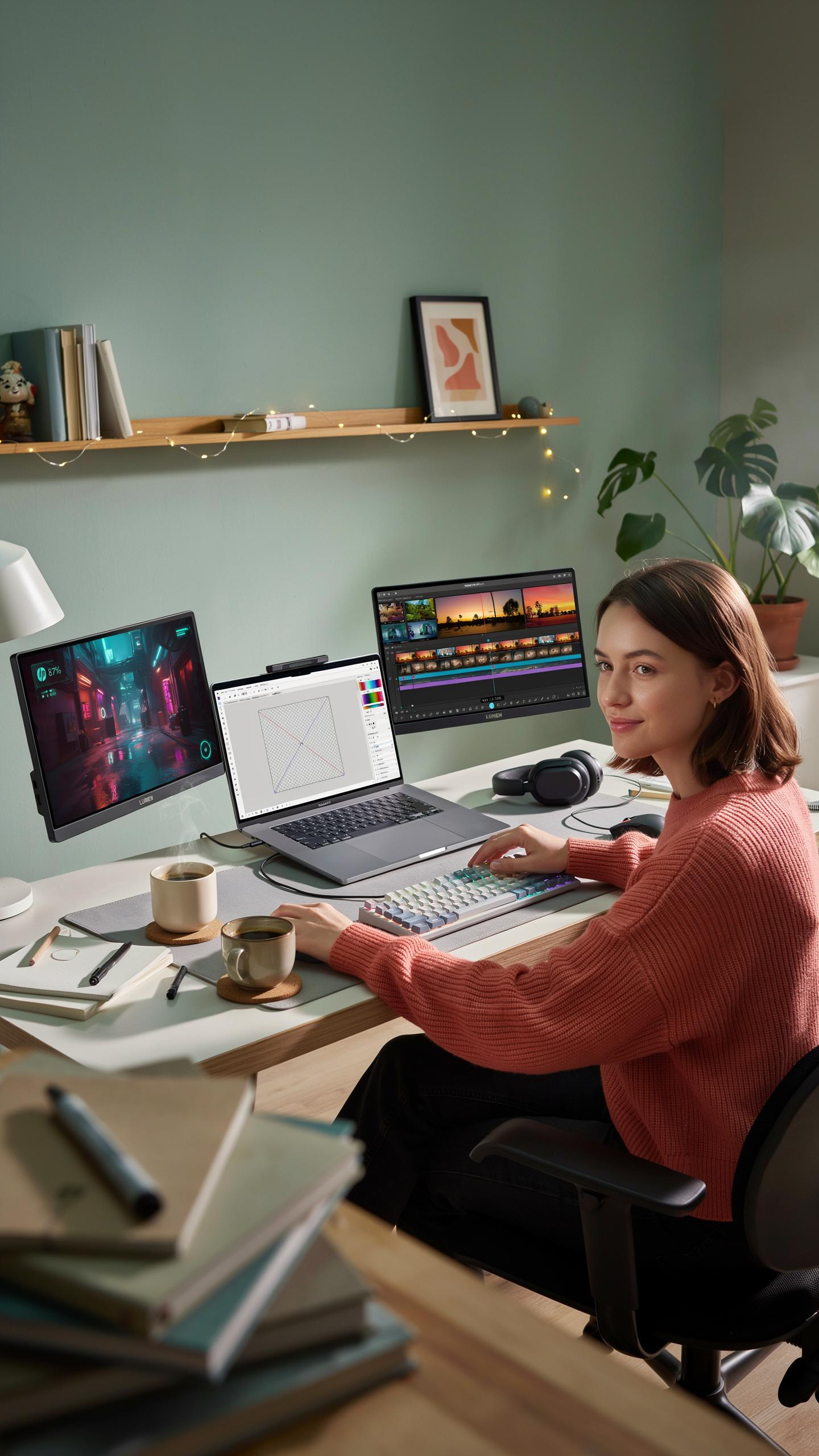
A second monitor transforms your creative workspace. Video editors, graphic designers, and musicians need real estate to manage timelines, palettes, and mixing boards simultaneously. A portable monitor solves space constraints without requiring desk renovations. You gain screen area on demand and remove it when recording or streaming requires a clean background.
Portable monitors connect via USB-C, HDMI, or wireless protocols. Most home studios benefit from 13 to 15-inch displays paired with a primary 24 to 27-inch monitor. The secondary screen handles reference material, communications, or asset libraries while your main monitor displays active work. Power delivery through USB-C eliminates cable clutter and simplifies your setup.
Gaming On The Go
Gaming demands fast response times and minimal input lag. Portable gaming monitors ship with 60Hz to 144Hz refresh rates, matching competitive gaming requirements. You transport your setup to tournaments, LAN events, or friends’ homes without compromise. The display syncs with your laptop or console through USB-C or HDMI.

Competitive players prioritize 1ms response times and 120Hz minimum refresh rates for smooth gameplay. Casual gamers accept 60Hz displays for story-driven titles and single-player experiences. Weight matters. A sub-two-pound monitor fits backpacks easily. Built-in speakers and brightness controls handle varied lighting conditions. Resolution scales from 1080p to 1440p depending on your GPU power and preference.
Top Tech Gadgets Accessories For Your Portable Setup
Stands Mounts
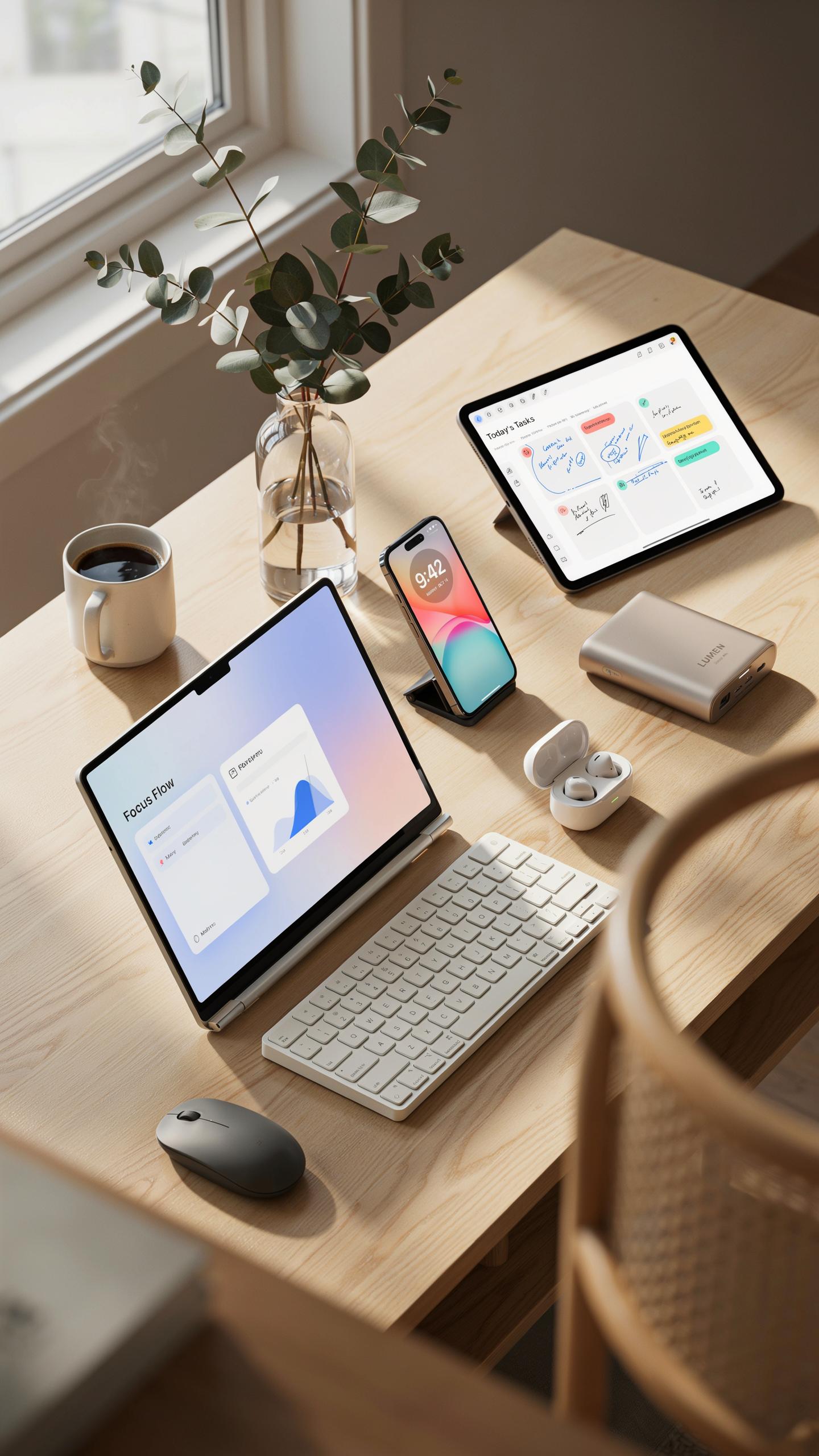
Ergonomic stands solve the core problem of portable monitors: screen height. Your neck stays neutral when monitors sit at eye level. Most stands adjust vertically and tilt, preventing strain during eight-hour work sessions. Aluminum stands weigh two to three pounds, adding minimal bulk to your bag while delivering rigid support for 13 to 17-inch displays.
Quality stands use friction arms or ball joints to lock position without slipping. You position the monitor once, and it stays put through typing vibrations and accidental bumps. Adjustable stands cost between 20 and 60 dollars depending on build quality and materials. The investment pays back immediately through reduced neck pain and faster setup times at coffee shops or client offices.
Carrying Cases
Dedicated carrying cases protect your portable monitor during transport. A soft case with foam padding prevents screen damage from impacts inside your backpack or car. Cases fit your monitor’s exact dimensions, eliminating wasted space and keeping your setup compact for travel between locations.

Hard shell cases offer maximum protection for expensive displays, particularly for frequent flyers or professionals working at multiple client sites. Look for cases with shoulder straps or backpack-style handles that distribute weight evenly. Interior dividers let you organize cables and stands alongside your monitor. Quality cases run 30 to 80 dollars and extend your monitor’s working life by preventing damage that would otherwise force replacement.
Troubleshooting Common Issues With Your Dual Monitor Setup
Display Detection
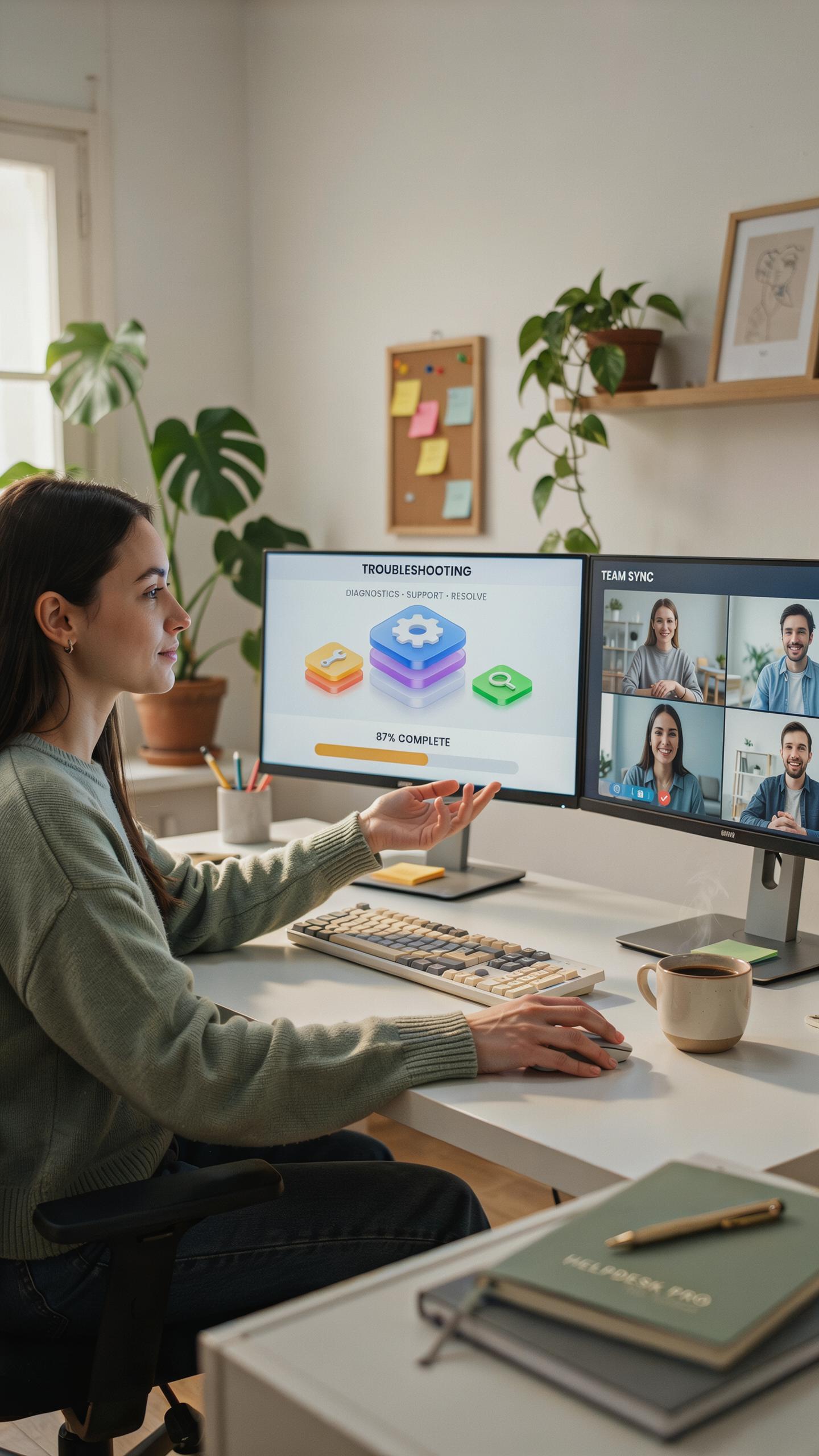
Your operating system must recognize the portable monitor as a valid display output. Start by checking your connection cable. USB-C, HDMI, and DisplayPort each have specific requirements. A faulty cable causes most detection failures. Swap your cable with a known working one to isolate the problem immediately.
Next, update your graphics driver. Your laptop’s GPU driver handles display recognition. Visit your GPU manufacturer’s website and download the latest driver version. Windows and macOS sometimes fail to detect new displays until you force a driver refresh. Restart your device after updating to activate the new driver.
Power Drain With An External Monitor
Portable monitors demand significant power from your laptop’s battery. USB-powered displays drain faster than HDMI models because USB transfers both data and power through one port. Calculate your runtime reduction by checking your monitor’s power consumption against your battery capacity. A 15-watt monitor depletes a 50-watt battery roughly three times faster.
Reduce power drain by adjusting brightness settings on the portable monitor. Lower brightness decreases energy consumption without sacrificing functionality. Enable your laptop’s power saver mode when running dual screens. Disable unused ports and background applications. Consider using a high-capacity external battery bank to extend your working time when traveling.
Maximizing Productivity With Software And Workflow Tips
Window Management
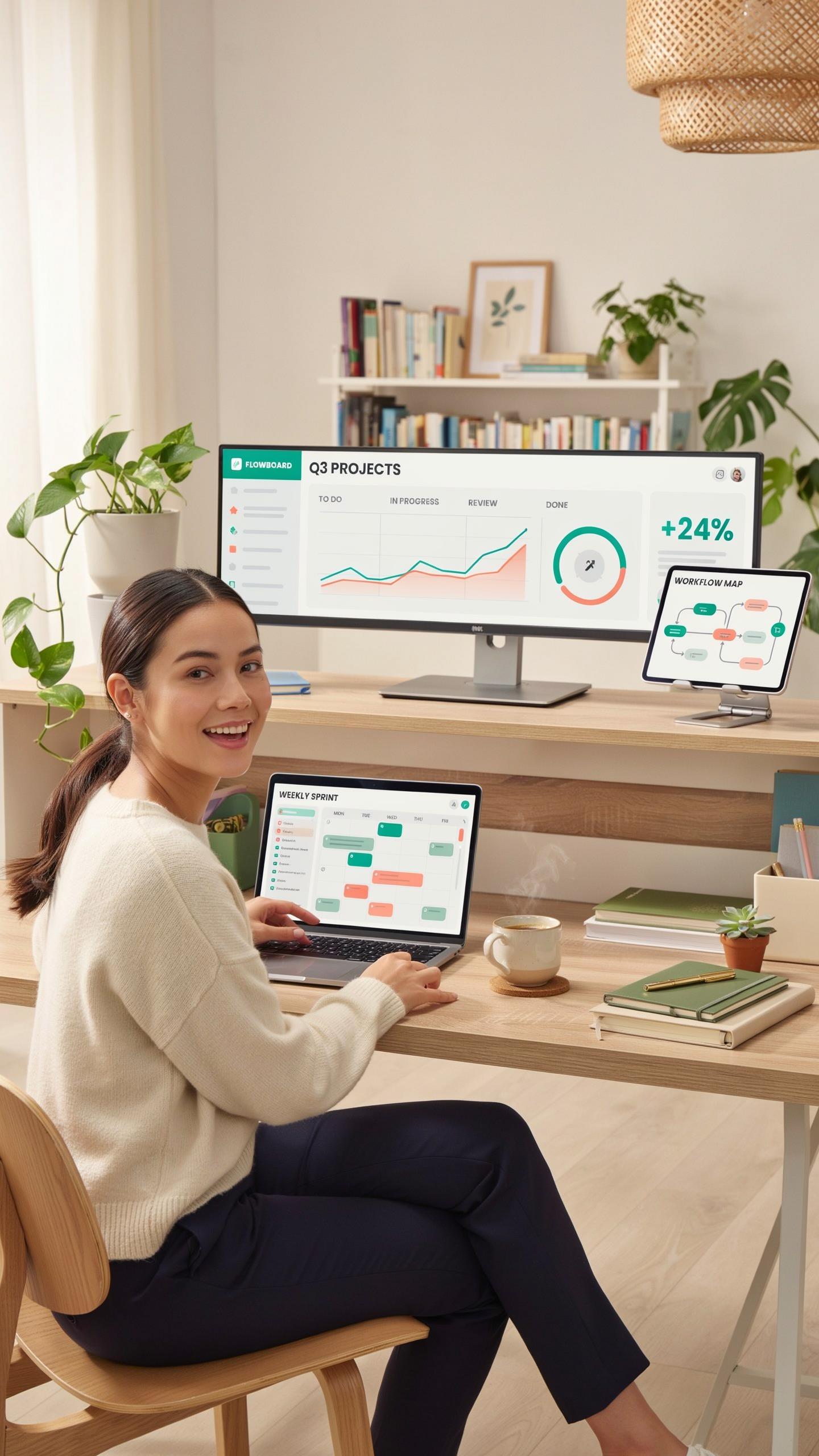
Dual monitors demand intentional workspace organization. Your primary monitor handles your main task. Your portable monitor becomes the secondary display for reference material, communications, or support applications. Position windows so you minimize head movement. Keep your eye line centered on your primary work. This reduces fatigue and maintains focus. Operating systems like Windows and macOS offer built-in snapping features that dock windows to screen edges automatically.
Establish a consistent window layout for your recurring tasks. If you code, place your editor on the main screen and documentation on the portable monitor. For design work, put your canvas on the primary display and your tools palette on the secondary. Consistency builds muscle memory. Your brain stops thinking about arrangement and focuses on output. Change layouts only when your workflow fundamentally shifts.
Application Shortcuts
Keyboard shortcuts eliminate reliance on mouse navigation between screens. Master your operating system’s native shortcuts first. Windows users gain speed with Win+Left Arrow and Win+Right Arrow for window snapping. Mac users use Control+F3 to access Mission Control. These commands move focus between applications and screens without touching your mouse.
- Alt+Tab (Windows) and Command+Tab (Mac): Cycle through open applications rapidly without reaching for your mouse or trackpad.
- Win+V (Windows) and Command+Shift+V (Mac): Access clipboard history to paste previous items across your dual screen workspace.
- Win+D (Windows) and F11 (Mac): Show desktop instantly to access files or reset your visual space when overwhelmed.
- Custom Hotkeys in Your Primary Software: Most professional applications allow you to assign shortcuts to repeated actions within your workflow.
- Monitor-Specific Focus Tools: Third-party tools like DisplayFusion (Windows) or Magnet (Mac) enable shortcuts to move windows between specific monitors.

Your fingers move faster than your eyes. Removing the mouse from your workflow saves seconds per action. Those seconds compound into hours per week. Train yourself on three to five shortcuts that match your specific work. Ignore the rest. Specialization beats generalization when building speed.
Comparing Portable Monitor Technologies LCD Vs OLED
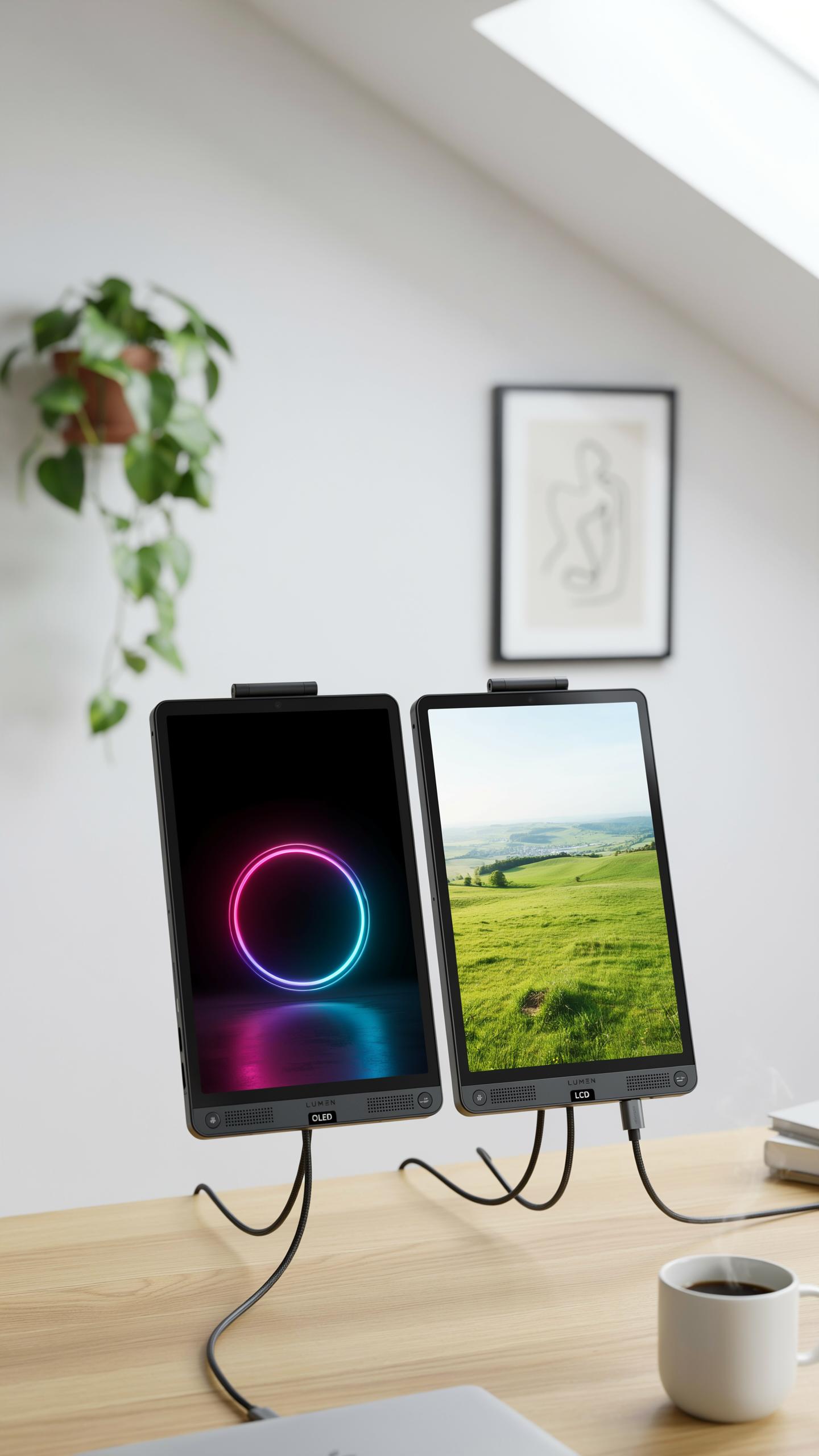
Image Quality
LCD monitors use a backlight behind a liquid crystal layer to produce images. This backlight always runs, even when displaying black pixels. You get consistent brightness across the screen and lower costs. The trade-off is that blacks appear gray, and contrast ratios stay limited. Most portable monitors on the market today use LCD technology for these reasons.
OLED monitors emit light from individual pixels that turn on and off independently. When a pixel displays black, it produces no light at all. This creates true blacks and infinite contrast ratios. Colors appear more vivid because each pixel controls its own brightness. OLED portable monitors exist but remain rare and expensive compared to LCD options.
Power Efficiency
LCD panels draw steady power from your laptop battery because the backlight runs continuously. Your battery drain remains predictable and consistent throughout your work session. A typical 15-inch LCD portable monitor consumes between 5-10 watts depending on brightness settings. Reducing screen brightness directly reduces power consumption on LCD screens.

OLED pixels consume power only when they emit light. Displaying dark content or mostly black screens uses significantly less power than LCD equivalents. However, displaying bright white content or maximum brightness drains battery faster than LCD. The power advantage depends entirely on your actual content and usage patterns. For typical mixed-use work, OLED offers modest battery savings over LCD.
Future Trends In Portable Dual Screen Technology
Wireless Advancements
Wireless protocols are replacing USB-C and HDMI as the primary connection method for portable monitors. Wi-Fi 6E and upcoming Wi-Fi 7 standards deliver sufficient bandwidth for high-resolution dual displays without cable constraints. Manufacturers are embedding these protocols directly into monitor chipsets, reducing latency to acceptable levels for professional work.
Bluetooth and proprietary wireless solutions face limitations for sustained video streaming. Latency spikes remain problematic for video editing and gaming workflows. Standards bodies continue optimizing throughput, but wired connections still outperform wireless for mission-critical tasks requiring zero frame drops.
Integrated Solutions
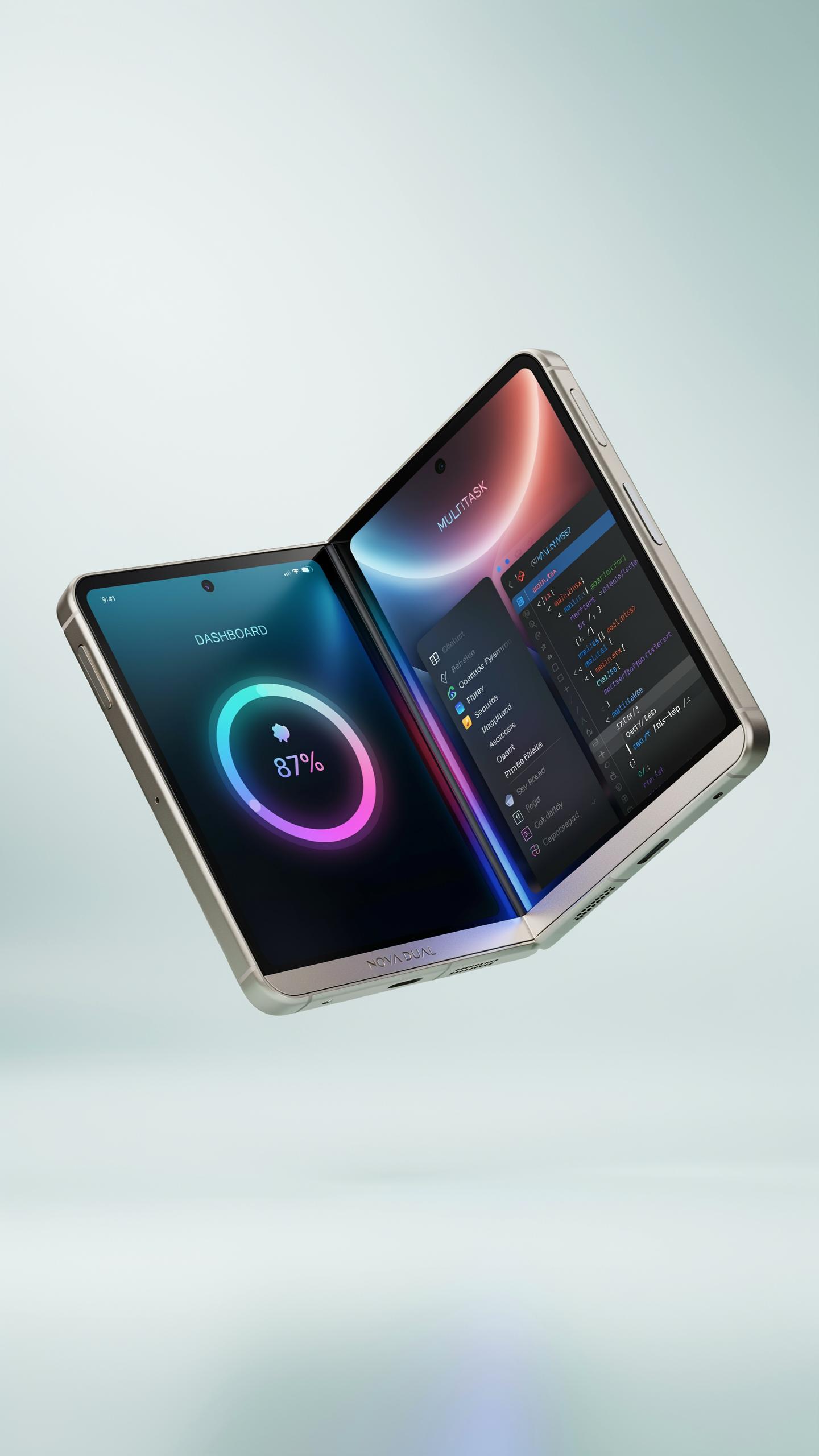
Laptop manufacturers are designing built-in display expansion ports into future models. These integrated systems reduce setup complexity by eliminating external docking requirements. Companies like ASUS and Lenovo are prototyping foldable screens that deploy from device edges, creating native dual-screen experiences without separate monitors.
These integrated approaches trade flexibility for convenience. Users gain simplified workflows but lose the ability to customize monitor specifications independently. The market will likely split between ultra-portable integrated solutions and modular setups that prioritize customization and upgradeability for knowledge workers.
Frequently Asked Questions

What exactly is a portable dual screen setup and why would I need one?
A portable dual screen setup involves connecting a compact, lightweight monitor to your laptop or tablet, effectively doubling your screen real estate on the go. It’s fantastic for boosting productivity when traveling, working remotely, or even just decluttering your home office, offering a more efficient workflow without being tethered to a fixed desk.
How do I connect a portable monitor for dual screen setup to my laptop?
Connecting a portable monitor for dual screen setup is usually straightforward. Most portable monitors connect via a single USB-C cable which handles both power and video. If your laptop lacks USB-C, you might use an HDMI cable for video and a separate USB cable for power. Always check your monitor and laptop’s port compatibility for the easiest setup!
Are there affordable options for a portable monitor that still offer good performance?
Absolutely! While some high-end portable monitors can be pricey, there are many excellent budget-friendly options available. Look for models from reputable brands that prioritize essential features like full HD resolution and good brightness. You can definitely find a capable portable monitor for dual screen setup without breaking the bank.