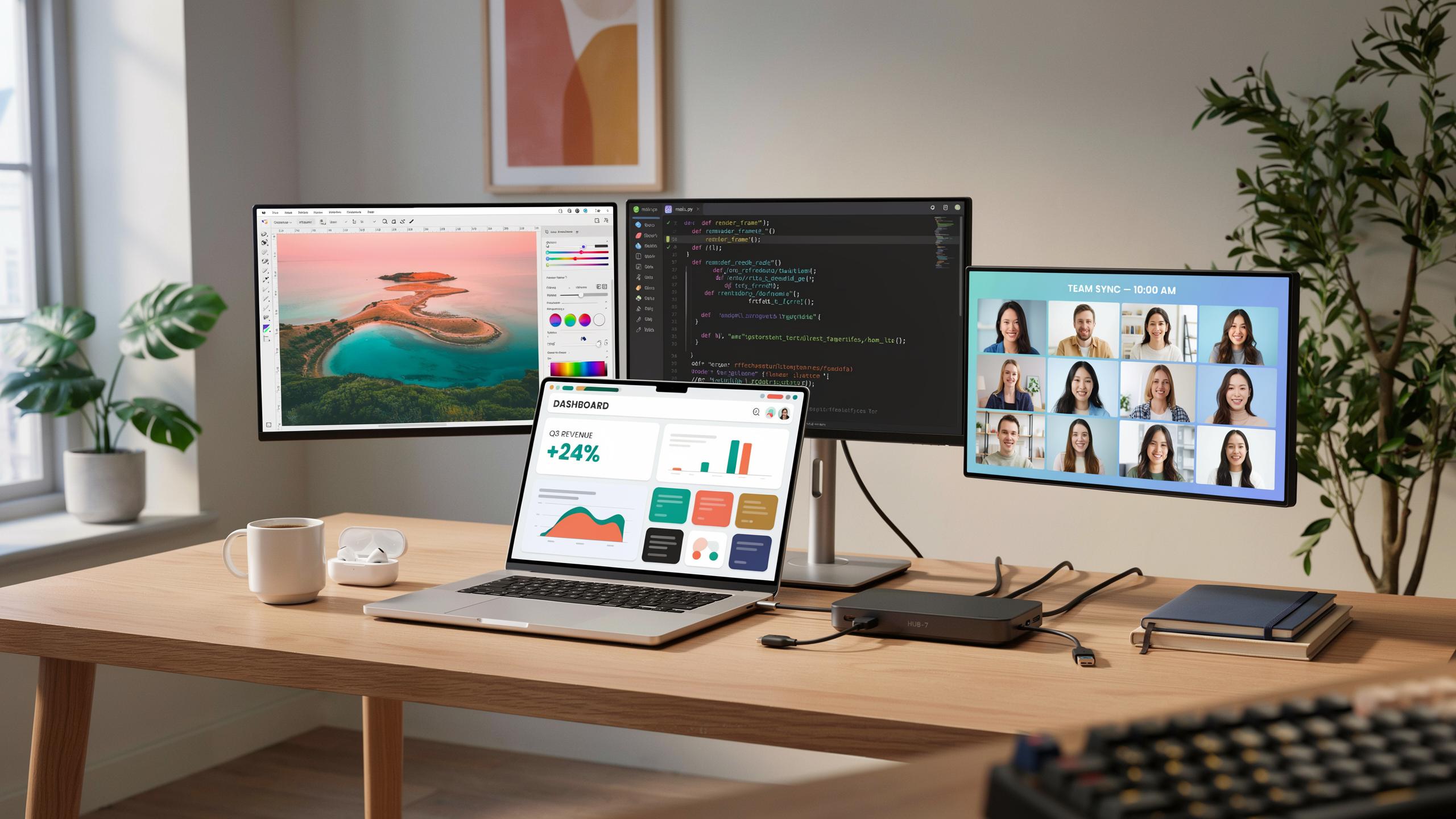
The Evolution Of Connectivity USB C Docking Station
Understanding USB C: More Than Just A Port
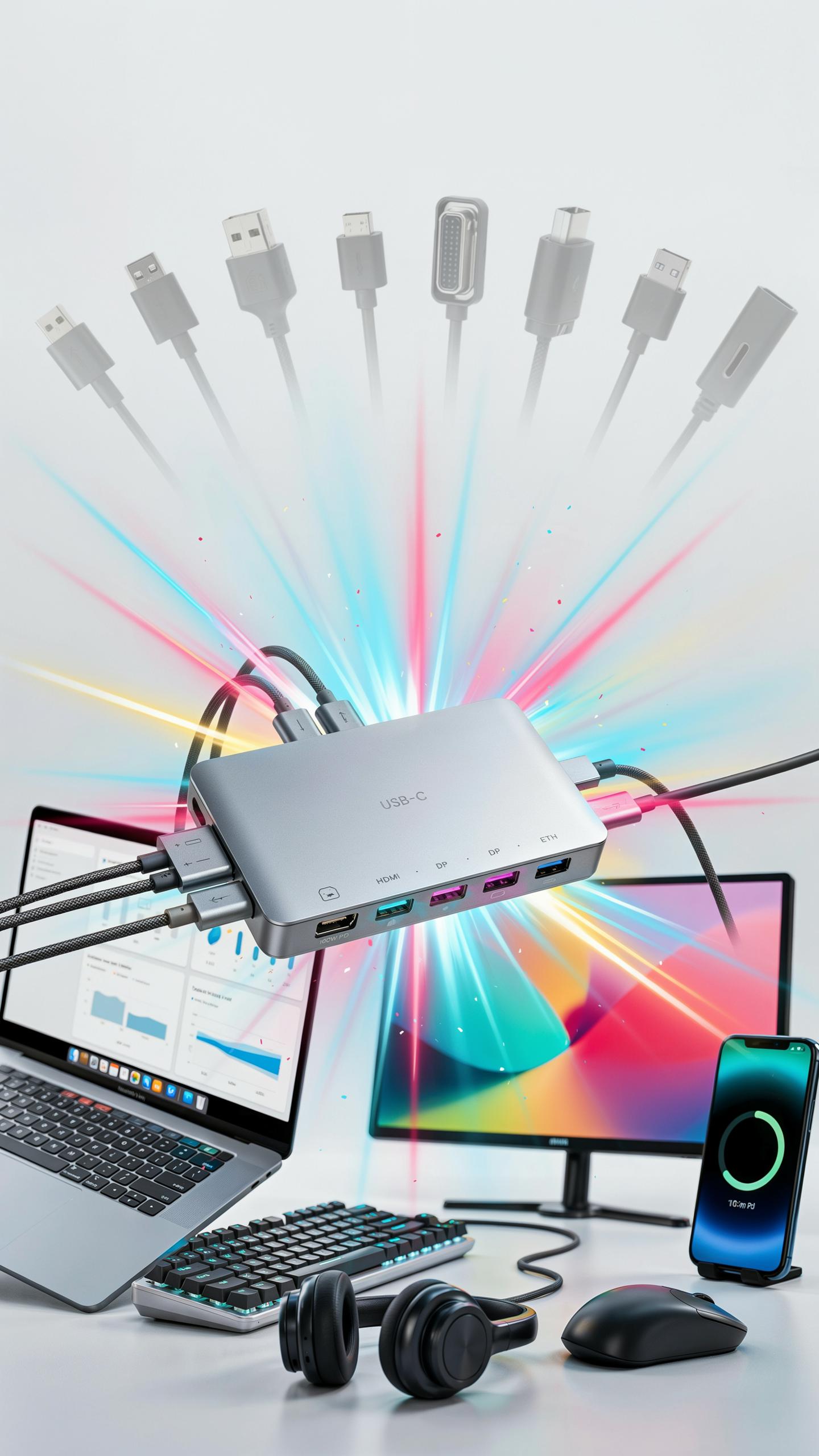
USB-C is a connector standard, not a protocol. It delivers power, data, and video through a single reversible port. The connector itself handles up to 240 watts of power delivery and supports multiple data standards simultaneously. Manufacturers adopted USB-C across laptops starting around 2015, with widespread adoption by 2017. This shift eliminated the need for multiple proprietary ports on thin laptops.
USB-C docking stations bridge the gap between your laptop’s single port and your desk setup. They expand one USB-C connection into multiple outputs: HDMI, DisplayPort, USB-A, Ethernet, and SD card readers. A docking station lets you connect peripherals once, then simply plug in your laptop to activate everything. This eliminates cable clutter and speeds up your daily workflow significantly.
Why A Docking Station Is Essential For Modern Laptops
Modern laptops prioritize thinness and weight over port quantity. Most laptops ship with only two to three USB-C ports total. Your charger occupies one port, leaving limited connectivity for external drives, monitors, or peripherals. A docking station reclaims this functionality without adding bulk to your laptop itself.
Multi-monitor setups demand more bandwidth than laptops can handle through native ports. Docking stations provide dedicated video outputs that won’t compete with data transfer or charging. They also simplify the transition between workspaces. You dock once and gain access to your entire peripheral ecosystem instantly.

Choosing The Right USB C Docking Station For Your Laptop
Factors To Consider: Ports, Power Delivery, And Compatibility
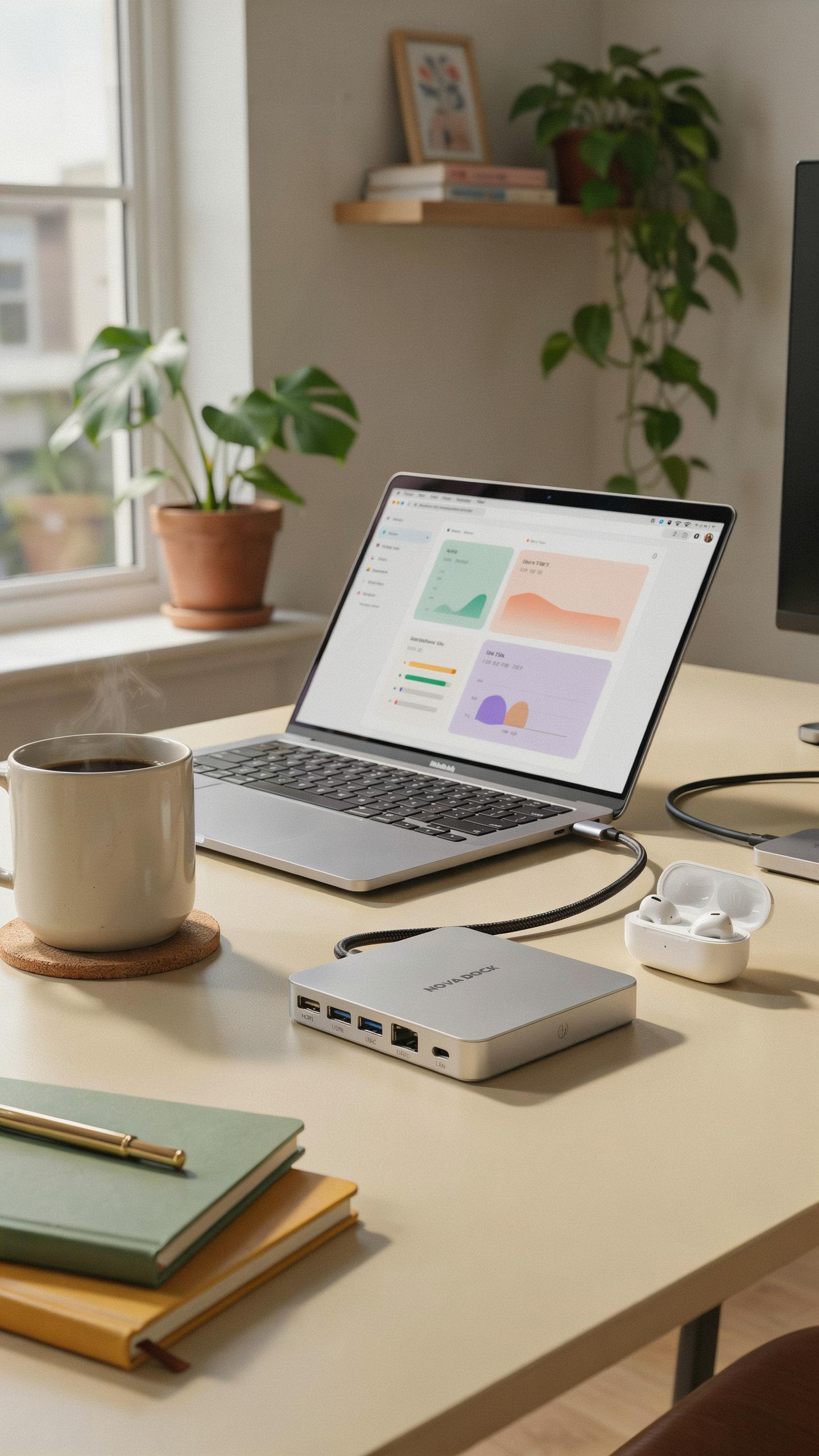
Start with power delivery capacity. USB-C docking stations range from 65W to 240W output. Match this to your laptop’s charging requirement, typically found on the original charger or in your device specs. Undersized power delivery means slow charging or no charging while working. Most modern laptops need 65W to 100W for adequate performance.
Count the ports you actually need before buying. Check what you currently plug in daily: monitors, external drives, mice, keyboards, printers. Calculate HDMI or DisplayPort outputs required for your monitor setup. USB-A ports handle legacy peripherals. USB-C ports daisy-chain newer devices. Ethernet ports matter if wireless is unreliable at your desk. Don’t pay for unused ports.
DisplayLink Vs. Native USB C: What You Need To Know
Native USB-C docking uses your laptop’s Thunderbolt 3 or USB 3.1 port directly. No drivers required on most systems. Your laptop handles video processing natively, consuming bandwidth but delivering reliability. This method works with any OS that supports USB-C video output. Performance is straightforward and predictable with minimal latency.

DisplayLink technology uses a separate chip inside the dock to compress and transmit video. It requires driver installation on Windows, Mac, or Linux. DisplayLink frees up your laptop’s bandwidth for other USB traffic. It supports more monitors on older laptops that lack native multi-display capability. Choose DisplayLink for older systems or when you need maximum bandwidth for other devices.
Maximizing Your Desk Setup With Multiple Monitors
Achieving A Multi Monitor Setup With A Single USB C Connection
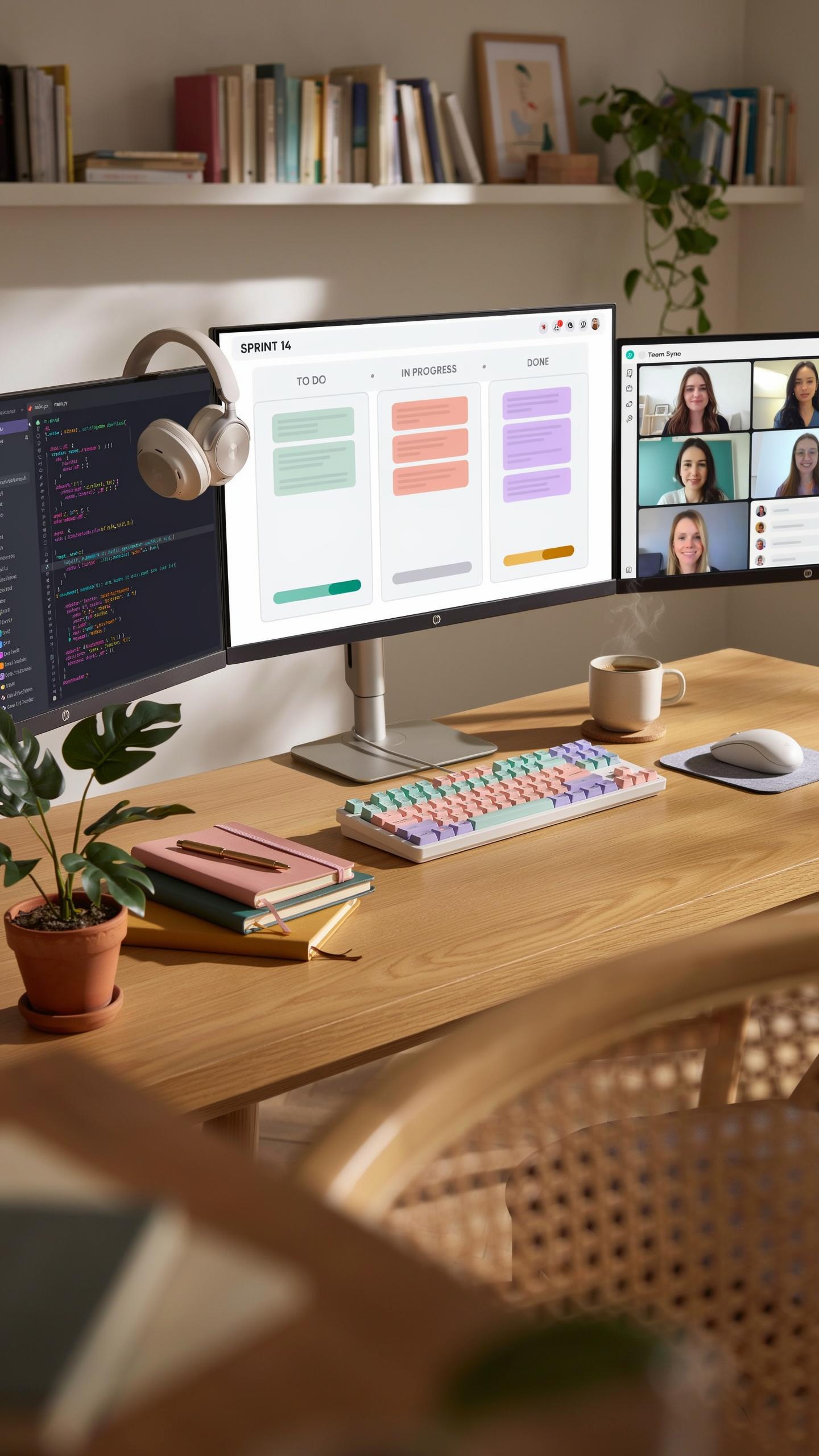
A USB-C docking station consolidates multiple monitor connections through one cable to your laptop. This eliminates cable clutter and reduces the number of ports you need to occupy. Most modern docking stations support dual or triple monitor configurations using DisplayPort Alt Mode or Thunderbolt 3 technology. The docking station acts as the hub, distributing video signals from your laptop to each connected display simultaneously.
Your laptop sends video data through a single USB-C connection to the docking station, which then routes that signal to multiple monitors via HDMI or DisplayPort outputs. This approach works because the docking station handles signal distribution rather than your laptop managing each monitor individually. Ensure your laptop supports video output over USB-C before purchasing, as this capability varies between models. Most laptops from 2016 onward include this feature, but older models may not.
Optimizing Display Resolutions And Refresh Rates
Resolution and refresh rate capacity depend on the docking station’s bandwidth and your monitor specifications. A single 4K monitor typically requires more bandwidth than two 1080p displays. USB-C docking stations with Thunderbolt 3 support higher bandwidth than standard USB-C, enabling better resolution and refresh rate combinations. Check the docking station specifications against your monitor requirements before purchasing to avoid compatibility issues.

Each monitor connected to your docking station draws from the total available bandwidth. Running three 1080p monitors at 60Hz works on most docking stations, but three 4K monitors at 60Hz requires premium hardware. Your laptop’s GPU also limits performance, as it must process all connected displays. Test your exact monitor configuration before committing to ensure your setup delivers the refresh rates and resolutions you need.
Beyond Displays Expanding Your Laptop Accessories
Integrating Essential Peripherals: Keyboards, Mice, And External Drives
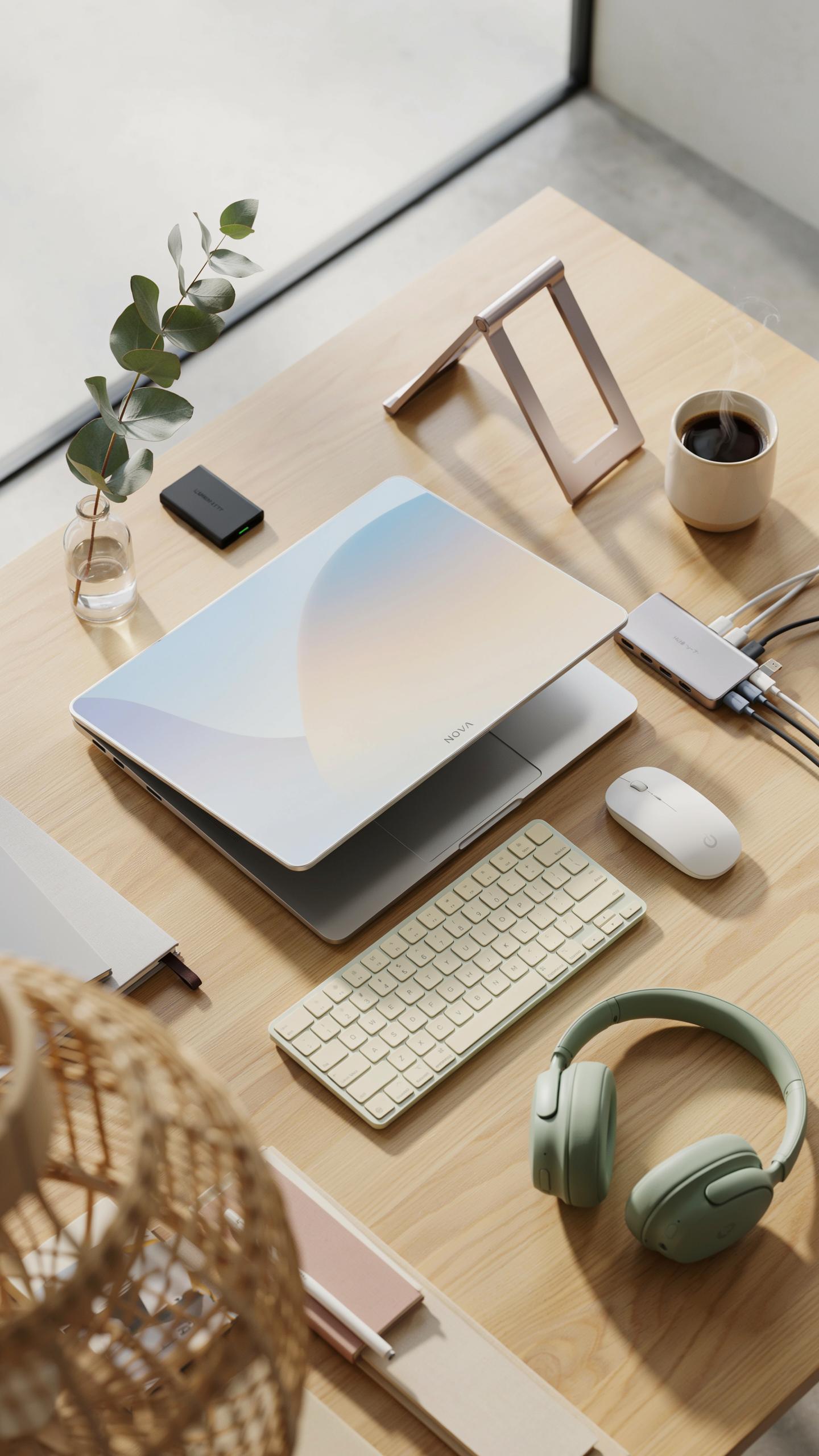
USB-C docking stations connect keyboards, mice, and external drives directly to your laptop through a single cable. This consolidation eliminates the clutter of multiple USB adapters and frees up your laptop’s native ports. Most docking stations provide three to five USB-A ports plus additional USB-C ports, giving you flexibility for various devices simultaneously without switching cables around.
External drives connect through USB-A or USB-C ports on the dock, transferring data at speeds determined by the drive’s interface and the dock’s bandwidth capacity. Wireless keyboards and mice use their USB receivers in the dock’s ports, creating a cleaner desk setup. The dock becomes your hub, reducing the number of times you plug and unplug from your laptop daily, which extends your laptop’s port lifespan.
The Role Of A Card Reader: SD Card And Micro SD Support
Many USB-C docking stations integrate SD card and Micro SD card readers directly into the dock itself. Photographers, videographers, and content creators benefit from this feature when transferring files from cameras and drones without carrying separate card readers. The card slots read and write at speeds limited by the dock’s USB bandwidth, typically achieving 100-400 Mbps depending on the dock model and card type.

Not all docking stations include card readers, so verify this specification when comparing models. The reader occupies physical space in the dock’s design, which is why manufacturers sometimes exclude it to keep prices lower or reduce dock dimensions. If you work with memory cards regularly, prioritize docks with built-in readers to avoid purchasing additional USB card reader adapters.
Powering Your Tech Gadgets And Laptop
Understanding Power Delivery Through USB C
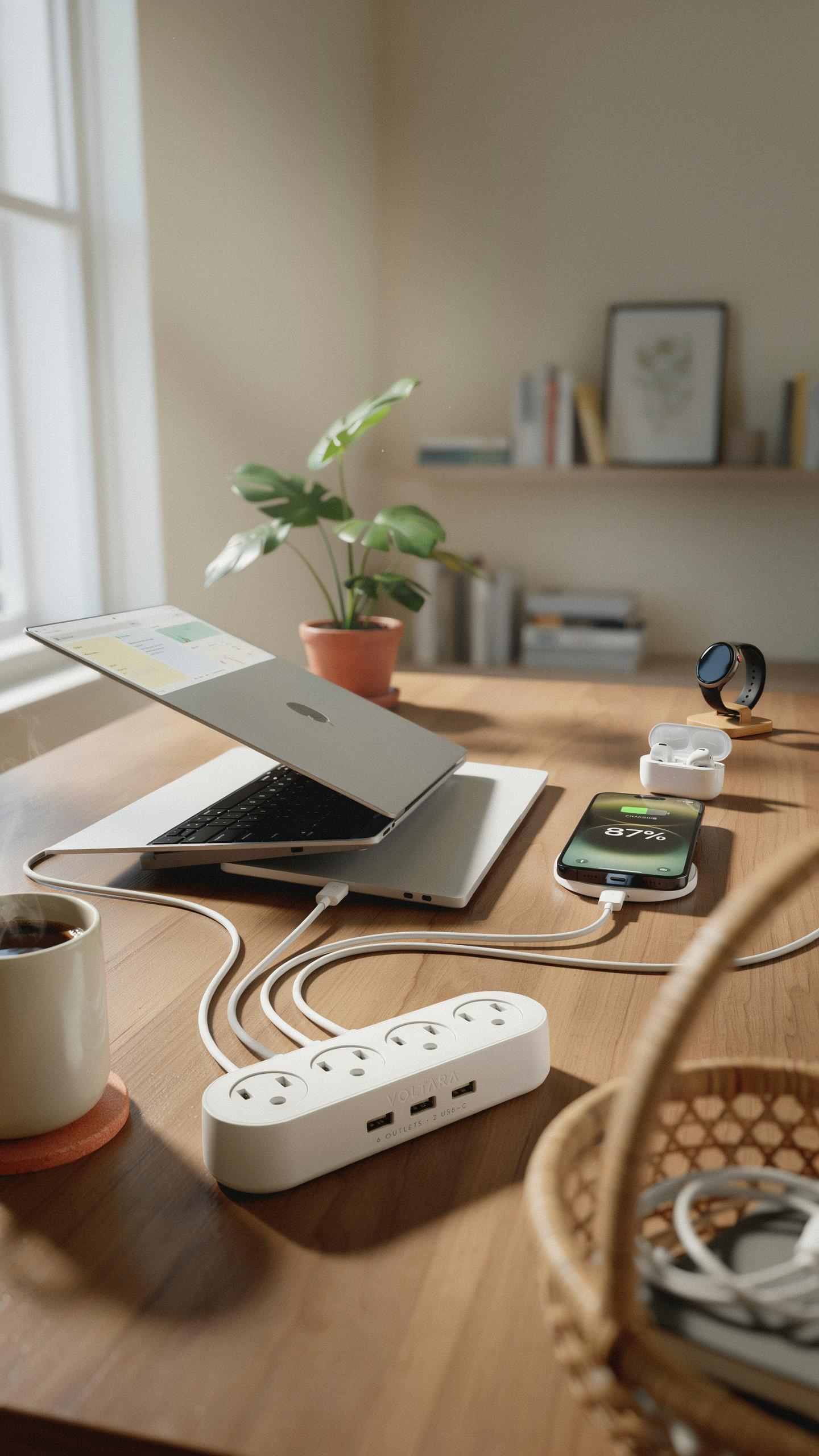
USB Power Delivery is a charging standard that moves electrical current through USB-C cables. It replaces proprietary chargers by delivering up to 240 watts through a single cable. Your docking station acts as the intermediary, receiving power from a wall outlet and distributing it to your laptop and connected devices. The wattage your dock delivers depends on its internal power supply rating and the USB-C port specifications.
Power Delivery ratings matter because they determine charging speed. A 65-watt docking station charges slower than a 140-watt model on the same laptop. Check your laptop’s power requirements first, then match your docking station’s output to that number or higher. Undersized power supplies mean slower charging or no charging while your laptop runs under load. Most modern docking stations range from 65 to 240 watts, so verify the spec sheet before buying.
Charging Other Devices With Your Docking Station
Docking stations with Power Delivery push excess wattage to USB-A and USB-C ports when your laptop battery is full. These ports charge phones, tablets, and wireless earbuds simultaneously without needing separate chargers. The dock distributes available power intelligently, prioritizing your laptop first, then splitting remaining capacity among other ports. This reduces cable clutter on your desk and consolidates charging to one power source.

Port count and individual power ratings determine how many devices charge at once. A dock with four USB-A ports might share 18 watts across all of them, meaning slower charging per device. Premium docking stations dedicate specific wattage to certain ports, guaranteeing faster charging for high-demand devices. Review the docking station’s port specifications to understand real-world charging speeds for your peripheral devices.
Troubleshooting Common Issues With USB C Docking Stations

Addressing Display Recognition Problems
Your monitors won’t appear after connecting the docking station. This happens because the dock isn’t communicating properly with your graphics driver or the display output mode needs adjustment. Check your laptop’s display settings first. Windows and macOS both require you to manually detect displays in some cases. Restart the dock by unplugging it for 30 seconds, then reconnect. Update your graphics drivers immediately. Outdated drivers block display signals even when hardware works fine.
The issue often stems from resolution mismatches between your monitors and the dock’s capabilities. Some docks support only specific refresh rates or display configurations. Test each monitor individually by plugging it directly into the dock’s video ports. Switch between HDMI and DisplayPort outputs if your dock has both. Check whether your laptop’s BIOS settings restrict video output through USB-C. Firmware updates for your specific dock model sometimes fix unrecognized display problems.
Resolving Connectivity And Power Glitches
Devices keep disconnecting from the dock randomly. This typically indicates insufficient power delivery or corrupted USB communication. Verify your power adapter meets the dock’s wattage requirements. A 60-watt adapter won’t sustain a 100-watt dock running multiple monitors and peripherals. Test with the original power supply included with your dock. Move the dock away from wireless routers and microwave ovens, as these devices interfere with USB signals. Replace the USB-C cable. Frayed or defective cables cause intermittent connection drops that appear random.

Your laptop charges slowly or stops charging through the dock. Power delivery negotiation failures cause this issue. Unplug all USB devices from the dock except your laptop for testing. Restart your laptop completely. Check that your laptop’s power settings aren’t limiting incoming power. Some laptops have built-in caps preventing full-speed charging through USB-C when other devices draw power. Bypass the dock and charge directly with your laptop’s original adapter to confirm power delivery capability.
Future Proofing Your Desk Setup Emerging USB C Technologies

Thunderbolt 4 And USB4: The Next Generation Of Connectivity
Thunderbolt 4 delivers 40 gigabits per second bandwidth. USB4 matches this speed but operates under the USB Implementers Forum instead of Intel. Both protocols handle video, data, and power over a single cable. Your laptop needs native support for either technology. Docking stations built on these standards eliminate bottlenecks that plague older USB 3.1 designs.
Thunderbolt 4 docking stations command premium pricing due to Intel certification requirements. USB4 alternatives cost less while delivering identical throughput. The practical difference matters only if you transfer files exceeding 10 gigabytes regularly or run eight monitors simultaneously. Most professionals see no performance gap between the two. Choose based on your laptop’s native connector type and your actual workload demands.
Remember those days of tangled cables and searching for the right adapter? Embrace the future, where one elegant connection unlocks a world of visual possibility, much like a well-loved story unfolding on a bigger screen.
Wireless Docking Solutions And Their Potential
Wireless docking remains limited by bandwidth constraints. Current Wi Fi 6E standards max out around 2.4 gigabits per second for sustained throughput. Wired docking stations deliver 40 gigabits with Thunderbolt 4 or 20 gigabits with USB 3.1. Wireless technology excels for peripheral connectivity and occasional file transfers, not monitor support or sustained data work.

Future wireless docking will improve when Wi Fi 7 reaches mass adoption and tablets or hybrid devices become the norm. Desktop users managing multiple 4K monitors will continue relying on wired solutions. Wireless docking serves mobile-first workflows where users dock and undock frequently. Evaluate your actual usage pattern before betting your productivity on wireless infrastructure.
Making The Most Of Your Docking Station Tips For Optimal Performance

Regular Maintenance And Firmware Updates
Your docking station performs best when you treat it like any other infrastructure investment. Dust accumulates on connectors and ports, degrading signal quality and power delivery. Clean ports quarterly with compressed air. Wipe the USB-C connector on both the dock and cable with a dry cloth to remove debris that causes connection failures and intermittent power loss.
Manufacturers release firmware updates to fix bugs, improve compatibility, and enhance power management. Check your docking station manufacturer’s website monthly for updates. Some docks require manual downloads and installation via USB, while others update automatically through software. Applying updates prevents crashes during critical work and ensures your dock works with newly released laptops and peripherals without compatibility issues.
Ergonomic Considerations For Your Multi Monitor Environment
Monitor placement directly impacts your posture and productivity. Position your primary monitor at eye level, approximately 20 to 26 inches from your face. Secondary monitors sit to the sides at slight angles, eliminating neck strain from constant turning. Your docking station cable management either supports or sabotages ergonomics. Route cables behind monitors and through desk management systems to keep your workspace clean and prevent tripping hazards.
- Monitor Height: Position the top of your primary screen at or slightly below eye level to reduce neck flexion and prevent cervical strain during extended work sessions.
- Viewing Distance: Maintain 20 to 26 inches between your eyes and monitors to reduce eye fatigue and accommodate comfortable focus across multiple screens.
- Desk Depth: Use a desk at least 30 inches deep to allow proper monitor spacing and prevent reaching or hunching toward your keyboard and mouse.
- Cable Management: Run docking station cables through routing channels behind your desk to eliminate visual clutter and trip hazards that disrupt your workflow.
- Keyboard and Mouse Placement: Position input devices directly in front of you at elbow height to maintain neutral wrist position and reduce repetitive strain injuries.

Your docking station anchors your entire setup. Test monitor positions before committing to placement. Adjust monitor stands or arms until your neck stays neutral without tilting forward or backward. Poor ergonomics compound over weeks and months, creating pain that forces costly changes. Spend time upfront getting positioning right to protect your ability to work at full capacity for years.
Frequently Asked Questions

What exactly is a USB-C docking station and why do I need one for my laptop?
A USB-C docking station is a valuable hub that connects your laptop to multiple peripherals, like monitors, keyboards, and external drives, all through a single USB-C cable. It simplifies your workspace, reducing cable clutter and expanding your laptop’s capabilities, especially when using multiple screens.
How do I connect multiple monitors to my laptop using a USB-C docking station?
Connecting multiple monitors with a USB-C docking station is straightforward. Simply plug your laptop into the docking station via its USB-C port. Then, connect your monitors to the docking station’s display outputs (like HDMI or DisplayPort) using appropriate cables. Ensure your laptop and docking station support the desired resolutions.
Are there affordable USB-C docking station options available, or are they all very expensive?
Absolutely! While features and brands vary, there’s a wide range of USB-C docking station options to fit different budgets. You can find basic models that support essential functions and a couple of monitors at very reasonable prices, alongside more advanced professional-grade stations. Consider your specific needs to find the best value.