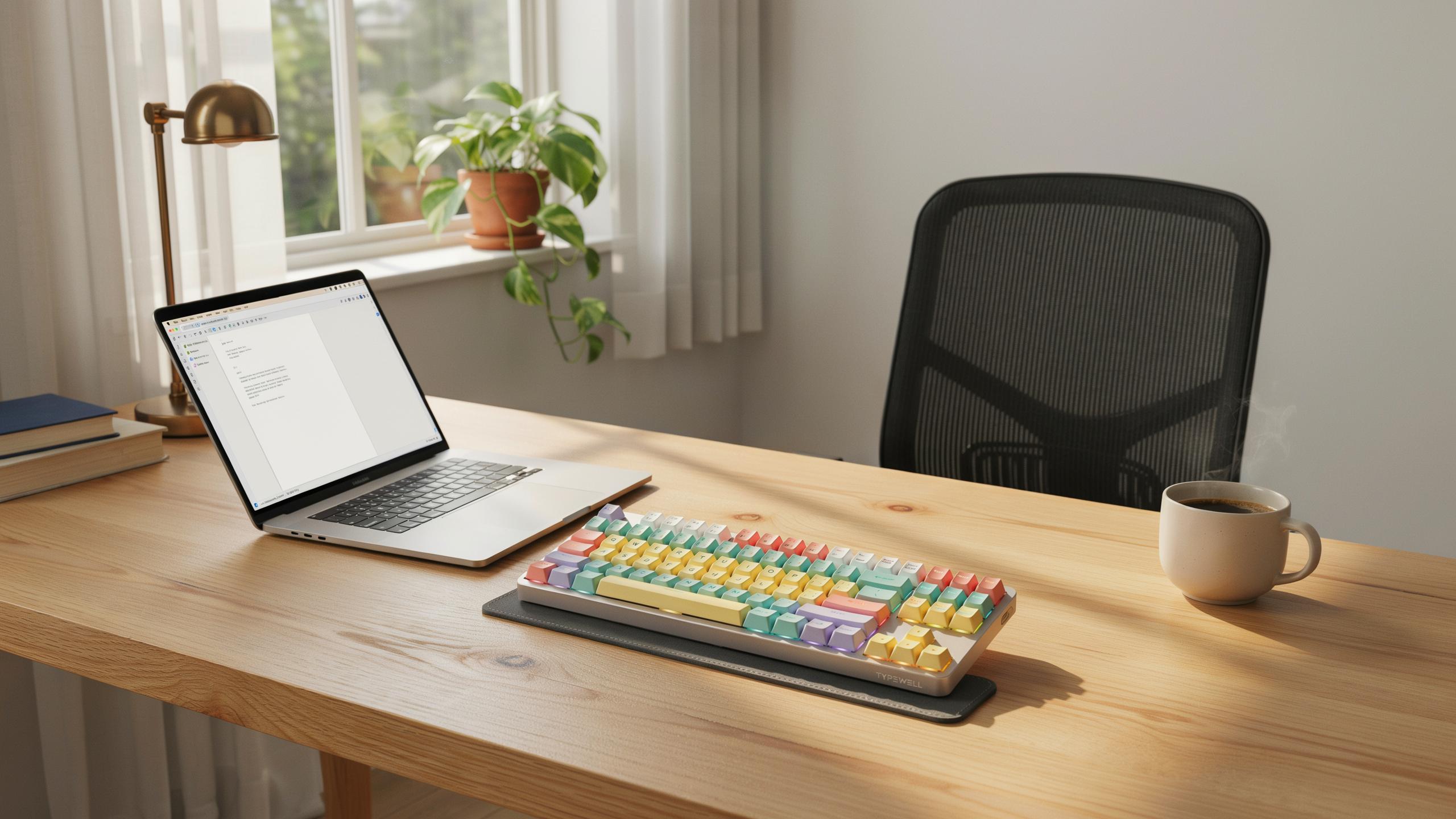
Why A Mechanical Keyboard For Your Home Office
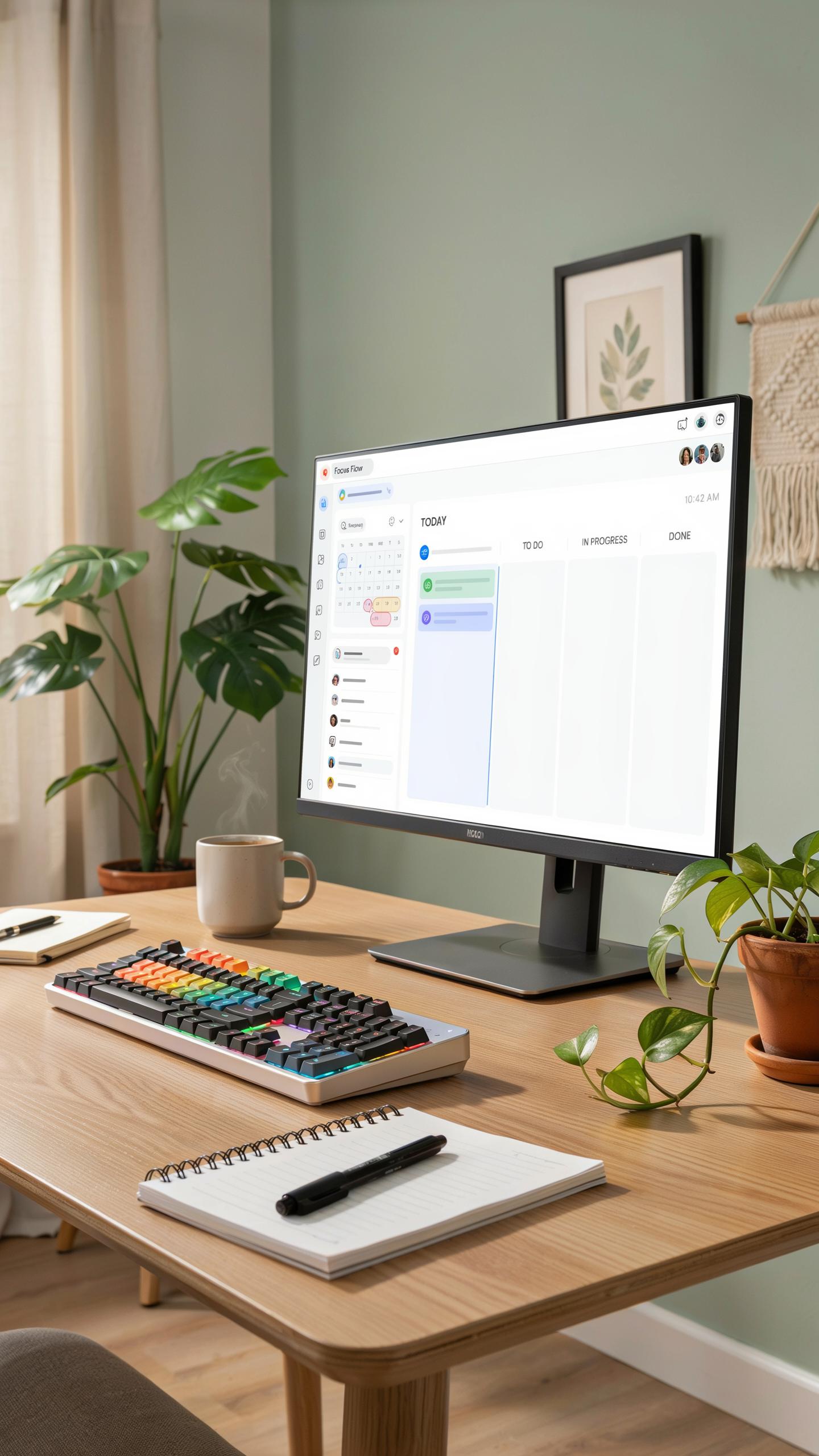
The Ergonomic Advantage Of Mechanical Keyboards
Mechanical keyboards reduce hand and wrist strain during extended typing sessions. Each switch requires deliberate actuation, eliminating the need for bottoming out keystrokes. This controlled input reduces repetitive stress injuries over time. The physical feedback from mechanical switches lets your fingers know exactly when registration occurs, so you stop pressing harder than necessary.
Mechanical switches provide consistent resistance across every keystroke. Unlike rubber dome keyboards that degrade and create inconsistent pressure points, mechanical switches maintain identical actuation force indefinitely. Your fingers and hands adapt to predictable resistance, reducing muscle tension. Long workdays at a home office desk become less taxing on your body when input method remains stable and ergonomically sound.
Boost Productivity With Enhanced Typing Experience
Mechanical switches deliver tactile and auditory feedback that rubber dome keyboards cannot match. Your brain receives immediate confirmation of each keystroke through touch and sound. This sensory input eliminates the hesitation of wondering whether you actually pressed a key. Faster confirmation cycles improve typing flow and reduce cognitive load during composition tasks.
Typing speed increases measurably when tactile feedback eliminates uncertainty. You develop muscle memory faster with mechanical switches because the consistent actuation point trains your fingers to strike with precision. Accuracy improves as well since you stop overshooting keystrokes trying to register input. Home office workers report fewer typing errors and faster document completion times after switching to mechanical keyboards.

Understanding Mechanical Keyboard Switches Keyboard
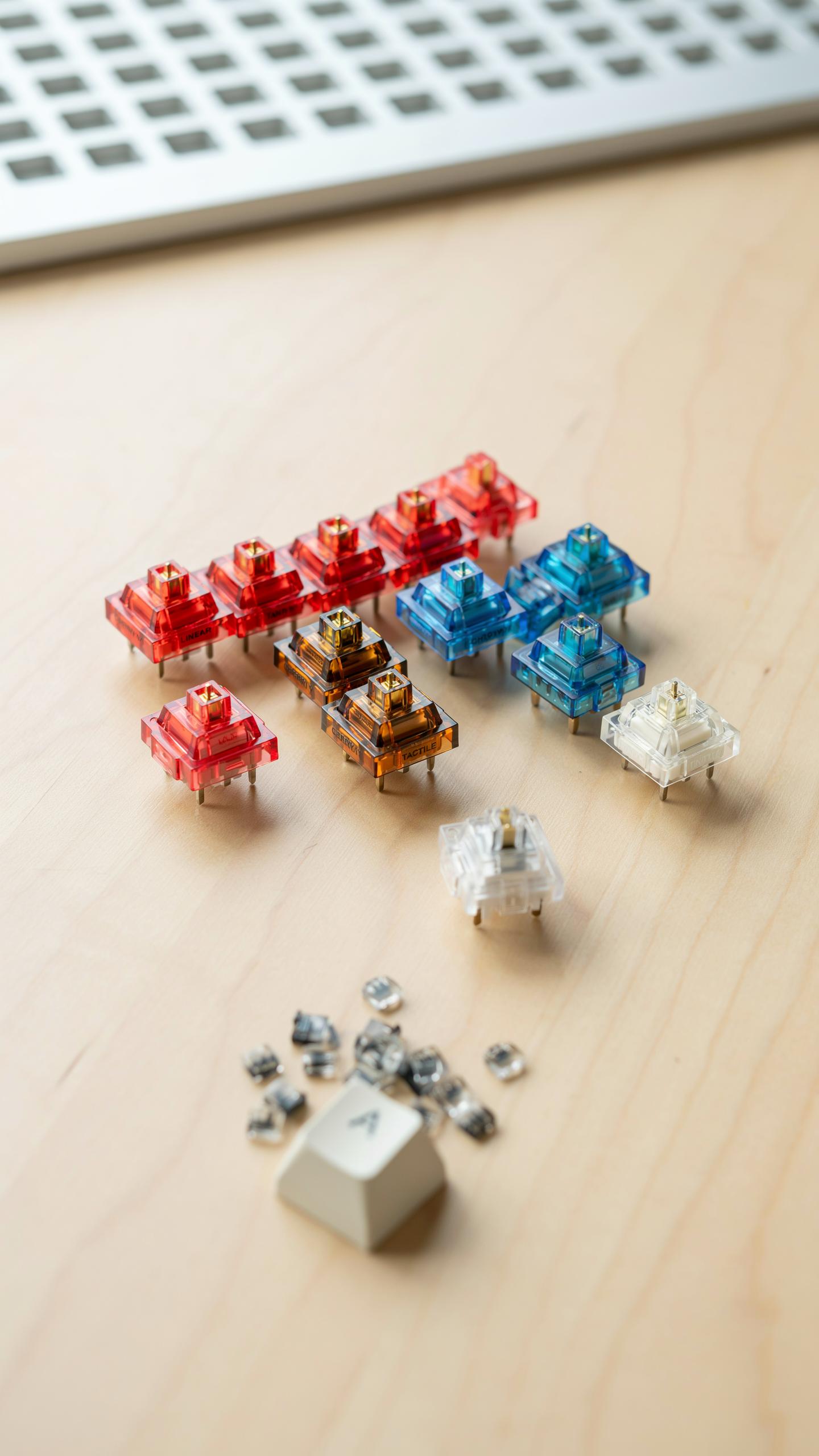
Linear, Tactile, And Clicky: Choosing Your Feel
Mechanical switches operate on three distinct mechanisms that determine how they feel and respond. Your choice depends on typing patterns, noise tolerance, and work environment. Linear switches move straight down without resistance or feedback. Tactile switches provide a bump midway through the keystroke. Clicky switches combine tactile feedback with an audible click sound at activation.
- Linear switches: Smooth downstroke with no tactile bump. Popular for gaming and fast typing. Examples include Cherry MX Red and Gateron Yellow. Produce minimal sound compared to other types.
- Tactile switches: Distinct bump during keystroke provides feedback without noise. Ideal for office work and typing accuracy. Cherry MX Brown and Outemu Brown are common options. Help reduce typing errors through physical confirmation.
- Clicky switches: Mechanical click sound with tactile bump at actuation point. Cherry MX Blue represents the standard clicky design. High auditory feedback appeals to users who want confirmation of each keystroke. Not suitable for shared office spaces or open floor plans.
- Hybrid options: Some manufacturers blend characteristics across switch types. Switches like Zealios combine tactile bumps with smoother actuation. Allow customization of feel within a single keyboard purchase.
- Actuation force: Measured in centinewtons, typically ranges from 35cN to 80cN. Lower force reduces finger fatigue during extended typing sessions. Higher force prevents accidental keystrokes but demands more effort. Match force to your typing strength and style.
Switch selection directly impacts your daily comfort and productivity. Linear switches suit users who prefer minimal resistance and sustained speed. Tactile switches work best for typists who benefit from physical keystroke confirmation. Test multiple switch types before purchasing a full keyboard to ensure proper fit for your workflow.
Sound Profile And Acoustic Dampening
Mechanical keyboards generate noise through switch activation and key release. Home offices often share walls or spaces with others, making sound control critical. Clicky switches produce 50 to 60 decibels at full volume. Linear and tactile switches range from 40 to 50 decibels. Environmental noise tolerance determines how much dampening you actually need.
Several proven methods reduce keyboard noise without compromising performance. Keyboard foam layers installed beneath the switch plate absorb vibration. Stabilizer modifications like lubrication reduce rattle and high-frequency noise. Switch dampening films placed under switches lower impact noise significantly. Desk isolation pads separate the keyboard from your workspace surface, preventing vibration transfer to the desk. Keycap material choice matters too: thicker ABS keycaps amplify sound, while PBT keycaps produce slightly less noise due to material density differences. Combination approaches work best when noise reduction is essential for your shared environment.
Keycap Materials And Profiles
PBT Vs. ABS: Durability And Feel
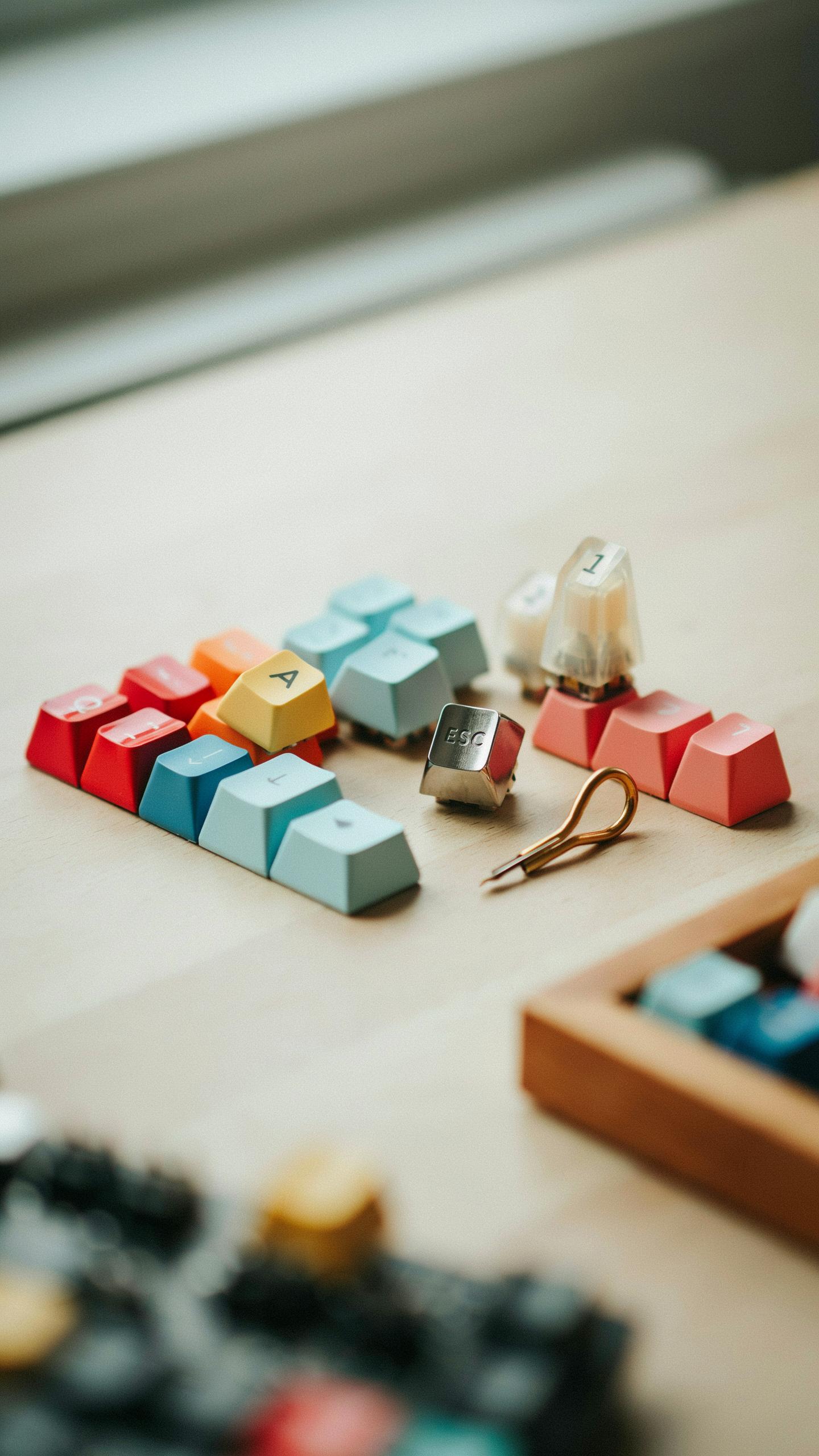
PBT keycaps outlast ABS keycaps significantly. PBT resists shine from finger oils and maintains texture over years of daily use. ABS keycaps develop a glossy, slick surface within months. PBT costs more upfront but eliminates replacement cycles. For home office typing, PBT delivers better value over time through reduced maintenance and consistent performance.
ABS feels smoother initially, which some typists prefer. The material absorbs dyes evenly, enabling vibrant colors and detailed legends. PBT offers a grittier texture that some find fatiguing during long sessions. Neither material affects typing speed or accuracy. Choose based on tactile preference and maintenance tolerance, not performance expectations.
Ergonomic Keycap Profiles For Comfort
Cherry profile provides a moderate row-to-row height variance. Keys slope gently downward from the home row outward, supporting natural finger angles during typing. OEM profile sits taller than Cherry with steeper slopes. SA profile reaches the highest, requiring more finger travel. Each profile changes wrist and finger positioning differently. Test profiles before committing to understand which matches your hand anatomy and typing style.

Typing comfort depends on keycap profile interaction with switch actuation force and keyboard angle. Taller profiles like SA demand stronger finger engagement, increasing fatigue for some users. Lower profiles like Cherry reduce strain for extended sessions. Your desk height, chair position, and hand size determine optimal profile choice. Home office typists benefit from profiles that align their wrists straight, not bent upward or downward.
Connectivity And Features For The Modern Home Office Desk Setup
Wired Vs. Wireless: Flexibility And Reliability
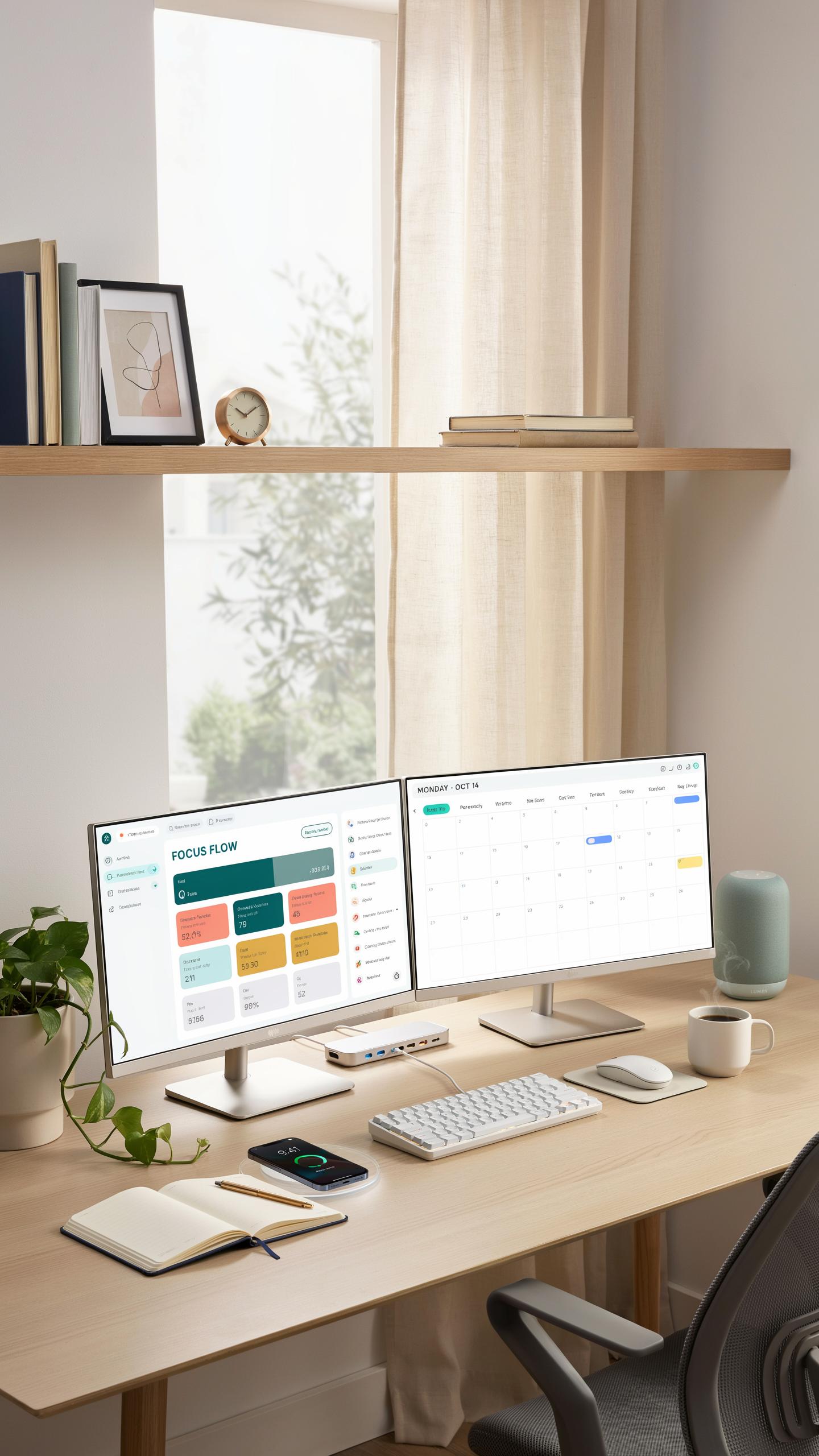
Wired keyboards eliminate battery concerns and deliver zero latency. They connect directly to your computer via USB, ensuring consistent signal without interference. The trade-off is cable management on your desk. Most modern mechanical keyboards use USB-C connections, which simplifies compatibility with laptops and desktops alike.
Wireless mechanical keyboards offer desk freedom and cleaner aesthetics. They use 2.4GHz connections or Bluetooth, with latency typically under 10 milliseconds on quality models. Battery life ranges from weeks to months depending on capacity and usage. The risk involves occasional disconnections if the receiver malfunctions or interference occurs, requiring troubleshooting downtime.
Programmable Keys And Customization Options
Programmable keys let you assign complex commands to single button presses. This reduces repetitive typing tasks and accelerates workflows for tasks like email templates, code snippets, or application shortcuts. Most mechanical keyboards include dedicated software that maps functions to specific keys without coding knowledge. Remappable layouts accommodate different languages and work styles without physical hardware changes.
Customization extends beyond key remapping to RGB backlighting control, polling rate adjustment, and key rollover settings. Advanced users reprogram entire layers of functionality, swapping between typing mode and gaming mode instantly. This flexibility proves valuable when your keyboard serves multiple roles throughout the workday. Quality mechanical keyboards from established manufacturers provide stable software that survives system updates and driver changes.
Integrating Into Your Workspace Inspiration

Aesthetic Considerations: Design And Backlighting
A mechanical keyboard sits front and center on your desk. Its visual presence affects how your workspace feels during eight-hour workdays. Color scheme matters. Match your keyboard to your monitor bezel, desk material, or monitor arm finish. Consistency reduces visual clutter and creates a cohesive setup.
RGB backlighting serves function and form. Programmable lighting helps you organize keys by purpose: assign blue for productivity hours, red for breaks. Most backlighting runs on standard software compatible with Windows and Mac. Skip RGB entirely if minimalism is your goal. Solid color keyboards in black, white, or gray integrate seamlessly without distraction.
Size And Layout: Optimizing For Desk Real Estate
Desk space drives keyboard selection more than preference does. A full-size keyboard spans 20 inches and demands real estate. TKL models cut numpad width to 17 inches, freeing six inches for mouse movement. Sixty-percent boards compress to 12 inches, eliminating function row and numpad entirely. Measure your desk depth. Most home office desks run 24 to 30 inches deep. A 20-inch keyboard takes up two-thirds of that space before accounting for monitors.

Layout determines workflow efficiency. Losing the numpad slows data entry but speeds typing. Losing function keys demands key remapping through software. Test the trade-off before buying. Borrow a friend’s keyboard or visit a local retailer to type on different sizes. A 65-percent layout splits the difference: it keeps arrow keys and some function keys while saving four inches versus full-size. Match your daily tasks to your layout choice.
Maintenance And Longevity Of Your Mechanical Keyboard Office Setup
Cleaning Best Practices For Hygiene And Performance
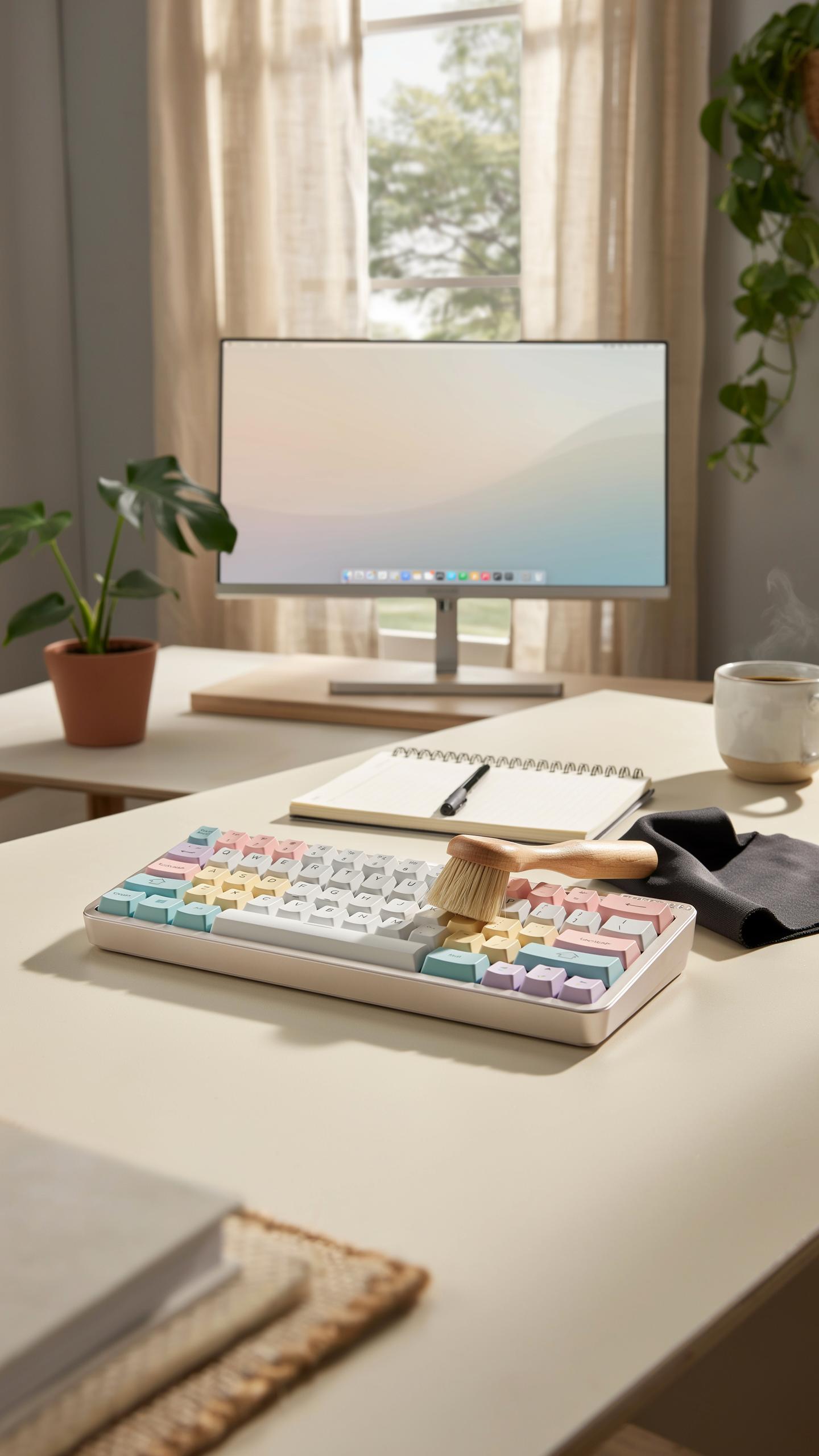
Dust and debris accumulate between keycaps and switches within weeks of daily use. Remove keycaps monthly using a keycap puller tool to access the switch stems. Compressed air clears dust from switch housings effectively. For stubborn debris, use a soft brush to dislodge particles without forcing components. Avoid liquids near electrical contacts.
Keycaps require separate cleaning for hygiene in shared or personal office spaces. Soak keycaps in warm water with mild dish soap for ten minutes, then scrub gently with a soft brush. Dry completely before reinstalling. Clean the keyboard case with a slightly damp microfiber cloth. Replace stabilizer wires if they collect visible debris that affects key travel or sound.
The gentle thrum of a well-behaved keyboard, a comforting companion throughout your day, turns every word typed into a whisper of productivity.
Modding And Customization For Extended Use
Lubing switches extends their lifespan by reducing friction between stem and housing components. Apply thin lubricant layers to switch stems using a small brush, avoiding contact with leaf springs. Properly lubed switches feel smoother and develop fewer scratches over time. This process takes time but prevents premature switch degradation. Most office keyboards benefit from lubing within the first year of heavy use.
Stabilizer replacement prevents rattling and uneven key depression on larger keys like spacebar and shift. Swap worn stabilizers with new ones to restore consistent performance. Customizing switches, adding foam layers, or replacing the PCB gasket strips modifies typing feel and keyboard lifespan. These modifications require disassembly but directly impact durability. Invest in quality replacement parts to ensure compatibility with your specific keyboard model.
Ergonomic Accessories For A Complete Desk Organization
Wrist Rests: Supporting Comfort And Preventing Strain
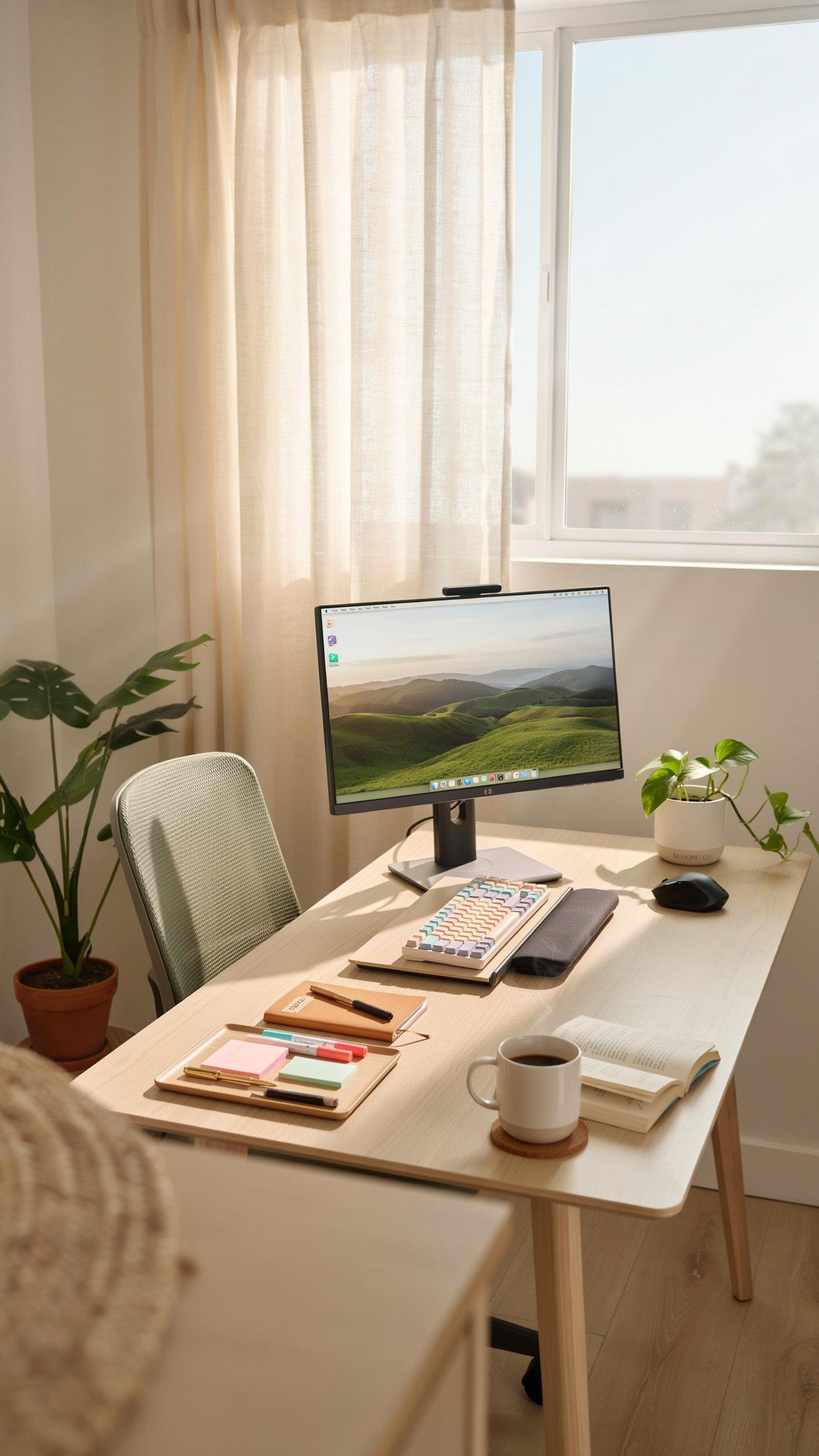
Wrist rests reduce strain by supporting your wrist in a neutral position during typing. They prevent your wrist from bending downward or upward, which causes tension in tendons and nerves. Choose a rest that matches your keyboard height. The top of the rest should align with the bottom of your palm when your fingers rest on the keys. Gel and memory foam rests distribute pressure evenly across your wrist.
Select a wrist rest sized to match your keyboard width. Narrow rests work with 60 percent or 75 percent keyboards. Full-width rests pair with standard keyboards. Thickness matters: too thick forces your wrist upward, defeating the purpose. Too thin provides inadequate support. Test the rest before purchasing to ensure it feels firm enough to support weight without compressing excessively during an eight-hour workday.
Mouse And Keyboard Placement For Optimal Health
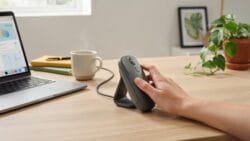
Position your keyboard directly in front of your torso at elbow height. Your elbows should bend at roughly 90 degrees when your hands rest on the keys. Place your mouse at the same height and distance as your keyboard. Your upper arm should stay close to your body, not extended outward. This setup prevents shoulder strain and reduces tension in your rotator cuff. Adjust your chair first, then position your desk and keyboard accordingly.

Keep both devices within arm’s reach without leaning forward. Your wrists should remain straight, not bent inward or outward. Monitor distance should be about 20 to 26 inches from your eyes. If you use a separate numpad, position it on your non-mouse side to prevent reaching across your body. Document your optimal setup measurements so you can maintain consistency if you adjust your workspace later.
Top Mechanical Keyboards For A Minimal Desk
Recommended Models For Home Office Use
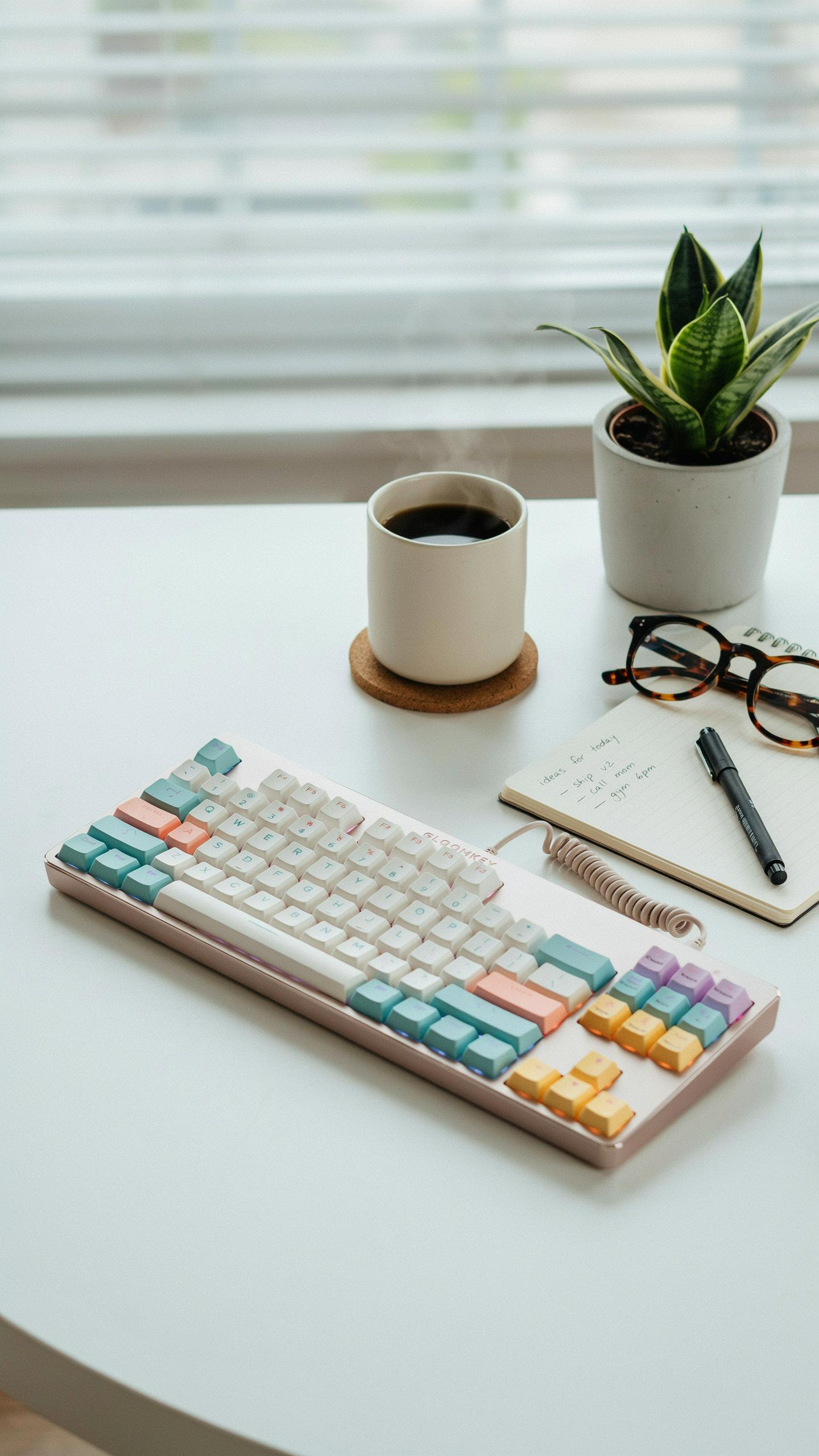
The Keychron K2 and Nuphy Air75 deliver compact layouts without sacrificing key function. Both boards measure under 14 inches wide, fitting standard desk spaces while retaining arrow keys and number rows. Keychron uses Gateron switches and wireless connectivity. Nuphy pairs Gateron Pro switches with aluminum frames. Neither requires external power adapters for extended use. Typing feel remains consistent across eight-hour workdays.
The Leopold FC660M and Varmilo VA68M represent 65-percent layouts that balance compactness with usability. Leopold sources genuine Cherry MX switches. Varmilo offers custom switch options and modular designs. Both boards weigh between 600 and 700 grams, moving easily between desk zones. Stabilizer quality on these models prevents key rattle during heavy typing sessions.
Future Trends In Mechanical Keyboard Innovation
Keyboard manufacturers are shifting toward hot-swap sockets as standard rather than optional features. This trend removes soldering requirements for switch replacement. Brands like Keychron and Monsgeek now integrate hot-swap into budget-tier boards. The shift reduces repair costs and extends product lifespan. Users gain flexibility without technical skills. Gasket mounting systems are becoming prevalent in mid-range keyboards, replacing traditional plate mounting.

Artificial intelligence integration arrives through programmable macro engines and adaptive response systems. Some manufacturers embed switches that detect typing cadence and adjust actuation points accordingly. USB-C standardization across all price points eliminates charging cable confusion. Wireless protocols now support multiple device switching without reconnection delays. Modular keycap systems allow users to swap row profiles mid-session, addressing ergonomic preferences without purchasing new boards.
Frequently Asked Questions

What exactly is a mechanical keyboard, and why is it better for home office typing comfort than a regular keyboard?
A mechanical keyboard uses individual switches under each key, providing distinct tactile feedback and a satisfying “click” or “thock” sound. This makes typing more accurate and enjoyable, reducing fatigue compared to membrane keyboards. Many find a mechanical keyboard for home office use improves their overall typing experience and speed.
How do I choose the right switch type for my personal typing preferences when selecting a mechanical keyboard for my home office?
Consider “clicky” switches for audible feedback, “tactile” for a bumpy feel without the loud click, or “linear” for a smooth, consistent press. Experimenting at a store or with a switch tester is ideal to discover what feels most comfortable and suitable for your mechanical keyboard for home office setup.
Are there affordable mechanical keyboard options suitable for a home office, or are they all expensive?
Absolutely! While some high-end mechanical keyboards can be pricey, there are many excellent budget-friendly options available. Brands like Ducky, Keychron, and even some Amazon basics offer fantastic entry-level mechanical keyboards that provide significant typing comfort without breaking the bank for your home office.