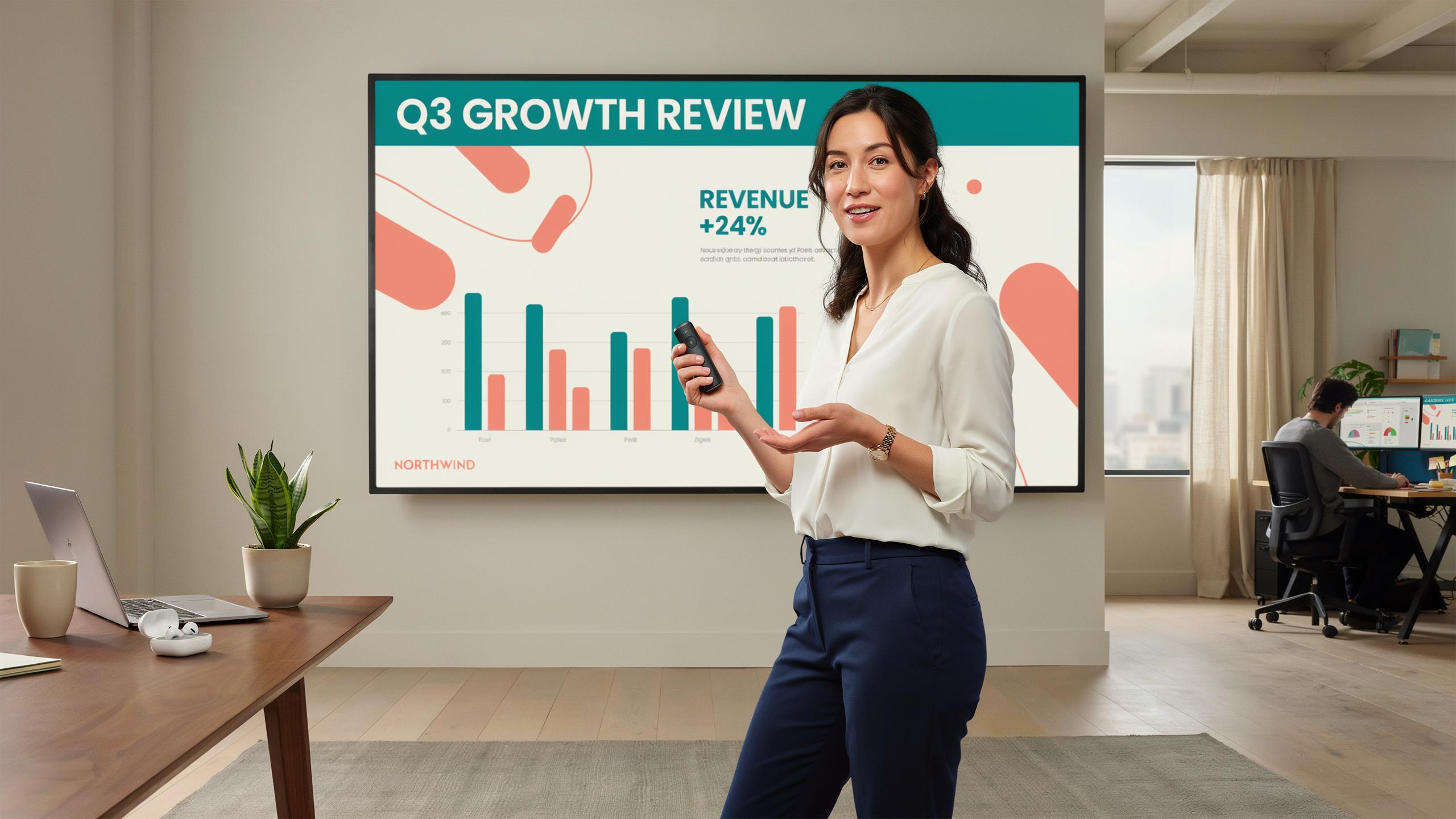
The Essential Tool For Online Engagement Wireless Presenter Clicker For Online Classes
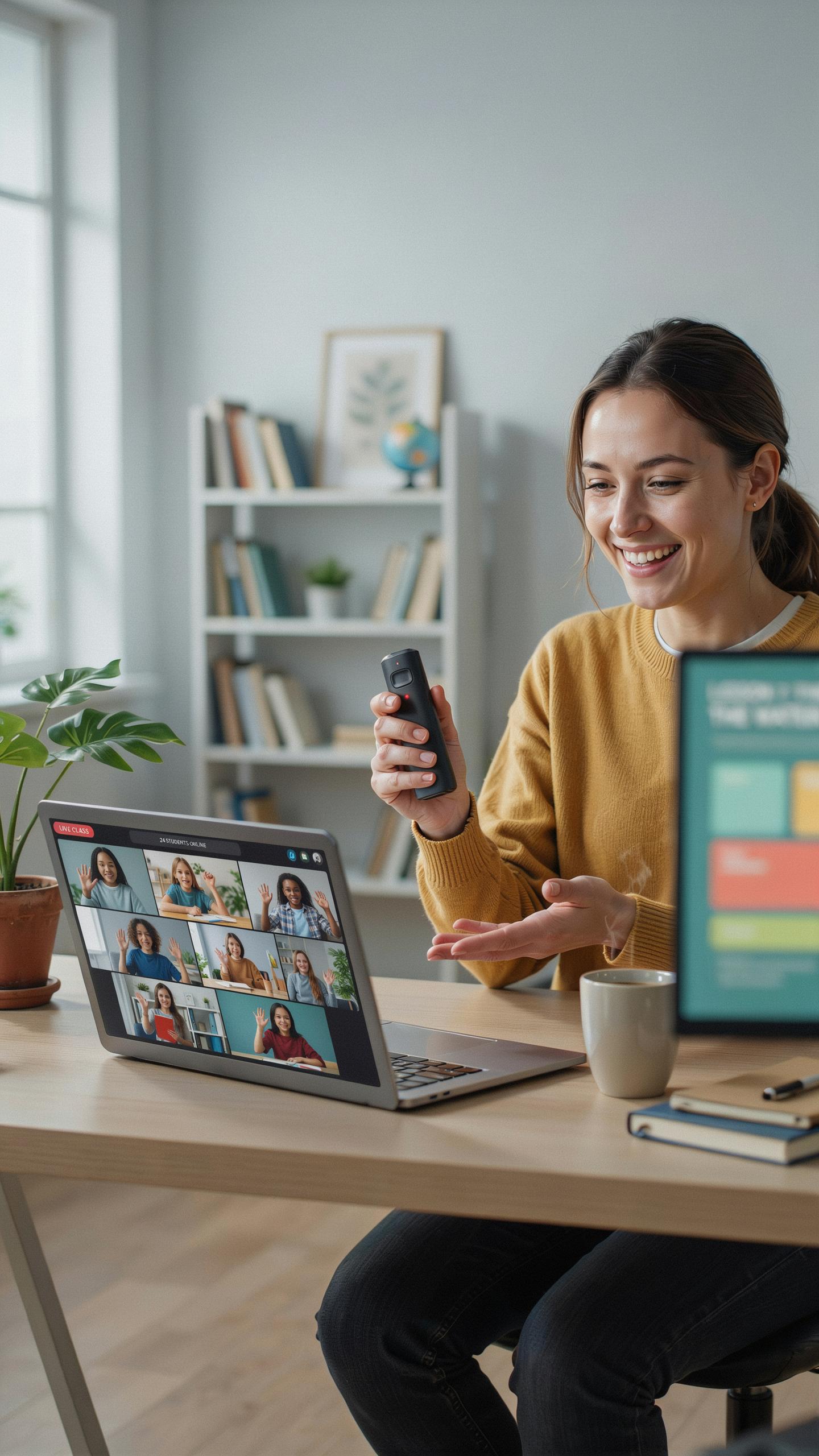
Online Engagement Importance
A wireless presenter clicker removes physical barriers between you and your audience. You move freely around your space instead of staying anchored to your desk or podium. This movement captures attention and breaks the monotony of static video feeds. Students and attendees respond to dynamic presenters who command their environment.
Online classes suffer from engagement problems that stem from passive viewing. A clicker lets you advance slides, pause for questions, and control pacing without touching your keyboard. This separation creates psychological distance from the screen, making you appear more present and intentional. Your audience feels the difference between someone reading slides and someone guiding them through content.
Benefits For Teachers And Presenters
Teachers regain control of their presentation flow without losing eye contact with the camera. You advance slides with a single click instead of fumbling with keyboard shortcuts or mouse movements. This seamless control prevents the awkward pauses that kill momentum and distract students. Your hands stay free for gesturing, which improves comprehension and retention.
Presenters project confidence when they move purposefully through their material. A wireless clicker eliminates the visual clutter of hands reaching toward screens or keyboards. You maintain consistent framing within your camera view while still controlling your presentation. This professional appearance builds credibility and holds attention during critical moments in your delivery.
Understanding Wireless Technology In Presenter Clickers
RF Vs Bluetooth
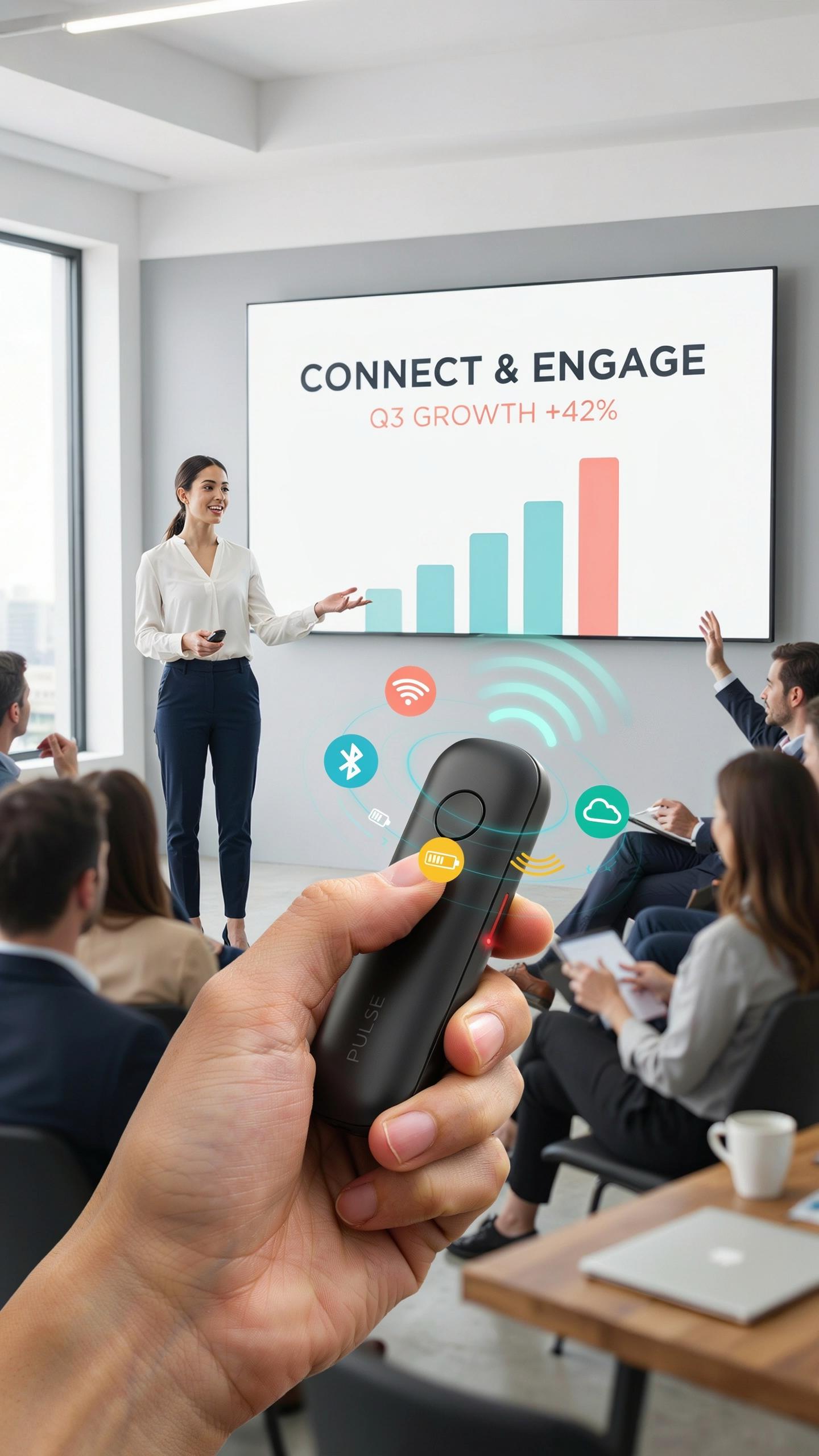
Radio frequency clickers operate on the 2.4 GHz band using proprietary protocols. Manufacturers assign each clicker a unique digital ID during pairing. This method requires a USB receiver that stays connected to your computer throughout use. The receiver decodes signals sent by the clicker and transmits them to presentation software. RF clickers typically come with dedicated software or work through standard HID drivers that most operating systems recognize natively.
Bluetooth clickers use the same 2.4 GHz frequency but follow standardized Bluetooth protocols instead. Many modern computers have built-in Bluetooth hardware, eliminating the need for additional USB receivers. Bluetooth pairing creates a persistent connection that remains active until manually disconnected or the device powers down. The tradeoff is that Bluetooth clickers consume more battery power than RF models and require initial pairing setup. Both technologies achieve reliable communication for online teaching environments, but RF offers simpler plug-and-play operation while Bluetooth offers fewer physical connections to your device.
Remember those moments on stage when every slide clicked effortlessly? Let your wireless presenter be that seamless extension of your voice, making your virtual presence as captivating as ever.
Range And Reliability
Operational range depends on signal strength, interference sources, and physical obstructions in your teaching space. Most RF clickers maintain effective range between 30 to 100 feet from the USB receiver under typical indoor conditions. Bluetooth clickers generally perform similarly, though range can degrade near metal objects, thick walls, or dense electronic equipment. Distance from the receiver directly impacts signal quality. The further the clicker travels from its receiver, the more susceptible the connection becomes to drops and lag.

Connection stability suffers when multiple wireless devices operate simultaneously in the same frequency band. WiFi routers, cordless phones, microwave ovens, and wireless mice all broadcast on 2.4 GHz and create interference. Your classroom or home office environment determines how much competing traffic exists on this shared frequency. RF clickers with frequency-hopping technology switch channels automatically to avoid interference. Bluetooth uses adaptive frequency hopping as a built-in feature. In crowded wireless environments, connection reliability becomes your primary concern for uninterrupted presentations during online classes.
Key Features For Effective Powerpoint Presentation Control

Slide Navigation And Control
Most wireless presenter clickers use radio frequency or Bluetooth connectivity to communicate with your computer. This connection allows you to advance or retreat through slides from anywhere in your room. The buttons sit within thumb’s reach, letting you control pacing without looking at your device. Responsiveness matters. Lag between button press and slide change disrupts your rhythm and breaks audience focus.
The best models offer dedicated forward and backward buttons positioned for one-handed operation. Some include a middle button for black screen functionality, which pauses presentations and refocuses attention on you. Range typically extends 30 to 100 feet depending on the model and environment. Test your clicker’s range in your actual presentation space before going live with students or colleagues.
Laser Pointer Functionality
Built-in laser pointers highlight specific content during your presentation without requiring you to walk to the screen. Red lasers dominate the market because they project clearly on most display types and backgrounds. Green lasers offer better visibility in brightly lit rooms, though they cost more. The laser button should sit separately from navigation controls to prevent accidental activation during slide transitions.

Laser pointers serve tactical purposes in online teaching. They direct student attention to data points, diagrams, or text without forcing you to verbalize every element on screen. However, overuse creates distraction rather than clarity. Use the laser strategically to highlight one or two key items per slide, then disable it immediately. This approach maintains audience engagement while keeping focus on your core message.
Beyond Powerpoint Compatibility With Various Presentation Software
Universal Software Support
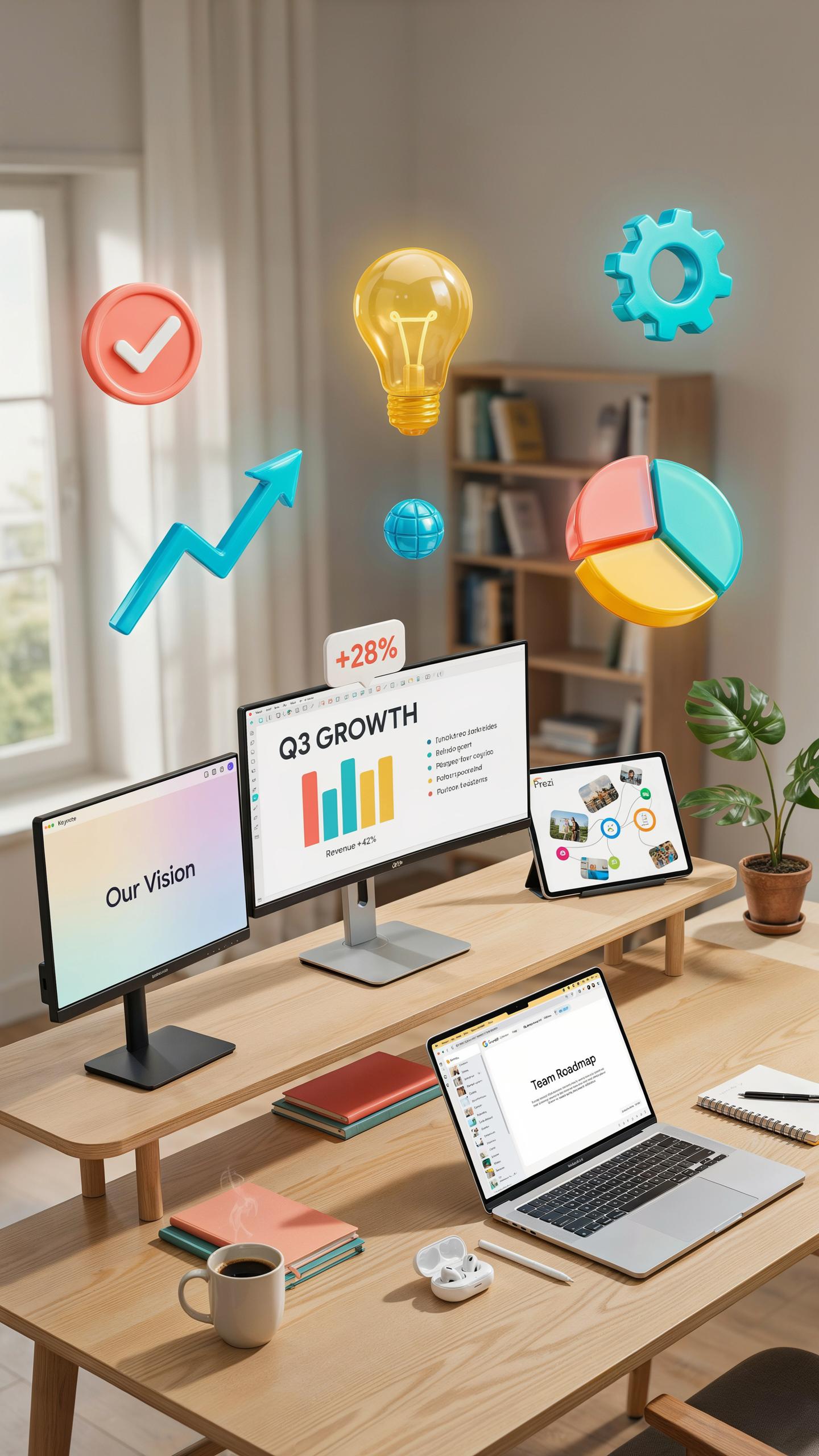
Most wireless presenter clickers work through USB receivers or Bluetooth connectivity, which means they function at the operating system level rather than the application level. This architecture allows clickers to control any presentation software that responds to standard keyboard commands. Google Slides, Keynote, Prezi, and LibreOffice Impress all accept the forward and backward slide commands that clickers transmit. The key is that clickers send basic input signals, not software-specific commands.
Verify your clicker’s compatibility before purchase by checking whether it supports your specific platform. Some budget clickers may have driver limitations on certain systems. Test the device with your primary presentation software before deploying it in a live class. Most manufacturers provide compatibility charts on their product pages listing supported platforms and operating systems.
Mac OS And Windows Integration
Wireless clickers maintain cross-platform functionality because they communicate through standard input protocols. A clicker that works on Windows 10 will typically work on macOS without additional configuration. The USB receiver or Bluetooth pairing method bypasses software barriers. Both operating systems recognize these devices as input peripherals automatically.

Newer clickers often include drivers for both systems, downloadable from manufacturer websites. Some models require manual driver installation on macOS, while Windows may recognize them immediately. Check system requirements before ordering if you plan to switch between Mac and Windows machines. Test the device on both systems if your teaching setup involves multiple computer platforms.
Advanced Features Black Screen Volume And Customization
Black Screen And Screen Blanking
The black screen function pauses your slide display without closing your presentation software. Students see a blank screen while you retain full control of your slides. This breaks visual distractions and forces attention back to your voice and words. Use it when you need to shift discussion away from visuals or emphasize a point through speech alone.
Timing matters when you deploy the black screen. Activate it during transitions between topics, during Q and A sessions, or when you want students to think without visual reference. The function resets instantly when you advance to your next slide. Most wireless clickers toggle black screen with a dedicated button, making the action immediate and seamless during live instruction.
Programmable Buttons And Volume Control
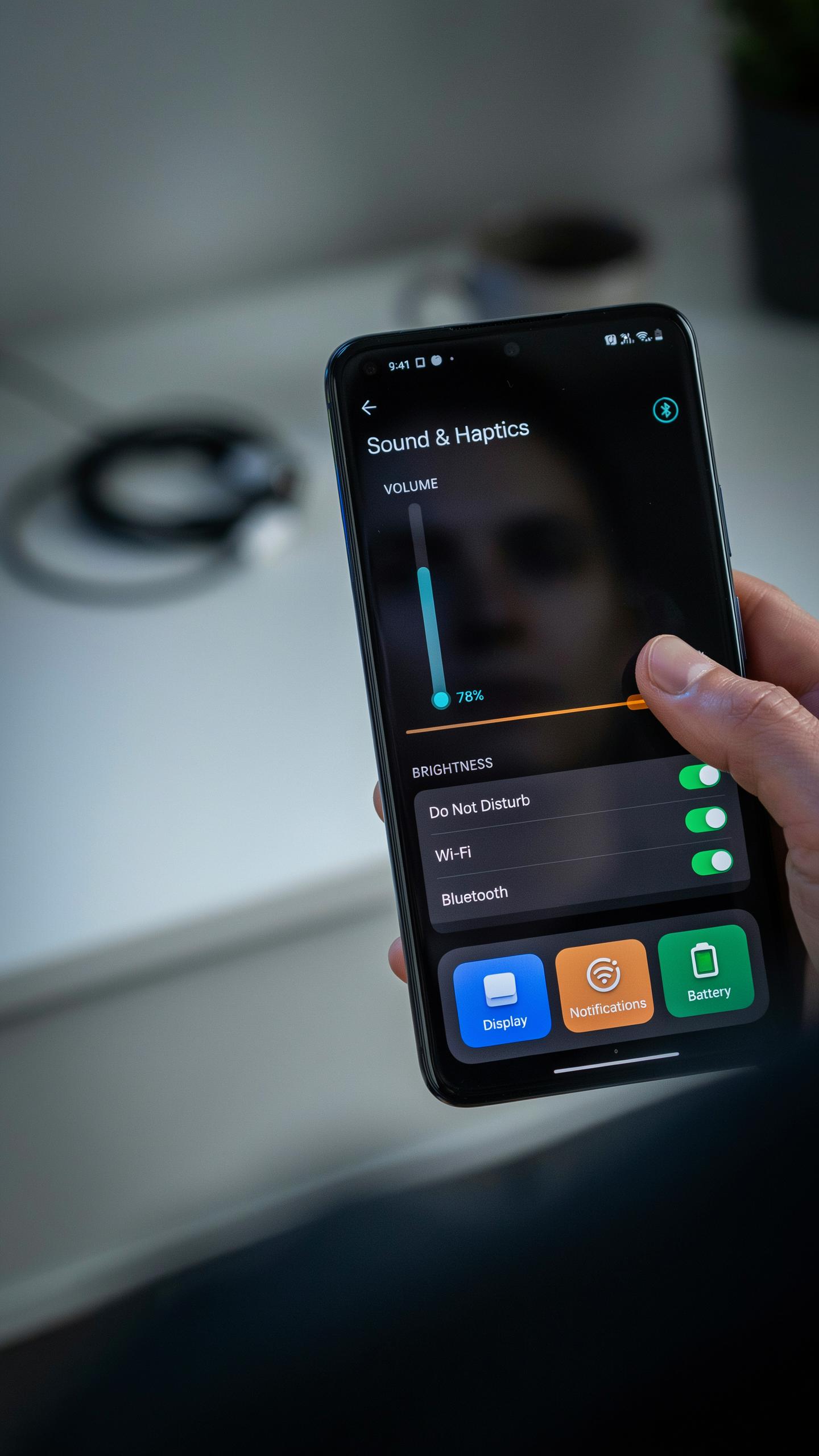
Wireless clickers let you reassign buttons to match your teaching workflow. You customize which buttons control slides, trigger black screen, or mute audio. This reduces fumbling mid-class and keeps your hands free from your computer. Programming happens through software on your device before class starts, not during instruction.
- Volume Control: Adjust audio levels directly from your clicker without touching your computer. Essential when video or audio clips are part of your presentation material.
- Play and Pause: Trigger video playback without breaking presenter momentum. Keeps pacing under your control instead of relying on keyboard shortcuts.
- Mute Button: Silence audio instantly if distractions occur or if you need to speak without competing sound. Prevents awkward delays while reaching for your computer.
- Custom Shortcuts: Map clicker buttons to launch specific applications or files. Saves seconds switching between your presentation and other teaching tools.
- Laser Pointer Toggle: Activate laser pointer functionality from your clicker if your model supports it. Directs student attention to specific slide elements without moving to your screen.

Button customization takes minutes through manufacturer software. Most clickers ship with default settings, but you gain real control once you reprogram. Test your custom setup before live sessions to confirm buttons respond as expected. This prevents fumbling or triggering wrong functions while teaching.
Choosing The Best Wireless Presenter Clicker A BuyerS Guide
Factors To Consider
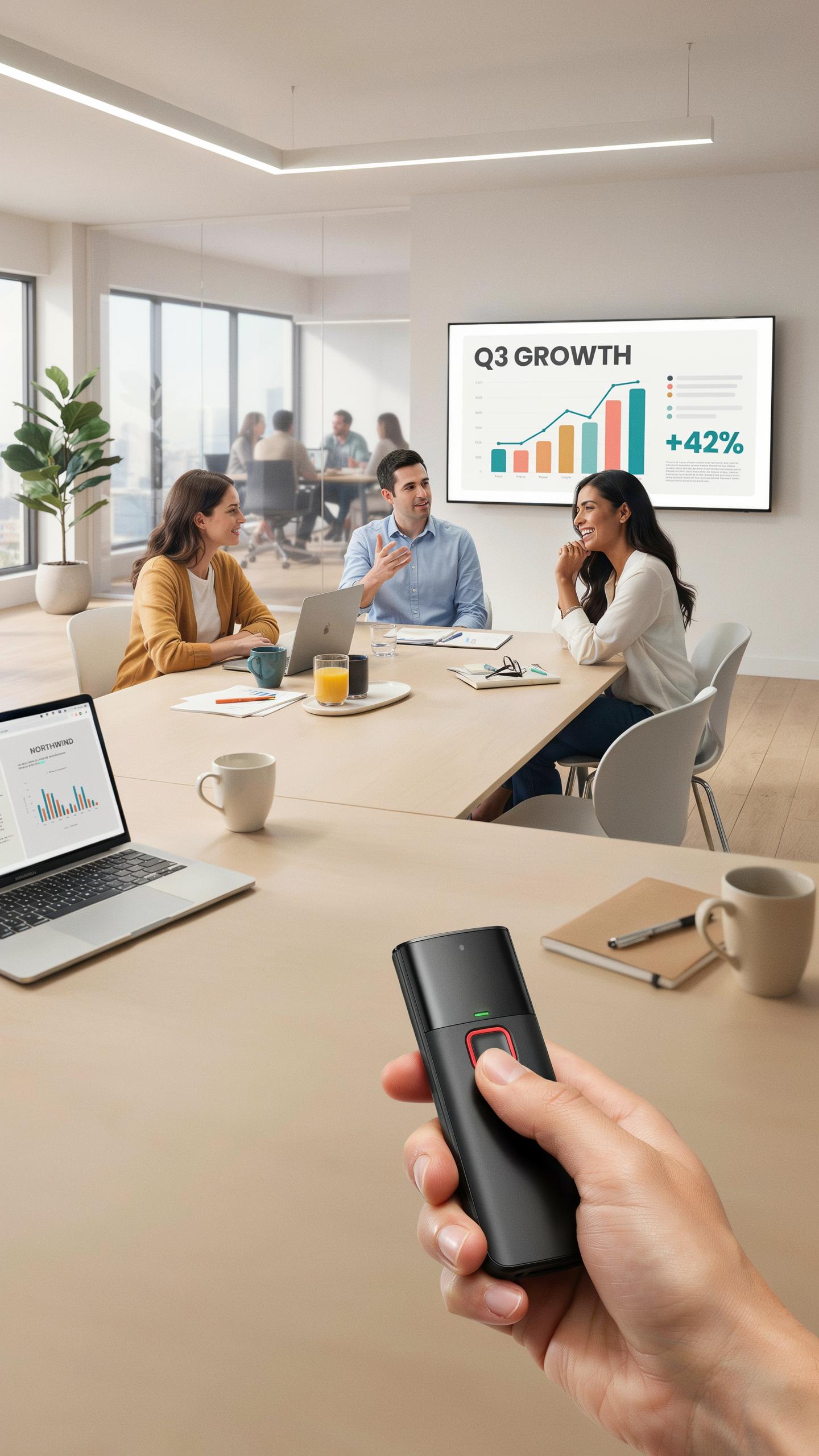
Battery life determines how long you can teach without replacement. Most wireless clickers run on AAA or AA batteries and last between 6 to 12 months with regular use. Check the battery indicator feature so you know when power depletes. Some models offer rechargeable options that eliminate constant battery purchases. Calculate your teaching schedule against battery ratings to avoid mid-class failures.
Effective range matters for classroom movement and online setup. Standard wireless clickers operate between 30 to 100 feet from the receiver. For online classes, range becomes less critical since you sit at your desk. However, if you teach hybrid sessions with in-person components, verify the range covers your entire teaching space. USB receivers should connect directly to your computer with minimal lag.

Slide advancement speed and button responsiveness affect teaching flow. Clickers must register clicks instantly without delay between press and slide change. Test the button feedback before purchase to ensure tactile confirmation of each click. Dual function buttons allow you to move forward and backward through slides without fumbling. Laser pointer functions add value for highlighting content but remain optional for online instruction.
Top Recommendations For Online Use
Logitech R400 serves as the industry standard for online teaching. It offers reliable wireless connectivity, 100-foot range, and intuitive button placement. The device pairs quickly with laptops and connects through a standard USB receiver. Battery life extends beyond 12 months, reducing maintenance interruptions. This model works with PowerPoint, Google Slides, Keynote, and most presentation software without driver installation.
Kensington Expert Wireless Presenter focuses on ergonomic design and precision control. The contoured grip reduces hand fatigue during extended teaching sessions. It delivers responsive slide advancement and includes a red laser pointer for emphasis. The 30-meter range covers typical home office setups and classroom environments. Most users report consistent performance across multiple presentation platforms without compatibility issues.
Doosl Wireless Presenter balances affordability with solid functionality for budget-conscious instructors. It maintains reliable wireless connection and supports major presentation applications. The device includes basic features like forward and backward navigation plus laser functionality. Battery replacement occurs roughly every 6 to 9 months depending on usage frequency. This option works well for online instructors who need essential features without premium pricing.
Teacher Must Haves Integrating Clickers Into Educational Settings
Improving Student Engagement
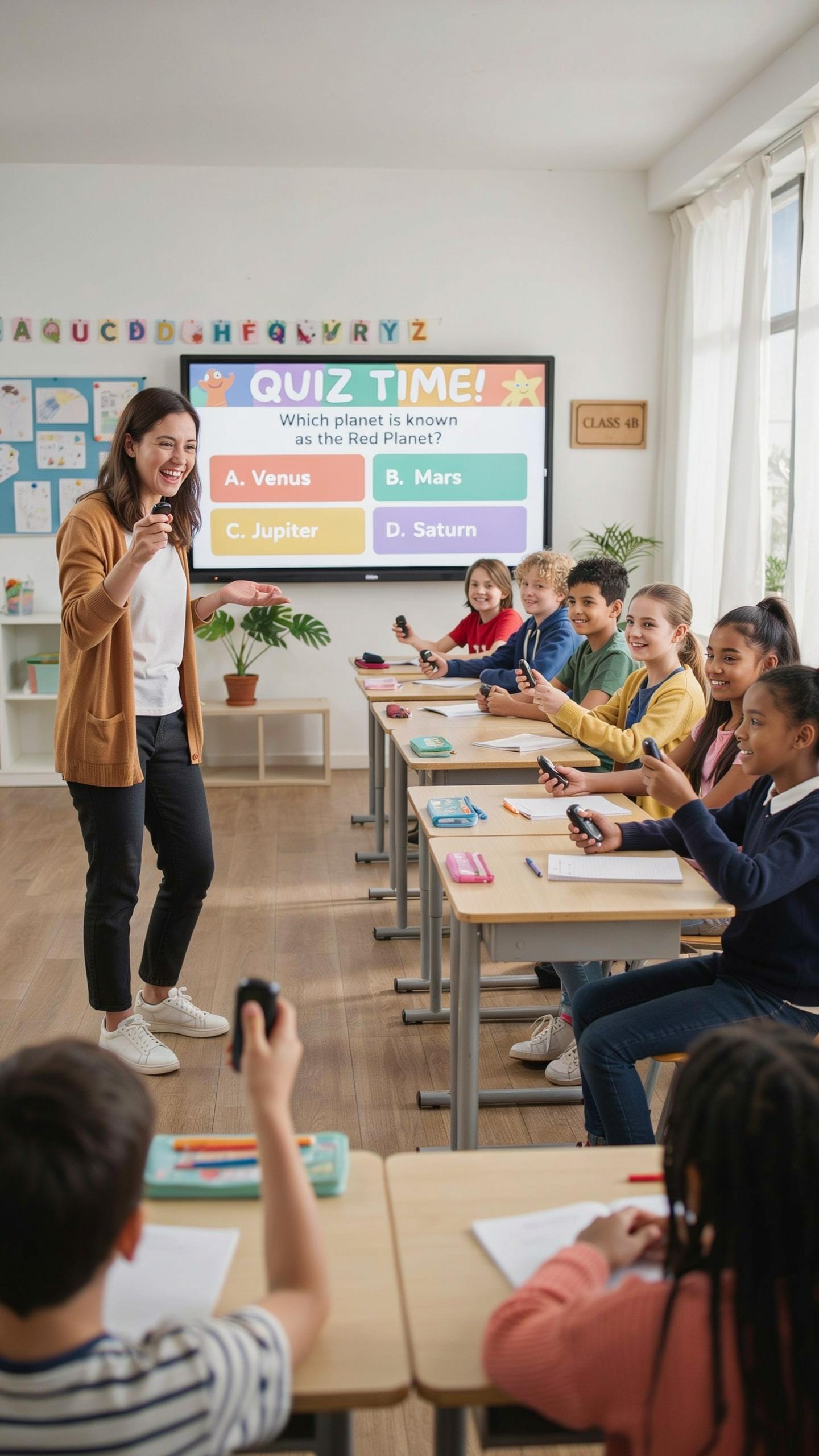
A wireless presenter clicker shifts student behavior from passive consumption to active participation. The device lets you pose questions, pause for responses, and display results immediately. Students see their peers engaging in real time. This creates accountability. When students know you will call on them or ask questions throughout class, attention improves. The clicker becomes a tool that forces interaction rather than allowing mental drift.
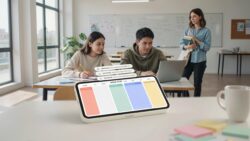
Clickers work because they remove the friction from participation. Raising hands creates social anxiety for many students. Anonymous response systems eliminate embarrassment. Students answer without fear of judgment. This psychological shift drives higher participation rates across skill levels. Frequent questioning also forces you to check understanding rather than assume students follow along. You catch confusion early and adjust content on the fly.
Practical Tips For Educators
Prepare questions before class starts. Write them into your slides or clicker software. This prevents fumbling during instruction and maintains pacing. Your questions should target specific learning objectives, not fill time. A well-designed question takes 20 to 30 seconds to answer. Students answer, you display results, you explain misconceptions, then you move forward. This rhythm keeps momentum without losing substance.
Place your clicker on a stable surface or use a lanyard around your neck. You need both hands free to manage slides and point at content. Test your clicker’s battery and connection before every session. Dead batteries and connectivity drops kill engagement instantly. Keep backup batteries in your desk. Walk the room while students respond so you see body language and catch technical issues. Position yourself so you can see the screen and the room simultaneously.
Troubleshooting And Maintenance For Your Projector Accessories
Common Issues And Solutions
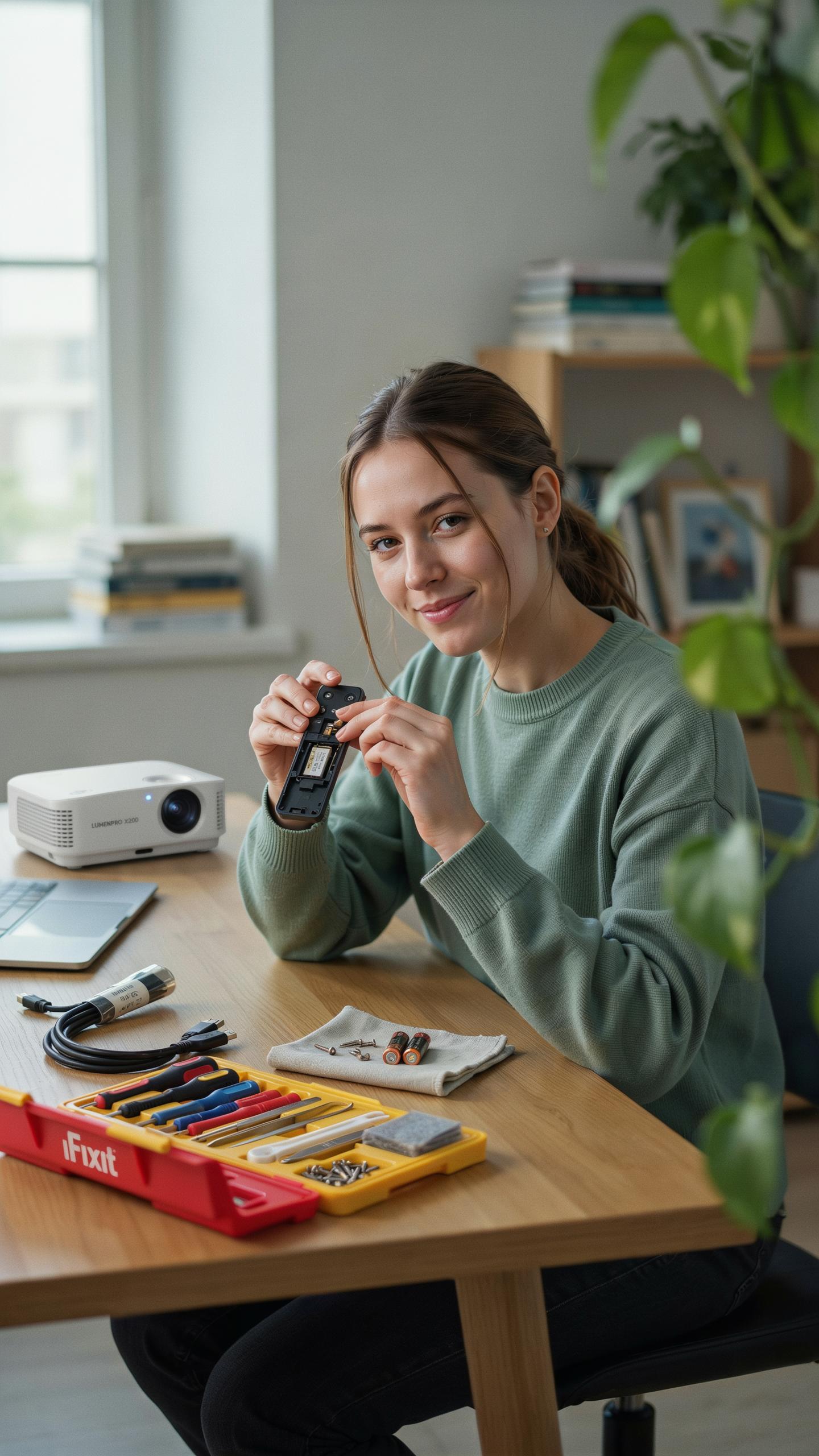
Connectivity drops happen when your wireless clicker loses signal to the receiver. Check the USB receiver connection first. Ensure it sits in a direct line of sight with your clicker, ideally within 30 feet. Obstructions like metal objects, thick walls, or interference from other wireless devices cause signal loss. Move the receiver closer to your presentation area or away from potential interference sources.

Battery failure is the most common reason your clicker stops working mid-presentation. Replace batteries immediately when the device stops responding to button presses. Verify you’re using the correct battery type specified in your manual. Some clickers use AA or AAA batteries, while others use button cell batteries. Keep spare batteries with your clicker at all times during classes.
Extending Device Lifespan
Store your clicker in a protective case when not in use. Dust and debris accumulate inside button mechanisms over time, causing sluggish response or complete failure. Wipe the exterior with a dry cloth weekly. Avoid dropping your clicker on hard surfaces, as internal components disconnect easily from impact damage.
Replace batteries before they fully drain completely. Running batteries to zero forces the device to work harder and damages internal circuits faster. Remove batteries if you won’t use the clicker for more than two weeks. This prevents battery acid leakage that corrodes electrical contacts inside the device.
Frequently Asked Questions
What exactly is a wireless presenter clicker and why would I need one for online classes?
A wireless presenter clicker is a small, handheld device that allows you to control your presentation slides wirelessly from a distance. For online classes, it frees you from being tethered to your computer, enabling more natural movement and engagement. It’s a fantastic tool for a smoother virtual teaching experience.
How do I connect and use a wireless presenter clicker with my laptop or computer for my online presentations?
Most wireless presenter clickers connect via a small USB receiver that plugs into your computer. Once plugged in, your system usually recognizes it automatically. You simply open your presentation software (PowerPoint, Google Slides, etc.) and use the clicker’s buttons to advance or go back through slides, making it ideal for online classes.
Are there affordable wireless presenter clicker options that still offer good functionality for students or educators on a budget?
Absolutely! You don’t need to break the bank for a functional wireless presenter clicker. Many reliable and easy-to-use models are available at very affordable price points, often under $20-$30. Look for basic slide control and a good range, which are perfect for enhancing your virtual presence in online classes without overspending.