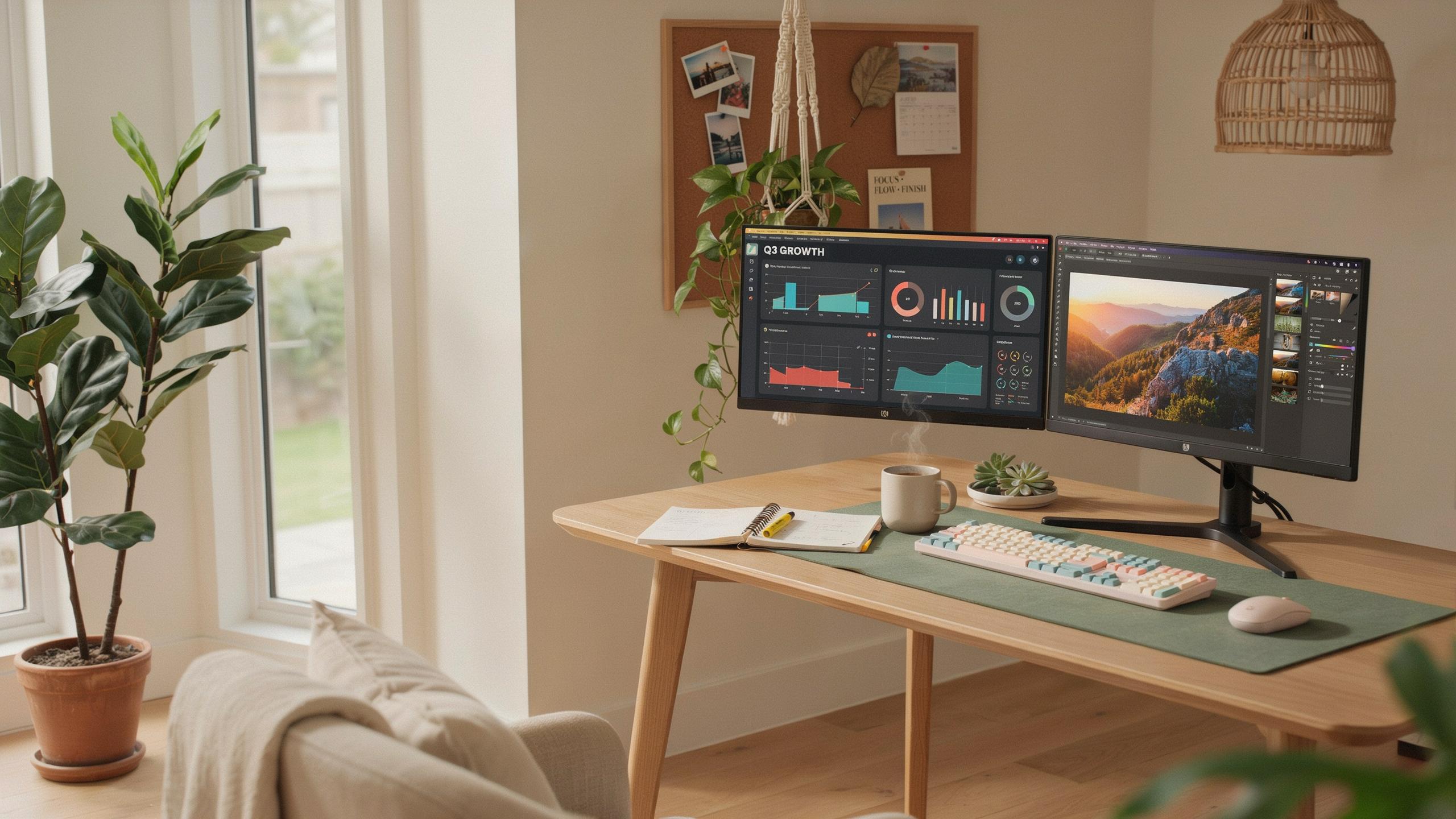
Why A Monitor Arm Mount For Dual Screens Is A Workspace Game Changer
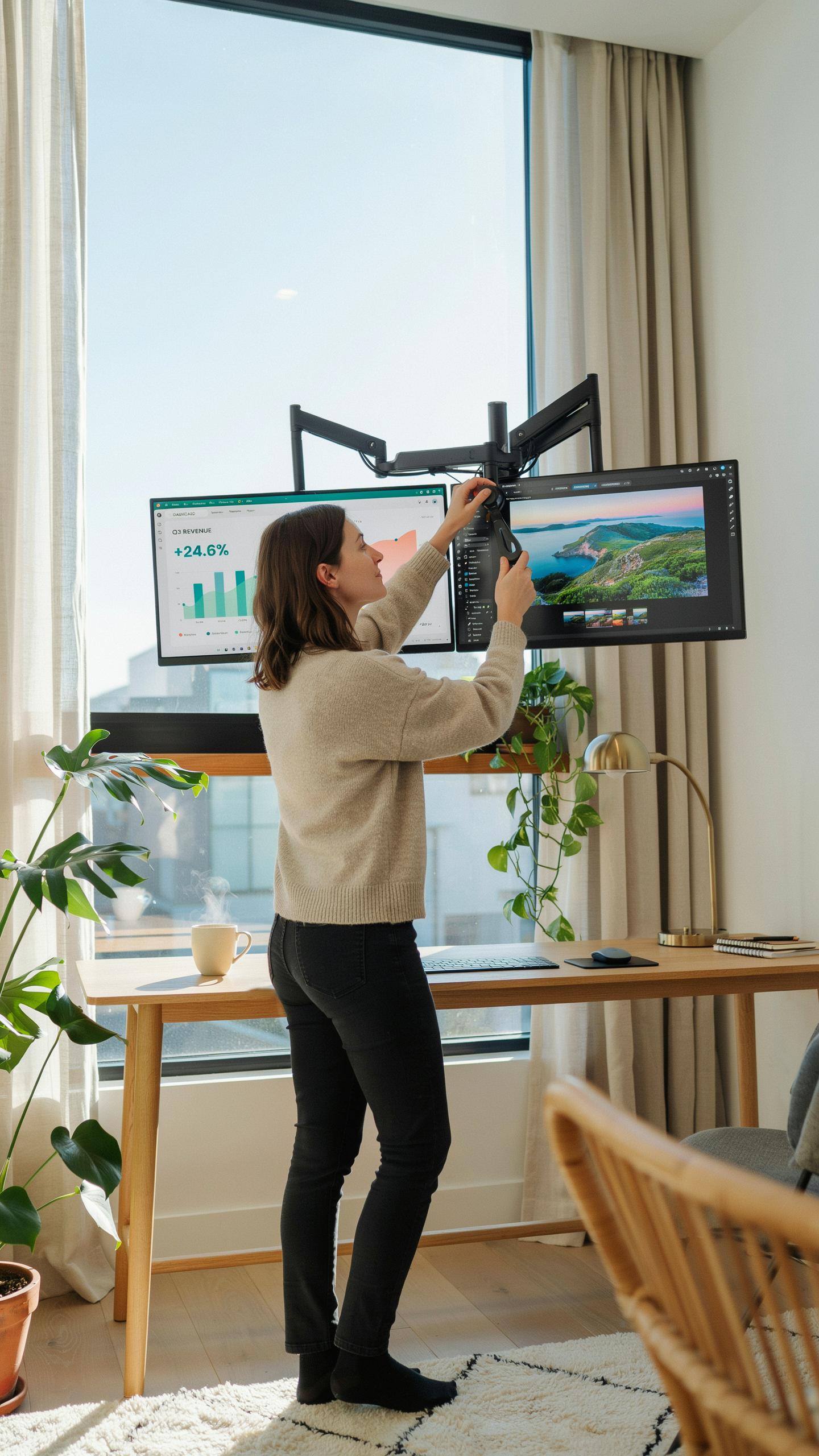
Ergonomics
Monitor arm mounts let you position each screen at eye level and the correct viewing distance. Poor monitor placement forces your neck into unnatural angles, creating tension and fatigue. Adjustable arms eliminate this problem by moving screens to match your seated position rather than forcing you to match the screen position.
The financial cost of poor ergonomics shows up in healthcare expenses and lost productivity. Neck pain, eye strain, and shoulder tension compound over months and years of work. A monitor arm mount costs far less than treating repetitive strain injuries or managing chronic pain that reduces work output and quality.
Reclaiming Space
Monitor stands consume valuable desk real estate with their wide bases. Mounting arms instead clamp to your desk edge, freeing the entire surface underneath for work, storage, or equipment. This shift transforms cramped workspaces into functional areas where you actually have room to operate.
Vertical desk space matters when you handle multiple tasks and tools. By lifting both monitors off the desk surface, you gain room for keyboards, notepads, small equipment, and material you reference during work. The desk becomes a tool for your job instead of a parking lot for screens.

Understanding The Benefits Of Dual Monitor Arms

Productivity Boost
Dual monitor arms let you position screens at eye level and optimal angles. This setup cuts the time you spend moving windows between displays. You see more information at once without scrolling or switching between applications. Your workflow moves faster because everything you need stays visible.
Research in ergonomics confirms that expanded screen real estate reduces cognitive load. Workers handle multiple tasks with fewer mental interruptions. Financial analysts compare data sets side by side. Designers view reference images while working in their primary software. The physical arrangement directly impacts how quickly you complete work.
Clutter Reduction
Monitor arms mount directly to your desk or wall, eliminating bulky plastic stands. Each stand normally occupies six to twelve inches of desk depth. Removing them reclaims valuable work surface. You gain space for input devices, notebooks, or simply breathing room for focused work.

Cable management improves dramatically with a mounted system. Arms route cords vertically through built in channels rather than across your desk surface. This reduces tangled cables that collect dust and create visual distraction. A clean desk removes friction from your workflow and supports concentration on actual work.
Key Considerations When Choosing A Dual Monitor Stand
Monitor Size Weight
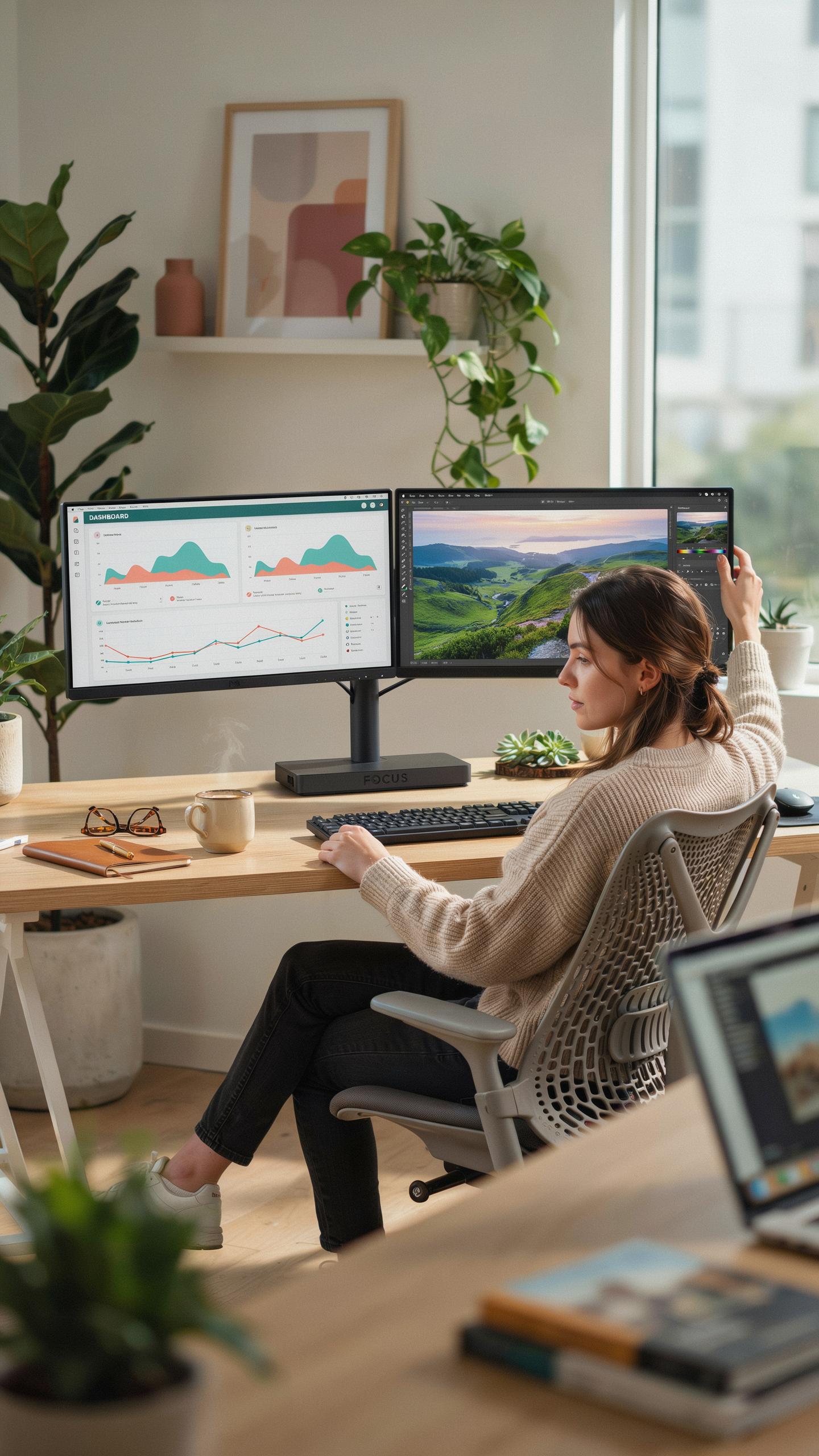
Your monitor arm must support the combined weight of both screens. Check the arm’s weight capacity against your monitor specs. Most dual arms handle 24-inch displays easily, but larger 27-inch or 32-inch monitors require higher capacity ratings. Exceeding the arm’s limit causes sagging, misalignment, and potential failure. Verify the actual weight of each monitor in the manual or manufacturer website before purchasing.
Heavy monitors need arms with robust gas springs and sturdy construction. A 27-inch monitor typically weighs between 8 to 12 pounds. Dual setups can exceed 25 pounds total. Arms rated for 30 pounds or more provide safety margin and longevity. Undersized arms deteriorate quickly under excessive weight, leading to premature replacement and wasted budget.
Mounting Options
Clamp mounts grip your desk edge and work on most table surfaces. They require 0.6 to 1.5 inches of available edge space to secure properly. Clamps are adjustable and removable, making them ideal for renters or temporary setups. They do not damage the desk and allow repositioning without tools. Check your desk thickness against the arm’s clamping range before ordering.

Grommet mounts drill through the desk surface for permanent installation. They distribute weight across the hole rather than concentrating pressure on an edge. Wall mounts bypass the desk entirely and anchor directly to the wall studs. Wall mounting works best in home offices or static workspaces. Choose the mounting option based on your desk material, permanence needs, and available wall space.
Vesa Mount Compatibility Ensuring A Secure Fit
Understanding Standards
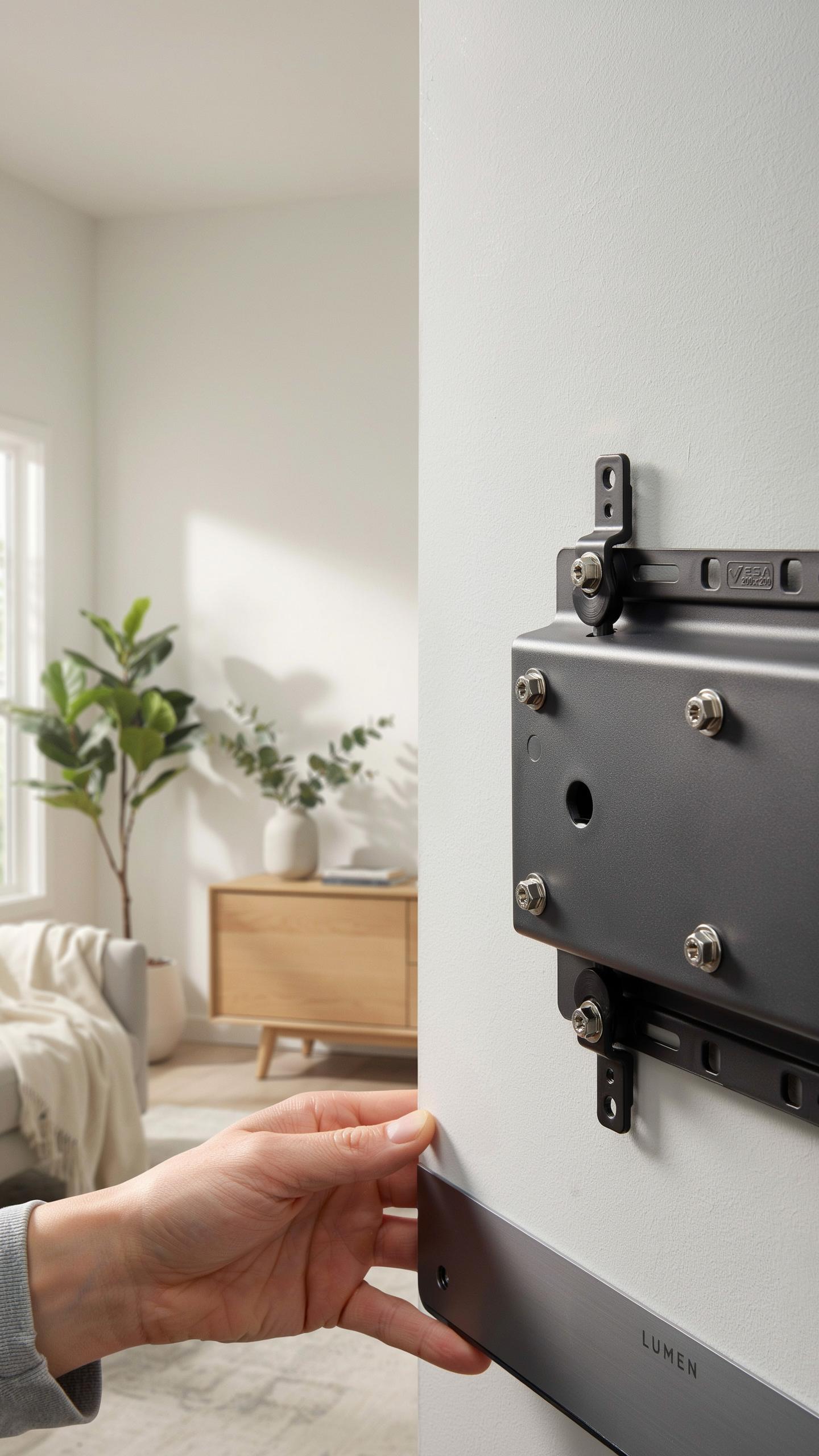
VESA mount patterns are the international standard for attaching monitors to arms and stands. The pattern refers to the distance between the four threaded holes on the back of your monitor. Common patterns include 75x75mm, 100x100mm, 200x100mm, and 200x200mm. Knowing your monitor’s VESA pattern is non-negotiable before purchasing a dual monitor arm. Check your monitor’s manual or specs sheet for this information.
Most modern monitors use one of four standard VESA patterns. The 75x75mm and 100x100mm patterns cover the majority of smaller and mid-size monitors. Larger displays typically use 200x100mm or 200x200mm patterns. Some monitors lack VESA mounts entirely, making them incompatible with most arms. Verify compatibility before committing to any purchase.
Installation Process
Begin by gathering your hardware: the VESA plate, mounting bracket, bolts, and washers specific to your VESA pattern. Position the VESA plate against the threaded holes on your monitor’s rear panel. Align the four holes on the plate with the monitor’s mounting points. Insert bolts through the plate into the monitor, tightening each in a crosshatch pattern to ensure even pressure and prevent damage.
- Tighten In Crosshatch Pattern: Alternate between opposite corners when fastening bolts. This distributes force evenly and prevents tilting or misalignment of the plate against the monitor back.
- Use Appropriate Bolt Length: Select bolts that fit your VESA pattern depth without bottoming out or stripping threads. Most patterns use M4 bolts, but verify before starting installation.
- Secure The Plate Firmly: Bolts should be snug but not over-tightened, which risks cracking the monitor housing. Hand-tight plus a quarter turn with a wrench is sufficient for most installations.
- Attach Arm To Plate: After securing the VESA plate to the monitor, connect the dual arm assembly to the plate using the arm’s quick-release or fixed attachment mechanism according to your arm’s design.
- Test Before Full Setup: Gently move the arm to verify the plate holds the monitor securely without wobbling or tilting. Recheck bolt tension if any movement occurs during this test.
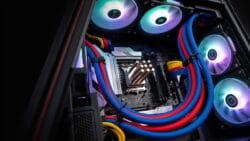
After attaching both monitors to their respective VESA plates on the dual arm, mount the arm to your desk or pole. Follow your specific arm manufacturer’s instructions for desk clamp or pole attachment. Verify all connections are tight before placing monitors in their final positions.
Types Of Dual Monitor Desk Mounts
Articulating Arms
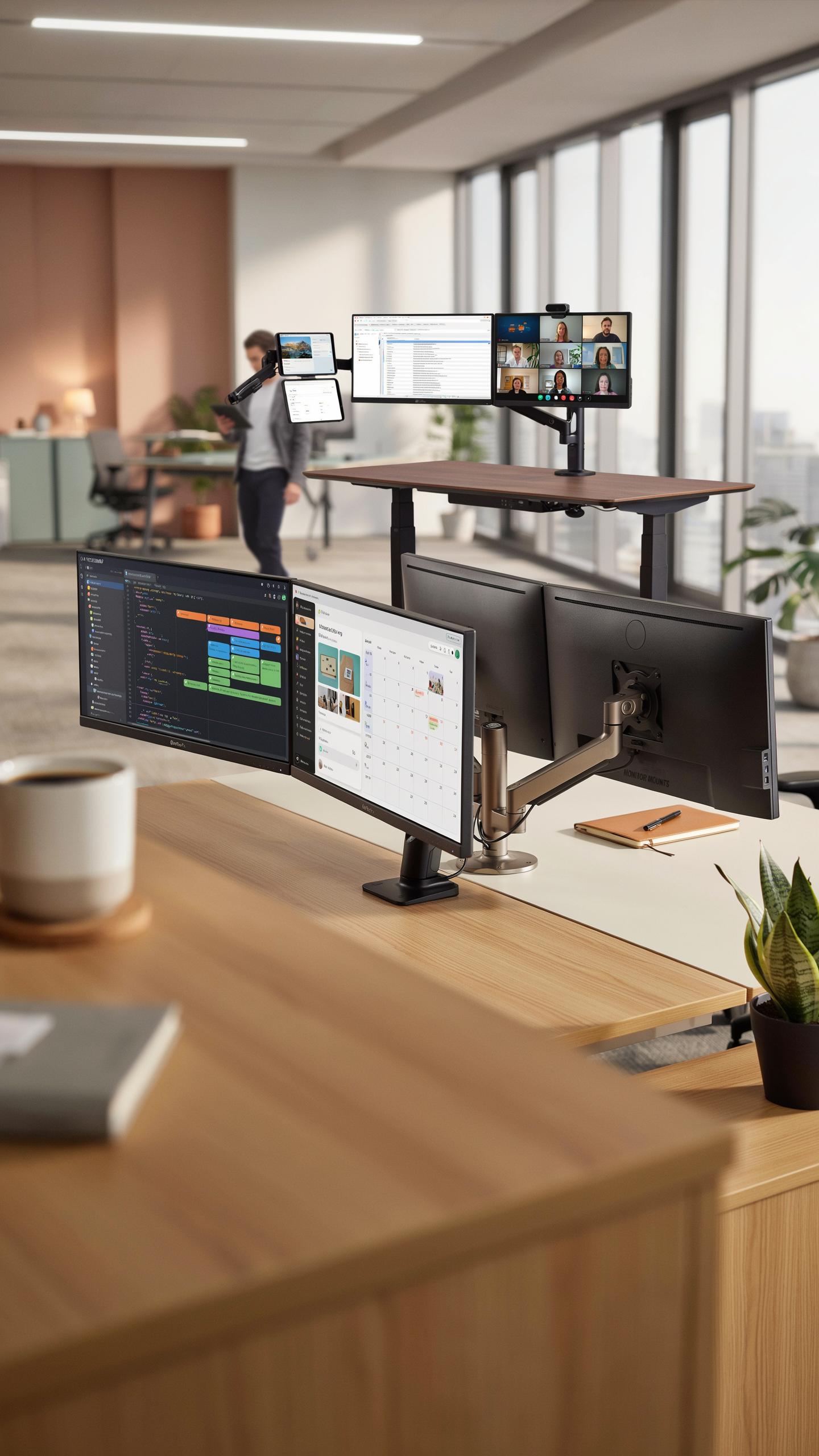
Articulating arms give you complete control over monitor placement. These mounts use multiple joints and pivot points to move monitors in virtually any direction. You adjust height, tilt, rotate, and depth without tools. This flexibility matters when your workflow demands frequent repositioning or when desk space is limited. The mechanical design lets you customize each screen independently.
The real advantage emerges during extended work sessions. Articulating arms reduce neck strain by letting you position monitors at your exact eye level and viewing distance. You move monitors out of the way when needed, reclaim desk real estate, and adapt to changing tasks without repositioning your chair. This responsiveness directly impacts comfort and work efficiency over time.
Gas Spring Arms
Gas spring technology replaces traditional friction mechanisms with pressurized chambers that support monitor weight. This system delivers smooth, effortless adjustments that require minimal force. You move monitors with one hand and they stay exactly where you position them. The gas spring counterbalances the weight, making heavy monitors feel weightless during repositioning.

Gas spring arms excel when you make frequent micro adjustments throughout the day. The precision of gas spring pressure means monitors won’t drift or sag over weeks of use. Tool-free adjustments mean no hex keys or screwdrivers required. This technology works especially well for dual setups where you need consistent, repeatable positioning for both screens without mechanical wear or maintenance.
Optimizing Your Work Space With A Double Monitor Arm
Placement Tips
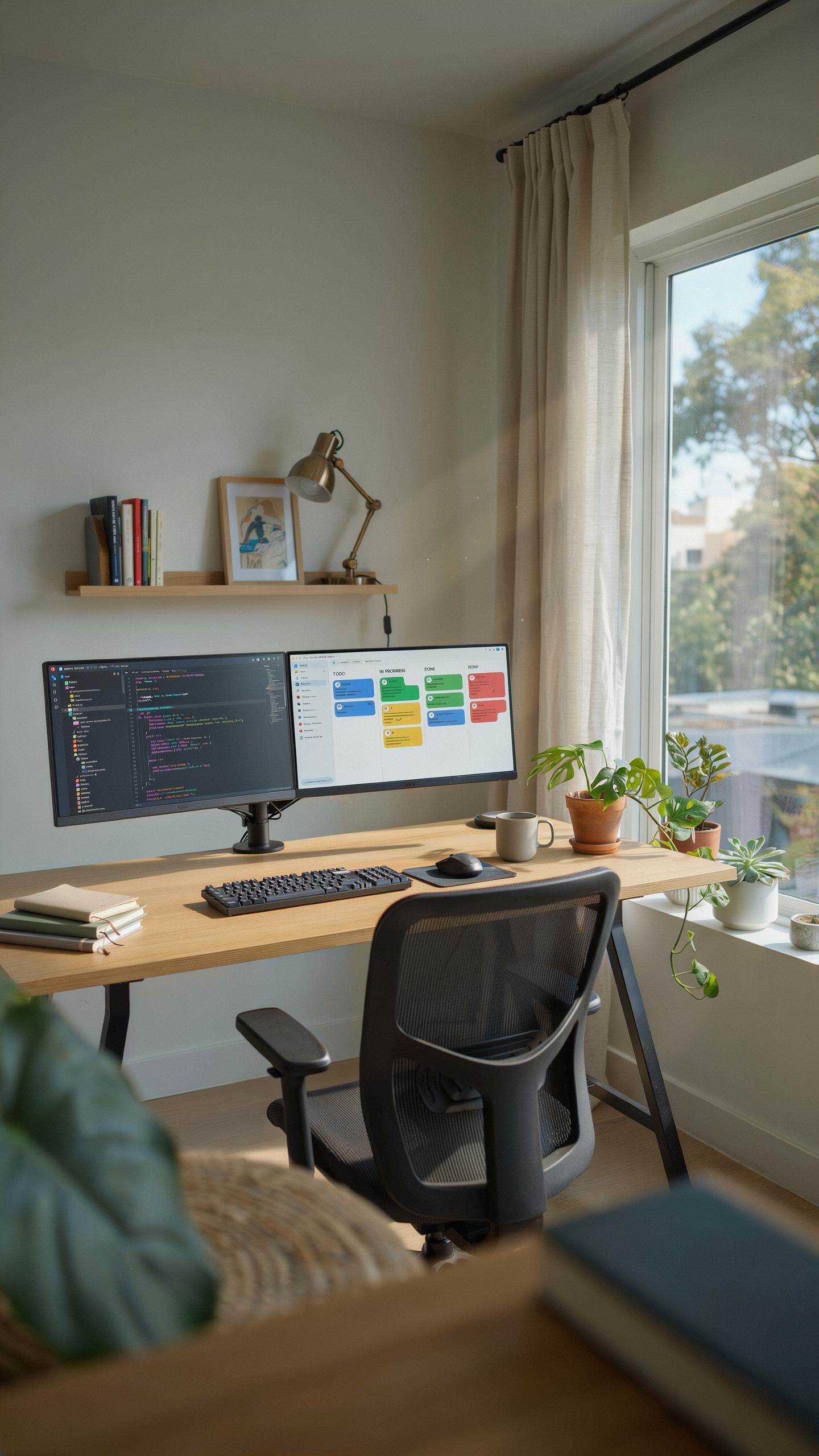
Monitor distance matters. Position screens 20 to 26 inches from your eyes. Place the primary monitor directly in front of you at eye level. Angle the secondary monitor 30 degrees inward. This setup reduces neck rotation and keeps your head in a neutral position. Your gaze naturally follows the primary workflow without strain.
Tilt angles prevent glare and fatigue. Tilt each monitor 10 to 20 degrees upward from the base position. This counteracts overhead lighting and reduces reflections on the screen surface. Adjust based on your seated position and lighting environment. Test different angles over a few days to find what works. Small changes deliver measurable improvements in comfort during long work sessions.
Remember the days of dreaming bigger, of seeing more at once? Dual monitor arms aren’t just gadgets, they’re the quiet whisper of childhood ambition, finally bringing your digital world into full, glorious view.
Cable Management
Dual monitor arms feature routing channels built into the poles and joints. These channels hold cables against the arm structure, keeping them out of your workspace. Run power cables, USB lines, and display connections through these channels from monitor to base. This approach eliminates cable clutter and prevents tangling. The result is a clean desk surface that supports focus and efficiency.

Cable clips and velcro straps secure loose sections. Position clips at key points where cables transition from the arm to the desk or wall. Velcro straps bundle multiple cables together without permanent adhesion, allowing for future adjustments. Label cables at both ends to speed up troubleshooting and reconfiguration. Organized cables reduce setup time when you need to relocate equipment or replace components.
The Ergonomic Advantages Of A Dual Monitor Setup
Posture Improvement
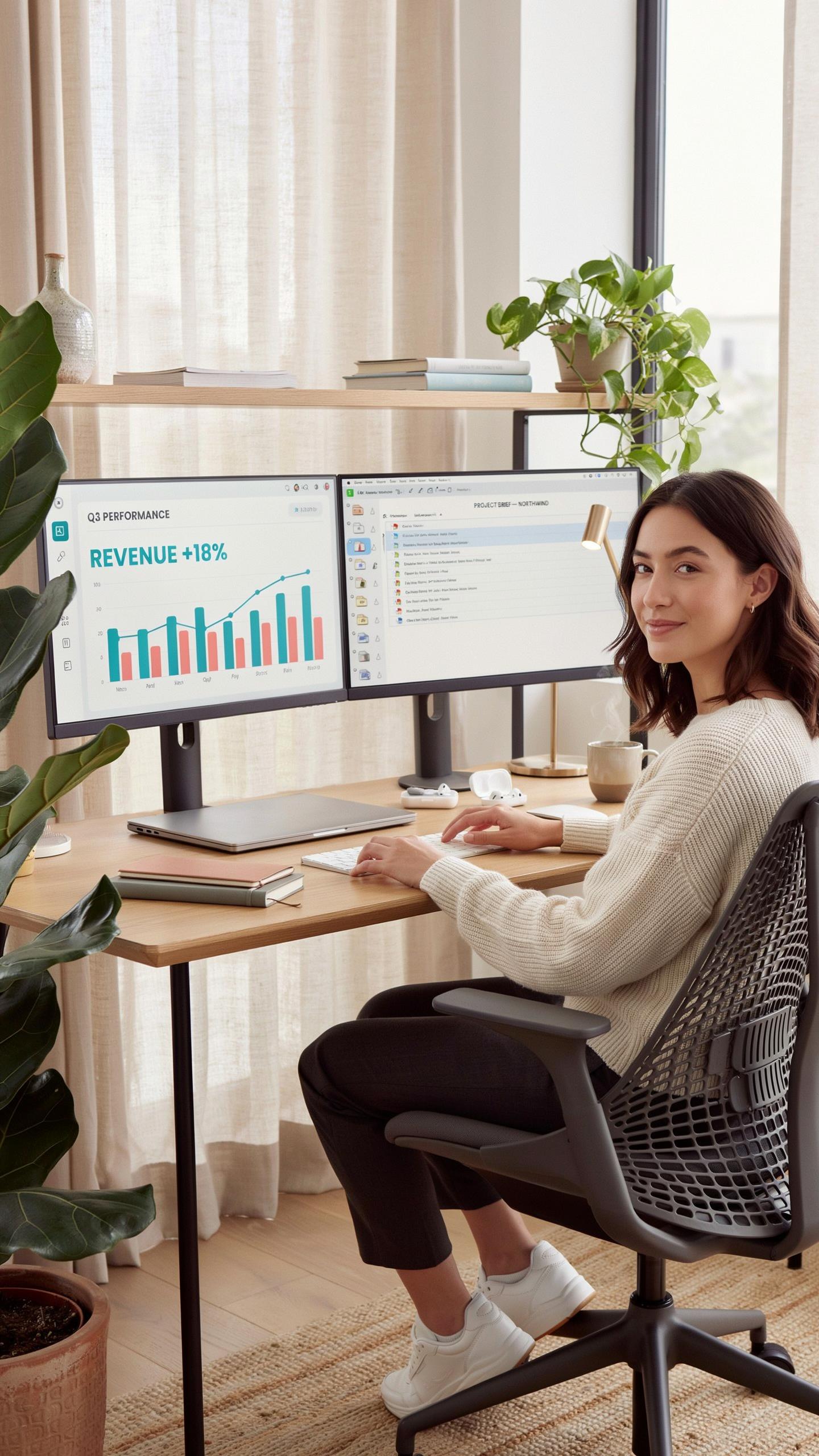
Monitor height and distance directly impact spinal alignment. When screens sit at eye level, your neck stays neutral instead of flexing forward or backward. A monitor arm mount for dual screens lets you position each display at the correct height and distance. This prevents the forward head posture that causes neck pain and upper back strain over time.
Proper positioning requires your screens at arm’s length away, roughly 20 to 26 inches from your eyes. The top of each monitor should align with your eye level when sitting upright. Dual monitor arms give you independent height and tilt adjustment for each screen, ensuring both monitors support neutral spine alignment throughout your workday.
Reduced Strain
Customizable monitor adjustments minimize neck, back, and eye strain by keeping viewing angles within the neutral zone. A monitor arm mount for dual screens eliminates the fixed positioning of standard monitor stands. You adjust each screen to match your specific desk height, chair height, and viewing distance, reducing compensation movements your body makes.

Eye strain drops significantly when monitors sit at proper distance and angle. Your eyes focus more naturally without tilting your head upward or downward. Neck strain decreases because you stop rotating your head excessively between screens. Back strain reduces as your spine stays aligned instead of hunching forward to see dim or poorly positioned displays.
Integrating A Brateck Monitor Arm Mount Into Your Setup
Brand Overview
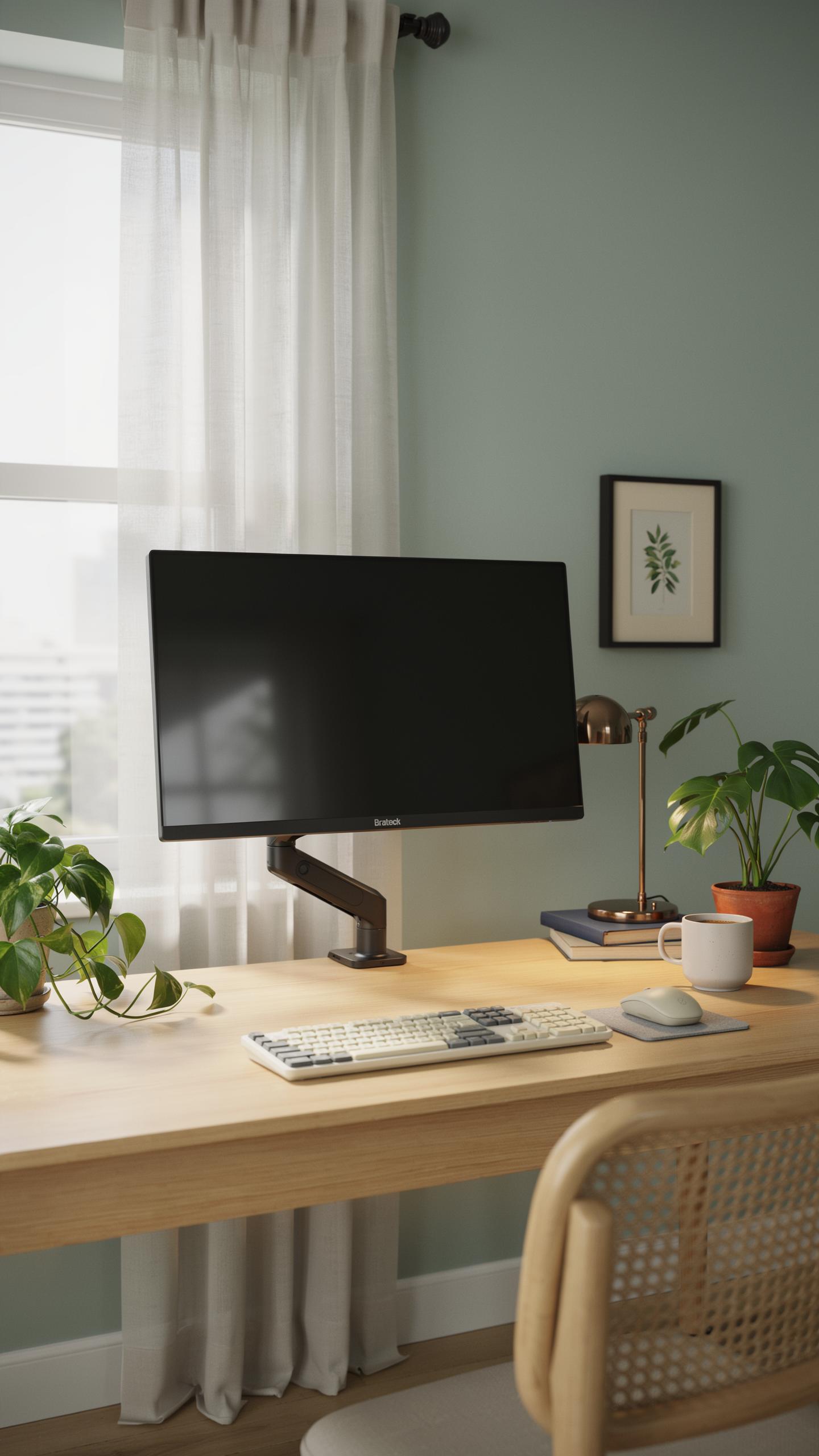
Brateck operates as a manufacturer of mounting solutions with focus on monitor arms and desk accessories. The company builds products around standard VESA mounting patterns, which means their arms work with most monitors on the market. Brateck competes in the mid-range segment, positioning their products between budget options and premium brands. Their arms typically use steel construction with gas spring mechanisms for height adjustment.
Brateck monitor arms prioritize functionality over premium materials or aesthetics. Users report their products hold dual screens reliably without significant drift over extended periods. The brand maintains compatibility across monitor sizes within specified weight limits. Their warranty coverage is standard for the category, typically ranging from one to three years depending on the specific model.
Specific Features
Brateck dual monitor arms incorporate gas spring technology that allows smooth vertical adjustment without manual locking mechanisms. This design reduces setup time and eliminates the need for constant readjustment. The arms support monitors up to specific weight capacities, usually between 8 to 17 pounds per arm depending on the model. Cable management clips route wires along the arm structure to maintain clean desk appearance.

The mounting options on Brateck arms include desk clamp and desk grommet configurations. Desk clamps require no drilling and work with tables between 0.6 and 3 inches thick. Grommet mounts thread through desk surfaces for permanent installation. Both methods distribute weight evenly across the mounting surface, preventing tip-over risks and ensuring stability during daily use.
Installation Guide For Your Monitor Mount
Pre Installation Checklist
Before you touch your monitor arm mount for dual screens, verify your desk can handle the load. Most dual monitor arms weigh between 5 to 8 pounds and exert significant force on the mounting point. Check your desk material and thickness. Particleboard desks under 1 inch thick will fail. Solid wood or metal desks with 1.5 inch minimum thickness work. If you have a thin desk, use a monitor arm with a grommet mount that clamps to your desk edge instead.
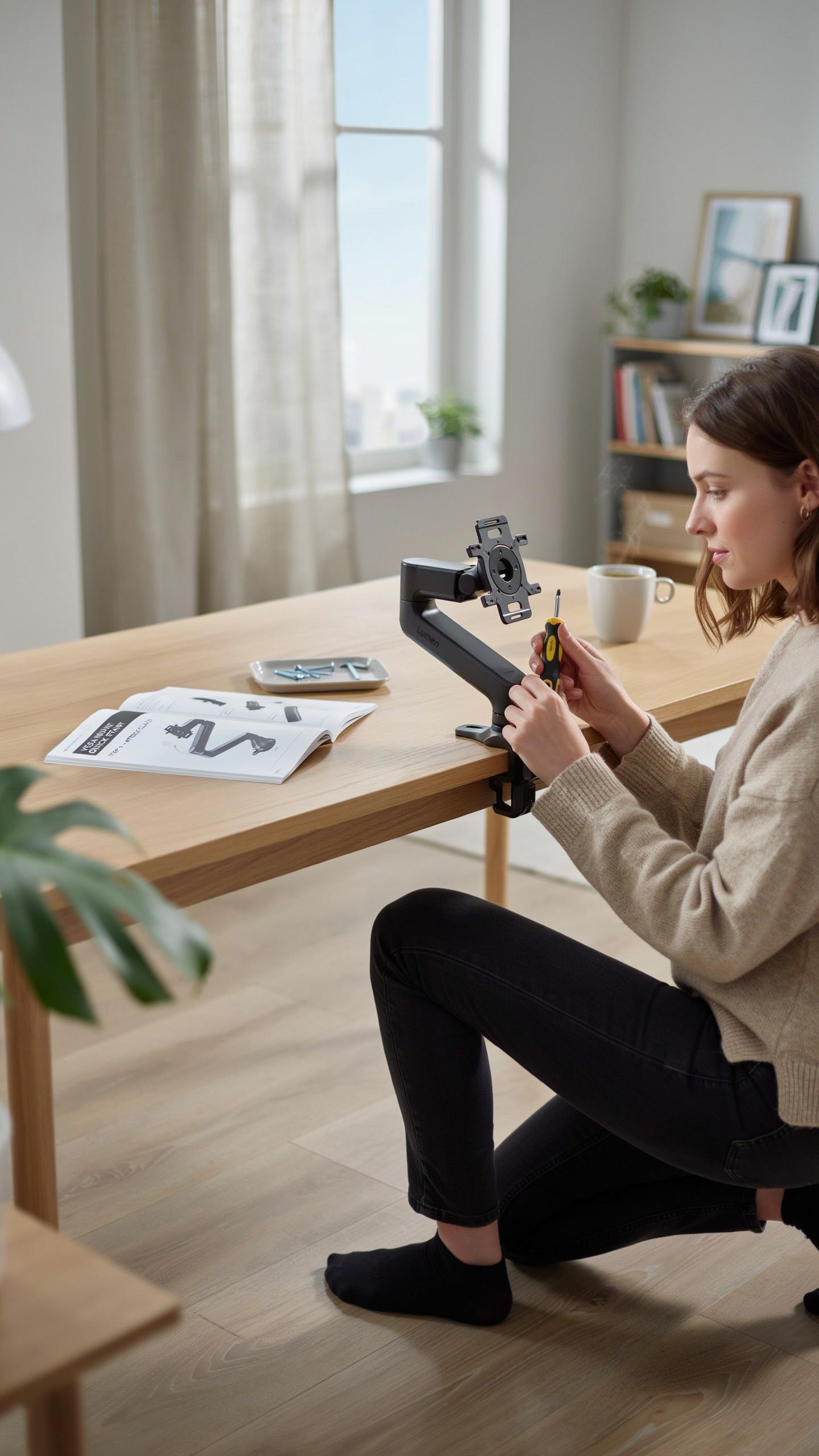
Gather your tools before starting. You need an Allen wrench set, a power drill, a level, and a tape measure. Read your specific monitor arm’s manual completely. Different brands use different mounting systems. Some require pilot holes drilled first. Others come with pre-drilled templates. Keep all hardware in one container so you don’t lose screws halfway through. This prevents reinstalling and wasting time.
Step By Step Installation
Start by marking your mounting location on the desk. Measure from the front edge and sides to ensure your monitors sit at eye level when you sit in your chair. Use a tape measure and pencil. Mark the hole positions according to your manual’s template. Drill pilot holes slowly with a power drill set to low speed. Rushed drilling cracks desks and strips screw threads. Once pilot holes are complete, attach the mounting base using the provided screws and Allen wrench.
Attach each monitor arm to the base according to your manual’s sequence. Install the lower arm segment first, then the upper segments. Tighten all connections firmly but do not overtighten, which strips threads and damages components. Mount one monitor at a time and balance the arm as you go. Use a level to ensure each monitor sits square. Plug in power cables only after confirming both monitors are secure and balanced. Test the arm’s full range of motion before placing your keyboard and mouse on the desk.
Maximizing Your Dual Monitor Experience
Software Enhancements
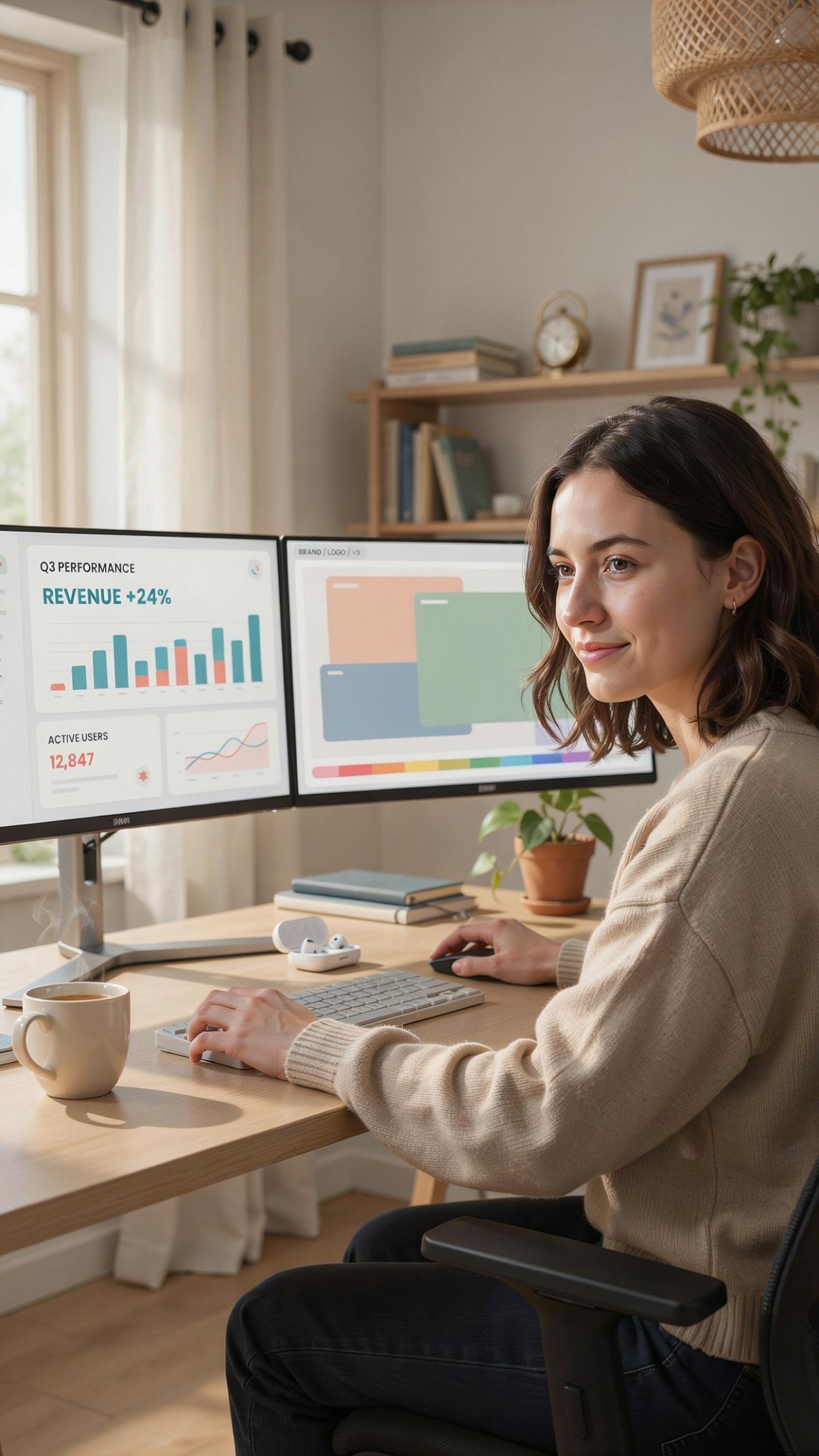
Your operating system already contains built-in tools to manage two monitors effectively. Windows offers Snap Layouts and Virtual Desktops to organize windows across screens without manual dragging. macOS provides Mission Control and Spaces for similar functionality. These features reduce friction when switching between tasks and applications.
Third-party tools extend what your OS provides. Software like DisplayFusion or Actual Multiple Monitors adds taskbars to secondary screens and enables window management rules. These applications let you save window positions and recall them instantly. The investment in setup time pays off through faster workflow execution and fewer clicks per workday.
Maintenance Tips
Monitor arms require periodic inspection to function safely and smoothly. Check all connection points monthly for loose bolts or screws. Tighten hardware that has loosened from vibration and daily use. Verify that cable management clips still hold wires securely without kinks or bends that restrict signal flow.
Dust accumulation damages arm mechanisms and degrades monitor performance. Wipe down the arm structure and monitor backs monthly using a microfiber cloth. Keep the desk area around the base clear to prevent debris from entering pivot joints. Regular cleaning prevents mechanical strain and extends the lifespan of gas springs and VESA mount components.
Frequently Asked Questions

What exactly is a monitor arm mount for dual screens, and why would I need one?
A monitor arm mount for dual screens is a clever device that securely holds two monitors above your desk, freeing up valuable space. It allows for ergonomic adjustments, reducing neck and eye strain. It’s fantastic for multitasking, improving workflow, and giving your workspace a sleek, professional look.
How difficult is it to install a monitor arm mount for dual screens, especially if I’m not very handy?
Most monitor arm mounts for dual screens are surprisingly straightforward to install. They typically come with clear instructions and all necessary tools. Many models use clamp-on or grommet mounts, requiring minimal effort. You’ll likely have your new setup ready in under an hour, even as a beginner.
Are there affordable monitor arm mount for dual screens options available, or are they generally very expensive?
Absolutely! While high-end options exist, you can find excellent and reliable monitor arm mount for dual screens choices at various price points. Many budget-friendly models offer fantastic stability and adjustability, making an ergonomic upgrade accessible without breaking the bank. Shop around for great value!