
The Memory Bank Fallacy: Why Default Albums Fail You

Automatic Albums Shortcomings
You think Photos, Recently Deleted, and Favorites are doing the work for you. They’re not. The mechanism is simple: Apple designed these automatic albums to serve the average user, which means they serve no one specifically. Every photo you take lands in Photos. Every accidental shot or duplicate lives in Recently Deleted for thirty days. Favorites gets flagged when you tap the heart icon, but without a system, you’re just marking chaos.
The real problem is that automatic albums create the illusion of organization while guaranteeing retrieval failure. When you need a specific photo in three months, you’ll scroll endlessly through thousands of entries sorted only by date. Apple’s algorithm doesn’t know context. It doesn’t know which photos matter for work, which are personal, which you’re keeping for sentimental reasons only. You end up treating your entire library like a filing cabinet with no labels.
Clutter Versus Curation
Curation requires friction. The common advice says “just use smart albums” or “tag everything with keywords.” That’s incomplete. What actually works is accepting that your default library state is a graveyard, not a resource. You must build albums with intent. Each album solves one specific retrieval problem: client work, family documentation, inspiration reference, seasonal memories. No album should contain more than five hundred photos unless it’s purely archival.
The mechanism that separates working photographers from phone-hoarders is simple discipline at upload time. When you import a photo, it gets sorted into exactly one active album immediately. This takes five seconds and prevents the sprawl that makes your library worthless. Screenshots, test shots, and duplicates move to a holding album you review once monthly, then delete. No system survives if you treat it as temporary. Create albums now or spend hours later searching for nothing.
The “Zero Inbox” Photo Method For Organizing Iphone Photos

Triage Every New Photo Immediately
You want to feel organized without doing the actual work. Here’s the mechanism: your Photos app defaults to dumping every screenshot, blurry capture, and accidental pocket photo into one timeline. That’s not organization—that’s a graveyard. The moment a photo hits your camera roll, it enters a decision queue. You either process it now or it compounds into visual debt you’ll never clear.

Open your camera roll daily. Spend two minutes. Delete trash: blurry shots, duplicates, screenshots you don’t need. Move keepers to a relevant album immediately. This stops the pile from becoming paralyzing. The album system in iOS is dumb by design—it doesn’t auto-organize—so you must be the sorting mechanism. Create albums by context: Family, Work, Travel, Archive. One photo, one home.
Delete Ruthlessly Before You Archive
Most people keep everything because deletion feels like loss. It’s not. Deletion is clarity. Batch process monthly: open an album, scroll through, eliminate anything that doesn’t serve a retrieval purpose. Screenshots of receipts, test photos, half-baked attempts at the same shot—gone. Keep one sharp version of each moment, not five angles of the same dinner.
The Photos app stores duplicates and near-duplicates without warning you. On a full camera roll, this waste accumulates fast. Spend 30 minutes purging. You’ll find your actual photos emerge sharper—literally fewer files to load, and mentally fewer decisions when searching. Archive the culled set to external storage once yearly. Your active library stays lean, fast, searchable.
Strategic Photo Album Naming: Beyond “Vacation 2023”

What Your Album Names Actually Signal
You think naming matters because you want to find photos faster. That’s half true. The real reason: naming reveals whether you see your phone’s photo library as a dumping ground or a system. Most people name albums around the event itself, which makes sense until you need to find something six months later and can’t remember which trip it was. The mechanism is simple: your brain organizes by context and feeling, not by calendar dates. Naming by theme first, chronology second, forces you to encode meaning into the structure itself.

The difference between weak naming and strategic naming is the difference between searching and knowing. A weak name like “Hawaii Trip” tells you nothing about the content’s actual use case. A strong name like “Family Portraits 2024 Q1” or “Client Work Product Shots” tells you the album’s purpose before you open it. Your Photos app becomes navigable because every album serves a specific function, not because you vaguely remember when you took the shots. This is borrowed from information architecture in UX design, where every category exists to reduce cognitive load, not to catalog events. Apply the same principle: each album is a bucket with a job to do.
Separating Outcome From Timeline
Most advice tells you to choose between chronological order or event-based folders. That’s a false binary that wastes your time. Here’s what actually works: use chronology as the skeleton, themes as the muscle. Your album structure should reflect how you’ll actually search for photos, which is almost never by date first. You search by use: client projects, family moments, reference shots, content batches. Date becomes a secondary filter inside those buckets, useful for finding “which client meeting was this from” not for finding anything at all.
The mechanism: your brain recalls photos by association and context, never by the calendar week they happened. Name albums around intention and use case, then let chronology sit in the background. If you’re building a portfolio, album names like “Brand Photography 2024” work better than “February Shoots.” If you’re archiving family memories, “Kids Milestones Age 5-6” outperforms “Summer Vacation Part 1.” Structure albums so you can find them through recognition, not memory. This means opening your Photos app and immediately knowing which album holds what you need.
The Memorabilia Album Cover On Phone Protocol: Visual Indexing
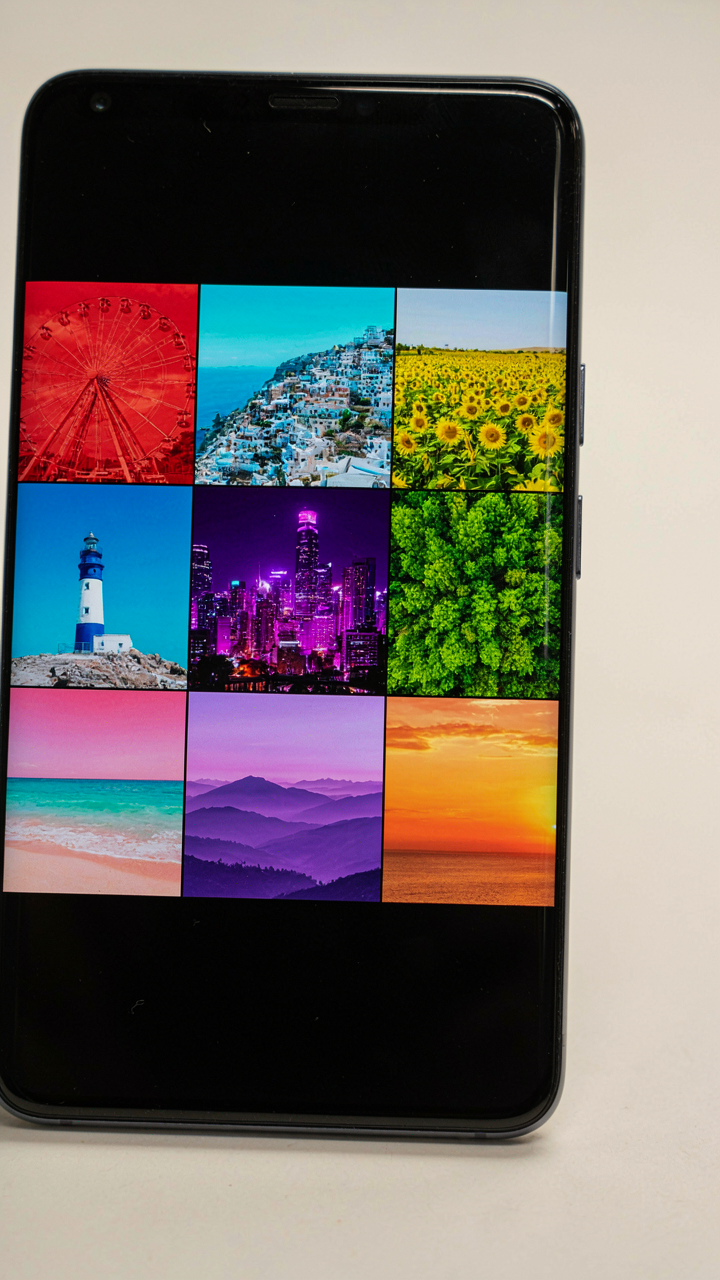
Make Your Album Covers Instantly Scannable
You want people to think you’re organized without actually spending hours organizing. The real mechanism here is cognitive load reduction through visual hierarchy. Your brain processes images 60,000 times faster than text, which means a distinct album cover functions as a retrieval shortcut. Most people ignore this and let iOS auto-generate thumbnail grids from random photos. That’s wasted real estate.

The cover photo you choose becomes the visual index for everything inside. Select one image that represents the album’s core content or time period, not the prettiest shot from the batch. If it’s a trip album, use a landmark photo. If it’s a project, use the finished result. The cover must differentiate itself immediately from adjacent albums when you’re scrolling through your library at speed. Consistency here beats aesthetics every time.
Color And Composition As Navigation Signals
Graphic design borrows from semiotics, the study of signs and symbols, and your album covers work the same way: one element should trigger instant recognition. Don’t use generic sunset photos or blurry action shots as covers. Instead, use photos with dominant color, clear subject, or recognizable geometry that your eye locks onto within one second.
Organize albums so covers create visual rhythm when you scroll. Warm tones, cool tones, bright, dark, bright, dark. Your eye learns the pattern and finds albums faster than reading titles ever could. When you need a photo, your brain already knows which visual zone to search. Set your album covers now using this protocol: one defining image per album, color-distinct from neighbors, shot at a readable distance and angle.
“My Albums Iphone” As Your Personal Storyboard

How Stories Build Themselves
You want your photo library to feel intentional because chaos reads as failure. Here’s what nobody states: albums are a narrative architecture tool, not a storage system. The difference matters because storage is passive. Narrative is active. You’re not organizing photos. You’re arranging evidence of a life trajectory that others can follow and you can retrieve without friction.

Most people treat albums like folders. That’s incomplete. Real albums operate like chapters in a book you’re writing in real time. Each album should answer a specific question: “What happened during this phase?” not “Where did I put these photos?” When you structure albums around story arcs instead of dates or events, retrieval becomes natural. You don’t search for a photo from “that trip in March.” You open the album called “Iceland” and the narrative context guides you directly to what you need.
When Life Shifts, Albums Should Too
Pivotal moments aren’t always obvious when they happen, but they’re unmissable in retrospect. Create albums around the turning points that actually changed your life trajectory, not the Instagram-worthy events. A job change. A relationship beginning or ending. A move to a new city. A health shift. These are the moments that warrant their own album because they separate your life into distinct chapters.
The mechanism works like this: open My Albums in the iPhone Photos app. Create a new album and name it after the life phase, not the date. Add photos from across months or even years that belong to that chapter. Include photos from before the moment, during it, and after. This creates a temporal map that your brain can navigate. When you want to remember how you lived during that period, you don’t scroll chronologically. You open the album and see the narrative you actually lived.
The Digital Inheritance Framework For Photos On Iphone

Why Your Photos Matter More Than You Think
You’re worried you’ll lose these moments. That’s the real motive behind organizing anything—fear of forgetting, fear of death, fear that what mattered won’t survive you. Evolutionary biology calls this “fitness of memory”: organisms that retain survival-critical information outcompete those that don’t. Your iPhone photo album operates the same way. It’s not a storage system. It’s a retention mechanism that determines which experiences actually survive in your mind and which ones dissolve.

Most people treat photo albums as passive folders. They dump photos in and hope the search function works later. This fails because memory doesn’t work that way. When you revisit a photo intentionally—by organizing it, tagging it, or placing it in a named album—your brain encodes it deeper. The album structure becomes the scaffolding that holds the memory intact. Without structure, the photos exist but the meaning evaporates.
Visual Recognition Shapes What You Remember
The brain doesn’t archive experiences equally. It prioritizes images that connect to survival, identity, or social standing. Your iPhone album layout either accelerates this natural selection or fights against it. When you scroll through an unorganized camera roll, your eye catches moments randomly. When you browse a structured album, your eye traces a deliberate path. That path rewires what counts as significant.
Most advice says “use albums to organize by date or event.” That’s incomplete. Those structures help retrieval but not retention. The real mechanism is this: albums become visual anchors. When you name an album “2024 Clarity” instead of “Vacation March,” you’ve embedded an emotional lens. Every time you open that album, your brain doesn’t just see photos—it interprets them through that frame. You remember differently because the container changed how you see. Create albums around what you want to remember becoming, not just what happened.
Organize Photos On IPhone Like A Pro With Smart Albums

Automate Your Photo Sorting Without Lifting A Finger
You want your photos organized so you look competent when you need to find something fast. Smart Albums solve this by running criteria in the background and pulling matching photos into one place automatically. Think of them like a filter in fluid dynamics, not a container, because they redirect flow without storing the source material elsewhere.

Smart Albums don’t duplicate your photos. They display results based on rules you set once, then update in real time as you add new images. Open the Photos app, tap the Albums tab, scroll to the bottom, and select New Smart Album. You set the parameters. iOS handles the sorting.
- Recent screenshots: Captures all screenshots from the past month, useful for finding reference images or saved conversations you snapped.
- Photos by person: Combines images where a specific face appears, even across different albums or folders on your device.
- Videos only: Separates all video content automatically, clearing visual noise when you need to locate motion footage.
- High quality images: Filters based on resolution and technical quality, isolating sharp shots from lower-resolution ones.
- By location: Groups photos taken at specific coordinates, useful for organizing travel or event photography by geography.
Once created, Smart Albums appear in your Albums list permanently. They update without action from you. The moment you take a photo that matches the criteria, it lands in that Smart Album. No syncing required, no manual tagging, no forgetting which folder you put something in.
When Static Categories Fail You Need Dynamic Rules
Most people organize photos by date or event folder, then forget what they called the folder or where they put it. Smart Albums replace this with rule-based logic. You define once what matters to you, then the system enforces it continuously.
Criteria stacks are where the power lives. You can combine multiple conditions: photos from a date range AND a location AND containing a person. This narrows results with precision. A Smart Album for “Family photos from summer at the lake” pulls only images matching all three parameters, not approximations. The specificity cuts retrieval time from minutes to seconds because you stop browsing and start finding.
The “Sharing Blueprint”: Intentional Dissemination, Not Spam

Who You’re Sending To, Not Just What You’re Sending
You want to look intentional. That’s the real reason you care about this—not looking like you’re broadcasting the same photo to everyone like some algorithm bot. The mechanism is simple: sharing friction reveals your actual intent. When you force yourself to choose a recipient or group before hitting send, you decide what matters. iPhone’s share sheet defaults to “everyone you know” if you’re not careful. You end up spraying content instead of directing it. The albums you’ve built should have a distribution map before you share anything. Ask yourself who benefits from seeing this specific album, then make that the only path. One album per intention beats ten albums scattered across ten different contact lists.

Your sharing strategy depends on context, not reach. A family album lives in a different universe than a portfolio album for clients. iOS lets you create shared albums that sync across iCloud, but most people ignore the targeting layer underneath. You can share via link, email, Messages, or AirDrop—each one sends a different signal about how intimate or formal the exchange is. Link sharing says “here’s something I want you to see when you have time.” Direct messaging says “this is for you specifically.” The friction of choosing matters. If you share without friction, you’re not sharing—you’re littering.
How Each Platform Changes What You Actually Share
Different platforms have different friction points, and iOS respects that. When you share to Instagram, you’re competing for attention in a feed of thousands. When you share via iCloud link to one person, you’re creating a private viewing experience. Instagram crops vertically, reduces file quality, and adds compression. AirDrop keeps full resolution if both devices are nearby. Messages threads create context—the conversation around the photo matters. Email creates a record and feels formal. The platform you pick isn’t neutral. It determines what people see and how they interpret it. Most sharing advice ignores this entirely. People say “just share more” without naming that each platform strips away different information or adds different social pressure.
Test this yourself: share the same album three different ways and notice what happens. The person who sees it via AirDrop treats it differently than someone who sees it in a link. Someone who gets it via Messages feels included. Someone who finds it on your Instagram story feels like they’re part of an audience. The platform shapes the relationship, not just the visibility. iOS Photos lets you copy link, share to specific apps, or use AirDrop. Pick based on what relationship you want to build, not what’s fastest. If you’re sharing a client portfolio, email with a curated album link beats Instagram Stories every time.
The Real Obstacle Isn’t Finding A Photo; It’s Defining What’s Worth Remembering In The First Place

Most people organize their photos backward. They chase perfect systems while their camera roll stays a graveyard of duplicates and accidents. Stop building folders. Start asking yourself what you actually care about preserving. Open your phone right now and create one album called “Worth Keeping.” Drop five photos in it. That’s your baseline. Your photo system only works when you decide what matters before you save it.