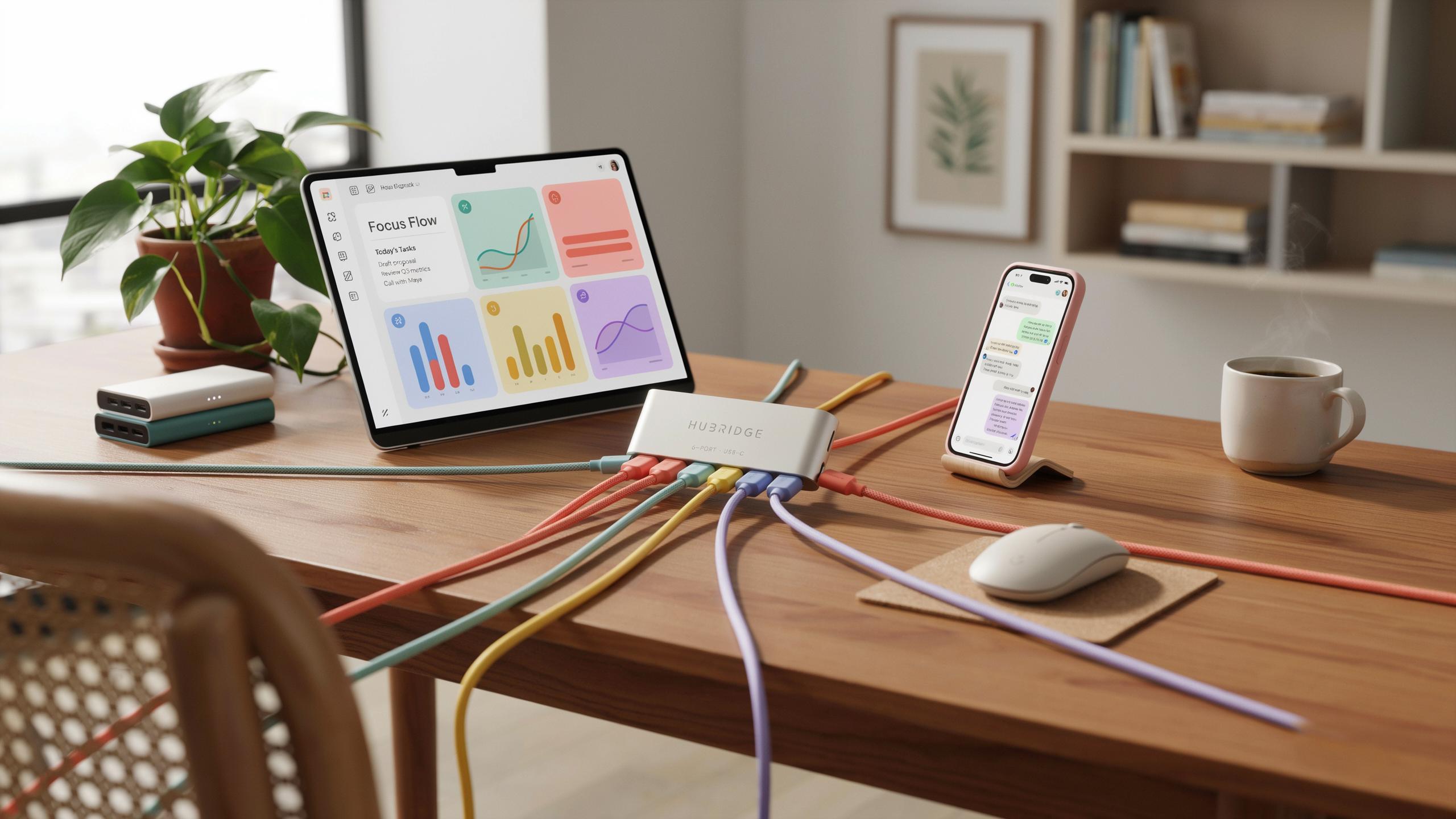
The Modern Workspace Why One Cable Setups Matter
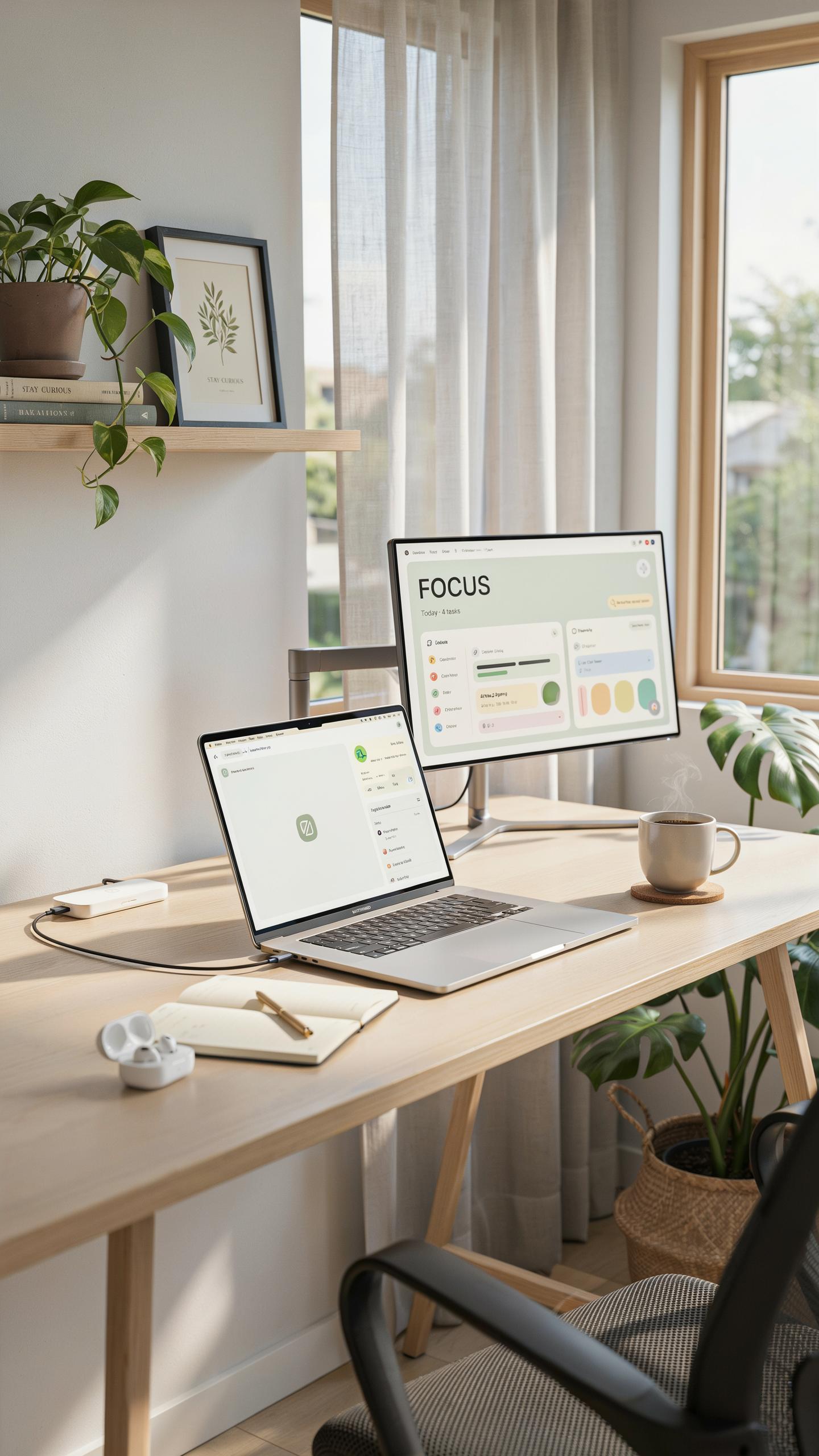
Understanding The Appeal Of Minimalist Desk Setups
A cluttered desk kills productivity. Multiple cables tangled across your workspace create visual chaos and physical obstruction. Workers spend mental energy navigating cable mess instead of focusing on actual work. The minimalist desk movement gained traction because people recognized this problem. Fewer cables mean less distraction and faster cable management when you need to relocate equipment or troubleshoot connectivity issues.
Desk real estate costs money and attention. Every cable occupies space that could serve your work. Cable clutter also extends setup time for remote workers, traveling professionals, and anyone who changes their workspace frequently. The desk space problem intensifies with modern equipment. A laptop, monitor, keyboard, mouse, external drive, and phone charger create a cable spaghetti situation quickly.
The Role Of Multi Port USB Hubs In Achieving This Ideal
A multi-port USB hub consolidates multiple connections into a single cable running to your computer. Instead of managing five separate cables, you connect one hub cable to your laptop and attach all peripherals to the hub ports. This setup dramatically reduces cable visibility and management friction. The hub becomes your connection point, not your laptop. This simple routing change transforms how your desk functions operationally.
USB hubs enable the one-cable aesthetic while maintaining full device functionality. You keep all your peripherals but hide their cables behind the hub. Your desk shows one incoming cable instead of a tangled mass. This approach works for docking scenarios, home offices, and mobile workstations. The hub essentially acts as a traffic controller, bundling multiple data streams and power delivery through a single connection pathway to your host device.

Declutter Your Desk The Cable Management Revolution
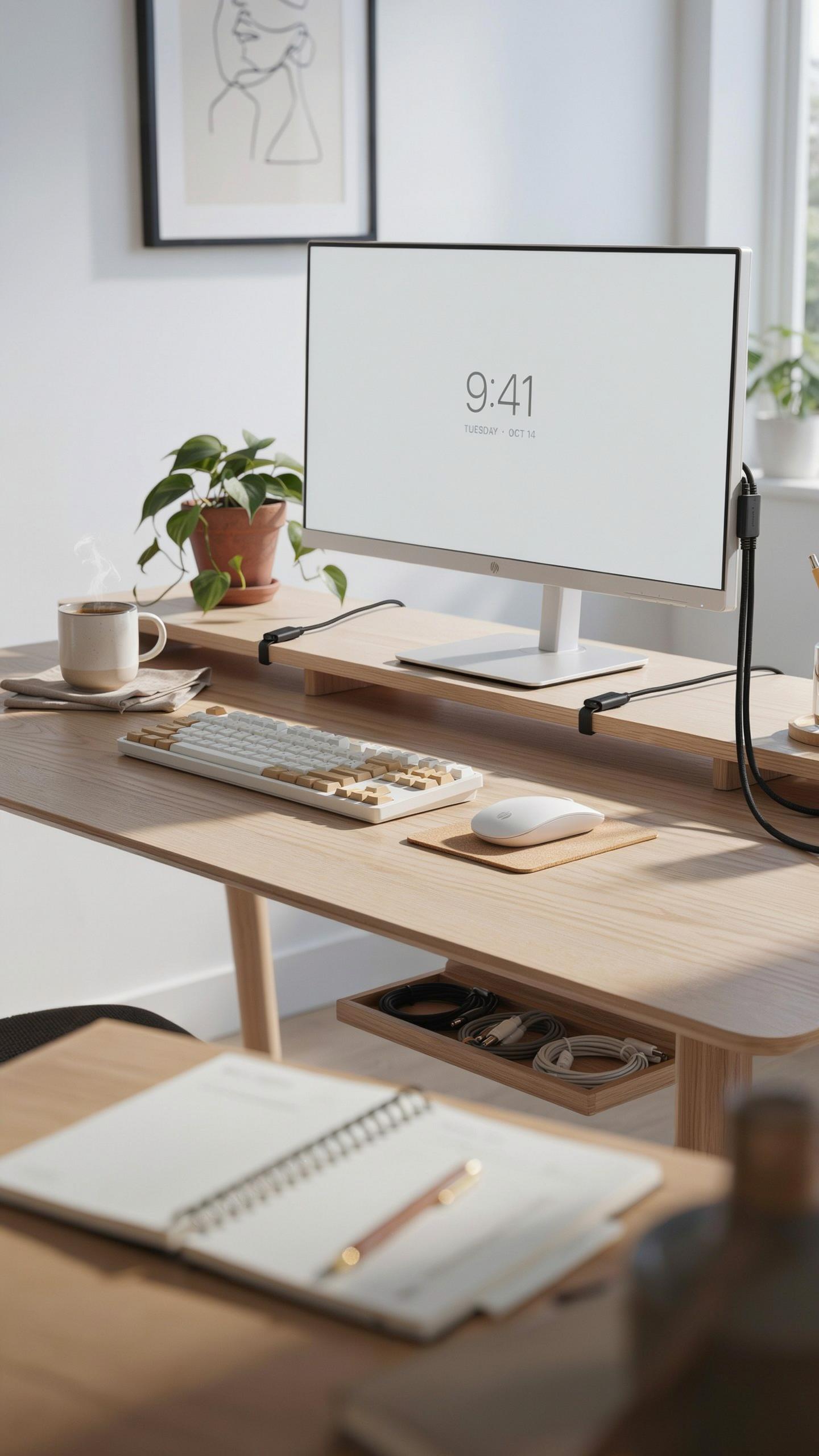
How A Single Hub Consolidates Multiple Connections
A multi-port USB hub replaces the need for multiple cables running from your devices to your computer. Instead of plugging four separate devices into four different ports, you plug one hub cable into your computer and connect all devices to that hub. This reduces physical clutter and eliminates cable tangling behind your desk.
The hub acts as a connection point. Your keyboard, mouse, external drive, and printer each plug into the hub rather than competing for limited ports on your computer. One cable carries all data and power signals from these devices back to your system. This setup frees up your computer’s native ports for devices that require direct connections or higher bandwidth.
Tips For Effective Cable Management With Your New Hub
Start by positioning your hub within arm’s reach of your primary work area.
- Choose a hub location near your monitor or desk edge: Place the hub where cables can reach devices without stretching across your workspace. This prevents cables from crossing walkways or creating tripping hazards.
- Use cable ties or clips to bundle wires together: Group cables running from the hub to individual devices. This prevents them from sprawling across your desk and makes the setup easier to reconfigure later.
- Label each cable at both ends: Mark which cable connects to which device using tape and a marker. This saves time when you need to disconnect or troubleshoot a specific device quickly.
- Route cables behind cable management boxes or raceways: Conceal cables that run along your desk edge or down to the floor. This keeps your visual workspace clean and protects cables from damage.
- Keep excess cable length organized with velcro straps: Coil any extra cable length and secure it with velcro. Store excess near the hub rather than letting it hang loose behind your desk.

Implement one cable management strategy at a time rather than overhauling your entire setup. Start with repositioning your hub and grouping cables together. Add cable clips or a raceway once you confirm the hub placement works for your workflow. Small adjustments compound into a functional, organized desk over time.
Power And Connectivity More Than Just A Charging Hub
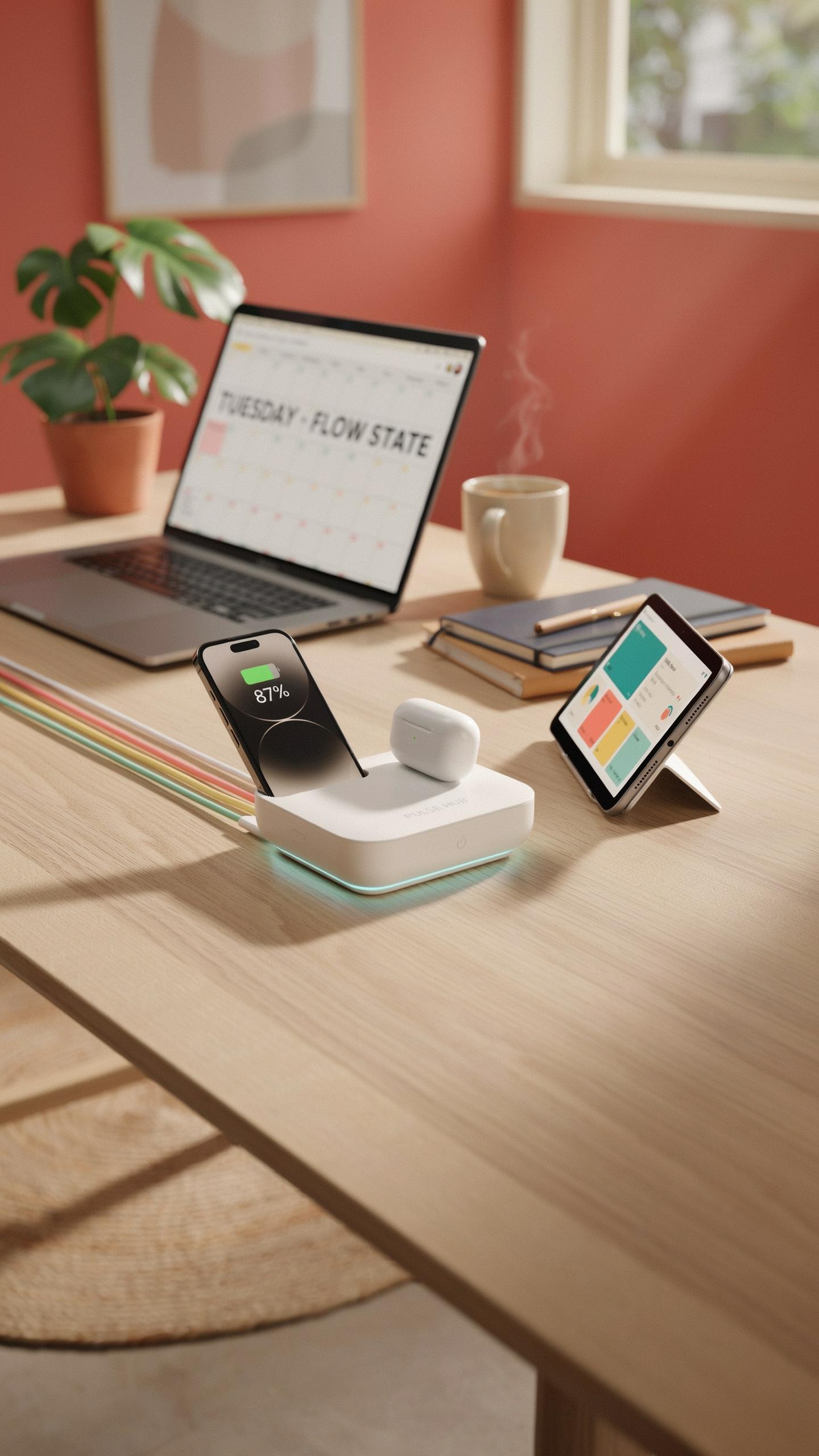
The Evolution Of USB Hubs From Simple Splitters To Powerful Stations
Early USB hubs were basic port multipliers. They took one USB port and split it into four or five connections without adding power. Users quickly discovered this approach created bottlenecks. Devices competed for bandwidth. Transfer speeds dropped. Power delivery was nonexistent.
Modern hubs are equipment stations. They combine multiple ports, power delivery, and data transfer into single units. Manufacturers added active power supplies to the equation. This change eliminated the bandwidth competition problem. Today’s hubs manage power distribution and data flow independently. This shift transformed USB hubs from accessories into core infrastructure pieces.
Understanding Power Delivery And Charging Capabilities
Power delivery in USB hubs operates through dedicated power supplies built into the hub itself. The hub receives power from a wall outlet through a USB-C or barrel connector. It then distributes that power to connected devices. This separation matters because it allows devices to charge at full speed while transferring data simultaneously.

Wattage ratings determine what devices a hub can support simultaneously. A 60W hub handles one or two power-hungry devices. A 100W hub supports multiple simultaneous charges including laptops. Check the specifications against your device requirements. A laptop needs more wattage than a phone. Mismatched wattage leaves devices charging slowly or not charging at all.
Enhance Your Desk Setup Integrating Tech Gadgets Seamlessly
Connecting Peripherals: Keyboards, Mice, And External Drives
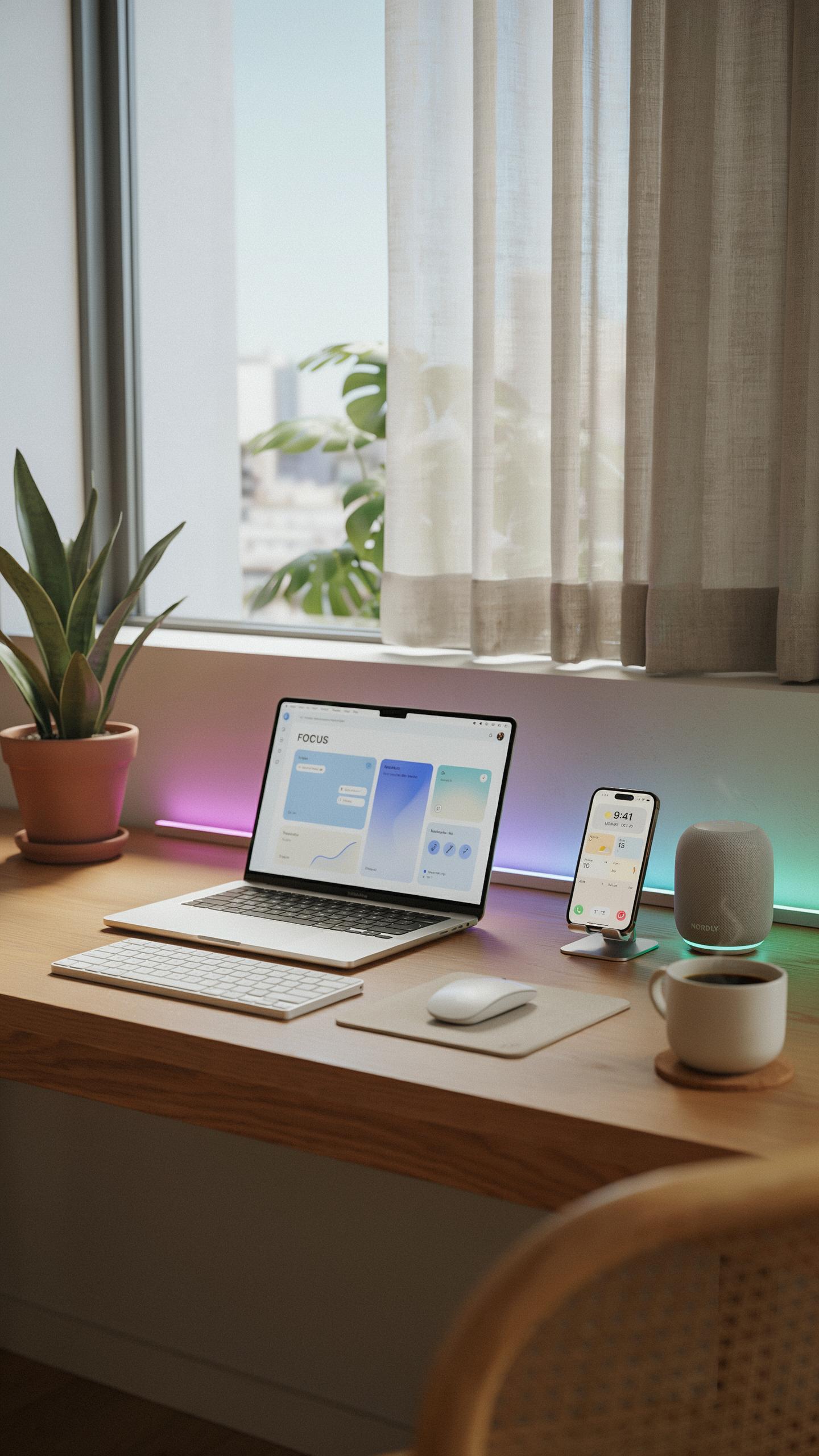
A multi-port USB hub consolidates multiple device connections into a single cable to your computer. Keyboards and mice connect through standard USB or wireless dongles. External hard drives and SSDs plug directly into hub ports. This setup eliminates the cable sprawl that happens when you plug devices into scattered ports on your computer tower or laptop.
Hub port count matters based on your peripherals. A keyboard needs one port. A mouse or wireless receiver needs another. Each external drive requires its own port. Count your devices first, then choose a hub with enough ports plus one or two spares. Most hubs offer 4 to 7 ports in compact form factors.
Optimizing Your Desk With The Right Hub For Your Needs
Power delivery capacity determines whether your hub handles high-draw devices. External hard drives pull more power than mice or keyboards. Some hubs include power adapters to supply additional current to connected devices. Others rely on bus power from your computer, which limits what you can connect simultaneously.
Match the hub’s data speed to your workflow requirements. USB 3.0 hubs work fine for basic peripherals like keyboards and mice. USB 3.1 or Thunderbolt hubs support faster file transfers if you move large files regularly. Check your computer’s available ports and choose a hub that matches your machine’s speed capabilities. Placement near your workspace reduces cable length and clutter.
Aesthetic Meets Function The Space Gray USB C Hub
The Popularity Of USB C Hubs In Modern Tech Aesthetics
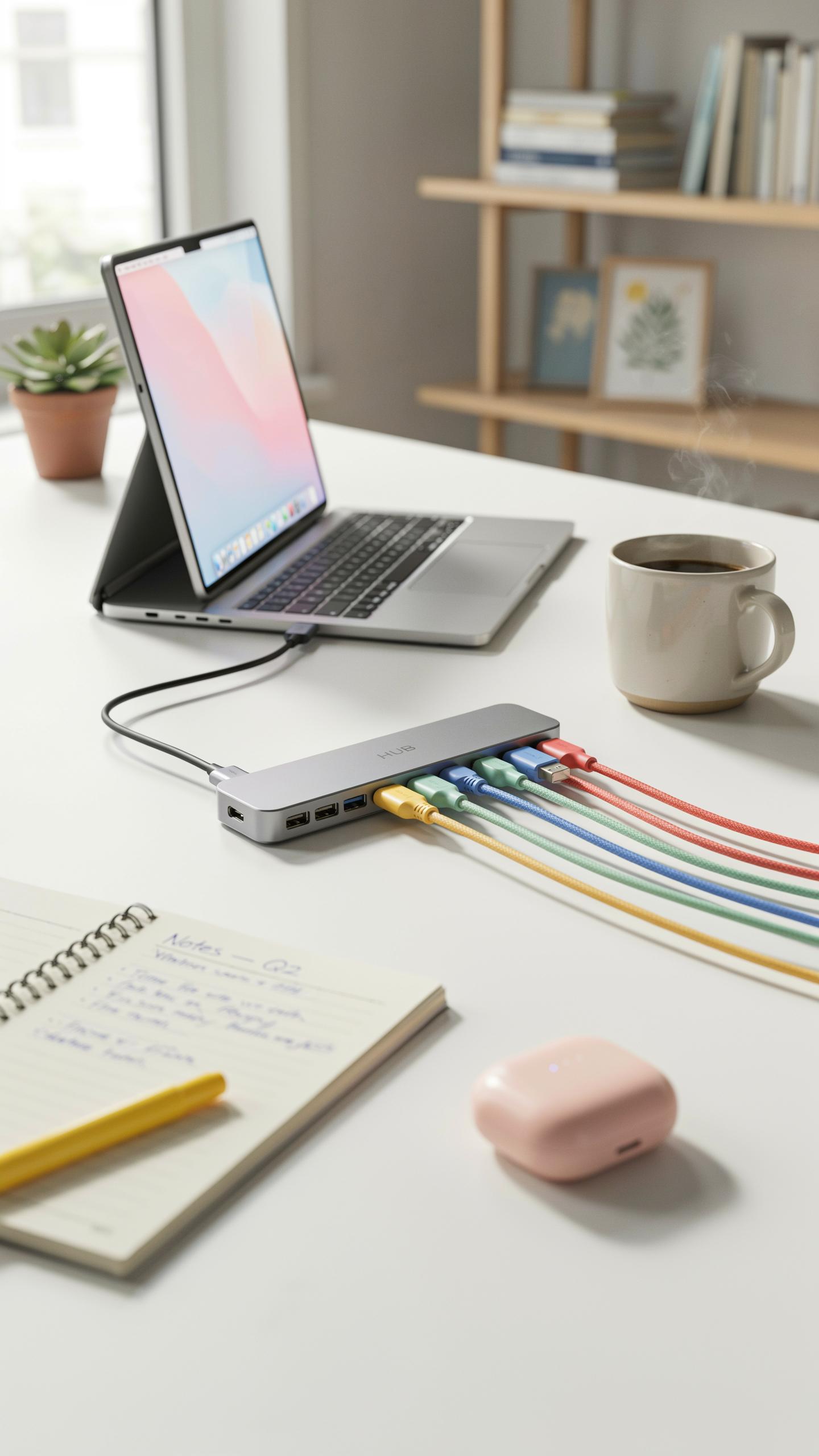
USB C hubs dominate current workspace design because they match the device ecosystem users already own. MacBooks, iPads, and premium Windows laptops ship with USB C ports as standard. A hub that mirrors your device’s finish eliminates visual clutter and creates cohesion across your desk setup.
Space gray became the industrial standard after Apple introduced it across their product line. This neutral tone works with any workspace without demanding attention. Manufacturers now offer USB C hubs in space gray specifically because demand reflects actual user preference, not marketing invention.
Choosing A Hub That Complements Your Device And Workspace
Match your hub material to your primary device for visual consistency. If your laptop is space gray, choose a space gray hub. If your monitor stand is aluminum, pick an aluminum or matching metal finish hub. This removes cognitive friction when scanning your workspace.

Consider the physical footprint of your hub relative to desk space. A compact hub takes up minimal real estate. Test cable routing before buying to confirm the hub fits your actual setup without blocking monitors or creating tangles. Function dictates placement, but aesthetics should follow without compromise.
Boosting Productivity Workspace Inspiration And Efficiency

How A Streamlined Setup Contributes To Focus And Productivity
A cluttered desk kills focus. Cable chaos forces your brain to process visual noise before it tackles work. A multi-port USB hub eliminates this friction by consolidating connections into one cable running to your computer. Your workspace becomes cleaner. Your mind stops fighting distractions and locks onto the task ahead.
Fewer cables mean fewer decision points during your workday. You know exactly where your devices connect. No hunting for the right port. No unplugging peripherals to make room for others. This setup frees mental energy that your brain would waste on logistics. That energy redirects toward actual output. Productivity increases when your environment stops demanding attention.
Remember those simpler days, before the tangle of cables, when one hub could gracefully connect all our digital companions? A multi-port USB hub brings that effortless charm back, simplifying our present with a nod to the past.
Real World Examples Of Optimized Workspaces
A software developer using a multi-port USB hub can dock a keyboard, mouse, monitor connection, and external drive through a single cable. The setup takes fifteen seconds. She powers on her laptop and everything connects automatically. She moves between her home desk and office without touching cables. Her workflow never stutters.

A content creator running video editing software benefits from a streamlined USB setup. He plugs his external hard drives, card reader, and input devices into a hub seated on his desk. One cable tethers the hub to his computer. His editing suite stays stable because he’s not juggling peripherals mid-project. His render times flow uninterrupted because his hardware stays connected and recognized throughout the entire editing session.
Beyond The Desk Gaming Setup And Laptop Accessories
Multi Port Hubs For Gaming: Connecting Controllers And Accessories
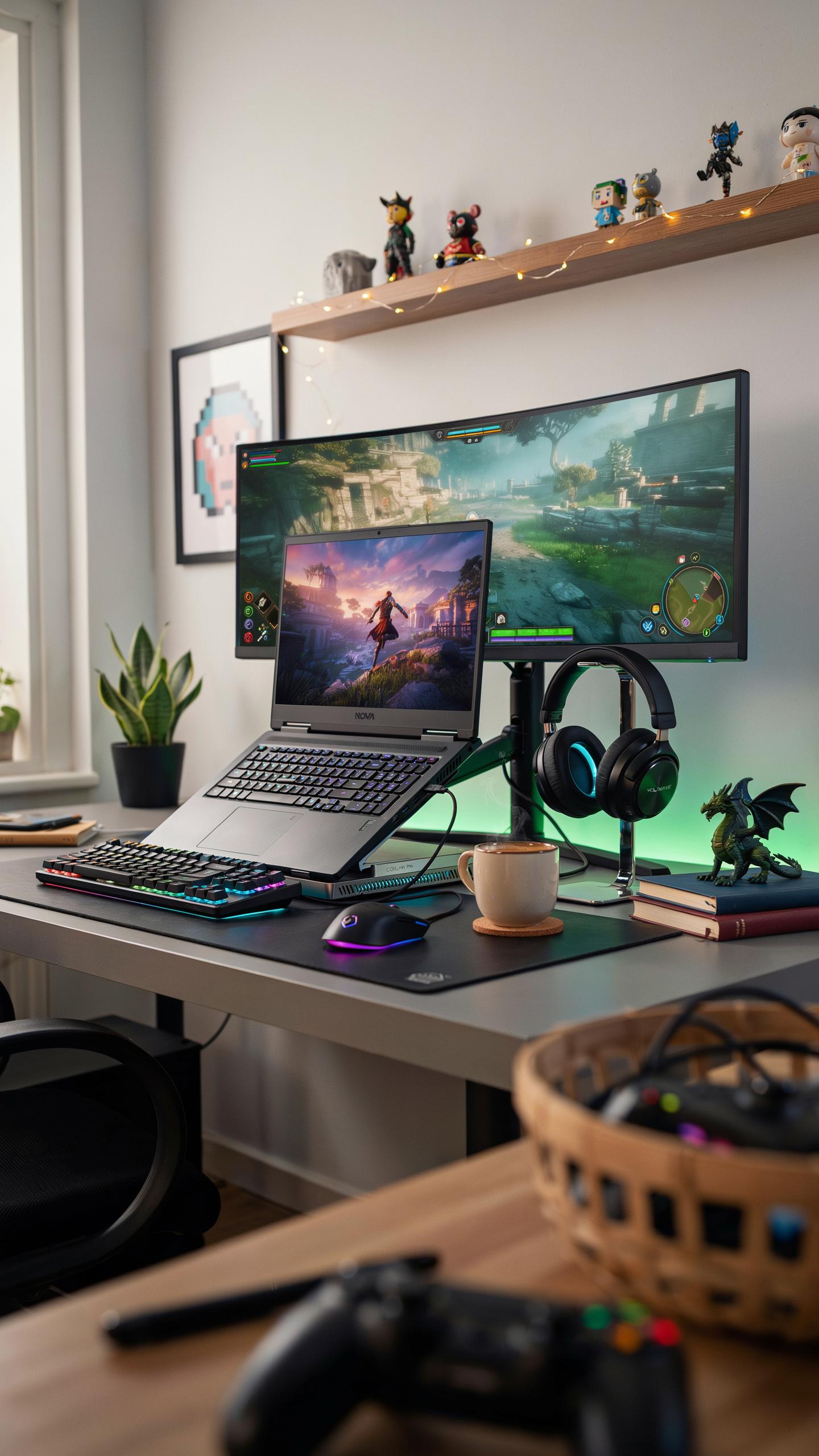
Gaming setups demand multiple simultaneous connections. Controllers, headsets, mice, and keyboards all compete for ports. A multi-port USB hub consolidates these devices into one cable running to your console or PC. This eliminates cable clutter behind entertainment systems and reduces the hunt for available ports during gameplay sessions.
Gaming hubs need consistent power delivery to handle controller charging while maintaining data connections for accessories. Quality hubs with separate power supplies prevent voltage drops that interrupt wireless receiver signals or slow response times. Wired controllers and fight sticks draw real current, so passive hubs fail in this environment. Dedicated gaming hubs route power independently from data lines, keeping your setup responsive.
Portable Solutions For Laptop Users On The Go
Laptop users sacrifice ports for thinness. Modern laptops ship with two to four USB ports total. Business travelers and remote workers need printer connectivity, external storage, and input devices simultaneously. A compact multi-port hub expands functionality without adding bulk to your bag or desk setup.

Portable hubs prioritize weight and cable management for mobile professionals. Bus-powered models eliminate the need for extra power adapters, reducing what you carry. Smaller form factors fit into laptop bags without friction. Look for hubs with integrated cable storage or compact designs that don’t obstruct adjacent ports on your device when connected.
Choosing Your Ideal USB Adapter What To Look For
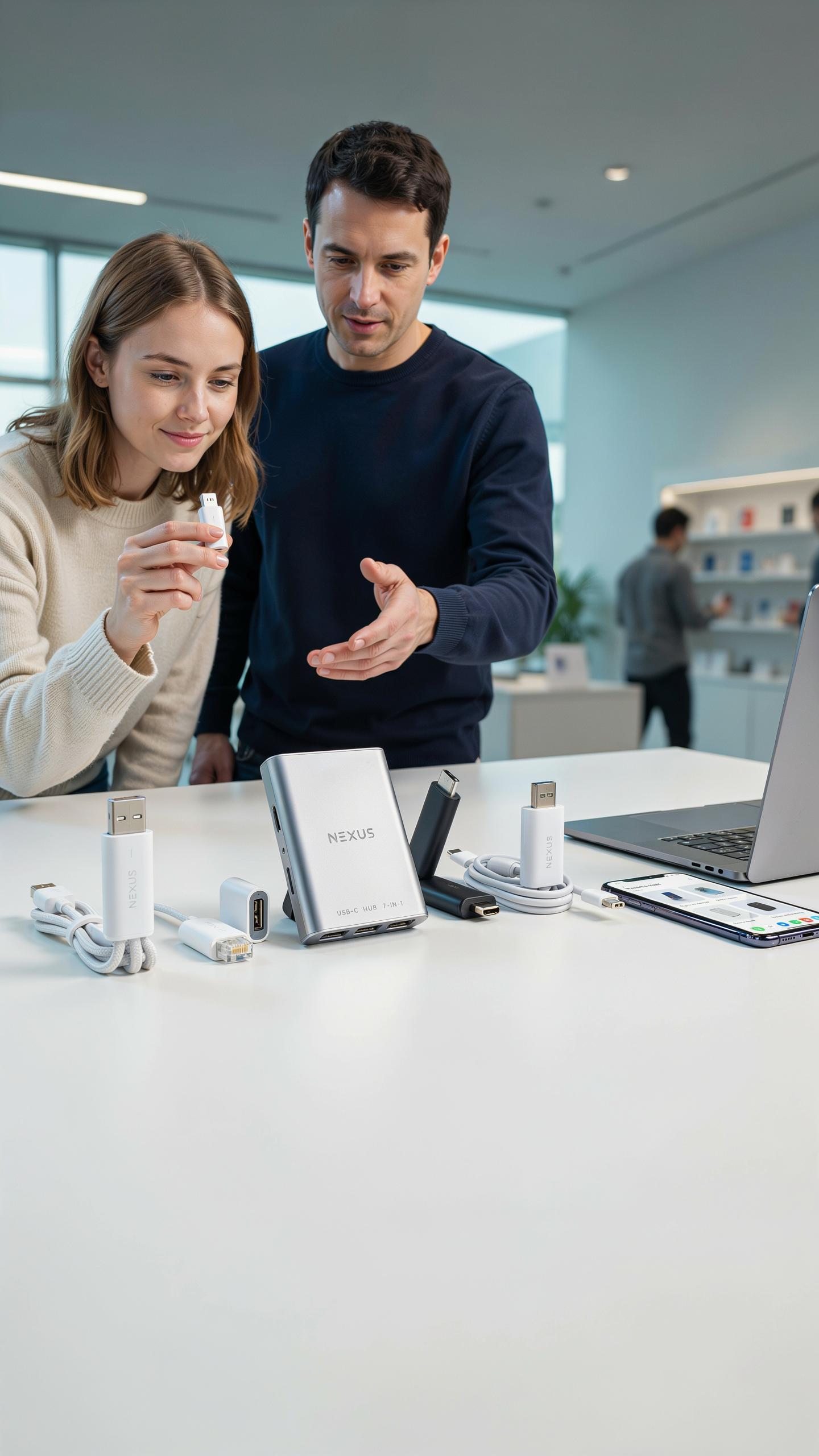
Key Features: Port Types, Data Transfer Speeds, And Power Delivery
USB hubs come with different port configurations. You need USB-A ports for legacy devices, USB-C ports for modern equipment, and possibly USB 3.0 or 3.1 ports for faster data transfer. Power delivery matters when charging laptops or tablets through the hub. Check the wattage rating to ensure it meets your device requirements.
Data transfer speeds vary significantly between hub models. USB 2.0 handles 480 Mbps. USB 3.0 reaches 5 Gbps. USB 3.1 delivers 10 Gbps. Faster speeds matter only if your devices support them. Mismatched speeds waste money and create bottlenecks in your workflow.
Understanding Compatibility With Various Operating Systems And Devices
Windows, macOS, and Linux all support standard USB hubs without additional drivers in most cases. Plug and play functionality works because these systems recognize hub protocols natively. Some specialty hubs with extra features may require manufacturer software, but basic models integrate instantly.

Device compatibility depends on what you connect to the hub. External hard drives, keyboards, mice, and cameras work universally. Some docking stations or proprietary devices demand specific USB standards or power requirements. Research your exact devices before purchasing to avoid incompatibility issues that waste time and money.
Frequently Asked Questions

What exactly is a multi-port USB hub and why would I need one?
A multi-port USB hub expands the number of USB ports available on your computer or device. If you’re constantly juggling peripherals like keyboards, mice, external drives, and chargers, a multi-port USB hub for one cable setups can consolidate these connections, simplifying your workspace and reducing cable clutter for a cleaner aesthetic.
How do I connect and use a multi-port USB hub effectively with my devices?
Connecting a multi-port USB hub is straightforward. Simply plug the hub’s single cable into an available USB port on your computer. Then, connect all your USB devices (flash drives, charging cables, peripherals) into the new ports on the hub. For best performance, especially with a multi-port USB hub for one cable setups, ensure your hub has enough power for all connected devices.
Are there affordable multi-port USB hub options that still offer good functionality?
Absolutely! You don’t need to break the bank for a functional multi-port USB hub. Many reputable brands offer a variety of budget-friendly hubs with essential ports like USB-A and sometimes even USB-C. Look for models with solid reviews and the specific port types you need, ensuring a reliable and accessible solution for your setup.