The Pre Show Protocol: Predicting The Pyrotechnics
Position Matters More Than Settings
You want to feel like you have control over the outcome, so you obsess over ISO and shutter speed. The real problem is you’re standing in the wrong spot. From military targeting doctrine, we borrow the concept of “firing solutions”—the geometry that determines whether you hit the target. Your iPhone’s sensor can’t compensate for a bad angle; no amount of frame rate adjustment fixes a shot taken from directly below the burst, looking straight up into blown-out white.
Scout the location hours before the show starts. Walk the perimeter. Identify positions where buildings, trees, or landscape features frame the sky without blocking the burst. Look for elevation changes that let you shoot at a 45-degree angle to the burst itself, not perpendicular to it. This single choice—your physical position—determines whether the burst reads as a defined shape or a washed-out blob. Move first. Adjust settings second.
Reading The Launch Pattern Before It Fires
Everyone waits for the boom, then reacts. That’s why their shots are out of focus or timed wrong. Real pyrotechnicians launch shells in sequences: single burst, then a pause, then a volley, then silence. Watch the first three launches to map the rhythm. Note the launch angle from the mortar. Anticipate whether the next shell will detonate in the sky or ground level. This prediction step compresses the reaction time your iPhone’s camera needs.
Pre focus on the sky zone where you predict the burst will detonate. Tap to lock focus there before anything launches. When you know the rhythm, you can fire your shutter 200 milliseconds before the peak burst appears, catching the moment before the light washes out. Your sensor captures the expanding shell at its brightest but not yet saturated. The mechanism is simple: observe the pattern, predict the location, lock focus early, shoot early.
Exposure Blackout: Why “Auto” Is For Amateurs
Take Manual Control Before The Show Starts
You want the shot to look professional so people assume you know something about photography. Here’s the mechanism: your iPhone’s auto exposure reads the bright burst and tanks the entire frame to compensate, crushing the darker sky into black and washing out the firework colors into pale streaks. Manual exposure breaks this feedback loop. You set the exposure value once and lock it before the fireworks start, which means the camera stops second-guessing itself with every flash.

Tap the screen to focus on the sky, then press and hold until the exposure lock activates. Slide the exposure compensation down slightly—aim for underexposed by one to two stops. This prevents the camera from brightening the whole scene into a blown-out mess. Once locked, the iPhone holds these settings through the entire sequence, giving you clean color saturation and visible detail in both the burst and the sky.
ISO, Shutter Speed, And The Physics Of Light Capture
Fireworks photography borrows from optics: the aperture acts as your light valve, but iPhones lock the aperture, so you control two variables instead of three. ISO and shutter speed determine whether a burst registers as sharp lines or smeared ghosts. High ISO amplifies the sensor’s signal, capturing dim trails, but introduces noise. Faster shutter speed freezes the burst mid-explosion, but needs more light to work. The balance matters more than either setting alone.
- ISO 400-800: Captures firework trails without excessive noise in night conditions. Higher than 800 introduces visible grain that degrades fine detail in sparks and streaks.
- Shutter Speed 1/15 to 1/8: Allows bursts to paint across the sensor without complete blur. Faster speeds cut off the tail of the explosion; slower speeds smear individual sparks into soup.
- Live Photo Mode: Records three seconds of video at 30fps, giving you multiple frames to select the sharpest moment after the burst peaks and settles.
- Night Mode Disabled: Forces manual shutter control instead of letting the camera extend exposure indefinitely, which creates unwanted motion blur and overexposed highlights.
- Pro Camera Apps: Filmic Pro and Moment give direct shutter speed control that the native app doesn’t expose, letting you dial in 1/10 or 1/12 second precisely.
Lock ISO to 400 before the show, then adjust shutter speed based on the burst intensity you observe in the first few explosions. Slower bursts need 1/8 second; rapid-fire sequences need 1/15. Take the shot, check the histogram in the app, and adjust down if the peaks clip. This single dial-in phase prevents the cascade of failed shots that comes from chasing settings after each frame.
Tripod Or Bust: The Stability Mandate
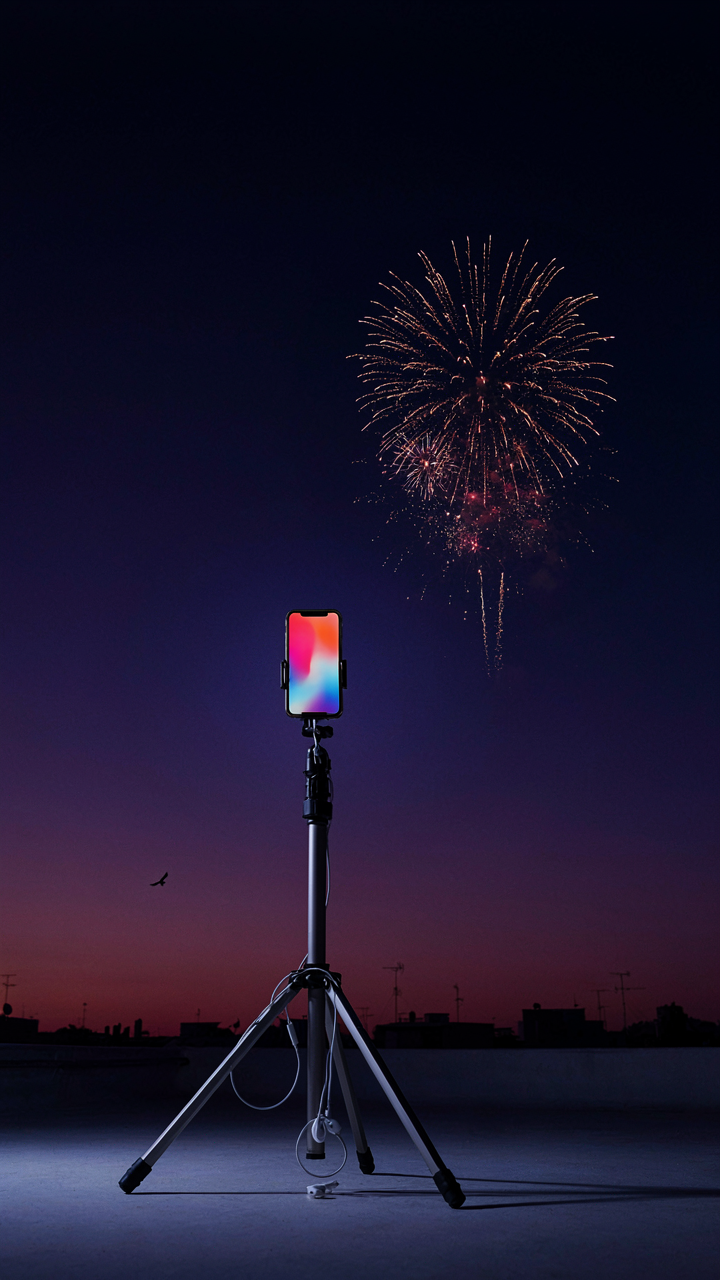
Why Your Hand Isn’t Steady Enough
You want the shot without looking like you needed gear to get it. That fear costs you every frame. Here’s the physics: camera shake is a displacement problem. Your hand introduces micro-movements measured in millimeters. At night, when your iPhone sensor compensates by holding the shutter open longer, those millimeters become blur across the entire image. A tripod locks displacement at zero. No tripod means no sharp fireworks photo, period.
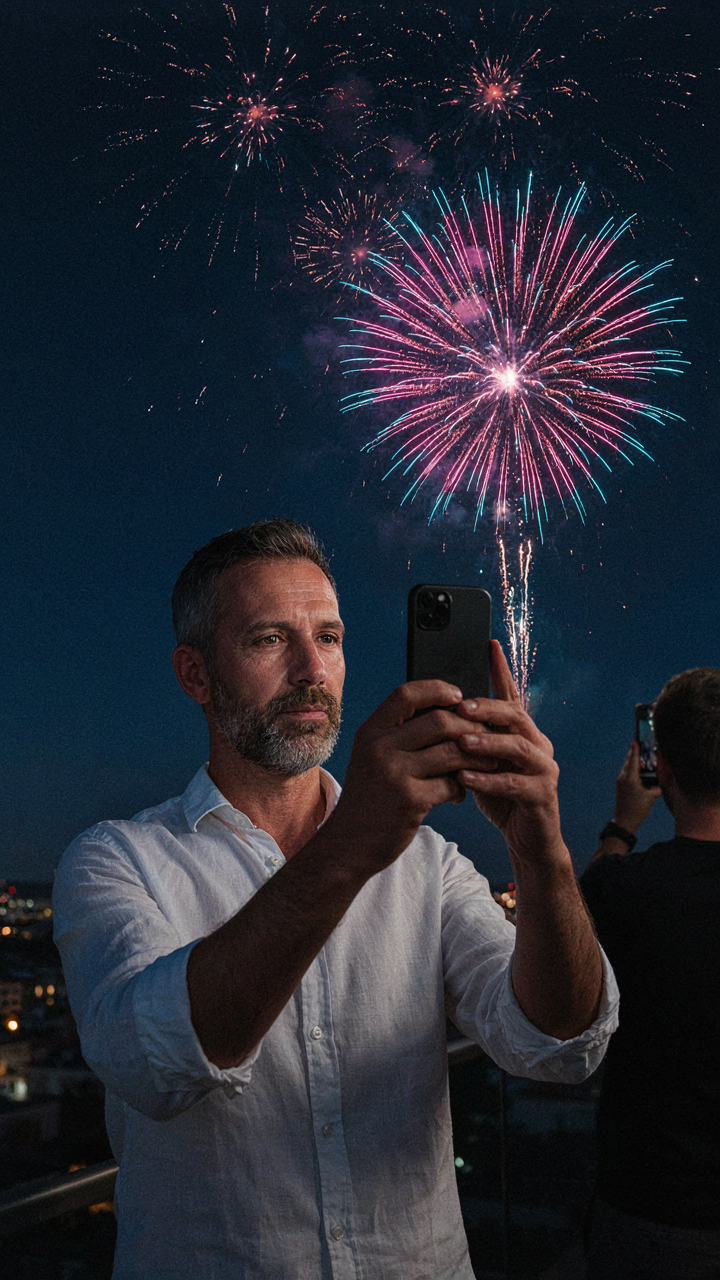
The iPhone’s computational photography stacks multiple exposures to fight low light. But it can only work with what you give it. Handholding introduces motion between frames. The processor can’t align something that’s moving. You’re fighting the tool instead of using it. A tripod removes this variable entirely and lets the sensor do what it’s designed to do.
Press The Button Without Moving The Phone
Everyone says use the timer. That’s incomplete advice. The timer prevents finger shake but creates a new problem: you’re standing there waiting, and any breeze or slight lean moves the tripod. Remote shutter release eliminates both your finger and your nervous system from the equation entirely.
The Apple wired EarPods volume button works as a remote trigger. So does the Apple Watch remote app if your phone is on a tripod nearby. Both fire the shutter without physical contact. For fireworks specifically, this matters because the burst happens fast. You need the shot to fire exactly when the burst peaks, not a half second after you tap the screen and micro-jostle the phone. Remote trigger plus tripod equals the mechanism that separates sharp frames from the rest.
Focus Lock: Pinpointing The Burst
Pre Focus On The Burst Zone
You want the shot because you’re terrified of missing it, and blurry chaos feels like proof you failed. The mechanism here borrows from military targeting: you establish the kill zone before the target arrives. iPhone cameras operate on contrast detection autofocus, which means they lock onto edges and transitions. Fireworks explode in darkness, so your camera searches frantically for contrast in a black void. Pre-focusing eliminates that search delay.

Before the burst fires, identify the airspace where it will detonate. Tap that exact spot on your screen ten seconds before launch. Your iPhone locks focus and stops hunting. When the explosion happens, your sensor already knows the distance. This collapses the autofocus lag that causes motion blur and ghost trails. The burst fires into a focus plane you’ve already established.
Lock Focus And Exposure Together
Everyone says to tap to focus. That’s incomplete. Tapping once locks focus but leaves exposure floating, which means your iPhone keeps adjusting brightness as the firework brightens and dims. Your image flickers between clean and washed out within the same shot. You need exposure lock too.
Tap and hold on your intended burst zone for two seconds until you see the AE/AF Lock banner appear at the top. Both autofocus and autoexposure stop moving. This is the real protocol: lock focus on the burst zone, then lock exposure on the brightest point of the expected explosion. When the firework detonates, your sensor has no decisions left to make. Settings are frozen. Your image captures at consistent brightness and sharpness from frame one to frame three.
The “Live Photo” Lie: Burst Mode’s Betrayal
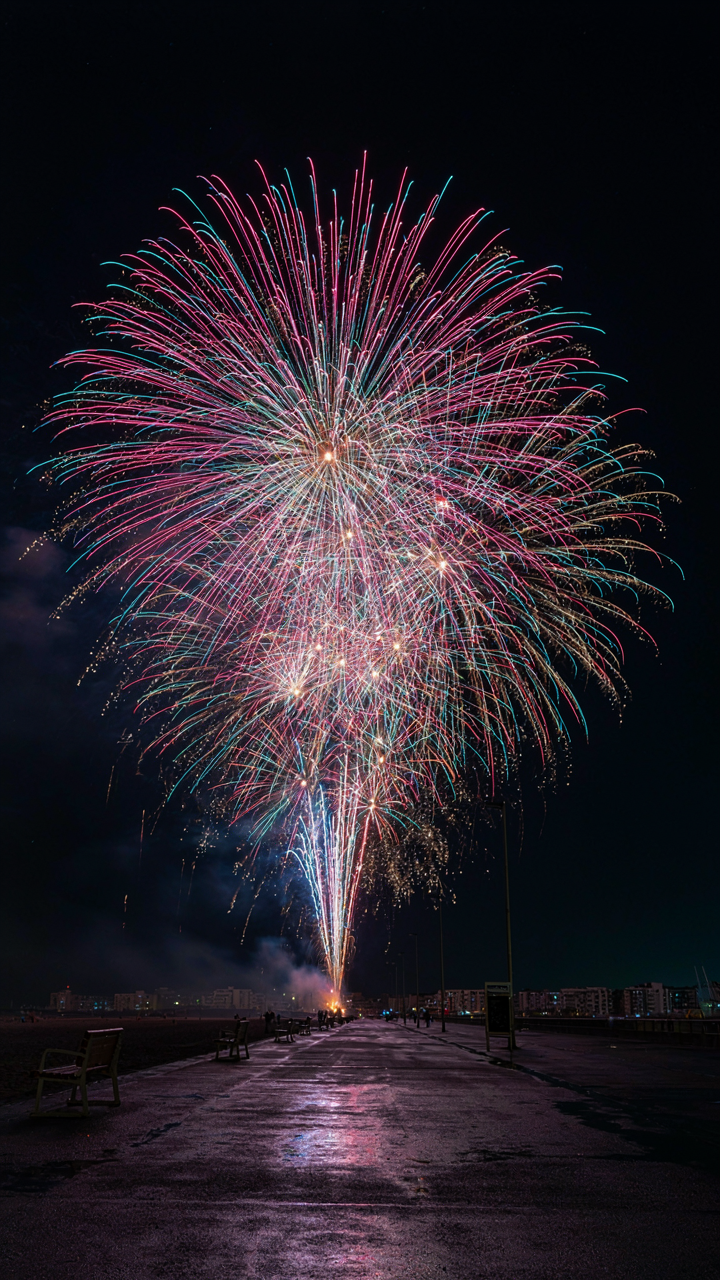
Why Live Photo Compromises Quality For Gimmick
You want the feature that sounds smart because it feels like you’re using the camera the right way. Live Photo doesn’t deliver fireworks photos. It delivers motion video clips that bloat your storage and lock you into Apple’s ecosystem while the sensor works against you in low light.
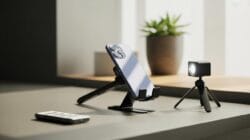
Live Photo captures three frames per second for 1.5 seconds around the moment you tap the shutter. In fireworks, this means you get redundant frames of the same explosion arc, wasting processing power on frames with identical lighting conditions. The camera applies aggressive noise reduction across all frames to manage file size, which kills the fine detail in spark trails and light streaks. You end up with motion footage that looks smoother but duller—a trade-off optimized for casual video, not explosive light capture.
Burst Mode Strategy For Fireworks Pictures
Burst mode uses a shooting principle borrowed from photography itself: rapid sequential capture at maximum resolution per frame, no averaging. Tap and hold the shutter button. The iPhone fires at roughly 10 frames per second in standard mode, each frame at full resolution, each one independent. This matters for fireworks because light patterns change frame to frame.
Burst mode lets you capture the exact peak of an explosion without guessing timing. You take 50 frames in five seconds, then cull the one where the burst’s outline is sharpest and the trails extend furthest. Enable Night Mode before you start bursting. The camera locks exposure for the first frame, then maintains that setting across the sequence. This prevents exposure drift between frames and keeps your light trails consistent. After shooting, swipe left through the burst in Photos, tap Select, and mark only the frame with the cleanest light pattern.
The Composition Code: Framing The Spectacle
Rule Of Thirds Anchors The Burst
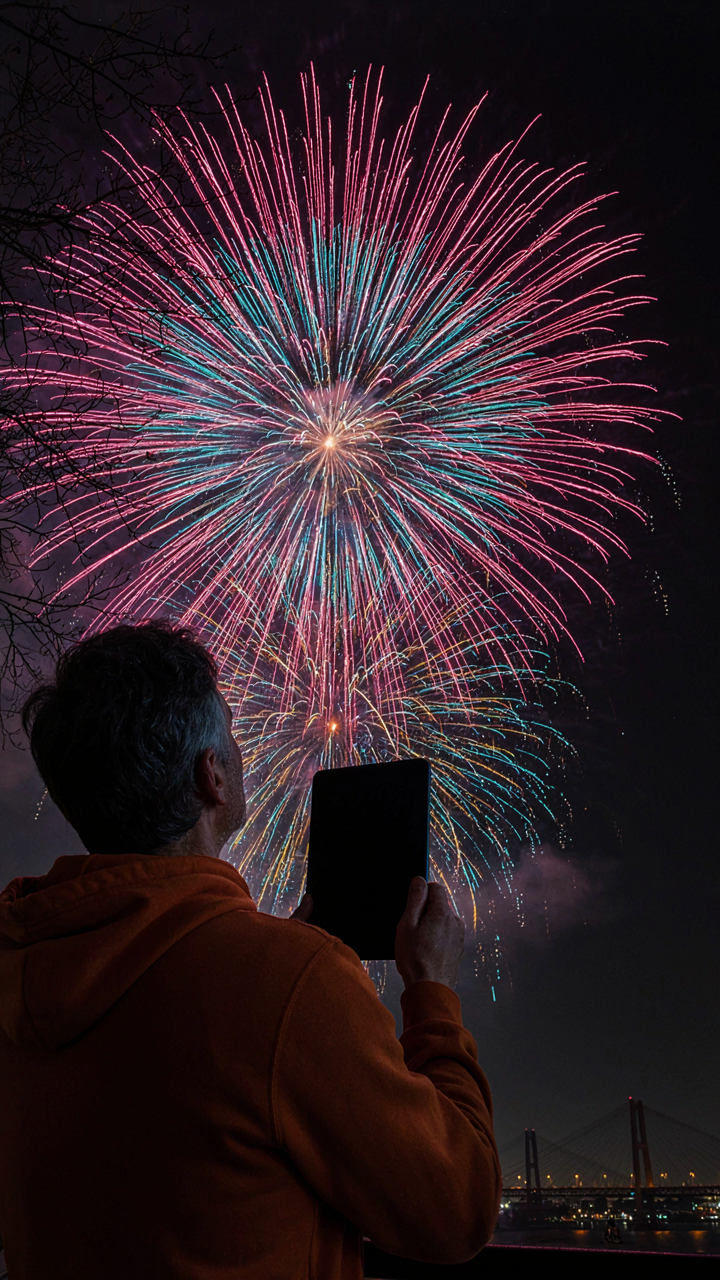
You want permission to break the rules without looking like you don’t know them. That’s what rule of thirds gives you. It’s a framing device borrowed from visual design that maps directly onto fireworks: divide your frame into nine equal sections using two horizontal and two vertical lines, then place the burst’s peak or trajectory along those lines instead of dead center.

The iPhone’s native camera grid activates this instantly. Turn it on in Settings > Camera > Grid. Most fireworks happen in the upper third of your frame because the burst expands upward. Place the initial ignition point or the burst’s widest spread along the vertical lines, not the center. This creates tension and guides the viewer’s eye through the actual explosion path rather than trapping attention at a static midpoint.
Foreground Stakes The Depth Shot
The mistake everyone makes is shooting fireworks in isolation against black sky, which flattens everything into a 2D watercolor puddle. Real depth requires a foreground object that stays sharp while the burst blurs slightly behind it. Shoot through tree branches, building silhouettes, or a railing. The foreground anchors spatial reality. The bursts become events happening in a place, not floating abstractions.
Your iPhone focuses on whatever’s closest. If branches are two feet away and bursts are two hundred feet, the branches stay tack sharp while the fireworks sit at a softer plane. This layering works mechanically through your sensor’s depth of field. Compose so the foreground object occupies the lower third, leaving the upper two-thirds for the burst. The viewer now reads depth immediately, which transforms a washed-out image into a credible scene.
Post Processing Precision: Refining The Raw

Filters Won’t Save A Broken Exposure
You’re hoping the right filter fixes everything so you don’t have to learn actual editing. It won’t. The mechanism here is simple: filters apply the same math to every pixel, but your fireworks shot has competing problems—blown highlights, crushed blacks, flat midtones. One filter can’t solve all three at once. The Photos app on iPhone lets you target each zone independently, which is what separates usable shots from gallery trash.
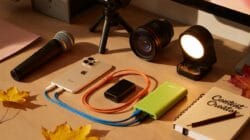
Start with exposure first. If your image reads as a dark blob with bright streaks, slide exposure up slightly to lift shadows. Then hit highlights and drag left to recover the blown-out firework trails. This order matters because exposure affects everything, while highlights protect your already-bright areas from getting worse. Skip the filters until you’ve done this work.
Recover Dimension Where It Matters Most
Think of highlights and shadows like a sound engineer’s mixer: each channel needs individual control to prevent distortion. Your fireworks photo has the same problem. Shadows slider controls everything dark (the night sky, unexposed areas). Highlights slider controls everything bright (the burst trails, sparks). Neither should move more than 30 to 40 points or you’ll introduce noise and lose texture.
- Shadows slider: Raise it 15 to 25 points to pull detail from the dark sky without making it look blown out or gray.
- Highlights slider: Lower it 20 to 35 points to recover burst detail and reduce that washed-out white appearance that kills depth.
- Contrast adjustment: Add 10 to 15 points after shadows and highlights are dialed in to prevent the image from looking flat and muddy.
- Vibrance over saturation: Increase vibrance 15 to 25 points instead of saturation; it won’t blow out the bright firework colors.
- Blacks slider: Push it slightly negative (5 to 10 points) to anchor the darkest areas and make the sky feel intentional rather than empty.
The order you make these moves matters. Adjust shadows first, then highlights, then contrast. Add vibrance last so it only affects colors that still exist after recovery work. Save the image to your library immediately after finishing, don’t trust it staying in edits.
The Economic Principle Of Diminishing Returns: Why Endless Snapping Fails
The 80/20 Rule Applied To Fireworks
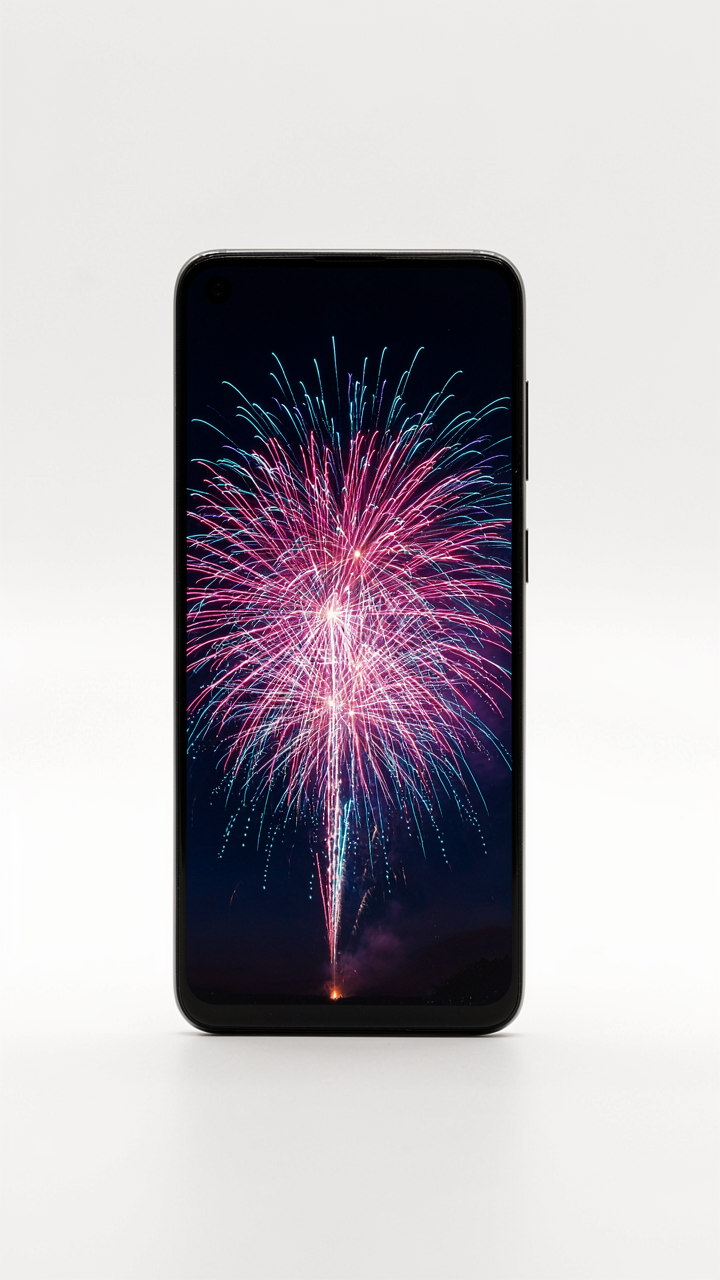
You’re hoping volume solves the problem because admitting that technique matters feels harder than just taking more shots. Economics calls this the Pareto Principle: 80 percent of your usable frames come from 20 percent of your attempts. With iPhone fireworks photography, this means most of your 200 burst shots are noise. The sensor captures the same burst multiple times. Composition doesn’t change between frames. You’re burning storage and attention on duplicates.

Stop treating your iPhone like a machine gun. Pick your angle before the show starts. Anticipate the launch point. Frame once. Then fire bursts at specific moments, not throughout the entire display. This distinction moves you from hope-based shooting to position-based shooting. You’ll have fewer frames to sort through and a higher percentage of keepers among them.
Maximizing Impact Per Shot
The common advice says take more photos to increase odds. That’s backwards. Better positioning and timing eliminate the need for volume. Each frame you capture should represent a deliberate decision about where the burst will peak. iPhone sensors perform better when you stop asking them to save bad moments at scale.
Set your exposure lock before the burst starts. Frame the pyrotechnics against dark sky, not competing light sources. Limit each burst to five to eight frames maximum. Review immediately. Adjust your position or timing for the next volley. This protocol transforms your shoot from reactive spray-and-pray into active decision-making between shots.
The Only Thing Holding Back Your Fireworks Photography Is Your Refusal To Master The Moment
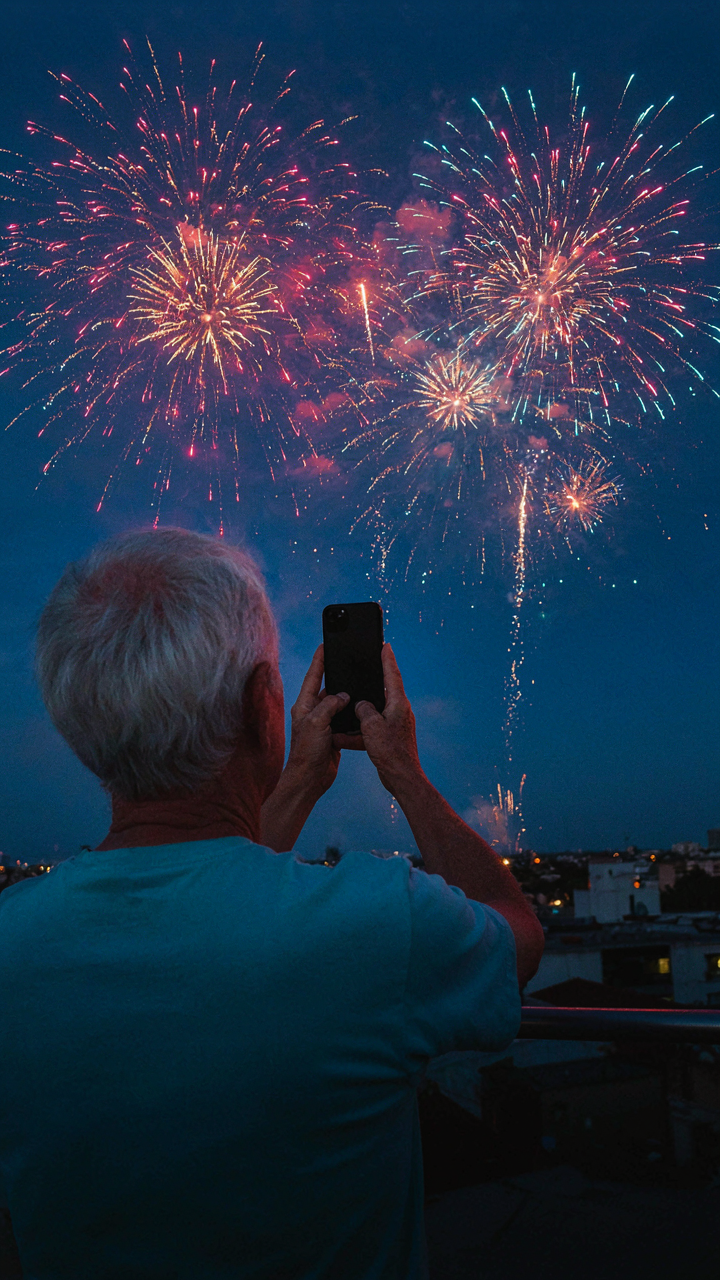
You already own the tool. You’re not waiting on gear. You’re waiting on yourself to stop treating your phone like a point and shoot and start treating it like a precision instrument. Tonight, before the next fireworks show, lock your exposure, dial in your ISO, and actually hold still for three full seconds. Not two. Three. The difference between a blurry mess and a keeper shot is the gap between knowing what to do and actually doing it when the sky explodes.