
The Cloud Illusion: Why “Sync” Isn’t Backup

What Sync Actually Does To Your Photos
You want to believe your photos are safe because they’re in the cloud. Here’s the mechanism nobody states plainly: iCloud Photo Library is a synchronization system, not a backup system. Sync means your phone and Apple’s servers hold identical copies of the same files. If you delete a photo on your iPhone, it deletes everywhere within seconds. Sync creates redundancy across locations, not protection against loss.
Apple designed iCloud Photo Library to free up phone storage and keep your library consistent across devices. It does this well. But consistency is not resilience. When a file exists in only one logical place (your iCloud account), deletion or account compromise eliminates it everywhere simultaneously. You’re trading local storage for convenience, not trading it for safety.
Who Actually Owns The Responsibility
Business uses a term called the shared responsibility model. In cloud systems, the provider secures the infrastructure, and the customer secures access and usage. Apple controls the servers. You control whether your account has a strong password, whether you enable two-factor authentication, and whether you grant apps permission to delete photos. Apple cannot protect you from yourself or from a compromised credential.
This matters because most people assume Apple protects their photos from deletion. Apple protects them from server failure or data center fire. Apple does not protect them from account takeover, accidental deletion, or a disgruntled family member with your password. Your photos live or die based on access control decisions you make and rarely revisit. If someone gains your Apple ID password, your entire iCloud Photo Library becomes vulnerable to a single malicious action that Apple cannot reverse.
The 3 2 1 Rule: Your Bulletproof Photo Redundancy Protocol
Three Copies Across Two Media Types
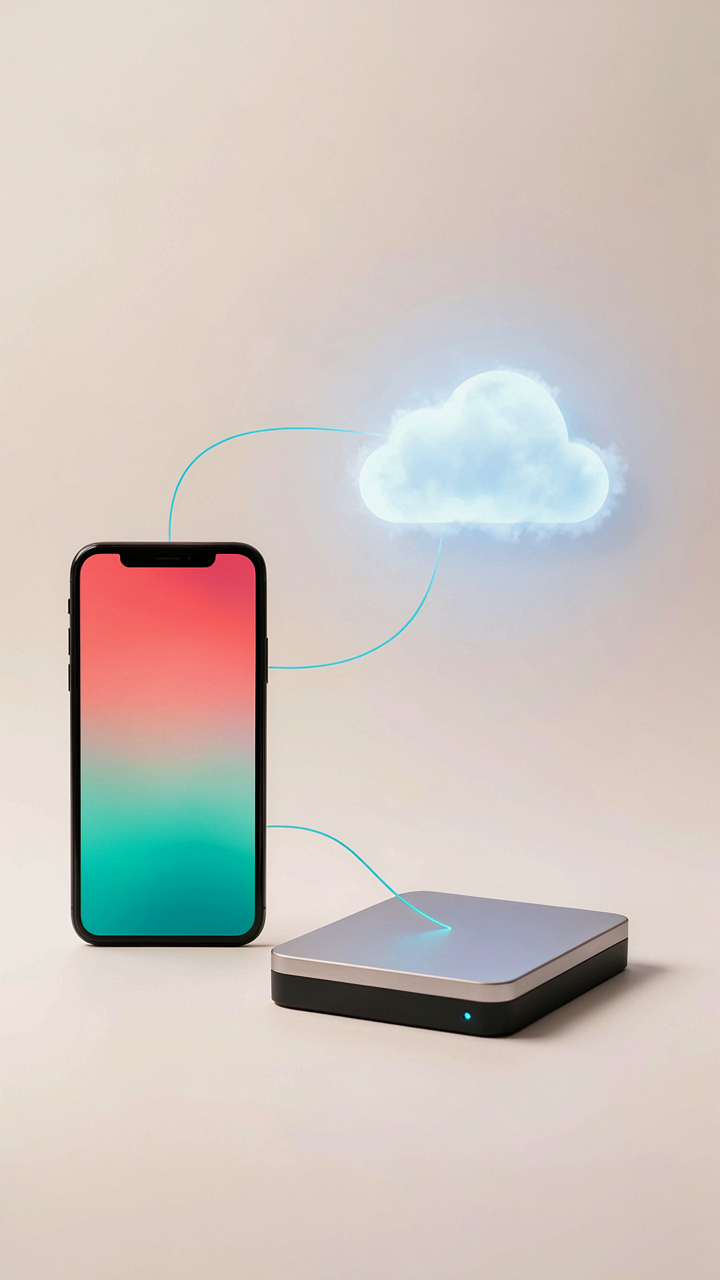
You’re not actually worried about losing photos. You’re afraid of looking like the person who lost them. The mechanism here borrows from data architecture: redundancy is the only real insurance against single points of failure. Three copies means one dies and you still have two. Two media types means a corrupted file format or hardware failure doesn’t wipe everything at once.

Your iPhone is copy one. iCloud Photos is copy two. A third backup on a different system—external drive, second cloud service, or computer—closes the gap. Don’t mix storage types within the same platform. If iCloud fails and your external drive is also cloud-synced, you’ve created the illusion of backup without the protection. Physical storage and cloud storage operate on different failure modes.
One Copy Lives Offsite
The difference between backup and disaster recovery is location. Backup means you have the file twice. Disaster recovery means you can access it when your house floods, burns, or your primary devices vanish. Offsite backup is the non-negotiable step everyone skips because it requires choosing a second service and maintaining it.
- iCloud Photos: Apple’s native solution stores encrypted copies on remote servers. Accessible from any device with your Apple ID. Requires active subscription for storage beyond 5GB free tier.
- Google Photos: Stores full-resolution backups in Google’s data centers. Separate from your iPhone storage. Offers free unlimited storage at standard quality or paid high quality.
- Amazon Photos: Unlimited full-resolution backup for Prime members. Operates independently from Amazon Drive. No quality compression applied to stored images.
- Backblaze: Cloud backup service that captures iPhone photos via computer sync. Encrypts files before transmission. Maintains copies in geographically distributed data centers.
- External Hard Drive Stored Elsewhere: Physical backup kept at a trusted location outside your home. Does not require ongoing subscription or internet. Must be periodically updated manually or via automation.
The offsite copy must live on infrastructure you don’t physically control. This separates it from local failure scenarios. Set one offsite backup to run automatically, then verify it worked at least once every quarter. Don’t assume it’s running—check the logs.
Physical Storage: The Analog Advantage For Digital Assets

External Hard Drives: Ownership Versus Subscription
You want the feeling of control without actually paying attention to what breaks. External hard drives let you own the hardware, but ownership means you’re responsible when the drive fails—and they all fail. This is economics applied to backup: you’re trading recurring costs (iCloud subscription) for capital costs (buying a drive) plus the hidden cost of managing its lifespan.

A standard external drive costs $50-150 and holds years of photos. You plug it into your Mac or Windows machine, use backup software like Backblaze or Time Machine, and photos transfer locally without touching the cloud. The drive sits in a drawer. No monthly fees. No algorithm deciding what gets compressed. You decide when to replace it—typically every three to five years, depending on use and the manufacturer’s mean time between failures.
NAS Systems For Local Network Resilience
Network attached storage applies redundancy theory from data center engineering to your home: you build in fault tolerance so a single drive failure doesn’t delete everything. A NAS is a dedicated box with multiple drives that talk to each other, backing each other up in real time without you touching anything.
A two-drive NAS (starting around $200-300) runs RAID 1 mirroring—identical copies on both drives so one can fail and you keep everything. Connect it to your WiFi, set up Synology or QNAP’s native software, and your iPhone backs up over the network when you’re home. You don’t buy drives individually anymore; you buy redundancy as a system. Maintenance is two clicks a year. The real advantage: photos stay local, under your roof, never touching a third party’s server.
Deconstructing “Delete”: Recover Deleted Photos That Aren’t Gone
Recently Deleted Folder Mechanics
You’re reading this because you deleted something you shouldn’t have and you’re hoping Apple left a backdoor. Here’s the mechanism: when you delete a photo on iPhone, the file doesn’t vanish. iOS moves it to Recently Deleted, a 30-day holding area. The photo metadata stays intact. The storage allocation gets marked “available” but the actual data remains on disk until iOS overwrites it with new data.

That 30-day window is your actual recovery period, not some vague “maybe.” After 30 days, automatic permanent deletion triggers. Before that, open Photos, tap Albums, scroll down to Recently Deleted, select the photo, and tap Recover. The photo returns to your library with its original timestamp and metadata preserved. This works offline. The timer starts from the deletion date, not when you realize the loss. Move fast or lose the option.
Third Party Recovery Tools When All Else Fails
Third-party recovery apps exist because some users miss the 30-day window or delete from Recently Deleted by accident. Reality check: these tools cannot recover photos deleted more than a few weeks ago on modern iPhones. iOS 13 and later use encrypted storage that makes deep recovery nearly impossible. These apps work on older devices or when data hasn’t been overwritten yet.
If you’re past the 30-day mark, your only option is a data recovery service that can physically extract storage from the phone, but this costs hundreds and has no guarantee of success. The mechanism is brutal: once iOS marks that space as available and starts writing new photos, video, or system files, the old photo data gets fragmented and overwritten. Prevention beats recovery every single time. Back up to iCloud or external storage before deletion becomes permanent.
The Archive Protocol: Beyond Simple IPhone Photo Backup

When Storage Becomes Permanence
You’re worried you’ll lose something irreplaceable. That fear is rational, but it’s also what makes you vulnerable to vendors who sell solutions instead of systems. Cold storage isn’t about buying another service. It’s about understanding entropy from information theory: data degrades over time unless you enforce redundancy and isolation. Most people treat iPhone photo backup as a live system problem. It’s actually an archive problem, which means different rules apply.

The mechanism: cold storage removes your photos from the cycle of active devices, software updates, and account dependency. You back up to iCloud or your computer, then move a complete copy to external media that you don’t touch. External hard drives, NAS systems, or optical media work here. The goal is physical separation from your working ecosystem. Your photos sit dormant, untouched by iOS updates or subscription changes. This breaks the chain between your backup and the systems that could corrupt or delete it.
Organizing For Retrieval, Not Just Storage
Metadata isn’t metadata. It’s your search index when you actually need these photos in five years. The advice to “just organize by date” is incomplete because dates alone tell you nothing about context. You need a tagging system built before you archive, not after. Create consistent naming conventions: YYYY-MM-DD_location_subject_keyword. Add EXIF data preservation so your camera settings stay attached to each file.
When you archive to cold storage, duplicate your entire folder structure with a README file that documents your tagging system. Include a spreadsheet that maps folder contents to searchable categories: people, places, events, technical specifications. Store this index on your active device and in your cold storage. The retrieval mechanism activates only when you’ve built it before you needed it. Without this step, your archive becomes a blind box.
Organizing IPhone Photos: The “Inbox Zero” Method

Weekly Triage Sessions Beat Daily Scrolling
You want to feel organized without actually doing the work. The mechanism here comes from inventory management: a single decision point beats distributed friction. iPhone Photos defaults to chronological chaos. You need one weekly window to sort, delete, and categorize before backups capture dead weight.

Set a fixed day each week, thirty minutes minimum. Open Photos, sort by date descending, and move through the week’s captures systematically. Delete the blurry shots, the accidental pocket photos, the duplicates. Screenshots go to Notes or Files immediately, not Photos. This prevents your backup from bloating with data you’ll never reference again.
Batch Process By Context, Not By Time
The common advice to “organize by folders” misses the real problem: you need batch operations, not endless individual selections. Use Smart Albums and flagging to group photos by actual use case in one pass, then move them together.
Create albums for destinations: “Print Quality,” “Social Media,” “Family Archive,” “To Delete.” Flag photos as you review them weekly. Batch-flag similar shots, then batch-move to albums in one action. This takes five minutes per category instead of clicking fifty individual photos. Your backup then stores intentional collections, not a camera roll graveyard.
Optimizing Storage: How To Clean Up Iphone Storage Effectively
What’s Actually Eating Your Space
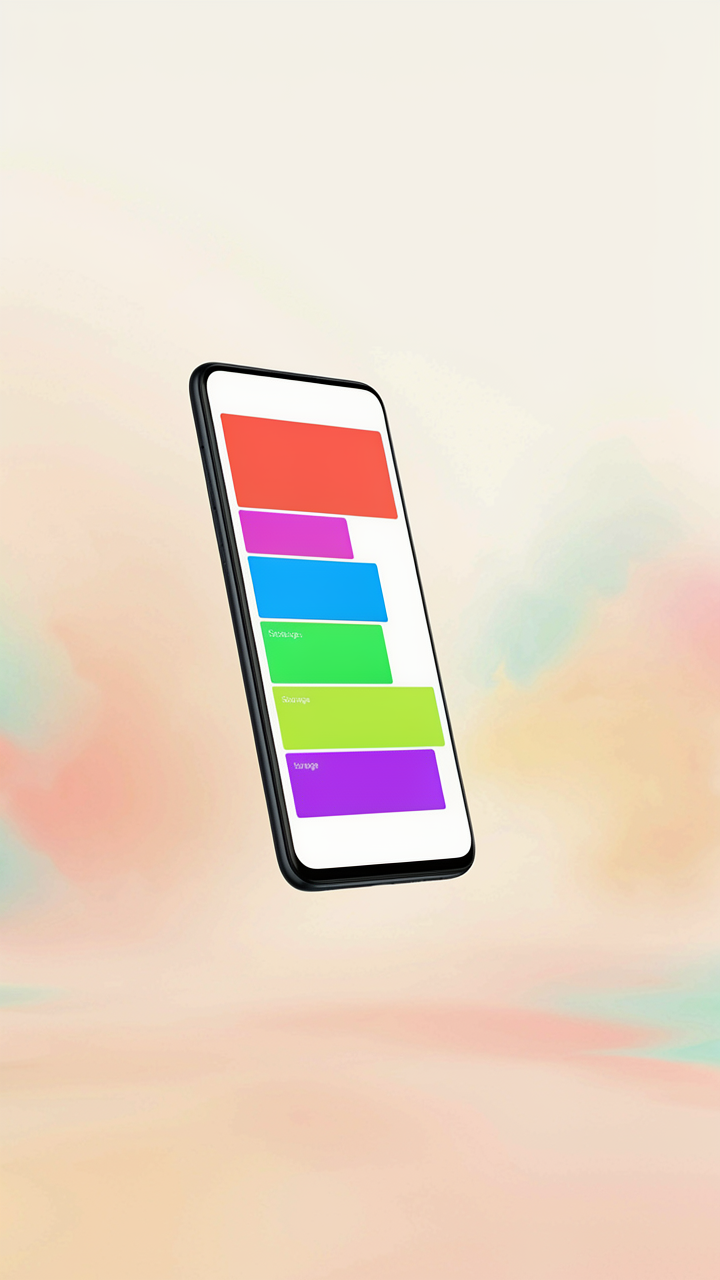
You want to believe your photos are the problem because that makes the solution simple: delete or back them up. They’re not. Photos take up less space than most people think, and obsessing over them distracts you from the real culprits. Think of iPhone storage like a supply chain: you need to identify which suppliers are actually consuming your inventory, not guess based on assumptions.

Cache files, app data, and system logs are the storage hogs. A single messaging app can hold gigabytes of videos, voice notes, and attachments you forgot existed. Mail accumulates attachments. Streaming apps cache entire episodes offline. Most people never audit these because they’re invisible. Open Settings, tap General, then Storage to see the real breakdown by app.
Offload Instead Of Delete
Everyone says delete everything you don’t need. That’s incomplete advice masquerading as help. iPhone has an Offload Apps feature that removes the app but keeps its data intact. This frees up the app’s footprint while preserving your ability to reinstall and pick up where you left off.
Enable this by going to Settings, General, iPhone Storage, then toggle On App Library Offload. The system automatically removes apps you haven’t used in a defined period, then reinstalls them if you tap their icon again. For apps you use sporadically but need to keep, offload them manually by tapping the app name in Storage and selecting Offload App. Your data stays. Your space returns.
Automated Workflows: Set It And Forget It (Almost)

The Scheduled Backup Rhythm
You want this automated because you’re terrified of losing photos and you know you’ll forget to manually back them up. The mechanism is simple: consistency beats perfection. iCloud Photo Library runs daily syncs by default when your phone charges overnight and connects to WiFi. This isn’t magic—it’s just a scheduled task that executes at predictable intervals. Most people never change the default settings, which means their photos sync without friction.

The real lever here is understanding when syncs actually happen. iCloud backs up changes, not full libraries, each time your device meets the conditions: plugged in, WiFi connected, screen locked. You don’t need to do anything. But you should verify it’s running by opening Settings, tapping your name, selecting iCloud, then Photos to confirm iCloud Photo Library is enabled. If you’re on a spotty WiFi network, photos may queue for sync but won’t upload until connection stabilizes. Check your iCloud storage threshold—when you hit capacity, syncs stop entirely.
Shortcuts And Rules For Custom Automation
Common automation advice says build complicated Shortcuts routines. That’s often wrong. Shortcuts can trigger actions on specific conditions, but iPhone’s photo backup already handles what most people need. Where Shortcuts actually work is niche scenarios: automatically saving screenshots to a specific folder, backing up burst photos separately, or running a weekly check that prompts manual upload confirmation. You’re not building the system—you’re patching gaps the default system leaves open.
IFTTT (If This Then That) connects iPhone to external services like Google Drive or Dropbox, but it requires your phone to initiate the connection—it doesn’t run on a true schedule like iCloud does. The setup is straightforward: create an applet that triggers when a new photo appears in your Camera Roll, then route it to your chosen cloud service. This works if you need redundancy beyond iCloud or if you prefer a backup service your workplace uses. Execute this by downloading IFTTT, creating an account, building an applet with the Photos trigger, and mapping it to your destination.
The Family Photo Vault: Multi User Backup Strategies
When Shared Libraries Actually Work
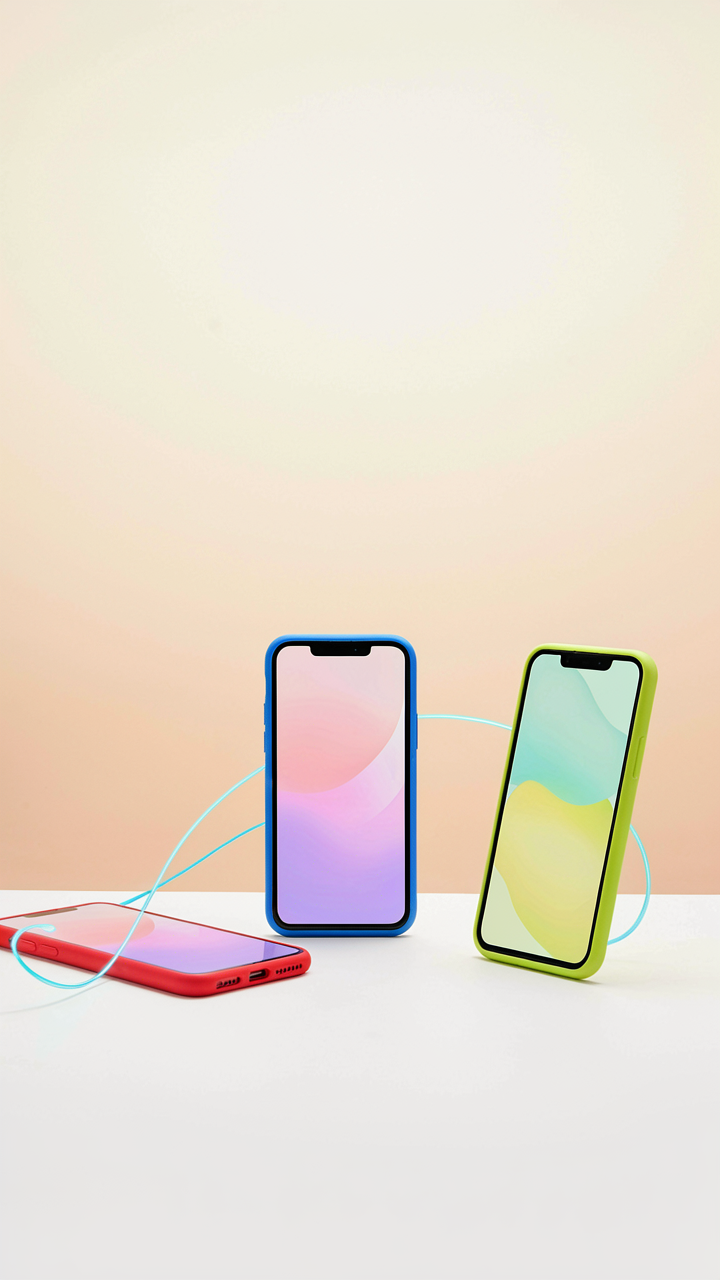
You want your family photos in one place so nobody loses anything. That’s the fear driving this decision, and it’s legitimate. But shared photo libraries in iCloud operate on a permission model, not a storage model—meaning access control is the real mechanism at play, not magical duplication.

A shared iCloud photo library lets multiple people add photos to the same album, but it’s fundamentally different from individual backups. Everyone needs an Apple ID, and the library owner controls deletion rights. If one person deletes a photo, it vanishes for everyone. This creates a single point of failure that individual backups don’t have, which is why shared libraries work best for active collaboration, not archival protection.
Merging Multiple IPhones Into One System
Everyone assumes you back up each phone separately, then hope the files don’t collide. Wrong approach. The real system is deduplication at the account level, not the device level.
When multiple iPhones back up to the same iCloud account, Apple’s servers recognize identical photos and store them once. That’s the mechanism—one file, multiple device references. But this only works if you’re using the same Apple ID across all phones, which creates a different problem: you lose device-level privacy and message separation. The practical move is maintaining separate Apple IDs per person, then using a family organizer account with shared photo library access for only the photos you actually want consolidated. Export the keeper photos to that shared library, not your entire camera roll.
Future Proofing Your Photo Library: Beyond Today’s Tech

When Your Backup Format Becomes Obsolete
You’re worried about losing your photos forever, but the real problem is that you’re backing them up to a format that won’t exist in twenty years. File formats die. Services shut down. Cloud providers pivot. The mechanism here is entropy applied to data storage: systems degrade, platforms consolidate, and proprietary formats become unreadable when the company that owns them disappears or stops supporting legacy systems.
iCloud Photos works until Apple changes the terms. Google Photos worked until Google changed the terms. Your external hard drive works until the file system it uses becomes incompatible with whatever operating system exists in 2045. The answer isn’t to chase the newest backup tool. It’s to store your photos in formats that survive format migrations. JPEG and HEIC are safe. Proprietary cloud-locked formats are not. Export your library to raw file formats every few years, store them on multiple physical media types, and document which formats you used so future you knows what you’re looking at.
Digital Decay Versus Physical Permanence
The common advice claims digital is safer than prints because it doesn’t fade. That’s incomplete. Digital storage degrades differently than it fails silently. A printed photograph yellows predictably over decades. A hard drive fails catastrophically with no warning. A server gets deprecated. A cloud account gets hacked or deleted due to inactivity. Physical media has one advantage: you can see it fail coming. Digital media pretends permanence until the moment it doesn’t.
Hybrid storage isn’t paranoia, it’s rational. Keep originals on iCloud or Google Photos for daily access. Maintain a secondary backup on an external SSD for redundancy. Archive select irreplaceable photos as prints or on optical media stored in climate-controlled conditions. The lifespan of printed photographs under proper storage exceeds one hundred years with reasonable certainty. No cloud service guarantees that. Your backup strategy succeeds when you stop relying on any single storage method and instead layer systems that fail independently of each other.
The Real Cost Isn’t Lost Photos; It’s The Illusion Of Security And Wasted Cognitive Load

You don’t have a backup problem. You have a decision problem. Most people sabotage themselves by choosing nothing, which guarantees they’ll lose everything. Pick one method today. iCloud, Google Photos, or external drive. It doesn’t matter which. What matters is you stop pretending you’ll figure this out later. Your brain knows you’re lying, and that burden costs you more than any subscription ever will. Decide now or accept the consequences.