
The Illusion Of The Still Photo: Why Your Memories Are Muted
What Live Photo Actually Captures
You want to believe a still photo freezes a moment. It doesn’t. It erases everything around it. Live Photo breaks that illusion by design.
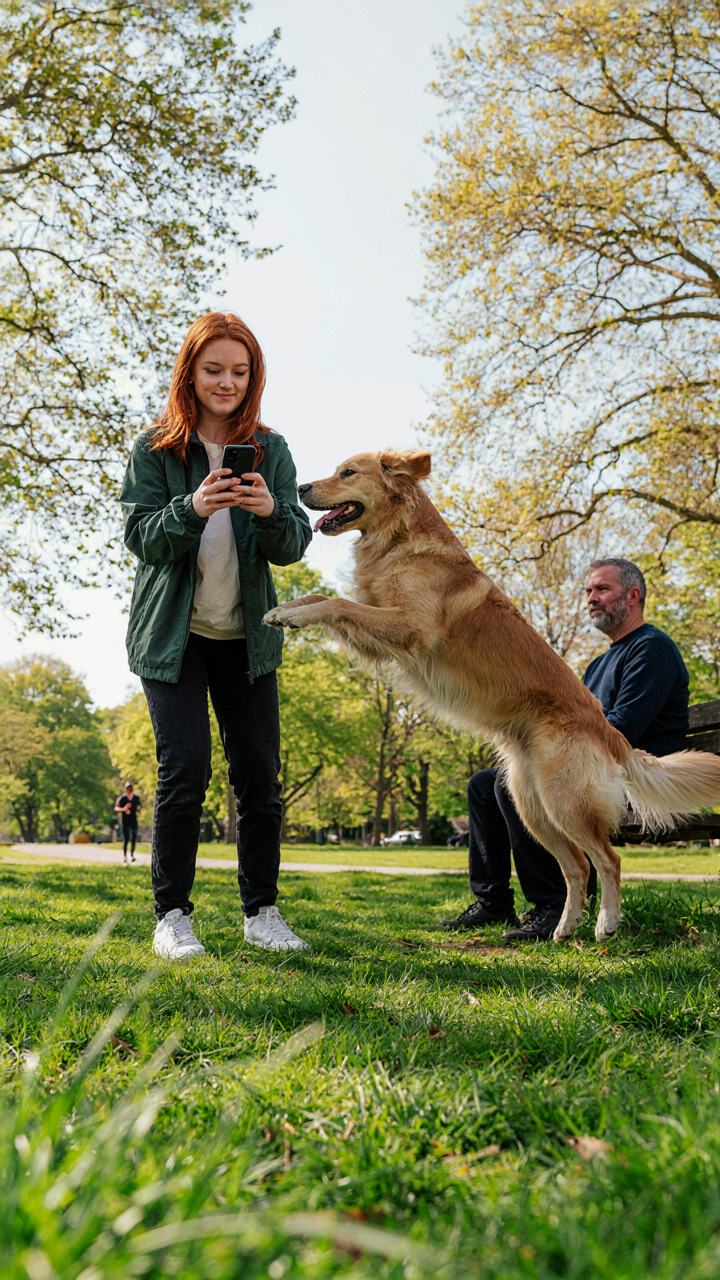
When you tap the shutter on iPhone, Live Photo captures 1.5 seconds of video before your tap and 1.5 seconds after, totaling 3 seconds of footage compressed into a single frame. That still image you see is extracted from the middle of those 3 seconds. The rest of the motion data stays embedded in the file. You’re not getting a moment. You’re getting a moment with motion memory attached to it, waiting for you to decide what to do with it.
The file itself is a container. The JPEG sits on top of a video layer that plays when you press and hold the photo in most apps. Apple’s H.264 compression keeps the file size reasonable, typically between 4 to 8 MB depending on lighting and movement. The thumbnail you see in your library is static, but the metadata underneath knows the entire 3-second window happened. Ignore that and you’re ignoring the actual data you collected.
Before And After: The Mechanic Of Capture Timing
Most advice tells you to hold steady and let Live Photo do the work. That’s incomplete. Physics calls it the “aperture problem”—the gap between what you intend to capture and what the sensor actually sees. On iPhone, this gap is temporal, not spatial.
When you tap the shutter, the camera isn’t waiting for your intention. It’s already recording. 1.5 seconds of footage exists behind you before your finger registers. One second after your tap, it stops recording. That asymmetry matters. If your subject moves toward the camera during capture, the post-tap window (after your shutter press) catches the arrival. If they move away, the pre-tap window (before you pressed) caught the departure. You need to understand which window matters for your shot, then position yourself and time your tap accordingly. Tap early for motion coming toward you. Tap late for motion moving away. The difference is which 1.5 seconds of the 3-second total becomes the dominant information in your memory.

The Dynamic Frame Protocol: Activating Your IPhone Live Photos Storytelling

Anticipating The Moment Before
You want to look like you capture life effortlessly, like moments just happen to you. The real mechanic is timing—and timing means positioning yourself before the event unfolds, not reacting to it. Live Photos captures 1.5 seconds before and after you tap the shutter. Most people waste this window by pressing record when the action already peaks. You’re already late.
The anticipation strategy borrows from cinematography’s concept of “leading space”—the room where action moves into, not the space it occupies. With Live Photos, your leading space is the 1.5 seconds before tap. Position your frame so the subject enters from the edge. Watch for the breath before the laugh, the step before the jump, the glance before the embrace. Tap when you sense the momentum building, not when you see the result.
Trimming And Selecting Your Key Frame
Most Live Photos sit in your camera roll untouched because people don’t know editing exists. The common advice says “just let Live Photos play”—but that’s lazy. You have full control. Open any Live Photo, swipe up, and you see a timeline of every frame captured. You pick which moment becomes the still image and which becomes the video. This is where impact lives.
Select your key frame based on clarity and expression, not the moment you pressed the button. Trim the video timeline to remove dead space at the start or end. Most Live Photos benefit from cutting 0.3 to 0.5 seconds off each end. Set a key frame that works as a standalone still image—because most people viewing on social platforms will see the photo first, the motion second. This tactical edit determines whether someone swipes through or scrolls past.
From Snap To Sequence: Crafting Micro Narratives

Loop And Bounce: Transforming Mundane Into Motion
You want to look like you captured something worth keeping, not just another 3-second phone clip. The real mechanism here is borrowed from animation: a Live Photo in Loop or Bounce mode operates like a cinemagraph, cycling frames to create the illusion of continuous motion without committing to video. This works because your brain fills gaps between repeated sequences, treating a looped still as movement.
Live Photos gives you three playback modes that fundamentally change how viewers perceive the same captured moment:
- Live: Plays the full 1.5-second clip once, then stops. Best for genuine motion you want seen once.
- Loop: Repeats the clip infinitely, creating a GIF-like effect that holds attention on static backgrounds with minor motion elements.
- Bounce: Plays forward then backward on repeat, softening the hard cut that Loop creates and working better for symmetrical actions.
- Long Exposure: Compresses all frames into one, blurring motion across the image for a specific stylistic effect, not looping.
- Key Photo: Lets you pick which frame from the 1.5-second window becomes the thumbnail, controlling what people see first.
The choice between Loop and Bounce depends on whether your motion has a clear beginning and end. Bounce works best for pendulum actions: a head turn, a hand gesture, water splashing. Loop handles ambient motion better, like wind through hair or someone walking past a window. Set the playback mode in the Photos app by opening the Live Photo, swiping up, and tapping the playback style you need.
Long Exposure: Blurring Motion For Artistic Effect
People think long exposure on iPhone Live Photos is about creating dreamy effects. That misses the point. Long exposure is a technical compression tool that collapses multiple frames into one image, averaging light data across the entire 1.5-second capture window to blur motion into trails and smooth flowing water or crowds into graphic abstractions.

The mechanic works like this: iPhone samples the sensor data from every frame in the Live Photo sequence, then blends them mathematically into a single exposure. This is different from applying a blur filter after the fact because it captures actual light information from movement, not a computational guess. Open a Live Photo, swipe up to reveal the effects bar, and tap “Long Exposure” to apply it. The result becomes a static image you can edit or share separately from the Live Photo itself. Use it on waterfalls to turn rushing water into silk, or on city streets to turn foot traffic into ghost streaks. The effect only works when there is genuine motion in the frame during capture.
The Social Physics Of Live Photo: Maximizing Engagement
How Live Photos Spread Through Networks
You want proof that your content matters. That’s what engagement metrics actually measure. Live Photos trigger network effects because they break the static image format that platforms optimized for years. Using physics terminology, Live Photos function as a system with positive feedback loops: the motion itself becomes the momentum that carries the post further into algorithmic distribution than a still image alone.
TikTok and Instagram Reels prioritized video-first algorithms long before Live Photos existed. Live Photos sit in the middle ground—they’re neither fully video nor fully static—which makes platforms treat them as novel content. This novelty factor doesn’t last forever, but it compounds during the upload window. The mechanism is simple: algorithms favor content that generates uncertainty in user behavior. A Live Photo makes users pause longer because the motion is unexpected within a photo feed.
Tuning Your Content For How Algorithms Actually Work
Most advice tells you to post consistently and follow trends. That’s incomplete. The real lever is understanding that algorithms measure two things: how long users engage with your specific post, and whether that engagement pattern differs from their baseline behavior. Live Photos create friction that extends both metrics if shot correctly.

The first three frames of a Live Photo determine whether someone scrubs through to see the full motion. If those frames show static content, the algorithm learns users don’t interact with your posts differently than they do with regular photos. Shoot the Live Photo so motion begins in frame one. The platform counts this as higher engagement velocity. Then post at times when your audience is already scrolling, not sleeping. The algorithm compounds engagement in real time during peak hours. Check your analytics to find when your specific followers are active, then schedule around that window.
Beyond The Gallery: Repurposing Your Live Photo For Dominance
Set Your Lock Screen To Motion
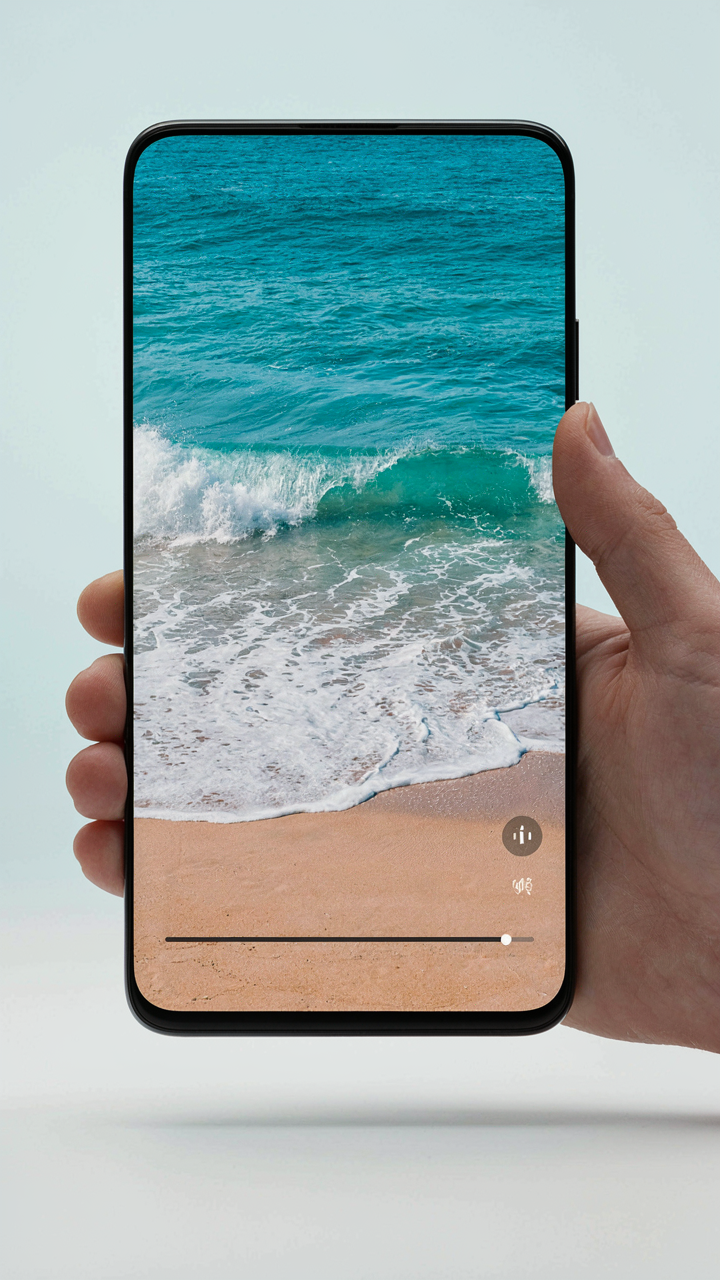
You want social proof without saying you want social proof. Here’s the mechanism: Live Photo as lock screen wallpaper operates like signal amplification in physics—it broadcasts movement every time someone hands you their phone, making your device read as intentional rather than default. Your lock screen activates before anything else. Make it move.
iPhone lets you set any Live Photo as your lock screen directly from the Photos app. Press and hold the lock screen, tap “Customize,” select “Wallpaper,” then choose your Live Photo. The motion plays when you raise your phone or press it. This transforms a static personal space into proof of curation. Few people do this.
Extract Video, Expand Distribution
The common advice here is wrong: Live Photos aren’t locked to Apple’s ecosystem just because Apple doesn’t give you an obvious export button. You can convert them to video and own the distribution channel. Open your Live Photo in Photos, tap “Edit,” swipe to find “Live” at the bottom, tap it to turn it off, then save. Export that JPEG. Then use a dedicated app like Lively or Unfold that extracts the video file, giving you an MP4 you control.

Why this matters: video travels. MP4 files work on every platform—Discord, Twitter, Slack, email, WhatsApp. A Live Photo stays trapped in iMessage and AirDrop. Extract the video layer, and your moving memory becomes content that scales across networks where your audience actually lives. Upload to YouTube Shorts or TikTok and the motion compounds reach rather than containment.
The Aesthetic Algorithm: Curating For Visual Authority

Natural Elements As Visual Anchors
You want people to perceive you as someone with taste. The mechanism is simpler than you think: your brain treats natural elements in frames as proof of intentionality. Water, trees, light through leaves, sky gradients—these work in Live Photos because they anchor the viewer’s attention to something beyond the subject. They signal restraint, not desperation. Most people treat Live Photos like video dumps. They’re not. They’re 1.5-second compositions that live or die on environmental context, the same way product photography depends on negative space in design.
The technical reason natural elements work is friction reduction. When a viewer sees your Live Photo, their eye lands on the moving water or shifting light first, then notices you or your subject. This order matters psychologically. You’ve bought credibility before they could judge. The framing becomes evidence of curation. Stop chasing dynamic motion. Start choosing locations where the environment does half the work. A Live Photo shot against a blank wall with movement fails. The same person in the same jacket, positioned near a window with changing light, succeeds because the context transforms the motion into something deliberate.
Developing Your Signature Through Repetition
Building visual authority isn’t about variety. It’s about constraint. The mistake most people make is treating every Live Photo like a new creative opportunity. That’s the opposite of how recognizable aesthetics actually form. Your signature emerges when you repeat the same composition rules, the same color palette, the same motion type until people recognize your work before they see your name. Repetition is the mechanism that builds visual authority, not originality.

Choose one specific motion pattern and own it. This could be hand movement in a consistent direction, a specific type of environmental blur, or a particular frame rate expectation. Then build Live Photos that reinforce this single rule. When someone sees your Live Photos in a feed, they should identify them by pattern, not by content. Document this constraint in your phone’s Notes app—describe exactly what you’re repeating. Open it before you shoot. Consistency compounds faster than creativity ever does.
Unlocking Hidden Features: The Advanced User’s Edge

Editing Apps That Break Apple’s Constraints
You want this section because you’re tired of Apple’s editing tools limiting what you can do with your content. Here’s the mechanism: Live Photos are video containers wrapped in a still frame. Third-party apps like Pixelmator Pro, Affinity Photo, and Adobe Lightroom can access the underlying video data that Apple’s native Photos app intentionally restricts. This is a design hierarchy problem. Apple prioritizes simplicity over capability, which means power users get locked out. Apps like Moment Pro and Halide let you extract frames, adjust motion profiles, and apply filters that Apple’s ecosystem won’t allow. Some apps convert Live Photos to video formats, unlock frame-by-frame editing, then repackage them back into Live Photo format for sharing. The real edge is understanding that “advanced editing” doesn’t mean better filters. It means treating Live Photos as editable video, not static images with motion attached.
The workflow is straightforward. Import your Live Photo into a third-party editor, export individual frames or the full video sequence, apply your edits, and reimport as a Live Photo or share as a video file depending on your platform destination. Apps like Action Camera Master and Gyroflow let you stabilize shaky footage. Others like LUT Robot apply color grading presets across the motion sequence. The constraint isn’t technical. It’s that most users don’t know Apple locks certain editing functions behind the limitation of the Photos app itself. Once you route through an external app, that limitation evaporates. Many advanced editors also preserve metadata and motion data through the export, meaning your edits stay embedded in the file.
Sharing Without Quality Loss Across Devices
Nobody tells you this plainly: Live Photos degrade every time you send them through a different platform. WhatsApp compresses them. AirDrop preserves them. Email strips the motion data. Here’s what actually happens. When you share a Live Photo via messaging apps, the system converts it to a standard video or image file, losing the Live Photo format entirely. iCloud Photos preserves the format, but shared albums reduce resolution. The mechanism is simple: each platform has its own codec and file size limits. WhatsApp uses H.264 compression and caps video at specific bitrates. Telegram preserves more data but still compresses. Messages via AirDrop maintains full fidelity because it uses direct device-to-device transfer without server compression.

The solution is platform-specific routing. Use AirDrop for local sharing to preserve full quality. Use iCloud shared albums for group sharing where format matters. Export as video files for social platforms where Live Photo format doesn’t exist anyway. If you need the Live Photo intact for archival, use iCloud Photos or direct file transfer methods. When sharing with non-Apple users, export as MP4 or MOV video instead of attempting Live Photo transfer, which will fail or degrade. The technical reality is that Live Photo preservation depends entirely on your destination platform’s infrastructure. Choose your sharing method based on what the receiving end actually supports, not based on what feels convenient.
The Free Live Photo Fallacy: Why ‘Free’ Costs You More
Storage That Silently Compounds
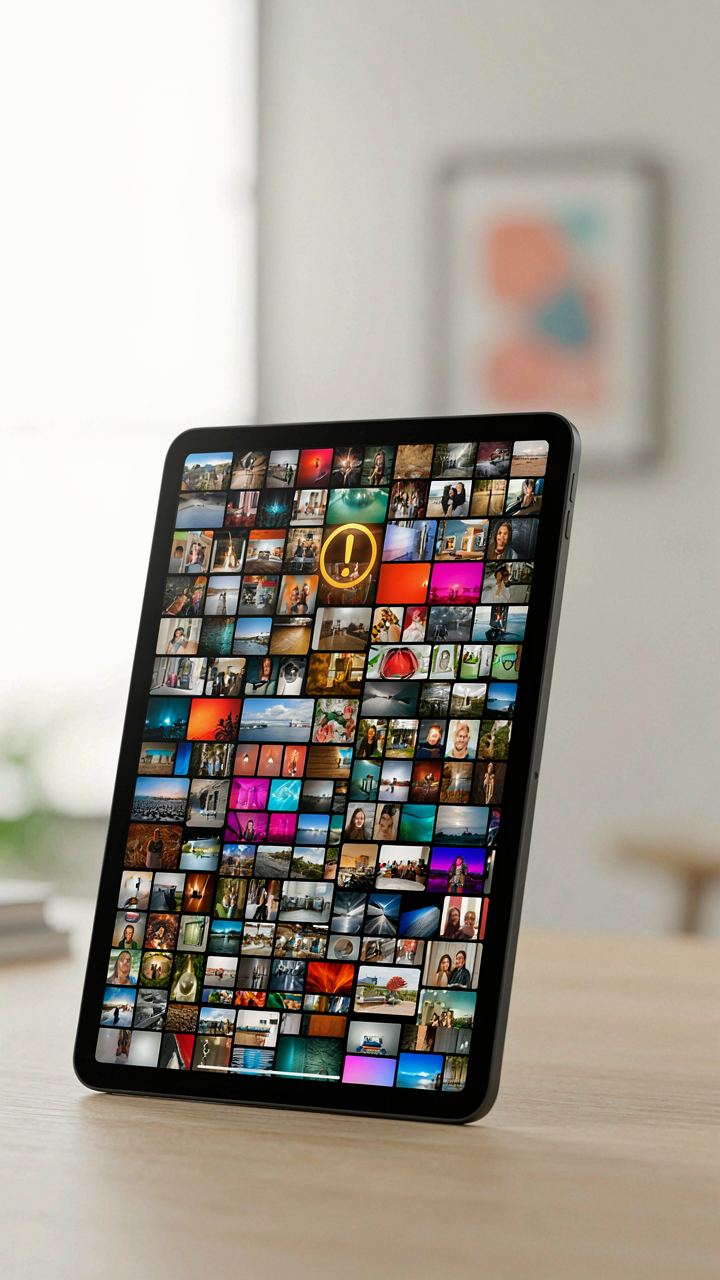
You think Live Photos are free because Apple baked them into your phone. That’s denial wearing a feature flag. Live Photos consume three to four times the storage of a static image because they capture video data before and after the shutter click. A single Live Photo takes up roughly 3 to 4 megabytes, compared to a standard photo at around 1 to 1.5 megabytes. Enable Live Photos across hundreds of shots and your storage tank empties faster than you notice.
The mechanism works like resource depletion in economics: you pay for abundance you never intended to consume. Most users never disable Live Photos for specific moments, so every casual snapshot becomes a hidden storage debt. Your iCloud subscription fills. Device storage fragments. You either buy more space or delete photos you wanted to keep. Apple’s strategy converts a perceived freebie into a subscription dependency. This isn’t accidental.
The Real Cost Of Editing Inertia
Everyone tells you Live Photos are easier to edit. They’re wrong. Editing a Live Photo requires time overhead that static images don’t demand: you must choose the key frame, adjust the loop timing, or apply motion effects. That’s friction per image. Multiply that across fifty photos from an event and you’ve burned an hour for marginal value nobody requested.
The hidden protocol is this: edit Live Photos immediately after capturing them or abandon them unfinished. Delayed editing creates a debt pile of half-processed media you’ll never return to. Set a rule: if you shoot a Live Photo, commit to a key frame selection within one hour or convert it to a static image. The time tax is real. Pay it on schedule or stop shooting them.
The Real Obstacle Isn’t Technology; It’s Your Passive Approach To Memory, Turning Potential Narratives Into Mere Archives

Most people treat iPhone Live Photos like a feature that happened to them, not a tool they control. You already carry a device that captures motion, emotion, and context in three seconds. The shift is simple: stop recording moments and start recording stories. Open Live Photos right now. Film something mundane today. Watch what happens when you actually examine the three seconds you captured. You’ll realize you’ve been sitting on a narrative engine the whole time, and you’ve barely touched it. The best memories aren’t the ones you keep. They’re the ones you share.