The Pinterest Algorithm Is A Black Box. Stop Pretending You Can Game It With Pixel Perfect Resizing.

Why Conventional Sizing Advice Is A Trap
You want the exact pixel dimensions because they promise control. Here’s the mechanism nobody names plainly: Pinterest’s algorithm operates like a signal processing system in telecommunications, where the input (your pin) gets compressed, routed, and evaluated by multiple ranking layers before users ever see it. The platform doesn’t care about your source file dimensions. It cares about engagement signals: saves, clicks, time on pin, repins. The standard advice to resize to 1000×1500 pixels isn’t wrong so much as it’s incomplete. It assumes the algorithm rewards precise technical specifications when it actually rewards behavioral data.
What happens after you upload matters infinitely more than the dimensions you chose. Pinterest compresses your pin differently depending on device, feed position, and user history. A perfectly sized image that lands on the wrong user’s feed generates zero saves. A slightly suboptimal image that reaches someone actively searching for your niche gets saved immediately. Resizing your iPhone photos to a specific dimension is a hygiene task, not a strategy. Do it correctly so you don’t handicap yourself. Then forget about it and focus on where your pins actually appear.
Focus On Engagement Metrics Instead
The real win lives in the data you can measure after upload, not before. Pinterest gives you save rate, outbound click rate, and close-up rate in your analytics dashboard. These numbers reveal what actually resonates with your audience. If your 1000×1500 pin gets a 2 percent save rate and your 1000×1200 pin gets a 4 percent save rate, the second one wins every time, regardless of what conventional advice says. Stop optimizing for a theoretical ideal. Start optimizing for observed performance.
Begin resizing your iPhone photos to 1000 pixels wide and maintaining aspect ratio. Upload five to ten variations of similar content with slight design changes. Monitor which ones generate saves and clicks over two weeks. Scale the winners. Delete or revise the losers. This protocol bypasses algorithm speculation entirely and grounds your decisions in actual user behavior data. Engagement metrics are the only sizing standard that matters.
Your IPhone Photos Are Already Good Enough: Stop Adding Unnecessary Steps

What Your IPhone Camera Already Does
You want permission to skip the app store. Your iPhone’s native Photos app handles resizing through the crop and export functions without losing quality or wasting time. When you take a photo on iPhone, the device captures it at full resolution, then lets you adjust dimensions through editing tools built directly into the OS. No download required. No subscription hidden behind a paywall.

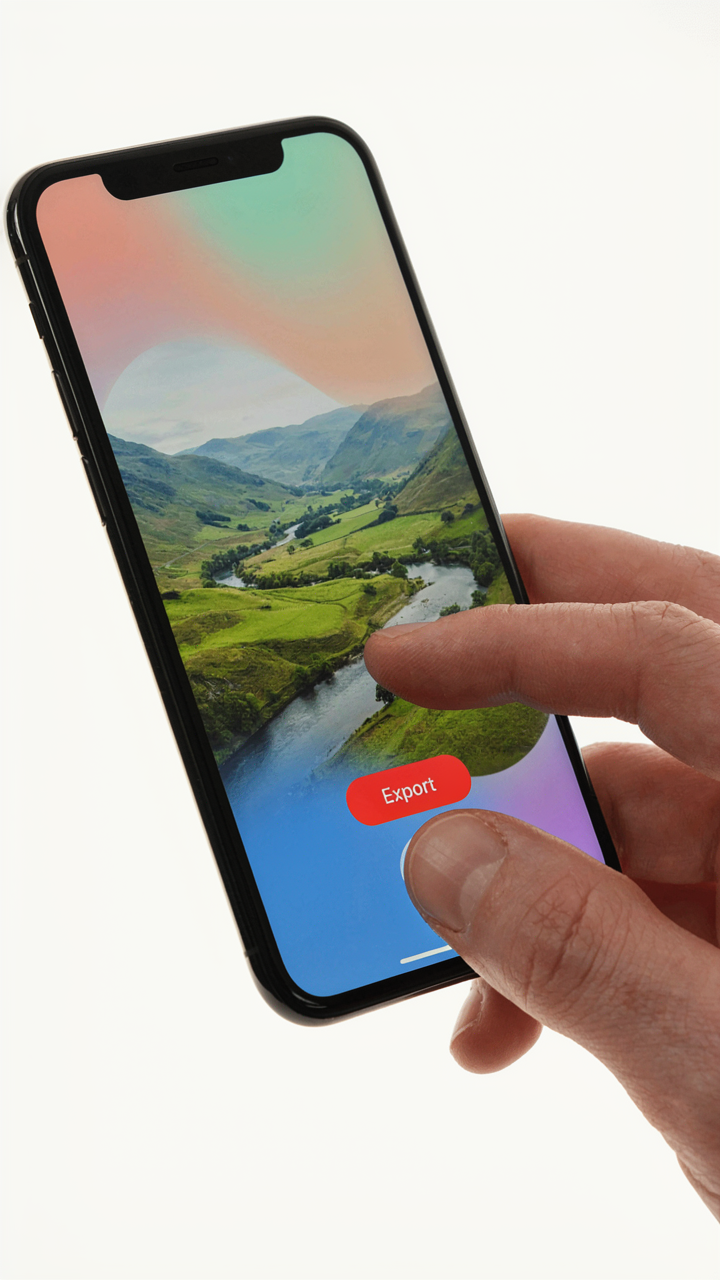
The real mechanism is compression, borrowed from data science. Your iPhone applies intelligent compression during export, not degradation. When you crop a photo to Pinterest’s 1000×1500 pixel ratio inside the Photos app, you’re selecting which pixels to keep, not downsampling everything equally. The camera sensor captured enough information that selective cropping preserves detail where it matters. Edit the photo, tap Export, choose your size, and you’re done.
External Apps Are Friction You Don’t Need
Everyone recommends Pixlr or Canva for resizing. That advice is incomplete. Those tools add a processing step that introduces a second compression pass, meaning your original photo gets compressed twice instead of once. Your iPhone already compresses efficiently on export. Running the image through another app’s compression algorithm after that is redundant work that degrades quality marginally while eating battery and time.
The mechanism is simple: fewer processing steps mean fewer opportunities for quality loss. Export directly from Photos at your target dimensions and you keep all the detail iPhone’s native compression preserved. If you need batch resizing for ten pins at once, that’s the only moment external tools earn their friction. For single photos, you’re adding steps to solve a problem that doesn’t exist.
The “Minimum Viable Pin” Protocol: Speed Over Perfection

What Pinterest Actually Needs From Your Image
You want to resize photos fast without sacrificing the visual edge that makes pins stop scrolls. Here’s what nobody says plainly: Pinterest’s algorithm doesn’t reward pixel perfection. It rewards clarity at thumbnail size. That’s the real constraint. A 1000×1500 pixel pin at 72 DPI displays identically to a perfectly optimized version on the platform because Pinterest re-compresses everything on ingestion anyway. Your job isn’t to match some mythical “ideal” spec. Your job is to hit the dimensions that prevent distortion, then move on.

Pinterest’s native pin dimension is 1000 pixels wide by 1500 pixels tall, a 2:3 ratio. Mobile feeds compress further. Your iPhone exports at 72 DPI by default, which is fine for web. The real parameter to lock down is aspect ratio, not perfection. If you keep your pin between 1000×1500 and 1080×1620 pixels, Pinterest’s system handles the rest. Anything taller or wider gets cropped or letterboxed. Anything smaller gets upscaled and loses sharpness. Stay within the box.
Eliminate Steps That Don’t Matter
Most guides tell you to export, check file size, re-export if needed, check again. This workflow wastes fifteen minutes per pin. Use your iPhone’s built in crop tool first, lock your aspect ratio to 2:3, frame your content, then use a single dedicated app that outputs directly to 1000×1500 pixels. No re-checking. No guesswork.
- Photos app crop tool: Open image, tap edit, select aspect ratio lock, choose custom 2:3, frame content, save. Eliminates ratio drift before resizing begins.
- Resize Photo app: Outputs exact dimensions (1000×1500) in one step without compression loss. No preview loop required.
- Pixelmator Pro: Batch resize multiple iPhone photos to Pinterest specs. Export directly as PNG or JPEG at your chosen quality setting.
- Image2Go: Drag and drop workflow. Input dimensions, select export format, send to camera roll or cloud. Minimal friction.
- BatchPhoto online tool: No app install. Paste your image, select 1000×1500 output, download. Best for single pins when you’re away from computer.
The protocol is mechanical: crop to 2:3 ratio using Photos app, run through your chosen resizer once, export to your pin folder. No second pass. No quality review loop. If your source image has good contrast and readable text at thumbnail size, the resize step preserves that. If it doesn’t, resizing won’t fix it. Knowing the difference saves you from the real waste: spending an hour on a pin that doesn’t belong on Pinterest in the first place.
IPhone Resolution: A Distraction From What Actually Converts
The Resolution Trap Nobody Admits
You’re obsessed with resolution because it feels like control. Higher numbers promise safety. But Pinterest doesn’t rank pins based on raw megapixels. The platform compresses everything anyway, so chasing 4K dimensions wastes your time before you even start resizing.

Think of resolution like signal-to-noise ratio in engineering. Noise doesn’t disappear because you amplify the signal louder. Pinterest reduces file size and pixel density across all pins to standardize delivery speed. A 1080 x 1350 pixel pin performs identically to a 2160 x 2700 pin because the platform strips the excess. You’re resizing to Pinterest’s spec, not your phone’s capacity.
Compression Is Your Real Variable
Everyone says compression kills quality. That’s incomplete. Compression kills visible quality only when you compress wrong. Pinterest’s algorithm doesn’t care about compression artifacts below human perception threshold. What matters is whether your pin loads fast enough to display before the user scrolls past.
iPhone photos default to high compression when you take them, then get recompressed when you resize, then compressed again by Pinterest. Each cycle degrades the image slightly. The mechanism is cumulative loss, not single compression events. Stop resizing from an already-compressed JPEG. Export from your phone’s native format first, resize to 1080 x 1350, then save as JPEG at 85% quality to Pinterest. You control where compression happens, which determines what survives.
The “Attention Economy” Playbook: Borrowing From Military Strategy

Observe, Orient, Decide, Act
You want to know if resizing your iPhone photos matters because you’re afraid your pins won’t perform and you’ll waste time on a tactic that doesn’t move the needle. Here’s the mechanism: military strategists use the OODA loop—observe, orient, decide, act—to compress decision cycles faster than competitors. Apply this to resizing iPhone photos. You observe the dimensions Pinterest demands. You orient your iPhone’s native resolution against those specs. You decide on the exact pixel dimensions. You act by resizing before upload.

The reason this matters for Pinterest pins specifically is speed of iteration. Most people resize haphazardly or skip it entirely, then wonder why their pins look blurry on mobile feeds. The OODA loop removes guesswork. iPhone photos shoot at 3024 x 4032 pixels by default, depending on model. Pinterest’s ideal pin dimension is 1000 x 1500 pixels. Your orientation step reveals the gap. Once you see it, your decision becomes automatic, and your action becomes repeatable. This is how you compress the feedback loop from weeks to days.
The Real Cost Of Skipping The Resize
Common advice says “Pinterest will resize your image automatically, so don’t worry about it.” That’s incomplete. Yes, Pinterest processes images, but it compresses them based on its algorithm, not your visual intent. You lose sharpness. You lose control. When you resize on your iPhone before upload, you’re pre-compressing to Pinterest’s exact specification, which means less data destruction during their process. You’re dictating the quality loss instead of accepting whatever Pinterest decides.
Your action here is concrete: use an iPhone app like Pixelmator Pro or even the built-in Photos app with a third-party shortcut to batch resize 1000 x 1500 before pinning. Set that resolution as your default workflow. Every pin you create now follows the same input dimension, eliminating the variable that usually causes blurry results. This one protocol step determines whether your pins read as professional or amateur on scroll.
How To Reduce App Size Bloat And Gain Back Your Time

Stop Downloading What Your Phone Already Has
You want to feel productive by having options, but every editing app you install is just friction you’ll never use. Your iPhone already resizes photos natively through Photos, Files, and Shortcuts. The mechanism is simple: every third-party app adds overhead, slows your phone, and steals storage space for features you don’t need. You trade speed for perceived capability.

iOS includes built-in resize functionality that handles Pinterest dimensions without installing anything. You access it through the Photos app’s crop and markup tools, or through Shortcuts automation for batch work. Most people miss this because it’s invisible. The real cost isn’t the app download—it’s the mental load of maintaining another tool and the storage tax it extracts from your device over time.
Native Tools Versus The Marketing Game
Third-party apps win on marketing, not on function. They show you a sleek interface and promise “advanced” features. The truth: native iOS tools do the actual work faster because they run at the system level. Photos resizes without filters or watermark overlays slowing the process down. Shortcuts automates batch resizing in seconds.
Use the Photos app’s crop tool for single images and Shortcuts for multiple photos at once. Shortcuts lets you set exact dimensions for Pinterest pins without opening an app each time. If you need specific dimensions repeatedly, create one Shortcut and reuse it infinitely. This eliminates the app altogether and keeps your phone fast and storage-rich.
Beyond The Resize Image: The Unspoken Value Of Pin Design
Why Your Pin Stops The Scroll
You’re resizing iPhone photos because you want traffic, but you’re really after proof that someone chose your content over infinite alternatives. That’s what pins do. From a signal processing standpoint, a pin is compression—you’re taking complex information and reducing it to threshold triggers that interrupt attention. Your resized photo must hit those triggers before the algorithm even shows it widely.

The mistake people make is thinking the resize itself matters. It doesn’t. What matters is whether your resized image creates stopping power at thumbnail scale. Pinterest users don’t evaluate pins at full resolution. They scroll at speed, and your image competes for a 236-pixel square on mobile. Resize your iPhone photo to those actual dimensions during testing, then work backward to what elements cut through at that size.
Contrast Wins Before Clarity Does
Contrast is the mechanism here, not aesthetics. Visual hierarchy in design demands that the eye lands on what differs most, not what looks prettiest. When you resize an iPhone photo for Pinterest, you’re not preserving quality—you’re weaponizing difference. High contrast between your subject and background makes your pin register as a distinct object, not visual noise blending into surrounding pins.
Most pins fail because they prioritize readability over recognition. Text that’s legible at desktop size becomes unreadable at 236 pixels. Your resized photo needs strong contrast so the image itself tells the story before any text lands. Test your resized pin at actual Pinterest thumbnail dimensions on your phone. If you can identify the core subject in two seconds at that size, you’ve built the right contrast structure.
Stop Searching “How To Get Photos Like Iphone.” Use Your Own.

The Authenticity Tax You’re Actually Paying
You want your pins to look polished because you think polish signals legitimacy. Here’s the mechanism: you’re competing for attention in a feed where 80% of creators use the same stock photo libraries and filters. Your iPhone photos—the unfiltered ones with your actual product, your actual hands, your actual space—are rarer. They break pattern recognition. That’s not sentiment. That’s attention economics.

The common advice says “make everything look professional.” Wrong. Professional means generic on Pinterest. Your iPhone photos already have compression artifacts, slight color casts, and imperfections. Those aren’t flaws you need to hide by resizing them into oblivion or running them through apps. They’re proof you made the thing. When you resize iPhone photos for Pinterest, you’re not trying to make them look like stock imagery. You’re preserving the signal that this is real.
The Mechanism Of Differentiation
In competitive strategy, differentiation means occupying a position your competitors can’t copy without abandoning their own position. Your unique perspective is that position. You see your product from the angle only you occupy. You know the problem you solved because you had it first. When you resize iPhone photos, you’re not standardizing your content to fit Pinterest’s template. You’re scaling your vantage point.
Most creators resize iPhone photos by uploading them to Pinterest and hoping the platform handles it. They don’t. Pinterest will compress and reprocess them poorly. Instead, resize them on your phone using the native Photos app or a tool like Image2Go before uploading. This preserves your actual visual data. Your perspective stays intact through the resize process, not diluted by platform algorithms making decisions about your content.
The Overlooked Advantage: How To Take Multiple Photos On Iphone For Pinterest
Shoot In Batches, Not One At A Time
You want to look prolific without spending your entire day photographing. Here’s the mechanism: batch production eliminates decision fatigue. Your brain burns out choosing angles, lighting, and composition one shot at a time. Shoot ten variations in thirty minutes instead. iPhone’s burst mode captures up to 120 frames per second. Lock your focus and exposure, then hold the shutter button. You’ll have dozens of usable frames before you think about resizing anything.

The real advantage isn’t speed. It’s consistency. When you shoot in one session with identical lighting and setup, every photo shares the same color temperature, shadow depth, and saturation. Resizing becomes mechanical because you’re not fighting variables. Your Pinterest pins won’t look like they came from five different shoots. They’ll read as a cohesive series, which trains the algorithm to show them together.
Build Stories Across The Frame Sequence
Sequential imagery uses a principle from film editing called montage: the meaning emerges from juxtaposition, not from individual shots. Photograph your subject from wide to close. Wide shot of your workspace. Medium shot of your hands working. Close-up of the detail. That sequence tells a story on its own. When you resize and stack these on Pinterest, the viewer’s eye follows a path you designed.
The common advice here is wrong: “Just take nice photos.” That’s vague. Instead, plan your shots like chapters. Shot one establishes context. Shot two shows the process. Shot three reveals the result. This structure works whether you’re pinning productivity tips, product styling, or tutorials. Resize each frame to 1000×1500 pixels on iPhone using Apple’s built-in Photos app or a tool like Pixelmator Pro. The sequence determines how many pins you extract from one shoot session.
Party Apps And The Illusion Of Instant Success

Why Viral Tricks Kill Your Pin Performance
You want the shortcut because you’re afraid slow growth means you’re doing it wrong. Here’s the mechanism: going viral on Pinterest requires treating the platform like a feed-based algorithm, when it’s actually a search engine. Every viral hack you see—mass pinning, follow-for-follow schemes, automation tools—treats Pinterest like Instagram. It isn’t. The platform rewards intentional, searchable content over engagement theater. Resizing iPhone photos to viral dimensions won’t save a pin with poor keywords or misaligned audience intent.
Most creators chase what worked last month instead of studying how Pinterest ranks pins today. They resize photos to trending dimensions, pin them everywhere, then abandon them after two weeks. The algorithm doesn’t care about your posting frequency. It cares whether your pin solves a specific search query better than competing pins. Viral bursts fade. Search authority compounds. One properly optimized, resized pin can pull traffic for months because it answers what people actually search for.
Building What Compounds, Not What Converts Fast
Authority in Pinterest works like compound interest in investing. You don’t get rich from one massive deposit. You get rich from consistent, small deposits that grow exponentially over time. Each resized iPhone photo you pin should serve a specific keyword cluster, not just look good. Your pin title, description, and board selection matter more than the image dimensions. When you resize photos intentionally—to specs that match your niche and audience—you’re signaling to the algorithm that this content is purposeful, not filler.
Stop treating pin creation like social media posting. Treat it like publishing. Every resized iPhone photo competes against thousands of similar images. Your edge isn’t speed or volume. It’s precision. Resize images to standard Pinterest dimensions (1000×1500 pixels works for most verticals), then optimize the metadata around that image. Build a content calendar tied to seasonal searches, not trends. The creators winning on Pinterest today aren’t the fastest pinners. They’re the ones who pin fewer, stronger images and let them work for months.
The Real Obstacle: Your Inability To Ruthlessly Prioritize Output Over Obsessive Detail
You don’t need a perfect Pinterest pin. You need a published one. Most creators waste weeks obsessing over pixel-perfect dimensions when they should batch resize fifty photos and push them live. Open your Photos app right now. Pick your best image. Resize it to 1000×1500. Upload it. Do this today, not tomorrow. The feedback loop you get from one live pin teaches you more than another article ever will. Perfectionism kills more creators than incompetence ever does.