The Airplane Mode Fallacy: More Than Just Radios
Your Phone Searches For Signals You Don’t Know About
You think airplane mode saves battery because it turns off radios. That’s not the real story. Your phone doesn’t just passively wait for networks. It actively hunts them. This hunt drains battery faster than the radios themselves running steady. Physics calls this “search cost” – the energy burned looking for a signal exceeds the energy spent maintaining one. Airplane mode stops the search entirely. That’s the mechanism that actually matters.
When your phone loses signal, it doesn’t accept defeat. It scans for networks at intervals you never see. Each scan fires up the modem, checks available towers, and logs the results. In poor coverage areas, your phone repeats this cycle constantly. On a plane, you have zero signal access, so your phone searches forever into nothing. Airplane mode halts this futile cycle before departure. Without it, your battery depletes during flight because your phone never stops looking.
Background Apps Run Regardless Of Connection
Everyone knows to close apps. Few understand that background processes operate whether your phone has signal or not. Apps sync data, refresh content, and ping servers on timers you didn’t set. They don’t care if you’re mid-flight. They execute anyway. Airplane mode kills network access, so apps can’t complete their sync operations. They queue up, fail silently, and stop trying. That’s what actually saves battery, not some magic toggle.
Background location services, email refresh, and cloud backup all drain power when seeking connection. Your phone attempts these operations on a schedule. Failed attempts still consume battery during the attempt phase. Airplane mode forces all network-dependent operations to fail instantly, before they consume meaningful power. This is why enabling airplane mode on a plane matters more than closing apps. The mode prevents your phone from even attempting network operations that would drain battery to failure.
The Pre Flight Power Protocol

Charge To Eighty Percent Before Takeoff
You want to land with a phone that works, not a dead brick. That’s the fear driving this decision, and it’s rational. Battery degradation follows a curve from chemistry, not magic: lithium-ion cells wear faster at high charge states, especially when heat is involved. Planes generate cabin heat. Charging to 80 percent before flight trades a few percentage points of trip capacity for measurable battery longevity over months and years.

The math is simple. A full charge to 100 percent stresses the battery more during the flight than stopping at 80 percent. You keep your phone functional for the trip while reducing stress on the cell itself. Most modern phones charge fastest from 0 to 80 anyway, so you save time at the airport too. The protocol is non-negotiable: plug in two hours before departure, set a timer or reminder, unplug at 80, and move on.
Download Everything Offline First
Generic advice says “just use WiFi on the plane.” That’s incomplete. Most in-flight WiFi is throttled, unreliable, or both. Streaming video or music burns battery faster than playing local files because your phone’s modem stays active searching for signal. Downloaded content uses only your screen and processor, cutting power drain by half or more.
Download maps, podcasts, ebooks, and videos to your device before you leave home. Use your home WiFi when it’s fast and free. This removes the temptation to stream mid-flight and guarantees entertainment without the battery tax. Airplane mode then becomes a tool that actually works, not a last resort when your battery dips below 20 percent.
Beyond Connectivity: Screen & Brightness Hacks

Why Your Screen Kills Battery Faster Than Airplane Mode Saves It
You think airplane mode is the main battery lever. It’s not. You’re hoping turning off connectivity solves the problem so you don’t have to touch your screen settings, which feel complicated. Here’s the physics: your display consumes 20 to 40 percent of total battery draw depending on screen technology. Airplane mode cuts maybe 10 to 15 percent. The display is the actual load. OLED screens use an emissive model—each pixel produces its own light—so dark pixels consume almost zero power while bright pixels demand significant current. LCD screens use a backlight that runs constantly regardless of content, making brightness intensity the only variable that matters for battery drain.

On an OLED device, switching to a dark interface in airplane mode creates a compounding effect. The black pixels require virtually no power, and the reduced refresh rate many phones apply in low-power mode cuts additional drain. On an LCD device, that same interface shift does almost nothing because the backlight stays active behind those dark pixels. If you own an iPhone, you have an OLED screen on newer models and get genuine gains from dark mode plus airplane mode. If you own an older LCD Android, dark mode is cosmetic—you’re reducing brightness percentage instead, which is the actual mechanism that works.
The Adaptive Brightness Trap
Most people disable adaptive brightness in airplane mode because they assume it drains battery by constantly measuring light. Wrong direction. Adaptive brightness is lazy and saves power compared to manual brightness management because humans keep screens too bright most of the time. The real drain comes from what happens when you manually override it: you set brightness to 100 percent and leave it there because it feels safer than adjusting manually. That’s the trap. Adaptive brightness keeps screens at 40 to 60 percent in typical indoor conditions, which is measurably lower than what manual users choose.
The mechanism is behavioral, not technical. Airplane mode combined with manual brightness at 30 to 40 percent beats airplane mode with adaptive brightness set to maximum. Leave adaptive brightness enabled during flights. Set a manual ceiling at 50 percent in your display settings before boarding, then let the system scale down from there based on cabin light. This produces the lowest sustained drain without requiring you to constantly fiddle with sliders. When you land and disable airplane mode, turn adaptive brightness back to full range so it scales up for outdoor visibility without you thinking about it.
The Digital Declutter Method For Travel Hacks Airplane

Uninstall Apps You Don’t Use
You want to feel like you’ve done something productive before the trip, so you convince yourself that fewer apps mean better battery life. Here’s the mechanism: apps consume battery in three ways—background refresh, location tracking, and push notifications. Uninstalling unused apps eliminates all three simultaneously. The effect is real but modest. A phone running 50 apps versus 100 apps sees maybe a 5 to 10 percent battery improvement if those extra apps have background activity enabled. Most of the gain comes from stopping the ones you never open anyway.

Before your trip, audit your phone. Open Settings and check which apps you haven’t touched in the last month. Delete them. Pay attention to social media apps, news aggregators, and fitness trackers that run background sync. Each one you remove is one less process competing for CPU cycles during your flight. The battery savings compound when you combine this with airplane mode, which stops all network requests cold.
Clear Cache And Data Strategically
The common advice here is backwards. People think clearing cache saves battery because it “frees up space,” but storage space and battery drain are separate problems. Cache clearing matters only if apps are constantly regenerating it, which burns CPU and storage I/O cycles. Thermodynamically, your phone generates heat when the processor works hard. Heat accelerates battery chemical degradation. So the real mechanism is: less processing load equals less heat equals slower battery decay.
Target cache clearing at apps that sync frequently or pull data constantly. Clear cache for maps, email, and social apps before you travel. Skip clearing cache for apps you use offline. The process takes two minutes and compounds the effect of airplane mode by reducing background tasks that would normally try to reconnect and resync when you land. Do this the night before your trip, not the day of.
Notifications: The Silent Battery Killers

Group Notifications Into Windows
You want to feel connected without admitting you’re afraid of missing something. Here’s the mechanism: your phone checks for notifications constantly, and each check wakes the processor and radio. Military operations use this same principle—they batch communications into specific windows rather than respond to every signal in real time. You do the same thing by forcing your phone to fetch emails and messages at set intervals instead of instantly.

Disable push notifications entirely in airplane mode. Set your phone to check mail every 30 minutes instead of every minute. This cuts radio activity dramatically. The processor stays asleep longer between checks, which is where your actual battery savings live. Most people think turning off individual apps matters. It doesn’t. The batching strategy matters because it eliminates the constant background chatter.
Distinguish Between Alerts That Matter
You can’t silence everything and expect to function. The real move is being ruthless about what actually deserves to interrupt you. Most notification settings are defaults designed to maximize engagement, not preserve your battery or your sanity.
Create a single whitelist: texts from five people, one calendar alert 15 minutes before flights, banking alerts for fraud only. Everything else gets silenced. Turn off badge counts, banners, and sounds. Your phone still receives these priority notifications, but it doesn’t wake the display or activate the radio for marketing emails and app updates. The battery cost of one filtered notification is negligible. The cost of 200 unfiltered ones compounds every hour of your trip.
Low Power Mode: Your Secret Weapon For Airplane Travel
When To Flip The Switch
You want to feel like you’re optimizing without actually changing behavior. Here’s what matters: Low Power Mode cuts CPU throttling and background refresh the moment you enable it. The mechanism is simple—your processor runs at reduced clock speed, and apps stop refreshing data in the background. Manual activation beats waiting for the automatic 20% threshold because you control the timing, not your battery percentage.

Activate Low Power Mode before boarding, not after takeoff. Most phones let you toggle it from Settings or Control Center in under five seconds. The earlier you flip it, the more cumulative battery you preserve over a four to eight hour flight. There’s no penalty for turning it on at full charge—the system simply caps power draw from that moment forward.
What Actually Changes When It’s On
The common advice claims Low Power Mode only reduces performance slightly. That’s incomplete. It disables mail fetch, cloud syncing, background app refresh, and location services simultaneously. Think of it like load balancing in network engineering—instead of all processes competing for power, the system prioritizes only active tasks you’re directly using.
The hidden benefit most people miss: Low Power Mode cuts screen refresh rate on certain phones and reduces frame rates in animations. You won’t notice the difference in apps like messaging or reading. What you will notice is your battery lasts 30 to 40 percent longer in actual flight conditions. On a six hour flight without access to power, that margin determines whether you land with 15% battery or completely dead.
External Power: The Smart Traveler’s Playbook For Plane Hacks
Capacity That Actually Matches Your Device
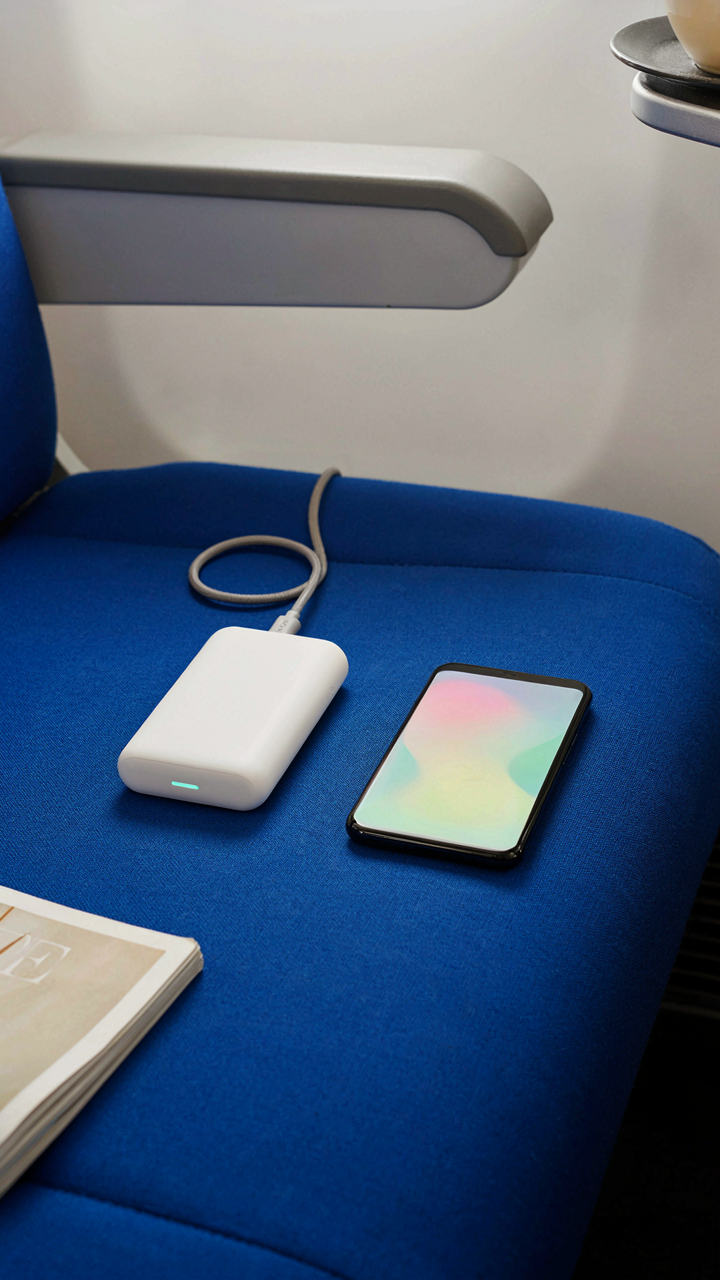
You want the status of never running out of juice mid-flight, so you overbuy capacity you’ll never use. Here’s the mechanism: a 20,000mAh power bank won’t charge your phone faster or better than a 10,000mAh one. It just sits heavier in your bag. Match capacity to your actual drain rate. Most phones need 3,000 to 5,000mAh per full charge. Calculate your trip length, count your charge cycles, then buy the minimum that covers it.

Oversized power banks waste money and luggage space. They carry extra cells that deteriorate regardless of use. A 10,000mAh unit charges most phones twice and fits in a pocket. Unless you’re powering multiple devices simultaneously, anything larger is insurance against a problem you won’t face. Buy what solves the equation, not what sounds impressive in a product description.
Charge Cycles And The Cost Of Convenience
Chemistry matters here, not marketing. Battery cycles determine real lifespan, and this operates under thermodynamic law. Every charge drains capacity slightly. A power bank rated for 500 cycles means you lose usable power after roughly 500 full discharges. Partial charges extend cycle life, so charging your phone to 80 percent instead of 100 is faster and healthier than both devices.
- Lithium ion decay rate: Power banks lose 2-3% capacity annually at room temperature. Higher temperatures accelerate this. Keep units cool between trips.
- Partial charging extends lifespan: Charging to 80% instead of 100% reduces voltage stress. Your phone battery benefits too when topped off this way.
- Airplane mode multiplies available cycles: Disabling radios cuts phone drain by 40-60% during idle time. Fewer full discharges mean your power bank lasts longer across trips.
- Fast charging drains cycles faster: High wattage (18W+) generates heat that stresses cells. Standard 5W charging produces fewer cycles but preserves capacity longer.
- Storage state matters: Keep power banks at 40-60% charge when not traveling. Storing at full charge accelerates degradation even while unused.
The real protocol: buy a unit, charge it to 60 percent before storage, enable airplane mode on your phone before boarding, then use the power bank only when your phone hits 20 percent. This stacks cycles efficiently and keeps both devices functioning for multiple trips before degradation becomes noticeable.
Temperature Control: An Overlooked Factor In Plane Travel Tips

What Happens When Your Phone Overheats
You want to ignore this section because overheating sounds like a distant problem that won’t happen to you. Here’s the mechanism: lithium-ion batteries drain faster at higher temperatures because chemical reactions inside the cell accelerate. Think of thermodynamics here—heat is energy, and that energy speeds up the very reaction that depletes your charge. At cabin altitude and cruising speed, your phone sits in an enclosed space where air circulation is poor. The phone generates its own heat through processing, then has nowhere to dispel it. Battery drain accelerates beyond normal rates when internal temperature hits 104 degrees Fahrenheit or higher.

Your screen is the culprit most of the time. Brightness set to automatic mode means the phone constantly adjusts to cabin lighting, which wastes processing cycles and generates heat. Airplane mode stops cellular searches, but it doesn’t stop the display from burning power. If your phone stays above 95 degrees Fahrenheit for multiple hours, your battery loses charge twenty to thirty percent faster than it would at room temperature. The problem gets worse the longer you fly. Acceptance that temperature matters is the first step to actually fixing it.
Physical Placement That Works
Stop stashing your phone in your pocket or under the blanket. Both trap heat and create a microclimate that accelerates battery drain. Place the device on a flat surface exposed to cabin air, ideally near a vent if you can angle one toward it. The seat-back pocket works if you leave your phone screen-down. Metal surfaces conduct heat away faster than fabric or plastic, so use the tray table with a thin cloth underneath if you’re concerned about scratches. Even resting the phone on aluminum armrests beats keeping it enclosed.
If you need your phone accessible, use a thin case that doesn’t insulate the back. Never cover vents or the back panel where heat naturally releases. Direct contact with cabin air flow is your target state. This single placement change can reduce thermal stress by forty to fifty percent over a long flight. The mechanism is simple: exposed surface area plus moving air equals faster heat dissipation and slower battery drain.
The Post Flight Re Calibration For Airplane Travel Tips
Check Your Battery Health After Landing
You want to know your phone still works like it did before the trip, and you’re betting on battery health as proof. Here’s the mechanism: batteries degrade from charge cycles, and airplane mode prevents unnecessary cycles during flight, but landing resets your phone’s power management baseline. Your device needs a real diagnostic to confirm nothing changed.

Run a battery health check within two hours of landing. On iPhone, go to Settings > Battery > Battery Health and Capacity. On Android, dial ##4636## to access the engineering menu and check battery condition. A healthy battery shows 80 percent capacity or higher after normal use. If you see significant drops after a trip, your phone cycled power unexpectedly despite airplane mode being active, which means your settings didn’t hold or your device had a hardware issue.
Restore Your Previous Network Settings
Most people just flip airplane mode off and move on. That’s incomplete. Airplane mode doesn’t just disable radios, it suspends your phone’s entire connectivity state—which means reactivating requires your device to rebuild its network map from scratch.
Turn off airplane mode first. Then manually reconnect to WiFi and your cellular network by entering Settings and selecting your preferred network. Your phone won’t remember which WiFi networks you trusted before flight. Re-enter passwords for any networks you use regularly. This prevents your device from burning battery searching for ghost networks or connecting to weak signals it previously avoided. Your phone rebuilds its location and signal preference hierarchy faster when you guide it manually rather than letting it auto-scan for an hour after landing.
Dispelling Battery Myths: What Doesn’t Work

Charging Your Phone Overnight
You want to believe overnight charging is harmless because it’s convenient, but lithium-ion battery degradation is electrochemistry, not opinion. Modern phones stop actively charging at 100 percent, then maintain that voltage through trickle charging all night. That sustained voltage state accelerates chemical decay in the battery cells. The mechanism is simple: voltage stress compounds over time, and trickle charging maintains stress continuously.
Overnight charging doesn’t destroy your battery in one night. It trades long-term capacity for short-term convenience. If you charge to 80 percent and stop, your battery lasts measurably longer than cycling to 100 percent nightly for years. On a trip where battery matters, charge to what you need, then unplug. Airplane mode saves power; overcharging wastes the battery you’re trying to preserve.
Full Discharge Cycles
The old advice to fully drain your phone before charging comes from nickel-cadmium battery logic, which is obsolete. Lithium-ion batteries actually prefer shallow discharge cycles over complete drains. A full discharge creates stress on the chemistry that shallow cycles don’t. Complete drains serve no function in modern phones except burning through a battery’s lifespan faster.
Running your battery to zero percent on a trip defeats the entire point of using airplane mode. Your goal is to extend usable time, not prove you can drain the cell completely. Charge when you hit 30 to 40 percent, keep the phone in airplane mode, and stop chasing myths about optimal drain depths. The real optimization is keeping your battery in the 20-to-80 percent range whenever possible.
Your Device Isn’t The Problem; Your Dependency On Passive Solutions Is

You’re hunting for battery hacks when you should hunt for intentionality. Airplane mode saves battery because it forces you to stop consuming. The real trick isn’t the setting itself. It’s breaking the reflex to check your phone every ninety seconds. Turn on airplane mode right now for two hours, no exceptions, and notice what you actually do with your hands when they’re not scrolling. That discomfort is where your real problem lives.